> ## Documentation Index
> Fetch the complete documentation index at: https://docs.cogniagent.ai/llms.txt
> Use this file to discover all available pages before exploring further.
# Capabilities
> Give your agents access to knowledge bases, integration actions, and custom tools.
Out of the box, an actor can have a conversation — but it can't *do* much. Capabilities are how you give each actor superpowers: search your knowledge, send a Slack message, run a refund calculation, kick off a workflow.
There are three capability families:
Search your indexed documents — product docs, policy PDFs, FAQs.
Call actions on connected apps — Gmail, Slack, Salesforce, Shopify, 2,700+ more.
Run a Python snippet, hit an HTTP endpoint, or trigger a CogniAgent workflow.
Each capability becomes a **tool** the actor can call during its turn. The LLM decides when to use it.
## Opening the capabilities drawer
In an actor's config panel, click **Configure Capabilities**.
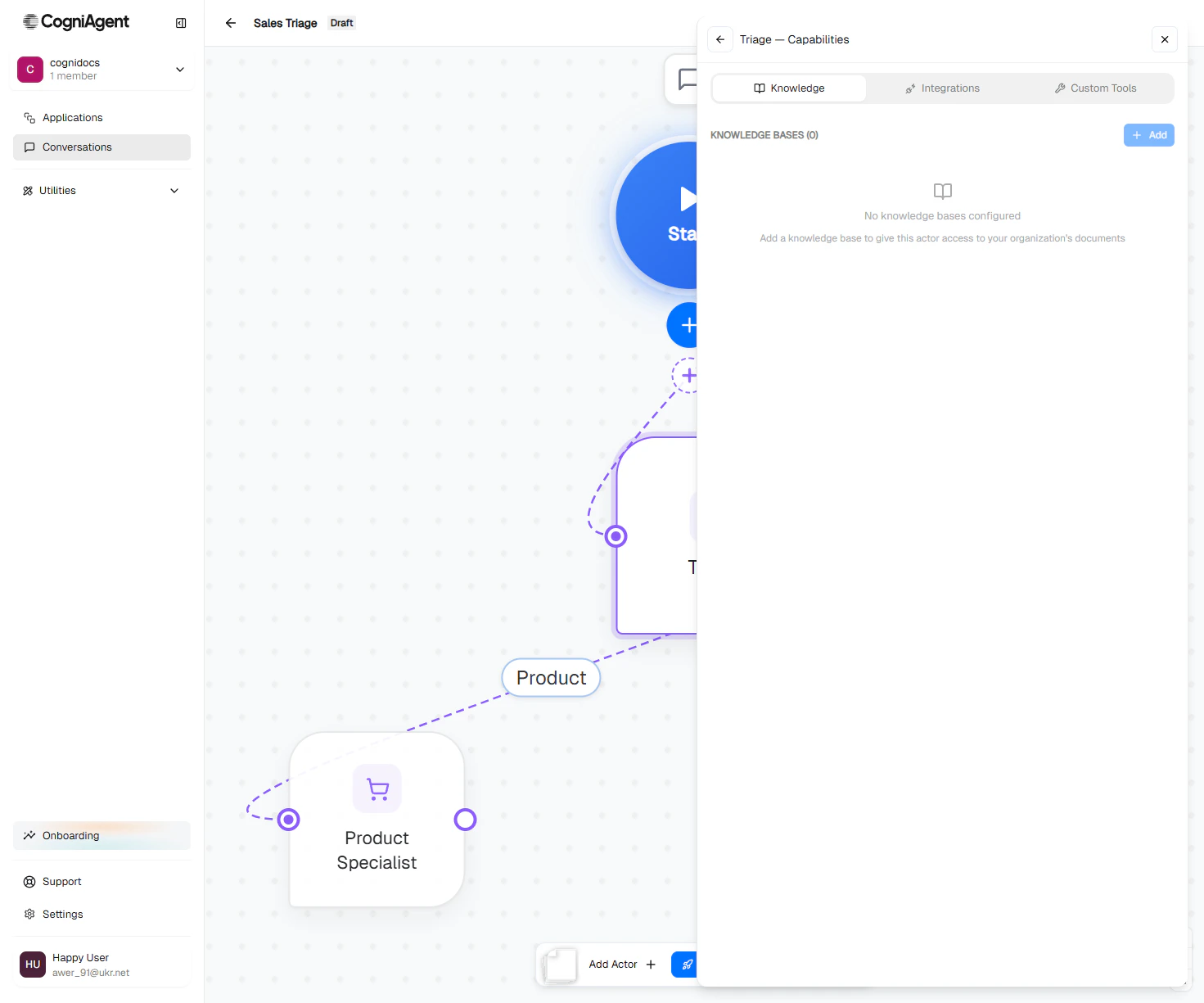 ## Knowledge bases
Pick a knowledge base from your workspace's [Knowledge Base](/features/knowledge-base) library. The actor gets a `search_knowledge_base` tool it can call whenever it needs to look something up.
Fields when you add a KB:
| Field | What it does |
| ------------------- | ---------------------------------------------------------------------------------- |
| **Knowledge Base** | Pick from the dropdown. |
| **Description** | One-line note about *when* this actor should search it. The LLM uses it to decide. |
| **Active** | Toggle to enable / disable without removing. |
| **Apply Reranking** | More accurate but slightly slower searches. Default on. |
Add **multiple** knowledge bases per actor when they serve different purposes. The LLM sees them as separate tools (e.g. `search_product_docs` and `search_policy_documents`) and picks the right one.
## Integrations
Integrations give an actor the ability to *act* on connected apps.
## Knowledge bases
Pick a knowledge base from your workspace's [Knowledge Base](/features/knowledge-base) library. The actor gets a `search_knowledge_base` tool it can call whenever it needs to look something up.
Fields when you add a KB:
| Field | What it does |
| ------------------- | ---------------------------------------------------------------------------------- |
| **Knowledge Base** | Pick from the dropdown. |
| **Description** | One-line note about *when* this actor should search it. The LLM uses it to decide. |
| **Active** | Toggle to enable / disable without removing. |
| **Apply Reranking** | More accurate but slightly slower searches. Default on. |
Add **multiple** knowledge bases per actor when they serve different purposes. The LLM sees them as separate tools (e.g. `search_product_docs` and `search_policy_documents`) and picks the right one.
## Integrations
Integrations give an actor the ability to *act* on connected apps.
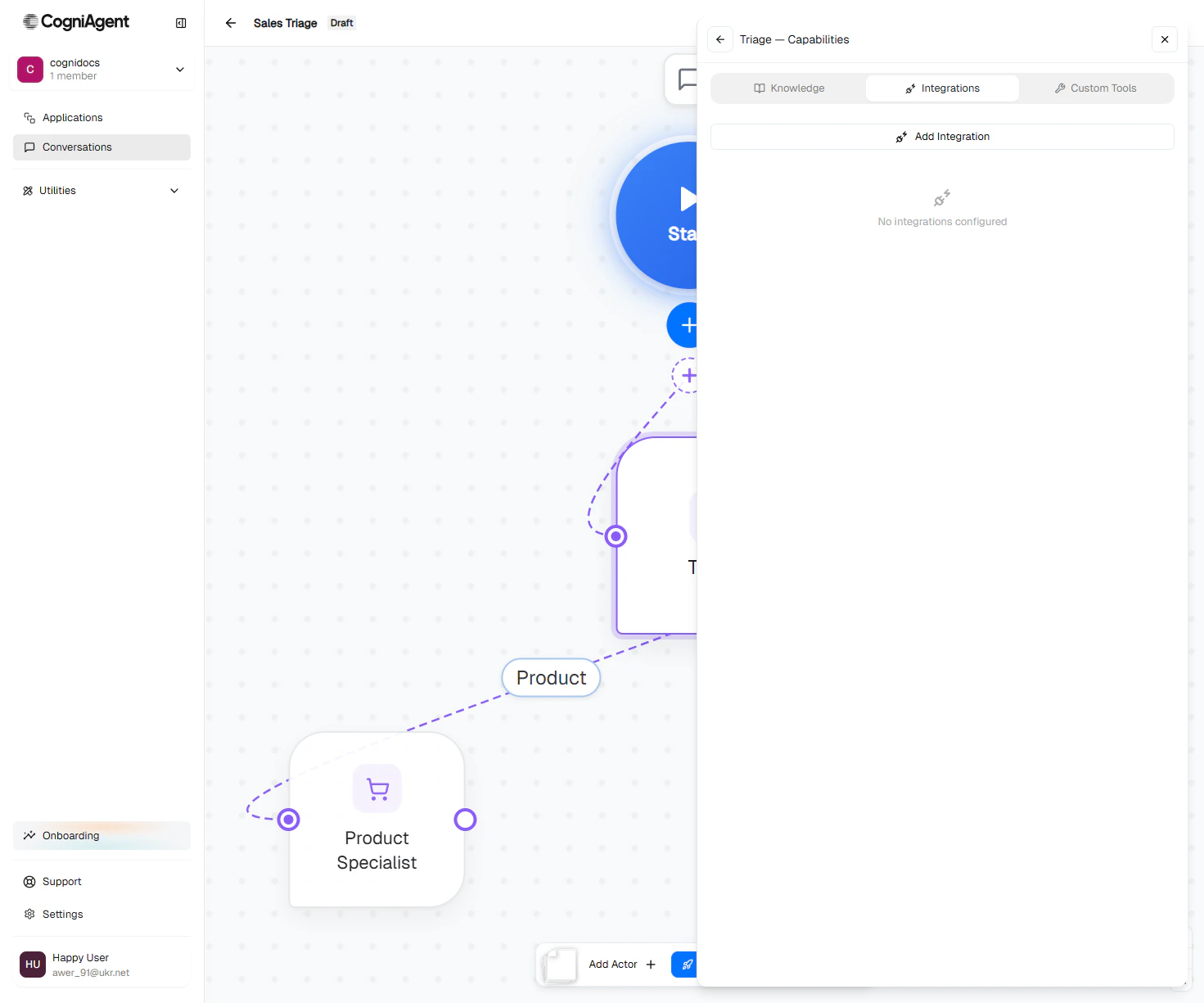 Three-step flow:
Browse the catalog (2,700+ apps). Search by name — Gmail, Slack, Salesforce, etc.
Three-step flow:
Browse the catalog (2,700+ apps). Search by name — Gmail, Slack, Salesforce, etc.
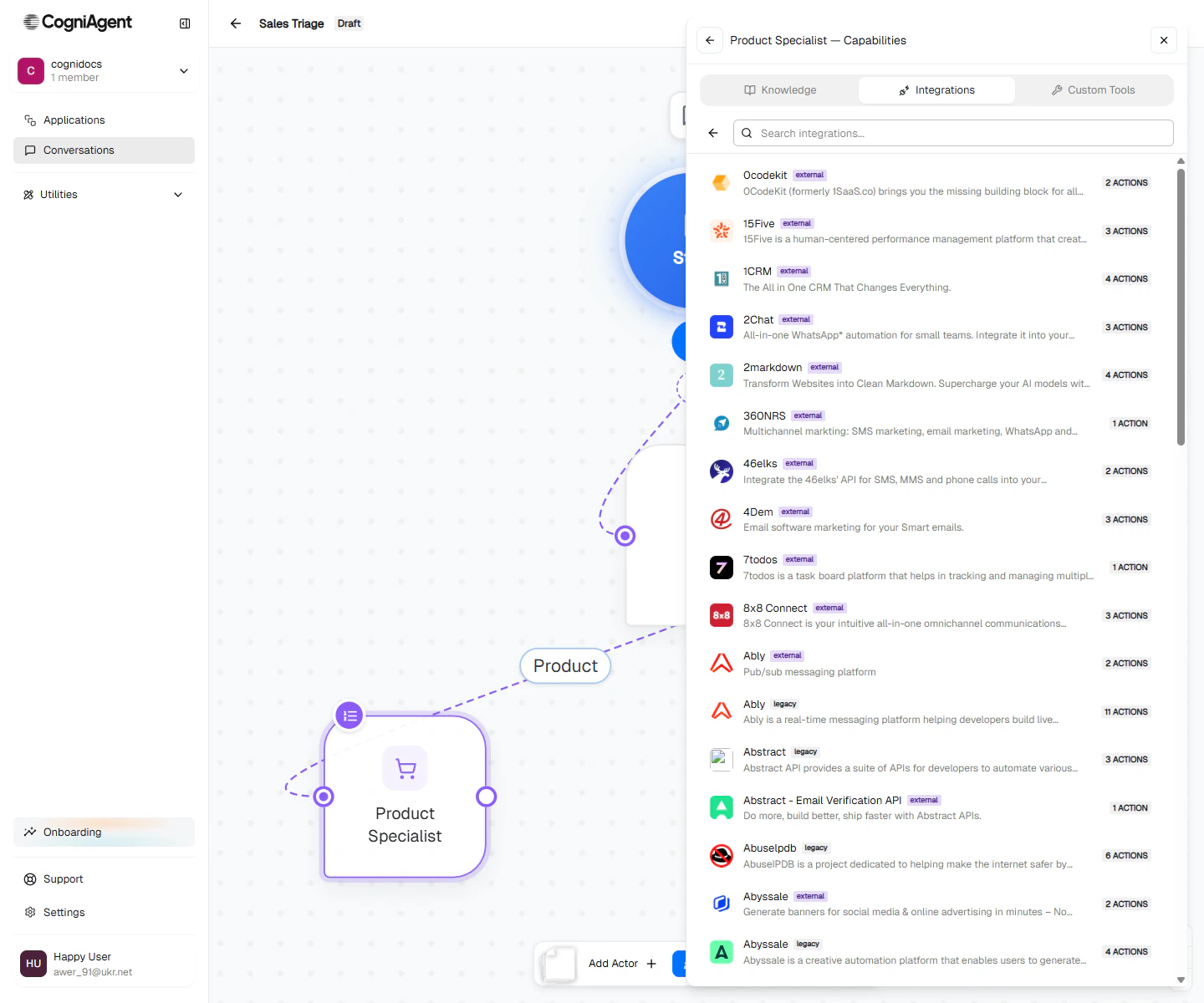
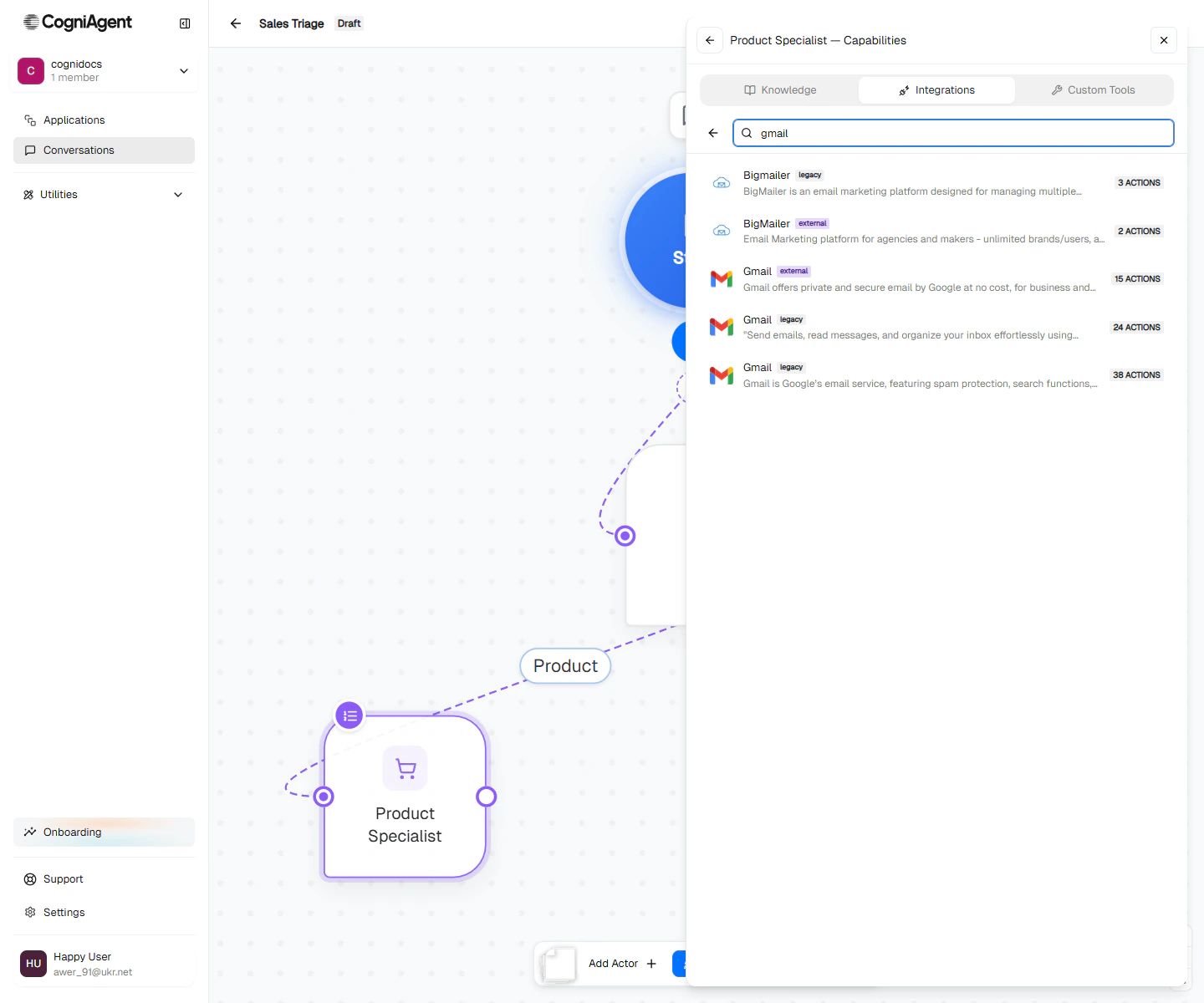 Choose an existing connection or set up a new one. Connections live in the [Integrations](/features/integrations) page of your workspace.
Each app has many actions. You choose which ones this actor can call.
For example, Gmail has `send-email`, `list-messages`, `search-threads`, etc. If this actor only ever needs to send emails, give it only `send-email`. Narrow scope = safer behaviour.
Choose an existing connection or set up a new one. Connections live in the [Integrations](/features/integrations) page of your workspace.
Each app has many actions. You choose which ones this actor can call.
For example, Gmail has `send-email`, `list-messages`, `search-threads`, etc. If this actor only ever needs to send emails, give it only `send-email`. Narrow scope = safer behaviour.
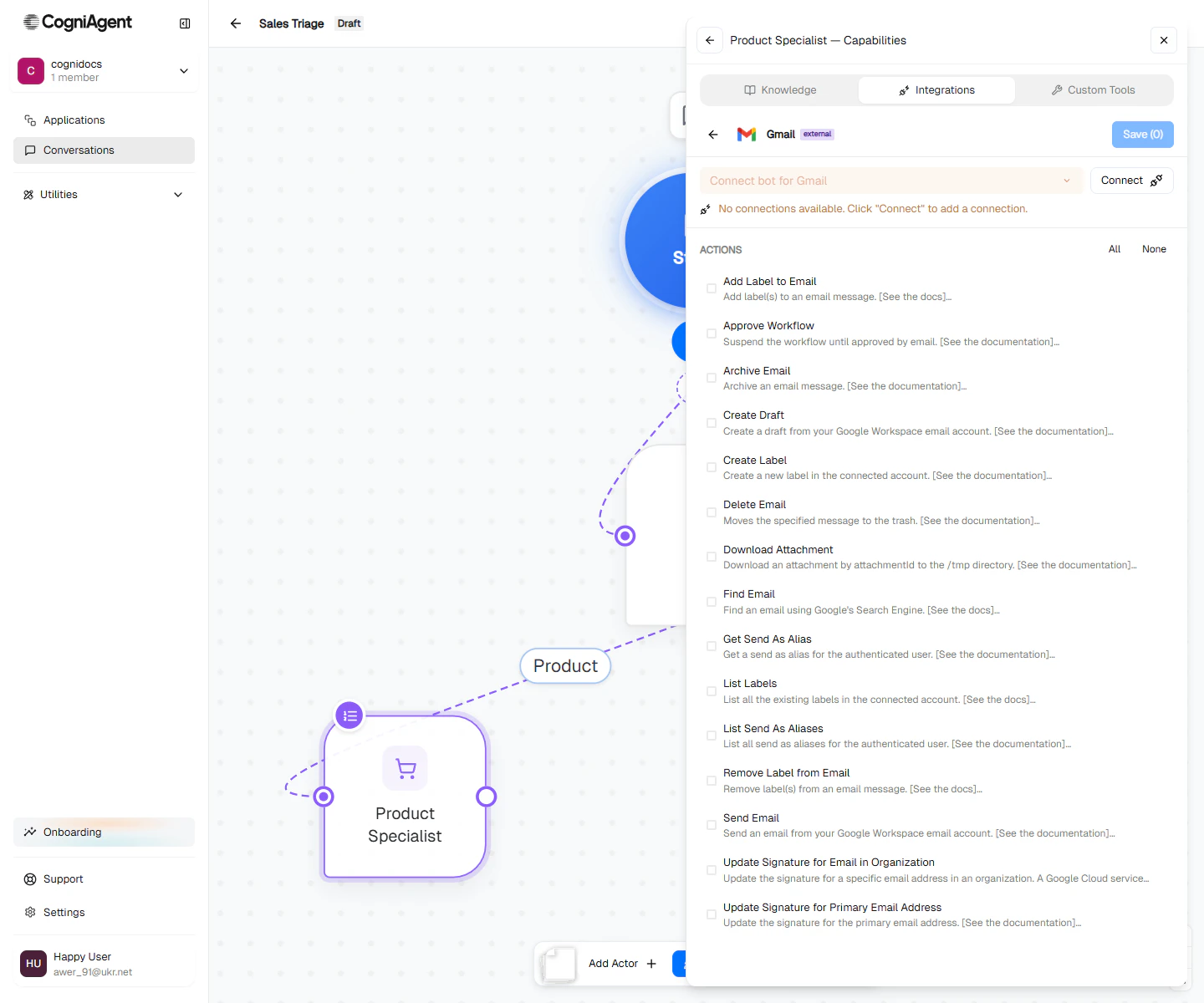 Each chosen action becomes a named tool the actor can call (e.g. `send-email`). The LLM picks the tool's arguments — `to`, `subject`, `body` — based on the actor's instructions and the conversation context.
### A worked example
A "Send confirmation email" actor:
* **Capability:** Gmail → connection `Acme Gmail` → action `send-email`.
* **Instructions:** *"After collecting the user's name, email, and request, send them a confirmation email summarizing what we've captured. Use the send-email tool."*
When the user has provided their details, the actor calls `send-email` with `to=`, `subject="We received your request"`, and a body containing the summary. The email lands in the user's inbox; the actor confirms in chat.
## Custom tools
Three types:
Each chosen action becomes a named tool the actor can call (e.g. `send-email`). The LLM picks the tool's arguments — `to`, `subject`, `body` — based on the actor's instructions and the conversation context.
### A worked example
A "Send confirmation email" actor:
* **Capability:** Gmail → connection `Acme Gmail` → action `send-email`.
* **Instructions:** *"After collecting the user's name, email, and request, send them a confirmation email summarizing what we've captured. Use the send-email tool."*
When the user has provided their details, the actor calls `send-email` with `to=`, `subject="We received your request"`, and a body containing the summary. The email lands in the user's inbox; the actor confirms in chat.
## Custom tools
Three types:
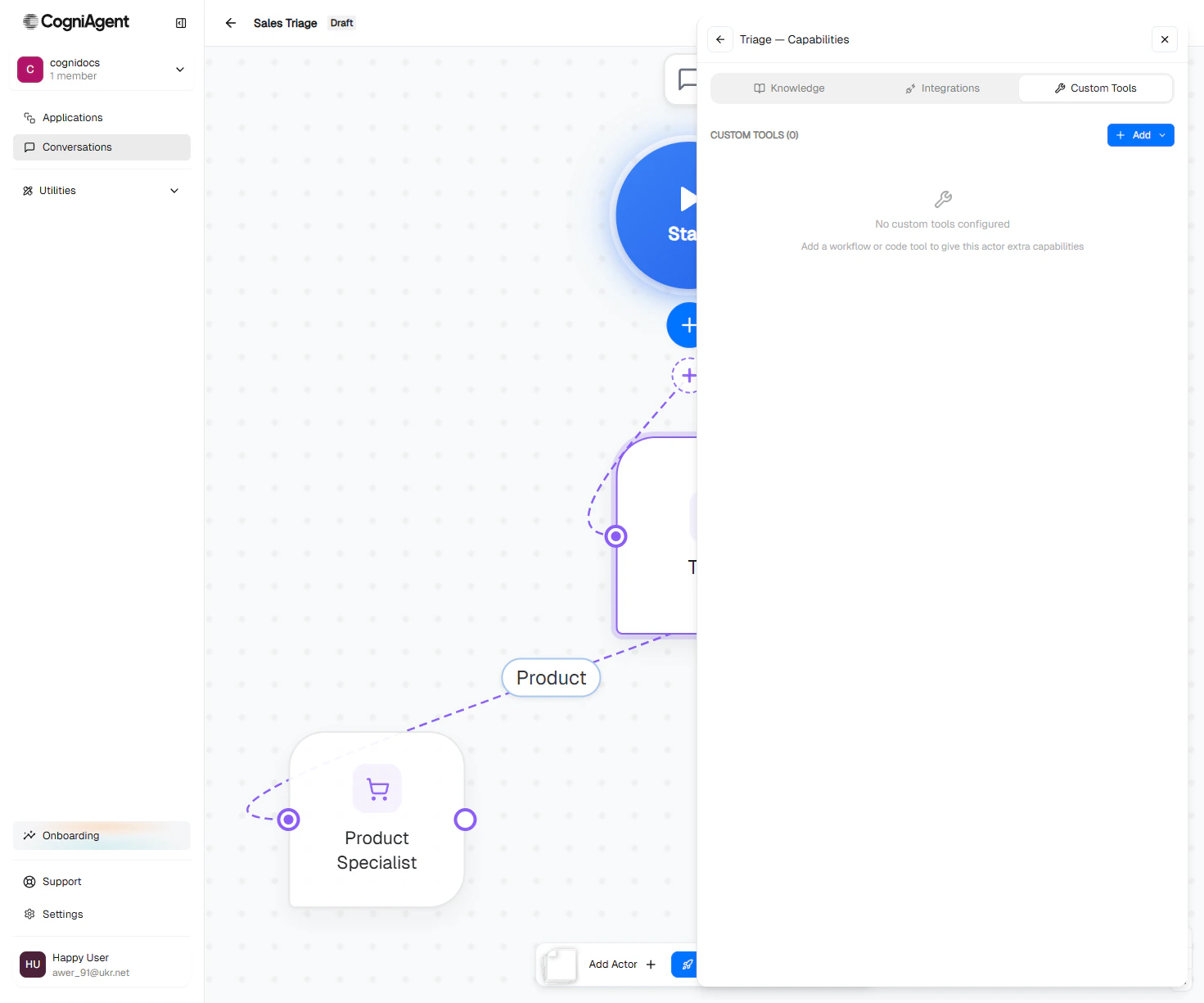 Click **Add** to pick which kind of custom tool to add:
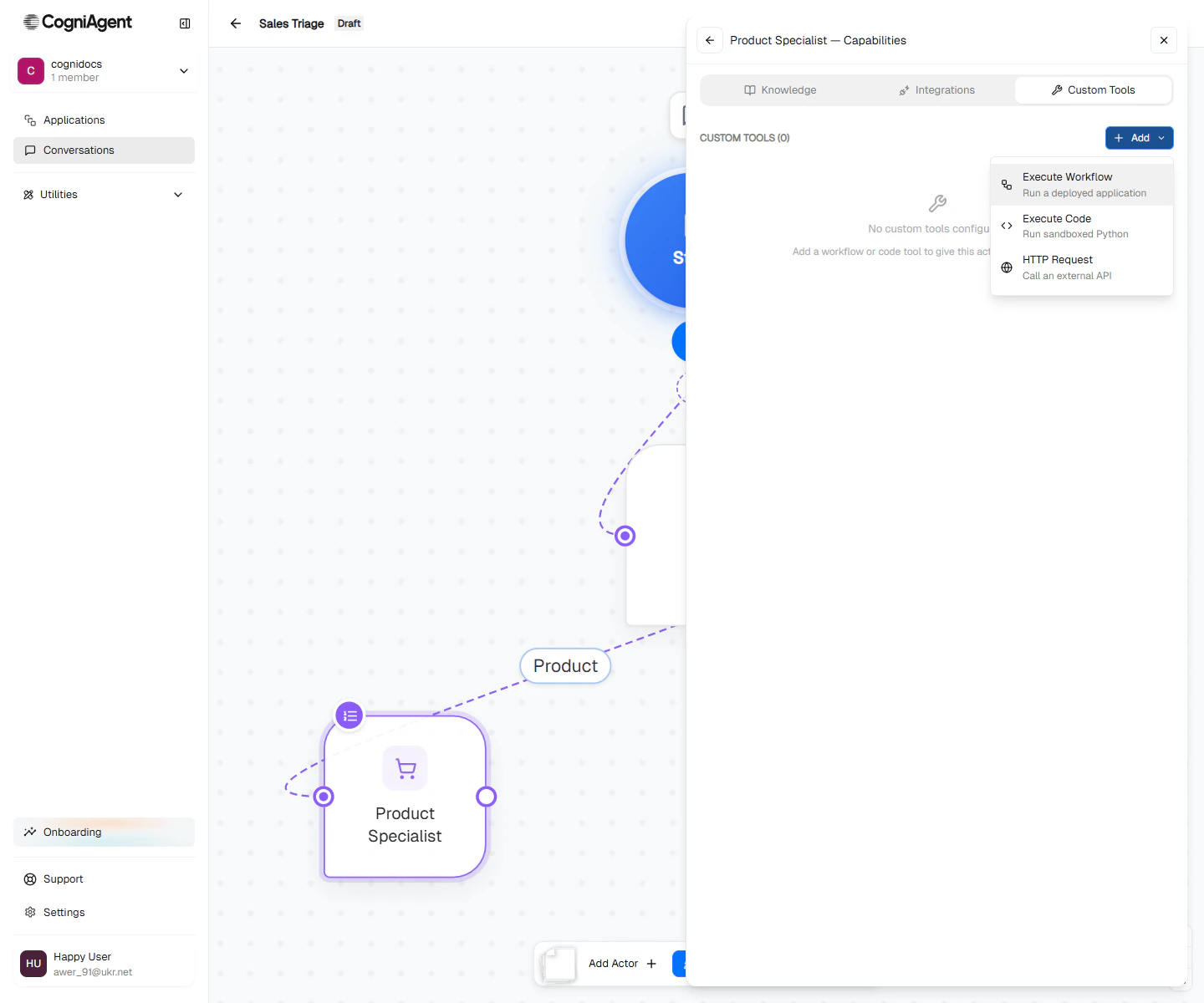 ### Execute Code
A Python snippet the actor can run. Sandboxed; preinstalled with common libraries.
```python theme={null}
output_data({
'refund_amount': args['monthly_price'] * args['months_remaining']
})
```
The LLM provides the `args` based on the conversation; the snippet returns structured data back.
**Best for:** calculations, formatting, data transformations.
### Execute Code
A Python snippet the actor can run. Sandboxed; preinstalled with common libraries.
```python theme={null}
output_data({
'refund_amount': args['monthly_price'] * args['months_remaining']
})
```
The LLM provides the `args` based on the conversation; the snippet returns structured data back.
**Best for:** calculations, formatting, data transformations.
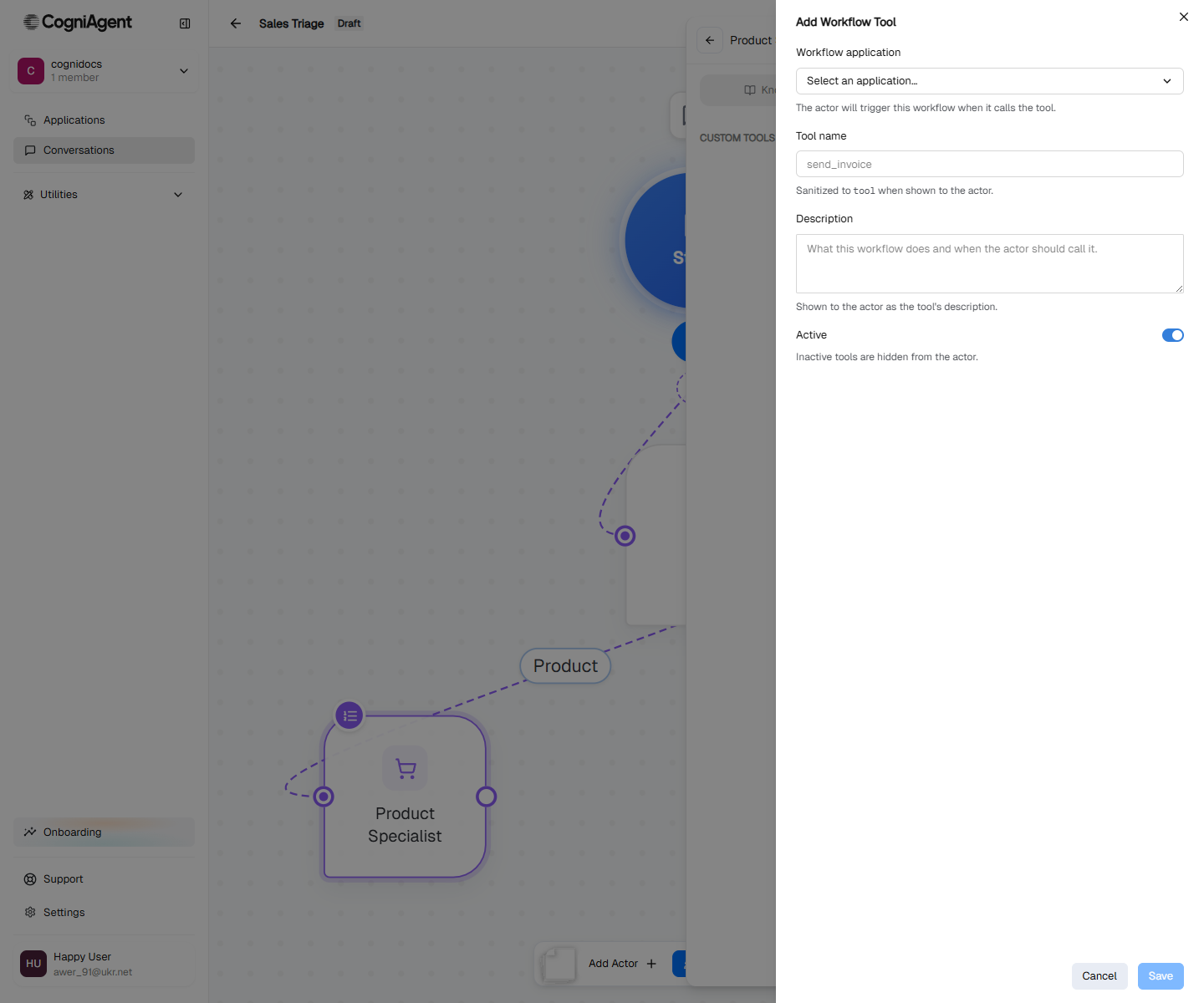
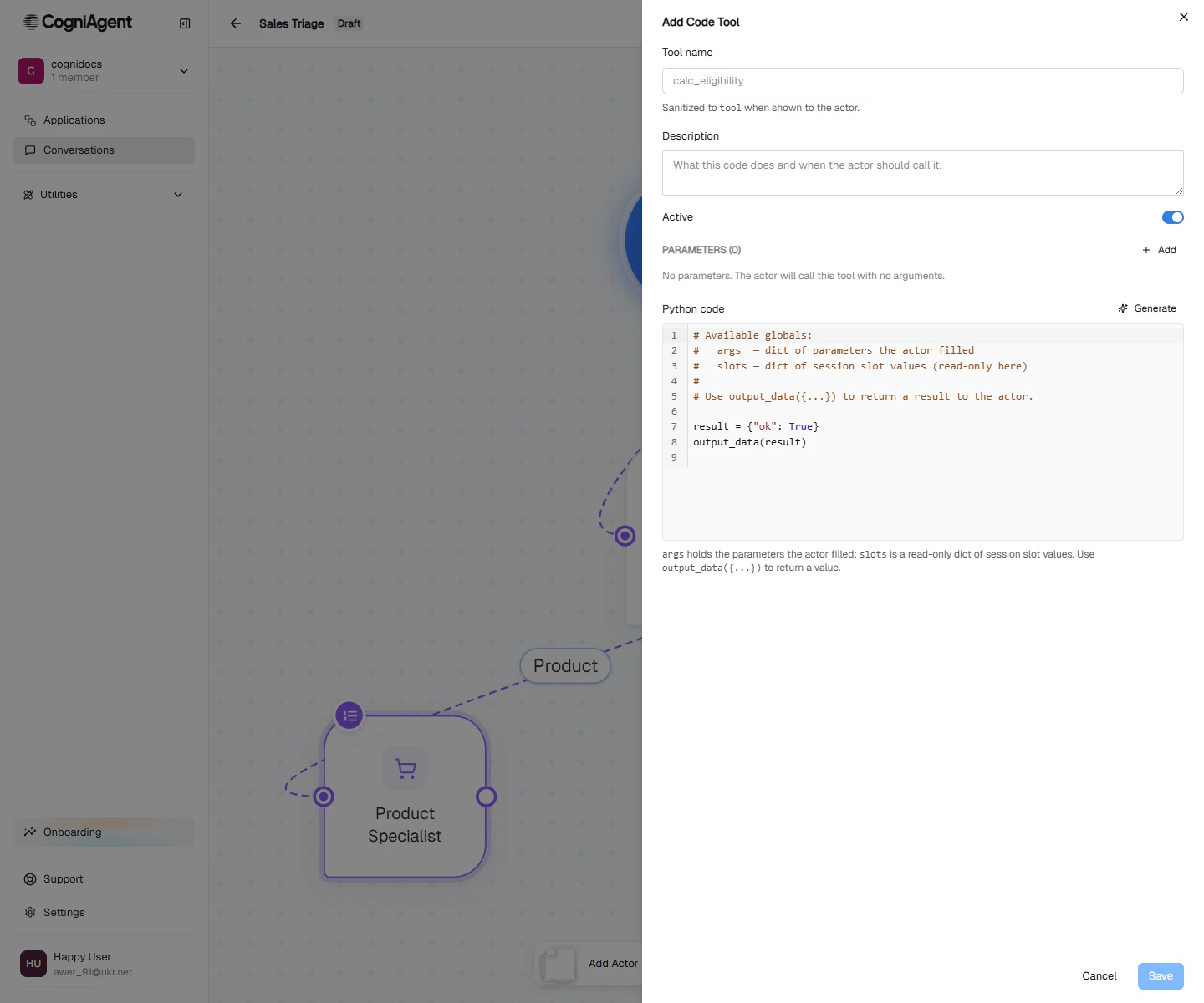 ### Execute Workflow
Kicks off another CogniAgent [workflow](/features/applications) by id. Optionally waits for it to finish and returns the result.
**Best for:** deterministic multi-step processes you've already built as workflows — refund processing, lead scoring, report generation.
### Execute Workflow
Kicks off another CogniAgent [workflow](/features/applications) by id. Optionally waits for it to finish and returns the result.
**Best for:** deterministic multi-step processes you've already built as workflows — refund processing, lead scoring, report generation.
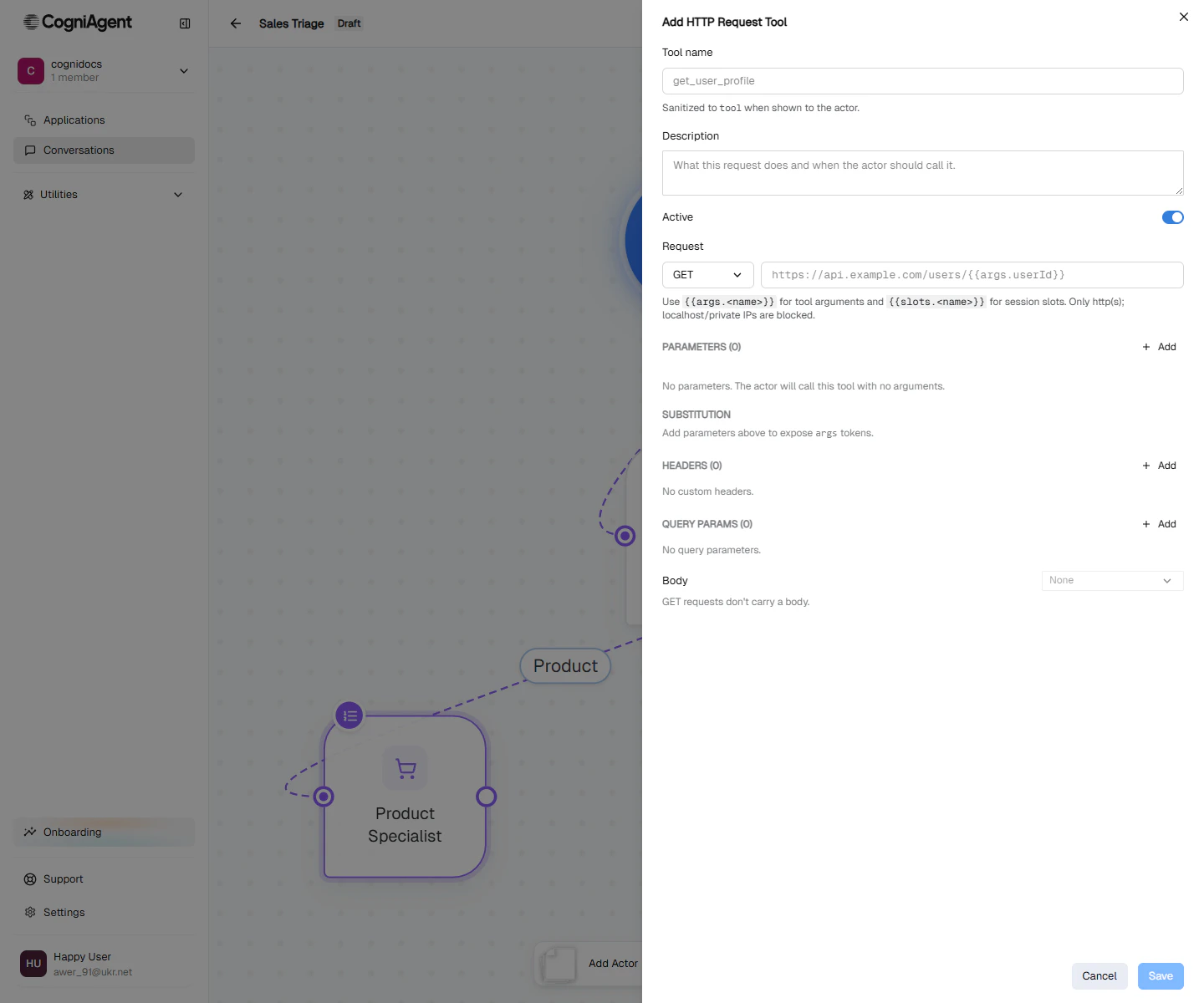
 ### HTTP Request
Make an HTTP call to an internal API or third-party endpoint. Configure method, URL, headers, body schema; parse the response.
**Best for:** lightweight integrations to APIs you control, or one-off endpoints that don't justify a full integration.
### HTTP Request
Make an HTTP call to an internal API or third-party endpoint. Configure method, URL, headers, body schema; parse the response.
**Best for:** lightweight integrations to APIs you control, or one-off endpoints that don't justify a full integration.
 ## Built-in tools every actor has
Independent of what you configure, every actor automatically has the routing tools its focus mode allows: `done` (signal completion), `hand off to a sibling`, `escalate to global`, `ask user to clarify`. You don't see these in the capabilities drawer — they're managed by the platform.
## Global vs per-actor capabilities
You can also configure capabilities at the **flow level** — every actor inherits them.
## Built-in tools every actor has
Independent of what you configure, every actor automatically has the routing tools its focus mode allows: `done` (signal completion), `hand off to a sibling`, `escalate to global`, `ask user to clarify`. You don't see these in the capabilities drawer — they're managed by the platform.
## Global vs per-actor capabilities
You can also configure capabilities at the **flow level** — every actor inherits them.
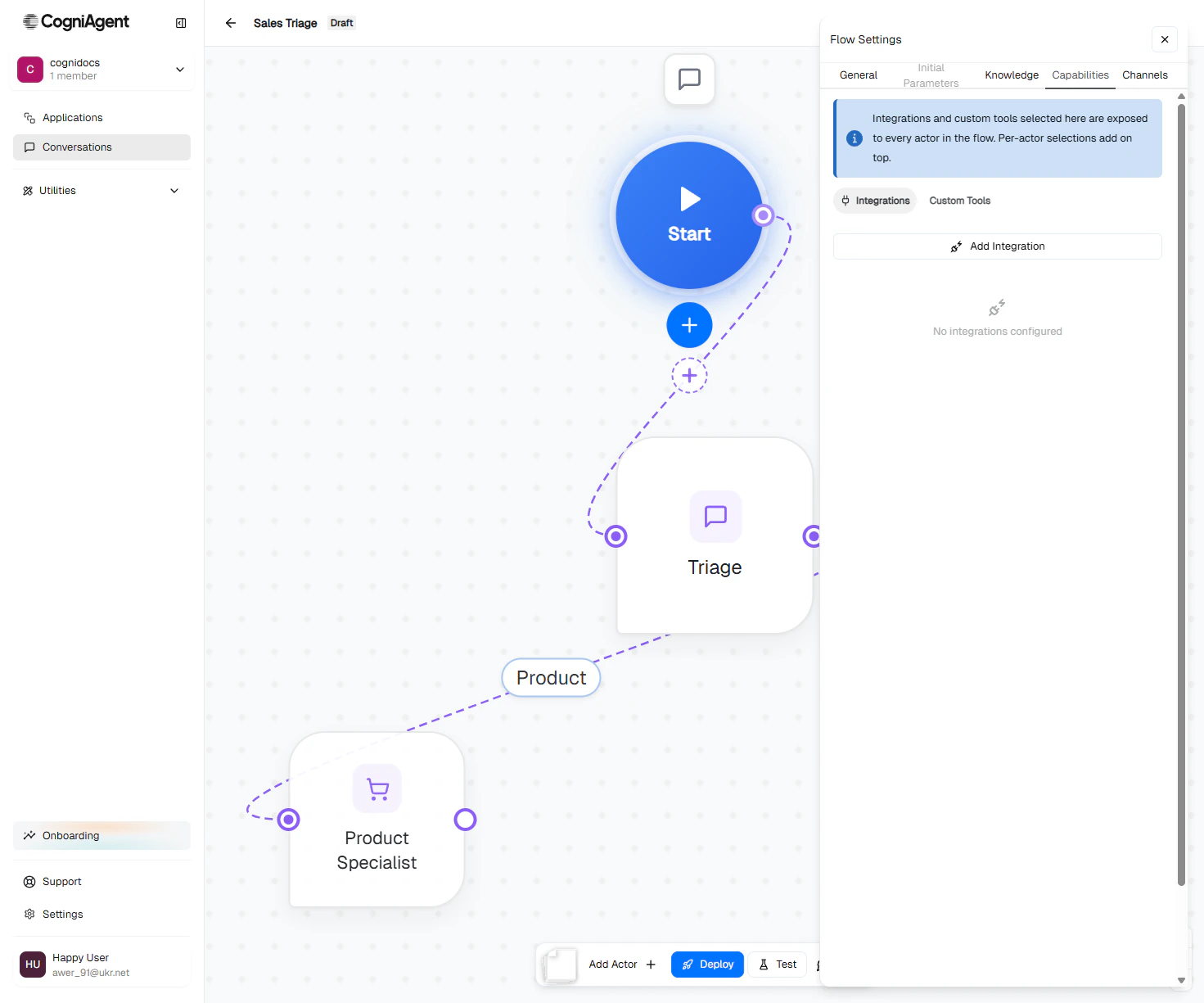 Use the flow-level **Capabilities** tab in Flow settings when:
* Every actor needs the same knowledge base (e.g. company FAQ).
* You're configuring an integration once that multiple actors will use (e.g. Slack notifier).
Use per-actor capabilities when:
* Only one actor needs the capability (e.g. only Returns Specialist needs Shopify access).
* Access should be restricted for privacy / scope reasons.
## Anti-patterns
**Don't expose every action from an app.** If you give an actor "all of Gmail", the LLM will call `delete-thread` when "delete this conversation" comes up in chat. Narrow scope to the actions the actor genuinely needs.
**Don't put behaviour into tool names.** Tool names should describe what they *do*, not when to use them — "when to use" goes in the actor's instructions. The LLM reads instructions, then picks tools.
## Next
Script an actor's behaviour step-by-step.
Flow-level context, knowledge, and integrations.
Use the flow-level **Capabilities** tab in Flow settings when:
* Every actor needs the same knowledge base (e.g. company FAQ).
* You're configuring an integration once that multiple actors will use (e.g. Slack notifier).
Use per-actor capabilities when:
* Only one actor needs the capability (e.g. only Returns Specialist needs Shopify access).
* Access should be restricted for privacy / scope reasons.
## Anti-patterns
**Don't expose every action from an app.** If you give an actor "all of Gmail", the LLM will call `delete-thread` when "delete this conversation" comes up in chat. Narrow scope to the actions the actor genuinely needs.
**Don't put behaviour into tool names.** Tool names should describe what they *do*, not when to use them — "when to use" goes in the actor's instructions. The LLM reads instructions, then picks tools.
## Next
Script an actor's behaviour step-by-step.
Flow-level context, knowledge, and integrations.