> ## Documentation Index
> Fetch the complete documentation index at: https://docs.cogniagent.ai/llms.txt
> Use this file to discover all available pages before exploring further.
# Routing edges
> Connect actors with edges and use activation prompts to tell the platform when each route should fire.
A routing edge connects one actor to another. The edge carries an **activation prompt** — a short description of when this route should fire. The platform uses it to decide which actor handles the next turn.
## Draw an edge
A connection handle appears below the actor.
Drop the handle on the target. An edge appears.
The **Activation Condition** panel opens on the right.
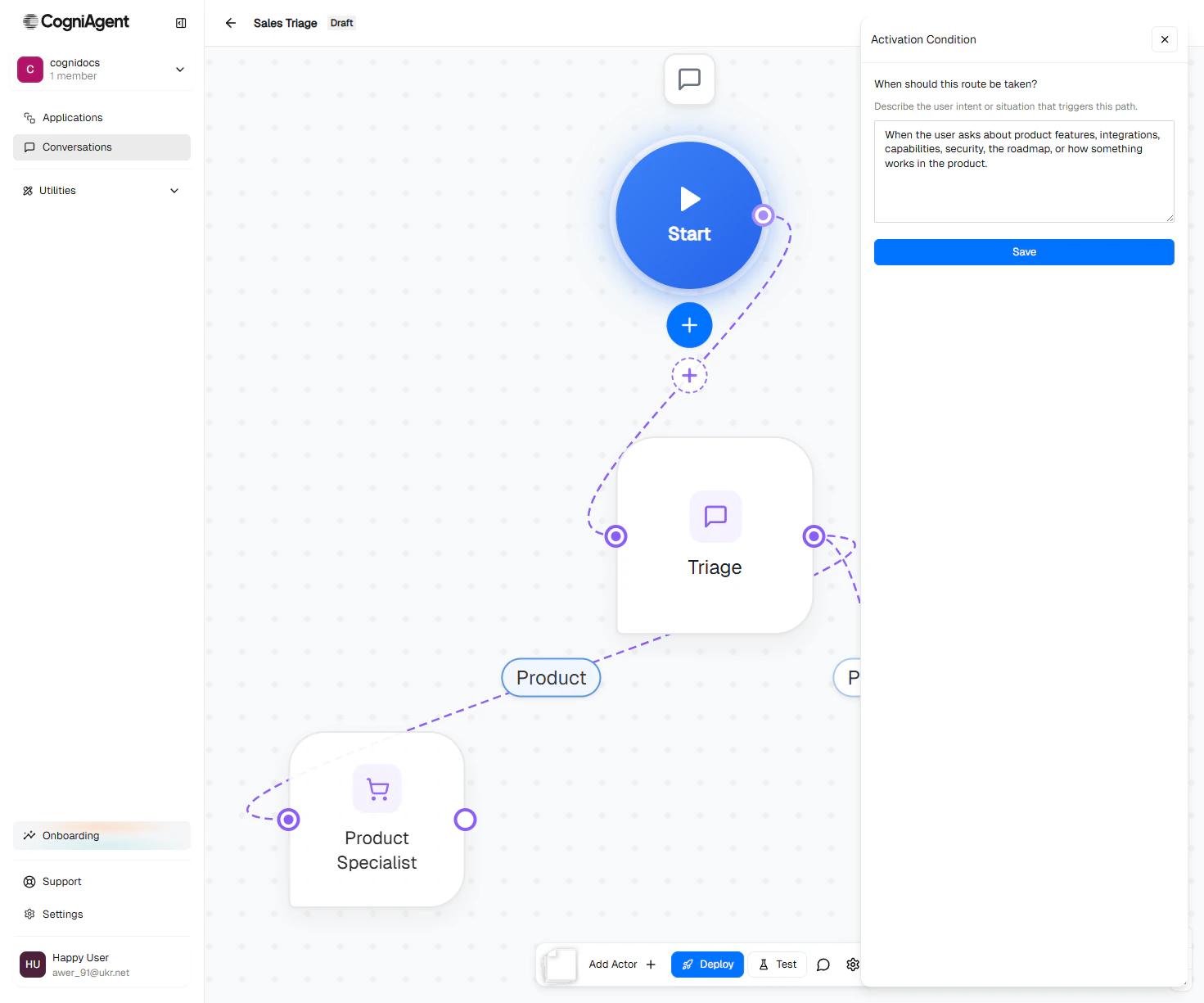 Describe the situation that triggers this route — in plain language, the way you'd describe it to a teammate.
> When the user asks about price, plans, seats, discounts, free trial, or wants a quote for an Enterprise contract.
A short label (1–3 words) is auto-generated from your prompt and shown on the edge. In this case: "Pricing".
## Writing good activation prompts
Activation prompts read like instructions to a smart teammate, not configuration. Think of them as the *trigger description* an account manager would give to their team.
### Good
> When the user reports a billing problem (a charge they don't recognise, a duplicate, a refund request) and has provided their account email.
> Whenever the conversation touches scheduling — picking a time, rescheduling, or asking when something is available.
> When the user wants to talk to a real person, expresses frustration, or asks about something outside our published policies.
### Less useful
> intent = billing
> if user said pricing
> classification: support\_tier\_2
The platform can route on the precise language; you don't need to compress to keywords.
## Multiple edges from the same actor
An actor can have many outgoing edges — one per route it should consider.
```mermaid theme={null}
flowchart LR
T[Triage] -->|Refunds| R[Refunds Specialist]
T -->|Product question| P[Product Specialist]
T -->|Pricing| Pr[Pricing Specialist]
T -->|Anything else| H[Human handoff]
```
When the routing layer evaluates the user's latest turn, it considers **all** outgoing edges from the current actor and picks the one whose activation prompt fits best.
**Don't write overlapping activation prompts on sibling edges.** If two edges both say "pricing or plans", the router will pick one nondeterministically. Make each prompt distinctive.
## Edge labels
Labels are short — 1 to 3 words. The platform auto-generates them from your activation prompt every time you save the prompt.
If the auto-generated label isn't what you want (e.g. "Sales" when you meant "Outbound Sales"), you can override it in the panel's label field. The activation prompt is the source of truth for routing — labels are only for canvas readability.
## What the routing layer actually does
When the user sends a message, the platform evaluates:
1. **Is the current actor's job done?** If the actor's [Definition of Done](/conversation-flows/build/configure-actor#definition-of-done) is satisfied — hand off.
2. **Should we hand off anyway?** Check each outgoing edge's activation prompt against the conversation. If one fits clearly, route to that target.
3. **Otherwise — stay on the current actor.**
You don't write any of this logic. The combination of edges + activation prompts + Definition of Done gives the platform everything it needs.
## Edge handles (advanced)
Most edges connect from an actor's **default output** to the target's **default input** — that's the only case for free-form actors.
When you build [scripted actor flows](/conversation-flows/build/step-builder) with `ai-condition` steps, edges have handle-specific outputs (`true` / `false`). You don't usually touch this directly — the step builder handles it for you.
## Delete an edge
Click the edge, then press Delete (or use the delete affordance in the panel).
## Reusing the Sales Triage flow
The running example throughout these docs uses two edges:
| From | To | Activation prompt |
| ------ | ------------------ | ------------------------------------------------------------------------------------------------------------------------------------ |
| Triage | Product Specialist | When the user asks about product features, integrations, capabilities, security, the roadmap, or how something works in the product. |
| Triage | Pricing Specialist | When the user asks about price, plans, seats, discounts, free trial, or wants a quote for an Enterprise contract. |
The Start → Triage edge needs no activation prompt — it's the default entry point.
## Next
Wire up knowledge bases, integrations, and custom tools.
Script an actor turn-by-turn for transactional flows.
Control how strictly each actor stays on-task.
Describe the situation that triggers this route — in plain language, the way you'd describe it to a teammate.
> When the user asks about price, plans, seats, discounts, free trial, or wants a quote for an Enterprise contract.
A short label (1–3 words) is auto-generated from your prompt and shown on the edge. In this case: "Pricing".
## Writing good activation prompts
Activation prompts read like instructions to a smart teammate, not configuration. Think of them as the *trigger description* an account manager would give to their team.
### Good
> When the user reports a billing problem (a charge they don't recognise, a duplicate, a refund request) and has provided their account email.
> Whenever the conversation touches scheduling — picking a time, rescheduling, or asking when something is available.
> When the user wants to talk to a real person, expresses frustration, or asks about something outside our published policies.
### Less useful
> intent = billing
> if user said pricing
> classification: support\_tier\_2
The platform can route on the precise language; you don't need to compress to keywords.
## Multiple edges from the same actor
An actor can have many outgoing edges — one per route it should consider.
```mermaid theme={null}
flowchart LR
T[Triage] -->|Refunds| R[Refunds Specialist]
T -->|Product question| P[Product Specialist]
T -->|Pricing| Pr[Pricing Specialist]
T -->|Anything else| H[Human handoff]
```
When the routing layer evaluates the user's latest turn, it considers **all** outgoing edges from the current actor and picks the one whose activation prompt fits best.
**Don't write overlapping activation prompts on sibling edges.** If two edges both say "pricing or plans", the router will pick one nondeterministically. Make each prompt distinctive.
## Edge labels
Labels are short — 1 to 3 words. The platform auto-generates them from your activation prompt every time you save the prompt.
If the auto-generated label isn't what you want (e.g. "Sales" when you meant "Outbound Sales"), you can override it in the panel's label field. The activation prompt is the source of truth for routing — labels are only for canvas readability.
## What the routing layer actually does
When the user sends a message, the platform evaluates:
1. **Is the current actor's job done?** If the actor's [Definition of Done](/conversation-flows/build/configure-actor#definition-of-done) is satisfied — hand off.
2. **Should we hand off anyway?** Check each outgoing edge's activation prompt against the conversation. If one fits clearly, route to that target.
3. **Otherwise — stay on the current actor.**
You don't write any of this logic. The combination of edges + activation prompts + Definition of Done gives the platform everything it needs.
## Edge handles (advanced)
Most edges connect from an actor's **default output** to the target's **default input** — that's the only case for free-form actors.
When you build [scripted actor flows](/conversation-flows/build/step-builder) with `ai-condition` steps, edges have handle-specific outputs (`true` / `false`). You don't usually touch this directly — the step builder handles it for you.
## Delete an edge
Click the edge, then press Delete (or use the delete affordance in the panel).
## Reusing the Sales Triage flow
The running example throughout these docs uses two edges:
| From | To | Activation prompt |
| ------ | ------------------ | ------------------------------------------------------------------------------------------------------------------------------------ |
| Triage | Product Specialist | When the user asks about product features, integrations, capabilities, security, the roadmap, or how something works in the product. |
| Triage | Pricing Specialist | When the user asks about price, plans, seats, discounts, free trial, or wants a quote for an Enterprise contract. |
The Start → Triage edge needs no activation prompt — it's the default entry point.
## Next
Wire up knowledge bases, integrations, and custom tools.
Script an actor turn-by-turn for transactional flows.
Control how strictly each actor stays on-task.