> ## Documentation Index
> Fetch the complete documentation index at: https://docs.cogniagent.ai/llms.txt
> Use this file to discover all available pages before exploring further.
# Step builder
> Script an actor's behaviour step-by-step when you need exact, predictable conversation flow.
By default, an actor is **free-form** — it reads its system prompt and decides what to say turn by turn. That's the right choice 80% of the time.
When you need exact control — a specific sequence of questions, a deterministic branch on a condition, a guaranteed handoff after data collection — switch to the **step builder**.
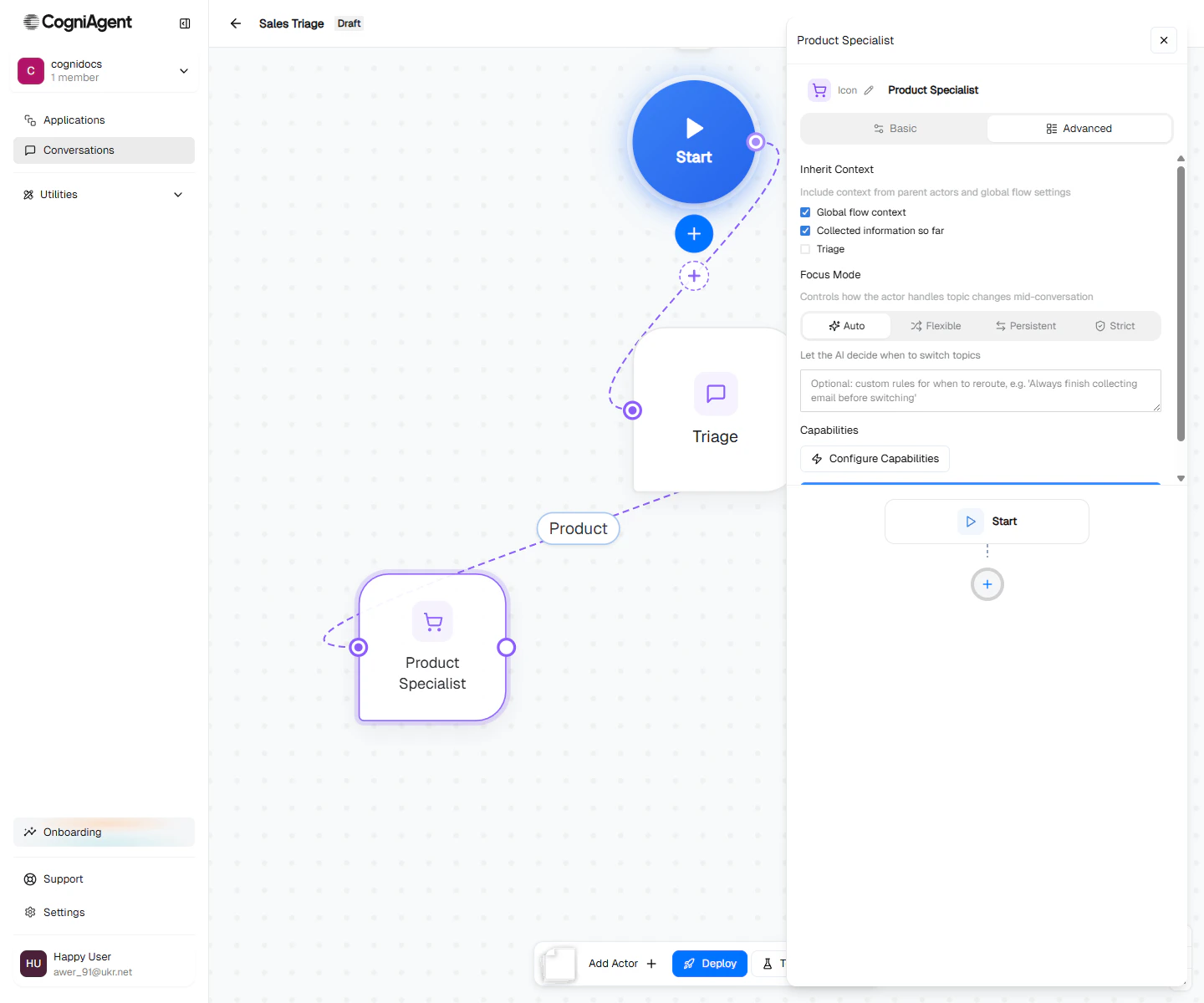
The step builder lives in the **Advanced** tab of an actor's config panel.
 ## Free-form vs scripted
The actor talks naturally. The LLM picks what to ask, how to phrase replies, when to use tools. You give it instructions and trust it to act on them.
Best for: open-ended conversations, support, qualifying questions.
The actor follows a strict sequence of steps you define. Each step has a specific behaviour and an explicit next step.
Best for: data intake forms, payment flows, identity verification, anything that must complete the same way every time.
## The step types
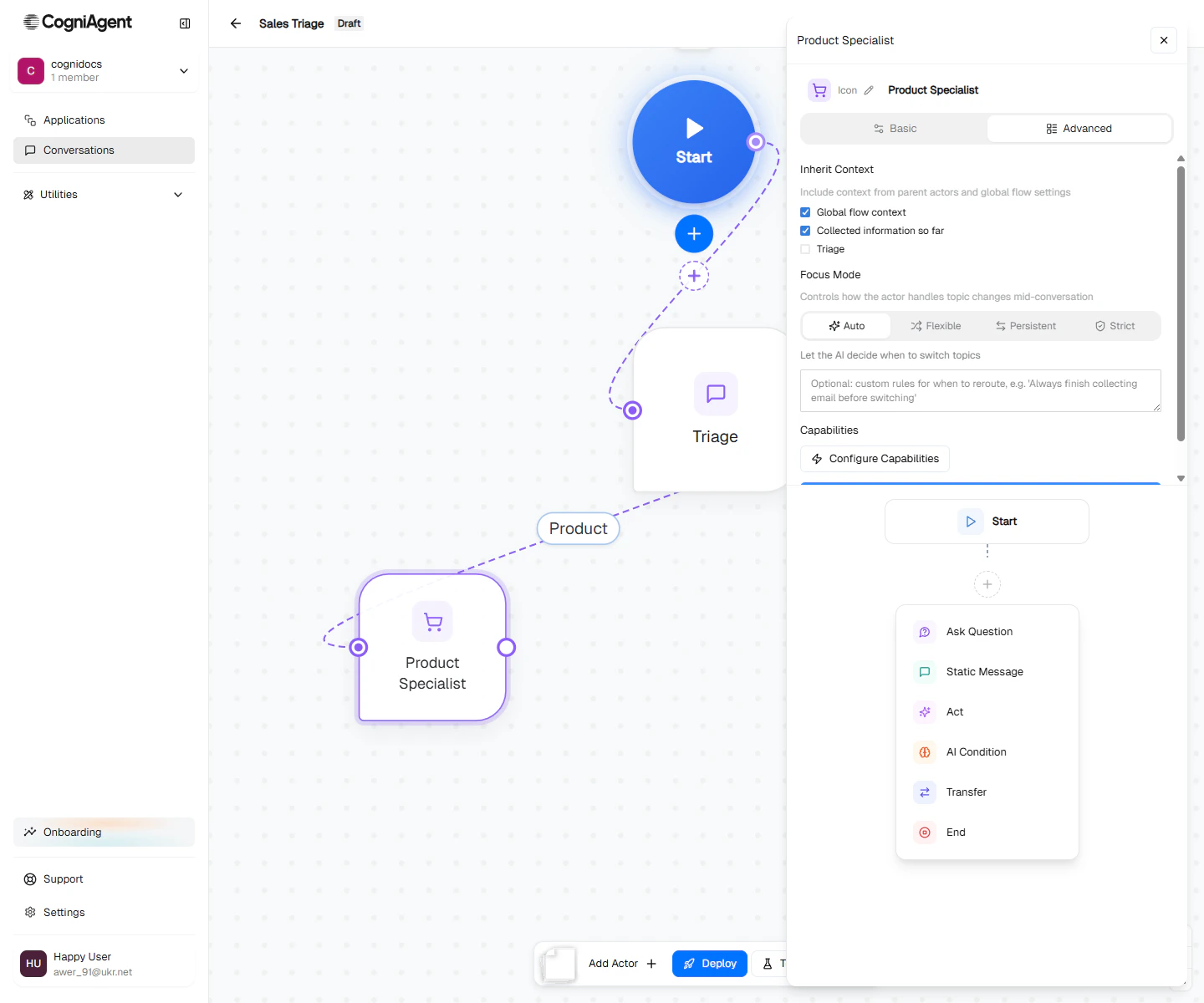
A scripted actor flow is built from these step types:
| Step | What it does |
| ------------------ | ------------------------------------------------------------------------------------------ |
| **Flow Start** | Auto-created entry marker. You don't configure it. |
| **Ask Question** | Prompt the user, wait for a reply, extract a value into a **slot**. |
| **Static Message** | Send a fixed, pre-written message. No LLM call. |
| **Act (AI)** | A single LLM instruction — "summarize what we've captured", "send the confirmation email". |
| **AI Condition** | A true/false branch decided by the LLM based on the conversation state. |
| **Switch** | Multi-branch route based on a variable's value. |
| **Perform Action** | Invoke an integration action explicitly. |
| **Transfer** | Hand off the conversation to another actor. |
| **End** | Terminate the scripted flow. The actor signals done. |
Click **Add step** to insert any of these between the Start marker and the End of your script:
## Free-form vs scripted
The actor talks naturally. The LLM picks what to ask, how to phrase replies, when to use tools. You give it instructions and trust it to act on them.
Best for: open-ended conversations, support, qualifying questions.
The actor follows a strict sequence of steps you define. Each step has a specific behaviour and an explicit next step.
Best for: data intake forms, payment flows, identity verification, anything that must complete the same way every time.
## The step types
A scripted actor flow is built from these step types:
| Step | What it does |
| ------------------ | ------------------------------------------------------------------------------------------ |
| **Flow Start** | Auto-created entry marker. You don't configure it. |
| **Ask Question** | Prompt the user, wait for a reply, extract a value into a **slot**. |
| **Static Message** | Send a fixed, pre-written message. No LLM call. |
| **Act (AI)** | A single LLM instruction — "summarize what we've captured", "send the confirmation email". |
| **AI Condition** | A true/false branch decided by the LLM based on the conversation state. |
| **Switch** | Multi-branch route based on a variable's value. |
| **Perform Action** | Invoke an integration action explicitly. |
| **Transfer** | Hand off the conversation to another actor. |
| **End** | Terminate the scripted flow. The actor signals done. |
Click **Add step** to insert any of these between the Start marker and the End of your script:
 ## Slots — the data backbone
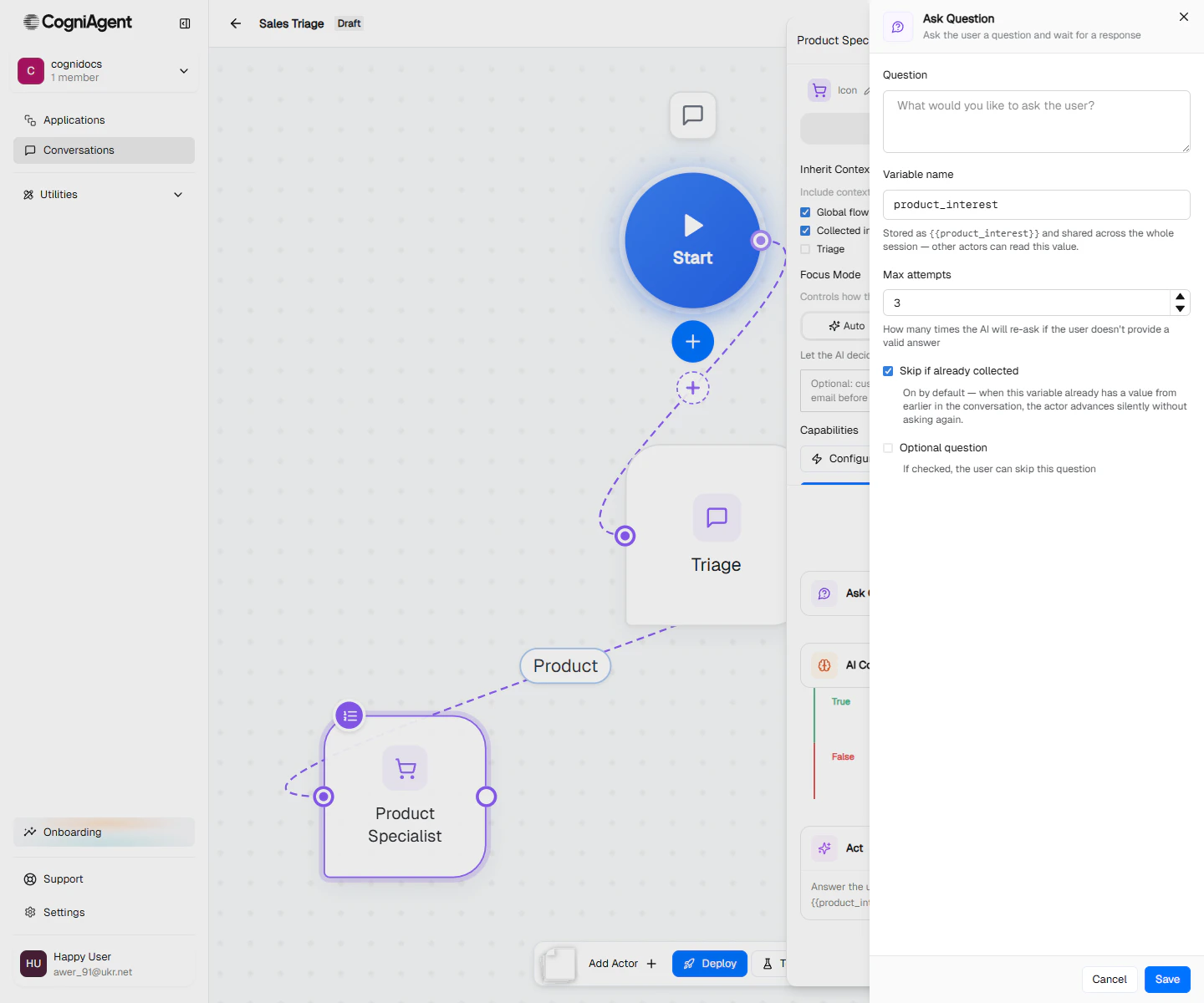
`Ask Question` steps save their answer to a **slot** — a session-scoped variable identified by a `variableName`.
Slots are:
* Visible to **every later step** in this actor's flow (via `{{variableName}}` substitution).
* Visible to the **actor's system prompt** (when *Collected information so far* is checked).
* Visible to **other actors** that the conversation hands off to. Slots survive transfers.
Two `ask-question` steps with the same `variableName` share the same slot. By default, if a slot is already filled, the second step is a silent no-op — useful for actors that pick up where another left off.
## Slots — the data backbone
`Ask Question` steps save their answer to a **slot** — a session-scoped variable identified by a `variableName`.
Slots are:
* Visible to **every later step** in this actor's flow (via `{{variableName}}` substitution).
* Visible to the **actor's system prompt** (when *Collected information so far* is checked).
* Visible to **other actors** that the conversation hands off to. Slots survive transfers.
Two `ask-question` steps with the same `variableName` share the same slot. By default, if a slot is already filled, the second step is a silent no-op — useful for actors that pick up where another left off.
 ## A worked example — collect details, then send email
```mermaid theme={null}
flowchart TB
S([Flow Start])
Q1[Ask Question
## A worked example — collect details, then send email
```mermaid theme={null}
flowchart TB
S([Flow Start])
Q1[Ask Question
variable: user_name
'What's your name?']
Q2[Ask Question
variable: user_email
'What's your email?']
Q3[Ask Question
variable: user_request
'How can we help?']
A[Act
'Send confirmation email using the send-email tool']
E([End])
S --> Q1 --> Q2 --> Q3 --> A --> E
```
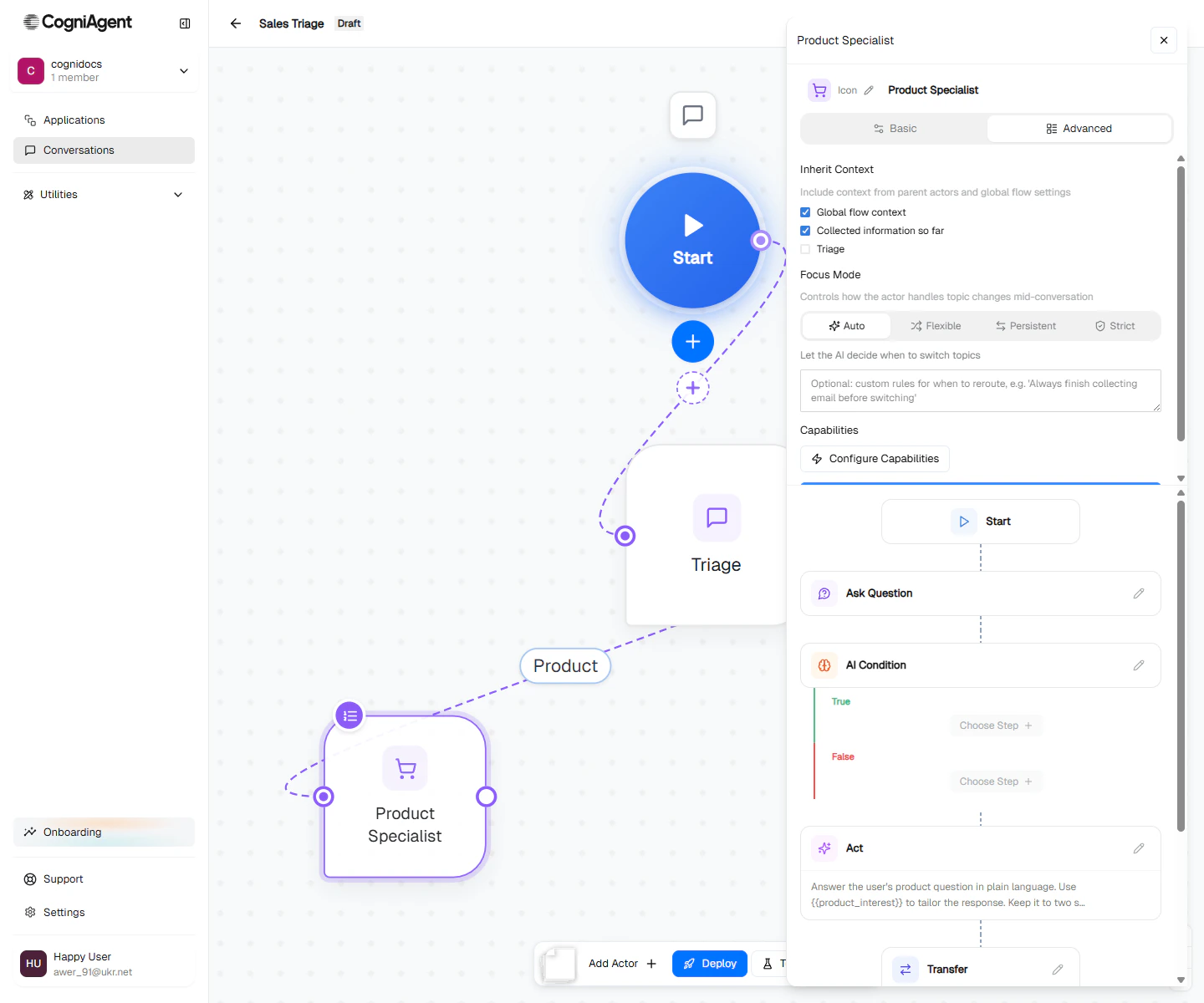
The `Act` step has access to all three slots via `{{user_name}}`, `{{user_email}}`, `{{user_request}}`. Its instruction:
> Send a confirmation email to `{{user_email}}` using the `send-email` tool. Set the subject to "We received your request" and the body to a short note thanking `{{user_name}}` and echoing back: `{{user_request}}`. After the tool call returns, reply to the user in chat saying the email is on its way.
The actor's Capabilities must include the Gmail `send-email` action for this to work.
## Branching with AI Condition
`AI Condition` evaluates the current conversation state and routes to a `true` or `false` branch.
```mermaid theme={null}
flowchart TB
S([Flow Start])
Q[Ask Question
'Is this an urgent issue?']
C{AI Condition
'Is the user's issue urgent?'}
U[Static Message
'I'll escalate immediately.']
UT[Transfer
→ Urgent Specialist]
R[Static Message
'I'll log this and follow up tomorrow.']
E([End])
S --> Q --> C
C -->|true| U --> UT
C -->|false| R --> E
```
The `AI Condition` step's prompt is plain language — *"Is the user's issue urgent? Look at the wording, urgency signals, business impact."* — and the LLM returns true or false.
 ## Free-form vs scripted — when to pick which
* The order in which information comes up is fluid.
* Users typically wander or change their minds.
* Most of the value is in the actor *responding* to what the user says.
* You're not sure yet — start with free-form, switch to scripted only when free-form misbehaves.
* You need every conversation to collect the **same** fields in roughly the same order.
* Specific actions (send a calendar invite, charge a card, log a ticket) must happen at specific points.
* Compliance or audit requires a deterministic trail.
* You've tried free-form and it's missing fields half the time.
## Anti-patterns
**Building a 20-step script.** If your scripted flow is more than \~8 steps, you're probably modelling something that's better as multiple actors with routing between them. Smaller actors = easier to debug and edit.
**Scripting open-ended conversations.** "Help the user figure out which plan they want" is not a script. Use free-form with good instructions instead.
## Next
The Basic tab covers free-form actors.
Wire tools that your steps can call.
## Free-form vs scripted — when to pick which
* The order in which information comes up is fluid.
* Users typically wander or change their minds.
* Most of the value is in the actor *responding* to what the user says.
* You're not sure yet — start with free-form, switch to scripted only when free-form misbehaves.
* You need every conversation to collect the **same** fields in roughly the same order.
* Specific actions (send a calendar invite, charge a card, log a ticket) must happen at specific points.
* Compliance or audit requires a deterministic trail.
* You've tried free-form and it's missing fields half the time.
## Anti-patterns
**Building a 20-step script.** If your scripted flow is more than \~8 steps, you're probably modelling something that's better as multiple actors with routing between them. Smaller actors = easier to debug and edit.
**Scripting open-ended conversations.** "Help the user figure out which plan they want" is not a script. Use free-form with good instructions instead.
## Next
The Basic tab covers free-form actors.
Wire tools that your steps can call.