> ## Documentation Index
> Fetch the complete documentation index at: https://docs.cogniagent.ai/llms.txt
> Use this file to discover all available pages before exploring further.
# Channels overview
> The supported channels for conversation flows — Widget, Email, Slack, Teams, Telegram, Phone — and how to wire them up.
A channel is *how* users reach your flow. Once you've built the flow, you connect at least one channel so real people can talk to it.
## Supported channels
Embeddable web chat for your website. No login required.
Gmail and Outlook. The flow reads incoming threads and replies in-thread.
Slack and Microsoft Teams. The flow lives in a channel or DM.
A Telegram bot you create with @BotFather. Responder-only.
Inbound and outbound voice calls via Twilio + LiveKit SIP.
## At-a-glance channel matrix
| Channel | Inbound (Responder) | Outbound (Initiator) | Needs an integration connection |
| ----------------- | ------------------- | -------------------- | --------------------------------- |
| Widget | ✓ | — | No |
| Gmail | ✓ | ✓ | Yes |
| Outlook | ✓ | ✓ | Yes |
| Slack | ✓ | ✓ | Yes |
| Teams | ✓ | ✓ | Yes |
| Telegram | ✓ | — | Yes (builtin Composio) |
| Phone | ✓ | ✓ | No (uses workspace phone numbers) |
| SMS | — | ✓ | Yes |
| WhatsApp Business | — | ✓ | Yes |
## Adding a channel
Click the **gear** icon in the toolbar, then the **Channels** tab.
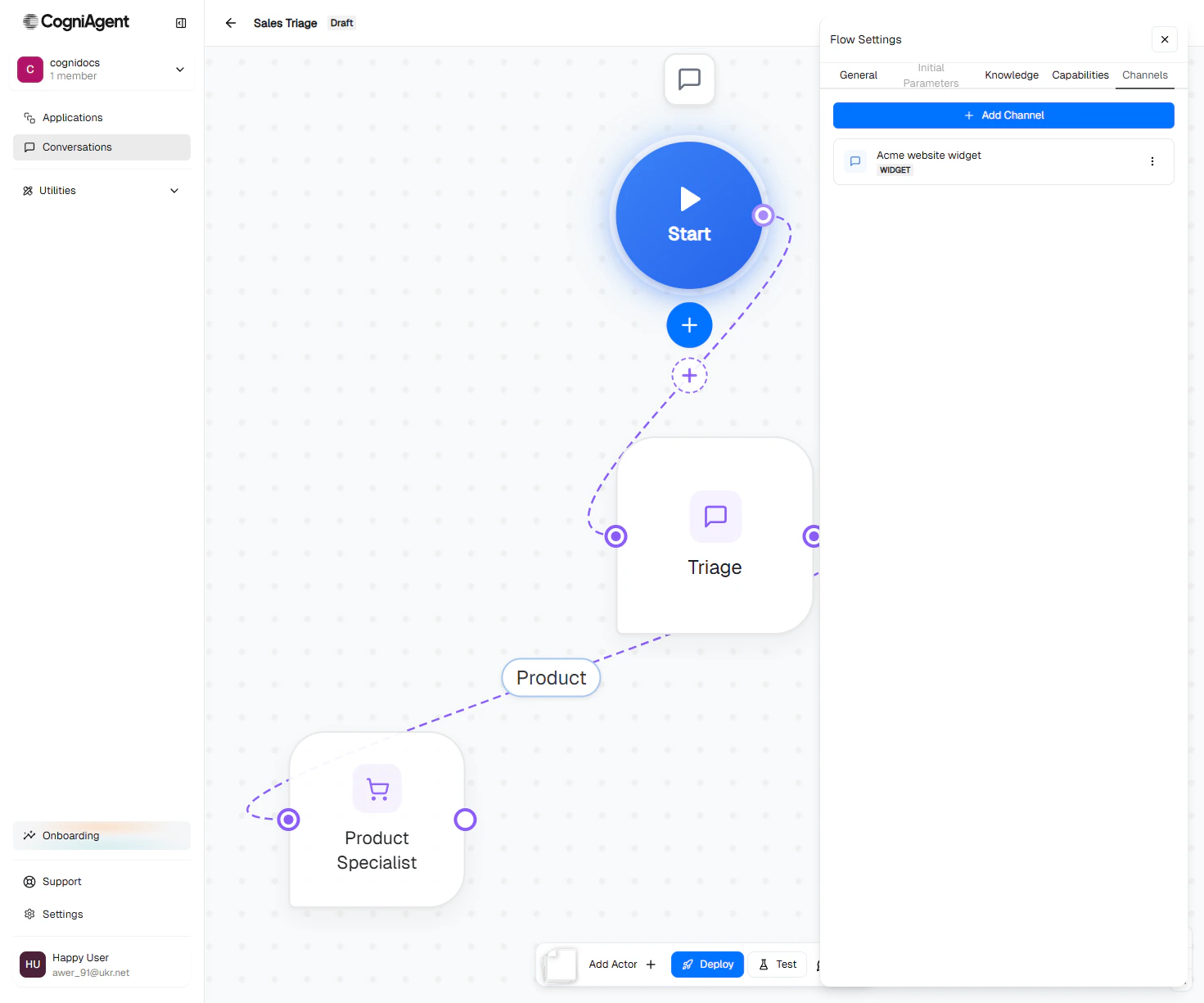 A picker opens. Choose the channel type.
Each channel has its own fields — see the channel-specific pages below.
Channels that need an integration (Gmail, Slack, etc.) ask you to pick a **connection** here. If you don't have a connection set up, configure one first in the [Integrations](/features/integrations) page.
The channel appears in the Start node's channel list. You can have multiple channels per flow.
## Multiple channels on one flow
A single flow can serve multiple channels at once — for example a customer support flow that handles inbound on **Gmail**, **Slack**, and the **Widget**, all routing into the same agents.
Each channel has its own configuration but they share:
* The same flow's actors and routing edges.
* The same global context, knowledge, and capabilities.
* The same conversation history view.
## Deploying the flow
Adding a channel doesn't make it live. You also need to **Deploy** the flow:
* Responder-mode flows: Deploy schedules listeners on all configured channels. New inbound messages create conversations.
* Initiator-mode flows: Deploy validates the channel configuration. Conversations are then started manually.
[Read more: Deploy →](/conversation-flows/operate/deploy)
## Validation before deploy
If a channel is mis-configured (missing connection, expired credentials, missing required fields), the deploy step refuses to schedule it and the channel shows an error badge. Fix the configuration and redeploy.
## What channels can do
| Capability | Widget | Email | Messaging | Telegram | Phone |
| ------------------------------ | ------------------ | ------------------ | ------------------ | ------------------ | ------------------ |
| Text replies | ✓ | ✓ | ✓ | ✓ | spoken via TTS |
| Rich content (images, buttons) | ✓ | links only | links + blocks | links + MarkdownV2 | — |
| Voice (audio in/out) | — | — | — | — | ✓ |
| Multi-turn conversation | ✓ | ✓ (threaded) | ✓ | ✓ | ✓ |
| Hand off to a human | ✓ via integrations | ✓ via integrations | ✓ via integrations | ✓ via integrations | ✓ via integrations |
## Next
Pick a channel:
Embed a chat on your website.
Gmail or Outlook.
Slack or Teams.
A bot users DM in Telegram.
Voice calls.
A picker opens. Choose the channel type.
Each channel has its own fields — see the channel-specific pages below.
Channels that need an integration (Gmail, Slack, etc.) ask you to pick a **connection** here. If you don't have a connection set up, configure one first in the [Integrations](/features/integrations) page.
The channel appears in the Start node's channel list. You can have multiple channels per flow.
## Multiple channels on one flow
A single flow can serve multiple channels at once — for example a customer support flow that handles inbound on **Gmail**, **Slack**, and the **Widget**, all routing into the same agents.
Each channel has its own configuration but they share:
* The same flow's actors and routing edges.
* The same global context, knowledge, and capabilities.
* The same conversation history view.
## Deploying the flow
Adding a channel doesn't make it live. You also need to **Deploy** the flow:
* Responder-mode flows: Deploy schedules listeners on all configured channels. New inbound messages create conversations.
* Initiator-mode flows: Deploy validates the channel configuration. Conversations are then started manually.
[Read more: Deploy →](/conversation-flows/operate/deploy)
## Validation before deploy
If a channel is mis-configured (missing connection, expired credentials, missing required fields), the deploy step refuses to schedule it and the channel shows an error badge. Fix the configuration and redeploy.
## What channels can do
| Capability | Widget | Email | Messaging | Telegram | Phone |
| ------------------------------ | ------------------ | ------------------ | ------------------ | ------------------ | ------------------ |
| Text replies | ✓ | ✓ | ✓ | ✓ | spoken via TTS |
| Rich content (images, buttons) | ✓ | links only | links + blocks | links + MarkdownV2 | — |
| Voice (audio in/out) | — | — | — | — | ✓ |
| Multi-turn conversation | ✓ | ✓ (threaded) | ✓ | ✓ | ✓ |
| Hand off to a human | ✓ via integrations | ✓ via integrations | ✓ via integrations | ✓ via integrations | ✓ via integrations |
## Next
Pick a channel:
Embed a chat on your website.
Gmail or Outlook.
Slack or Teams.
A bot users DM in Telegram.
Voice calls.