> ## Documentation Index
> Fetch the complete documentation index at: https://docs.cogniagent.ai/llms.txt
> Use this file to discover all available pages before exploring further.
# Flows and actors
> The four building blocks of every conversation flow — Start node, actors, routing edges, and the canvas.
A conversation flow is a small **team of AI agents** that work together to handle conversations. This page covers the four building blocks every flow uses.
## The four building blocks
The single entry point. Owns the channel configuration (Widget, Gmail, Slack, etc.). One per flow.
AI agents. Each has a name, an icon, a system prompt, a model, and a set of capabilities. You can have as many as you need.
Connections between actors. Each edge carries an **activation prompt** — a short description of *when* this route should fire.
The visual map where you arrange actors and draw edges. Drag, zoom, fit-to-view.
## Start node
Every flow has exactly one Start node. It owns the **channels** configuration — where users reach your flow:
* A Widget embedded on your website
* A Gmail or Outlook inbox the flow polls for new emails
* A Slack channel where the bot listens
* A Teams chat
* A phone number
A flow with no channels still works — you can [test it](/conversation-flows/operate/test-flow) and [start conversations manually](/conversation-flows/operate/start-conversation) — but it won't receive real inbound traffic until you wire at least one channel.
The Start node has no AI of its own. It doesn't reply to users; it just routes new conversations into the first actor.
## Actors
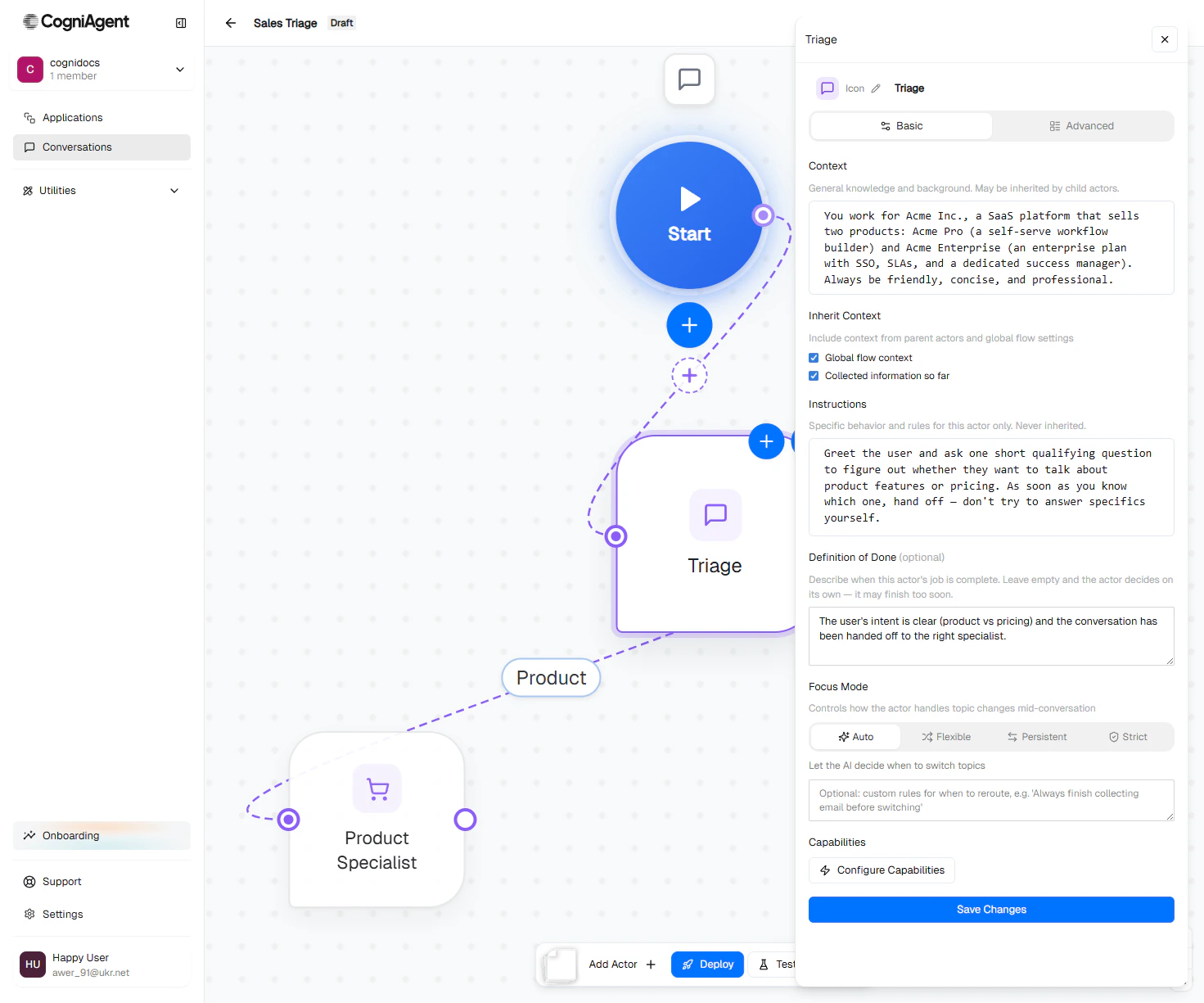
An actor is one AI agent. Each actor is independently configured:
| Setting | What it controls |
| ---------------------- | -------------------------------------------------------------------------------------------------------------------------------------- |
| **Name + icon** | Display label on the canvas. Visible in transcripts as the "speaker." |
| **Context** | Background knowledge this actor needs. Inheritable by child actors. |
| **Instructions** | What this specific actor should do, how to behave, when to hand off. Never inherited. |
| **Definition of Done** | A short rule for when the actor's job is complete. Triggers handoff. |
| **Focus Mode** | How strictly the actor sticks to its job when users change topics. See [Focus modes](/conversation-flows/concepts/focus-modes). |
| **Capabilities** | Knowledge bases, integration actions, and custom tools the actor can call. See [Capabilities](/conversation-flows/build/capabilities). |
 The model each actor uses is set at the workspace level. You don't pick a model per actor — that keeps the configuration simple and lets the workspace owner upgrade models centrally.
## Routing edges
Edges connect one actor to another. They're how you say "from here, the conversation can go there."
Each edge has an **activation prompt** — a plain-language description of when this route fires:
> When the user asks about price, plans, seats, discounts, free trial, or wants a quote for an Enterprise contract.
The platform reads the activation prompt during routing decisions, then **auto-generates a short label** (1–3 words) that appears on the edge. In this case: "Pricing".
The model each actor uses is set at the workspace level. You don't pick a model per actor — that keeps the configuration simple and lets the workspace owner upgrade models centrally.
## Routing edges
Edges connect one actor to another. They're how you say "from here, the conversation can go there."
Each edge has an **activation prompt** — a plain-language description of when this route fires:
> When the user asks about price, plans, seats, discounts, free trial, or wants a quote for an Enterprise contract.
The platform reads the activation prompt during routing decisions, then **auto-generates a short label** (1–3 words) that appears on the edge. In this case: "Pricing".
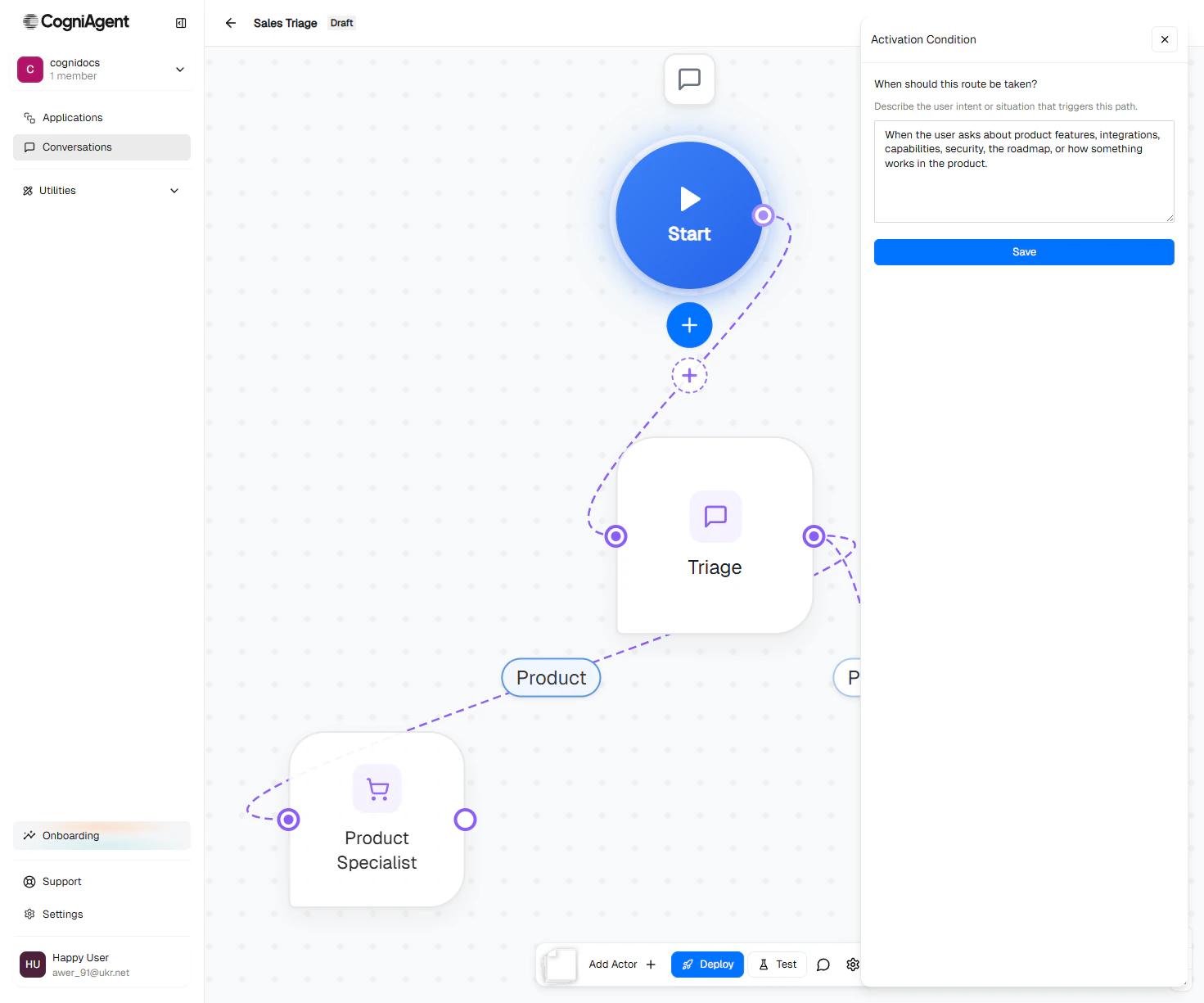 Write activation prompts as if you're describing the situation to a teammate, not configuring software. "When the user wants a refund and has provided their order number" is much more useful than "intent = refund".
### How routing actually works
At each turn, the platform asks:
1. Is the current actor still on-topic? If yes → keep talking.
2. If no, is there a sibling actor whose activation prompt fits? If yes → hand off.
3. Otherwise → escalate to the **global router**, which can pick any top-level actor or reply directly for cross-cutting questions.
You don't write any of this routing logic. The edges + activation prompts give the platform everything it needs.
## The canvas
The canvas is where you arrange the flow visually. It's a free-form drag-and-drop surface.
Write activation prompts as if you're describing the situation to a teammate, not configuring software. "When the user wants a refund and has provided their order number" is much more useful than "intent = refund".
### How routing actually works
At each turn, the platform asks:
1. Is the current actor still on-topic? If yes → keep talking.
2. If no, is there a sibling actor whose activation prompt fits? If yes → hand off.
3. Otherwise → escalate to the **global router**, which can pick any top-level actor or reply directly for cross-cutting questions.
You don't write any of this routing logic. The edges + activation prompts give the platform everything it needs.
## The canvas
The canvas is where you arrange the flow visually. It's a free-form drag-and-drop surface.
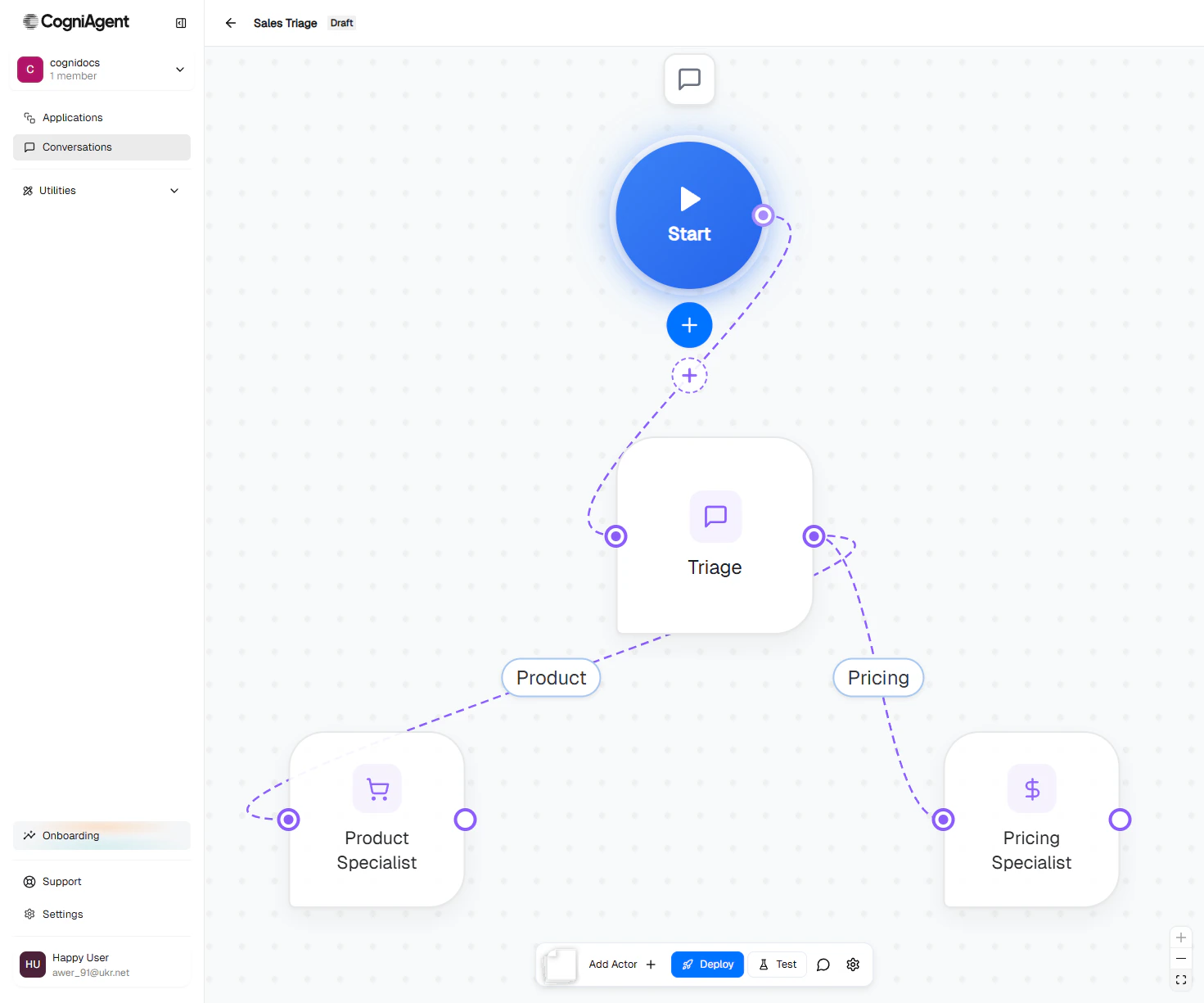 Canvas controls:
| Action | How |
| ------------------------- | -------------------------------------------------------------- |
| Pan | Click an empty area and drag |
| Zoom | Mouse wheel, or the **+** / **−** buttons in the control panel |
| Fit to view | Click the framing icon in the control panel |
| Move a node | Drag it |
| Open a node's config | Click it |
| Open an edge's activation | Click the edge label |
| Delete a node or edge | Select it, then press Delete |
## A simple worked example
The flow used throughout these docs:
```mermaid theme={null}
flowchart TB
Start([Start
Canvas controls:
| Action | How |
| ------------------------- | -------------------------------------------------------------- |
| Pan | Click an empty area and drag |
| Zoom | Mouse wheel, or the **+** / **−** buttons in the control panel |
| Fit to view | Click the framing icon in the control panel |
| Move a node | Drag it |
| Open a node's config | Click it |
| Open an edge's activation | Click the edge label |
| Delete a node or edge | Select it, then press Delete |
## A simple worked example
The flow used throughout these docs:
```mermaid theme={null}
flowchart TB
Start([Start
Widget channel])
Triage[Triage Agent
identifies intent]
Product[Product Specialist
features, integrations]
Pricing[Pricing Specialist
plans, quotes]
Start --> Triage
Triage -->|Product| Product
Triage -->|Pricing| Pricing
```
What happens when a user opens the widget and types *"how much does Acme Pro cost?"*:
1. The Start node receives the message and routes it into the first actor (Triage).
2. Triage's activation isn't matched on this turn — but the **Pricing** edge's activation prompt clearly fits. The platform routes directly to Pricing Specialist.
3. Pricing Specialist replies using the pricing info from global context.
You can see this trace in the [Test drawer](/conversation-flows/operate/test-flow) — it shows every routing decision inline.
## Next
How information moves between actors so the user never repeats themselves.
How strictly an actor sticks to its job when the user changes topics.
Initiator vs Responder — does your flow start conversations, or wait for them?
The full field-by-field guide to setting up an actor.