> ## Documentation Index
> Fetch the complete documentation index at: https://docs.cogniagent.ai/llms.txt
> Use this file to discover all available pages before exploring further.
# Sales Triage walkthrough
> A complete worked example — three AI agents, two routing edges, a widget channel, a deployed live conversation. Concepts in action.
This guide walks through the same flow used as the running example throughout these docs: a **Sales Triage** flow with three AI agents. By the end you'll have a deployed flow you can talk to, a test session that demonstrates routing, and a clear mental model for building your own multi-agent flows.
Estimated time: 20 minutes.
## What we're building
```mermaid theme={null}
flowchart TB
Start([Start
Acme website widget])
Triage[Triage Agent
greets, identifies intent]
Product[Product Specialist
features, integrations, security]
Pricing[Pricing Specialist
plans, quotes, free trial]
Start --> Triage
Triage -->|Product| Product
Triage -->|Pricing| Pricing
```
A user opens the chat widget on `acme.com`, asks a question, gets routed to the right specialist, gets an answer that uses the company's own context.
## Step 1 — Create the flow
From the workspace sidebar, click **Conversations** → **New Flow**. A blank flow opens.
Double-click "Untitled Flow" at the top and rename to **Sales Triage**.
## Step 2 — Set the global context
Every actor will inherit this. We write it once.
Click the **gear** icon in the bottom-right toolbar.
In the **Global Context** field:
```
You work for Acme Inc., a SaaS platform that sells two products:
- Acme Pro — a self-serve workflow builder, $49/seat/month, 14-day free trial.
- Acme Enterprise — adds SSO, SLAs, a dedicated success manager, and audit
logs. Custom pricing, annual contract.
Always be friendly, concise, and professional.
```
Click **Save Changes**, then close the panel.
## Step 3 — Create the Triage agent
In the bottom toolbar. Name it **Triage** and click **Create**.
Triage appears on the canvas, connected from Start.
The right-side panel opens.
| Field | Value |
| ---------------------- | ------------------------------------------------------------------------------------------------------------------------------------------------------------------------------------------------------------------- |
| **Context** | *Leave blank.* It inherits global context. |
| **Instructions** | `Greet the user and ask one short qualifying question to figure out whether they want to talk about product features or pricing. As soon as you know which one, hand off — don't try to answer specifics yourself.` |
| **Definition of Done** | `The user's intent is clear (product vs pricing) and the conversation has been handed off to the right specialist.` |
Click **Save Changes**.
## Step 4 — Create the two specialists
Repeat the Add Actor flow twice.
| Field | Value |
| ---------------- | ------------------------------------------------------------------------------------------------------------------------------------------------------------------ |
| **Name** | Product Specialist |
| **Context** | `You are the product expert for Acme Inc. You know everything about Acme Pro and Acme Enterprise — features, integrations, security, supported channels, roadmap.` |
| **Instructions** | `Answer product questions in clear, plain language. If the user asks about pricing or plans, hand off — don't quote prices.` |
| Field | Value |
| ---------------------- | ----------------------------------------------------------------------------------------------------------------------------------------------------------------------------------------------------------- |
| **Name** | Pricing Specialist |
| **Context** | `You handle pricing questions for Acme Inc. You know the seat-based Pro pricing, the volume discount tiers, the Enterprise commercial model (annual contract, custom quote), and the free-trial mechanics.` |
| **Instructions** | `Answer pricing questions plainly. If the user asks about deep product features that aren't pricing-related, hand off — don't try to spec the product.` |
| **Definition of Done** | `The user has a clear answer about pricing or has been booked for an Enterprise quote call.` |
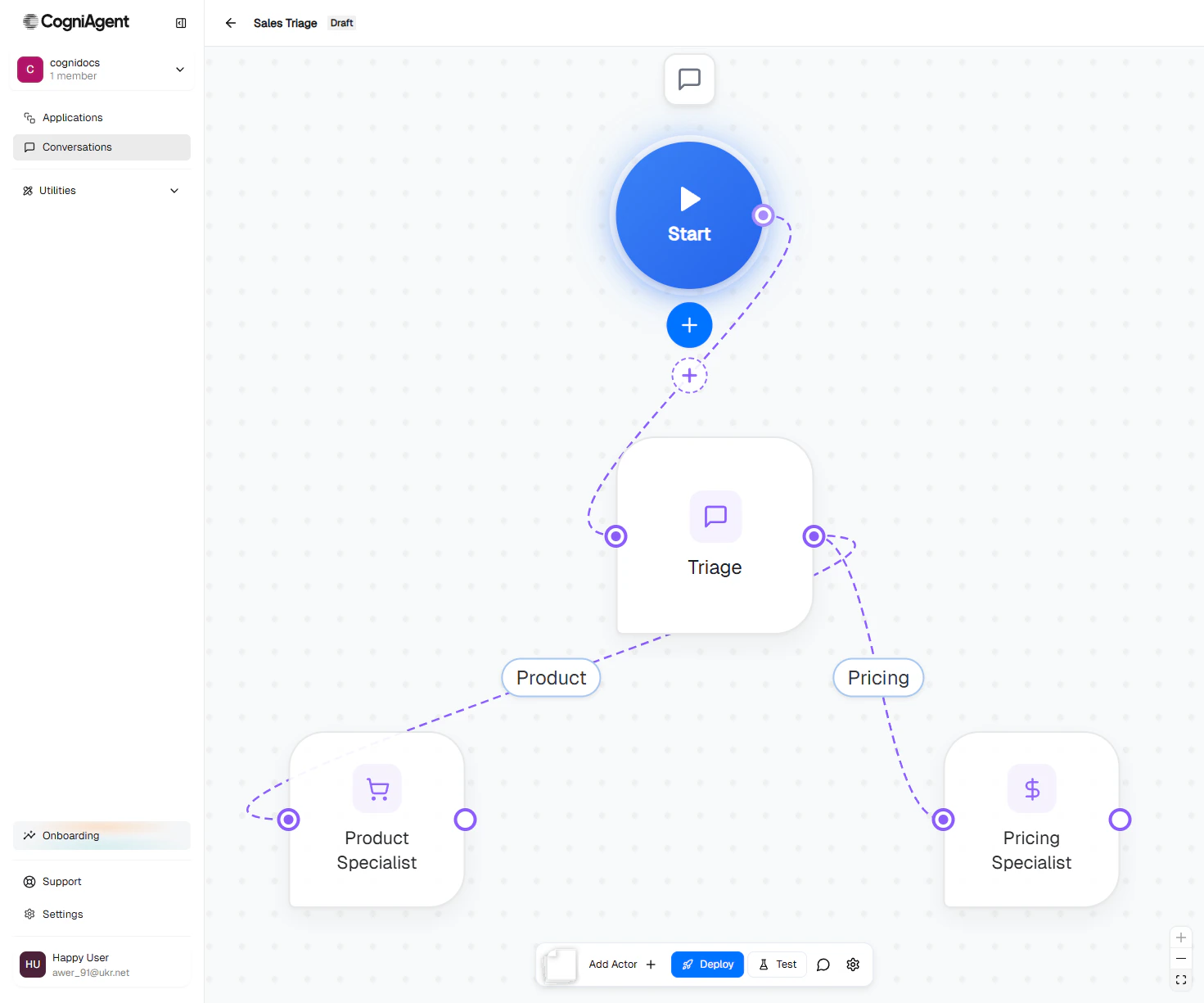
After both are saved, you have four nodes on the canvas. Both specialists are auto-wired from Start — we'll fix that next.
## Step 5 — Wire routing edges
We want **Start → Triage**, then **Triage → Product** and **Triage → Pricing**.
Click the line connecting Start to Product Specialist. Press Delete. Repeat for Start → Pricing Specialist.
Only **Start → Triage** remains.
Hover the bottom of the Triage node. Drag the handle that appears onto the Product Specialist node. An edge appears.
> When the user asks about product features, integrations, capabilities, security, the roadmap, or how something works in the product.
Click **Save**. A short label appears on the edge ("Product"), auto-generated by AI from the prompt.
Draw Triage → Pricing Specialist, click the edge, paste:
> When the user asks about price, plans, seats, discounts, free trial, or wants a quote for an Enterprise contract.
Save. The "Pricing" label appears.
Your canvas now matches the diagram at the top of this guide.
 ## Step 6 — Configure the widget channel
Click the gear icon, then the **Channels** tab.
Click **Add Channel** → **Widget**.
| Field | Value |
| -------- | ----------------------------------------------------------------------------- |
| Name | Acme website widget |
| Greeting | Hi! I'm the Acme assistant — happy to help with product or pricing questions. |
| Theme | Light |
The widget appears in the channel list.
## Step 7 — Test it
A drawer opens on the right with a chat input.
> how much does Acme Pro cost?
Wait a few seconds. The **Pricing Specialist** replies with the price (\$49/seat, 14-day trial) and offers volume discounts. Below the reply, the **debug** panel shows:
```
[global] routeToActor → Triage — single top-level actor
[branch] routeToChild → Pricing Specialist —
User explicitly asks about the cost of Acme Pro,
which is a pricing question. Route to Pricing Specialist.
actor done() → The assistant provided a clear answer.
```
Routing worked.
> actually, does it support SSO?
Notice the routing trace this time. The flow's global router decides this is a cross-cutting product-capability question and replies directly using global context — a cleaner answer than handing off to Product Specialist for a one-line yes/no.
## Step 6 — Configure the widget channel
Click the gear icon, then the **Channels** tab.
Click **Add Channel** → **Widget**.
| Field | Value |
| -------- | ----------------------------------------------------------------------------- |
| Name | Acme website widget |
| Greeting | Hi! I'm the Acme assistant — happy to help with product or pricing questions. |
| Theme | Light |
The widget appears in the channel list.
## Step 7 — Test it
A drawer opens on the right with a chat input.
> how much does Acme Pro cost?
Wait a few seconds. The **Pricing Specialist** replies with the price (\$49/seat, 14-day trial) and offers volume discounts. Below the reply, the **debug** panel shows:
```
[global] routeToActor → Triage — single top-level actor
[branch] routeToChild → Pricing Specialist —
User explicitly asks about the cost of Acme Pro,
which is a pricing question. Route to Pricing Specialist.
actor done() → The assistant provided a clear answer.
```
Routing worked.
> actually, does it support SSO?
Notice the routing trace this time. The flow's global router decides this is a cross-cutting product-capability question and replies directly using global context — a cleaner answer than handing off to Product Specialist for a one-line yes/no.
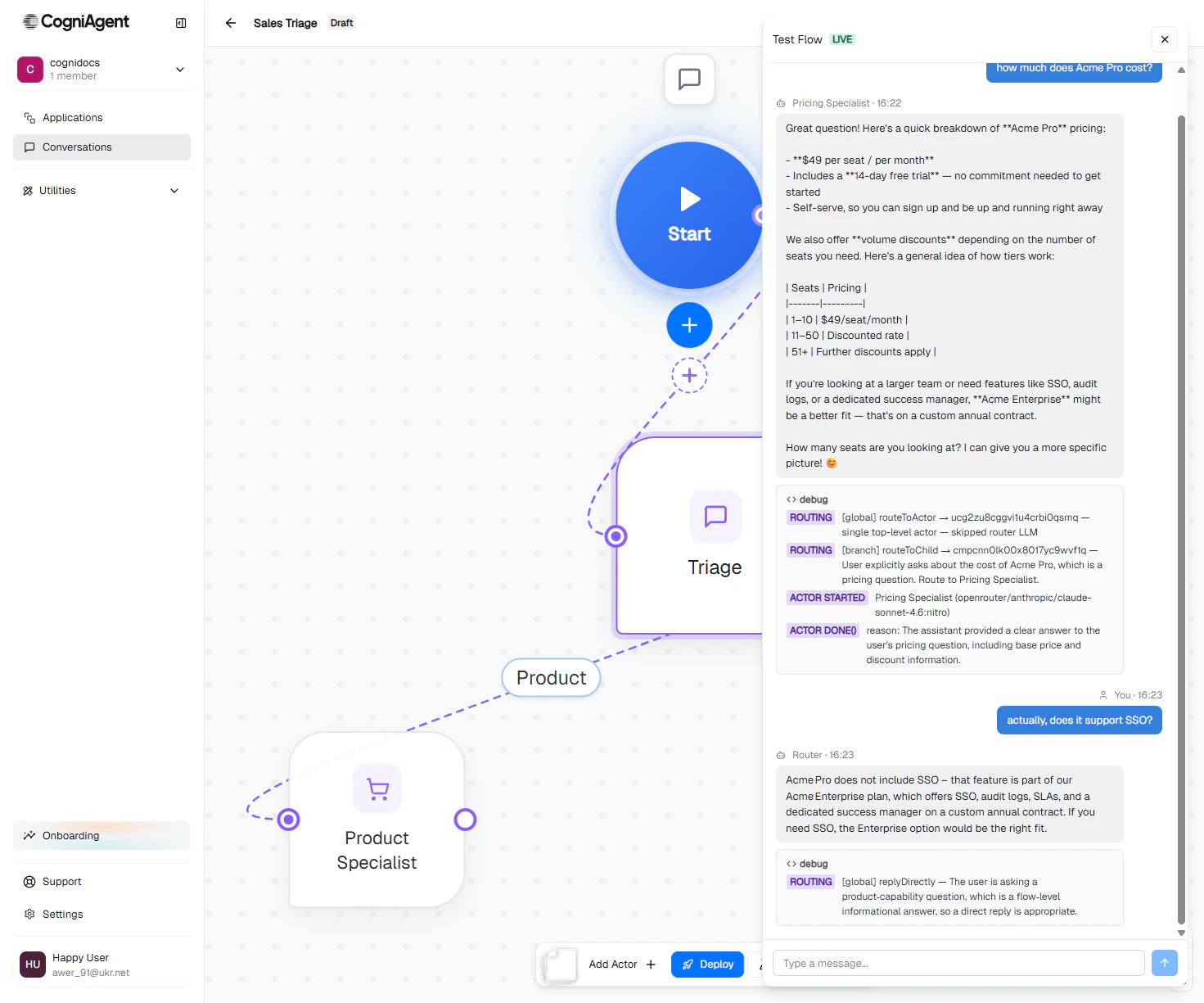 This is the routing layer adapting to the question. You don't write any of it — the activation prompts plus global context give the platform enough signal.
## Step 8 — Deploy
Click X. The test session is saved in Conversations history with a TEST badge.
The status badge in the header changes from `draft` to `active`.
Copy the embed snippet shown for the widget channel and paste it into your site's HTML before ``:
```html theme={null}
This is the routing layer adapting to the question. You don't write any of it — the activation prompts plus global context give the platform enough signal.
## Step 8 — Deploy
Click X. The test session is saved in Conversations history with a TEST badge.
The status badge in the header changes from `draft` to `active`.
Copy the embed snippet shown for the widget channel and paste it into your site's HTML before ``:
```html theme={null}