> ## Documentation Index
> Fetch the complete documentation index at: https://docs.cogniagent.ai/llms.txt
> Use this file to discover all available pages before exploring further.
# Conversations history
> Browse every conversation your flow has handled — transcripts, routing traces, tool calls, and delivery status.
Every conversation your flow handles — test sessions, real inbound traffic, outbound campaigns — is stored and browsable. The **Conversations** drawer is where you go to see what's happening on a live flow, debug a misbehaving conversation, or audit historical activity.
 ## Opening the drawer
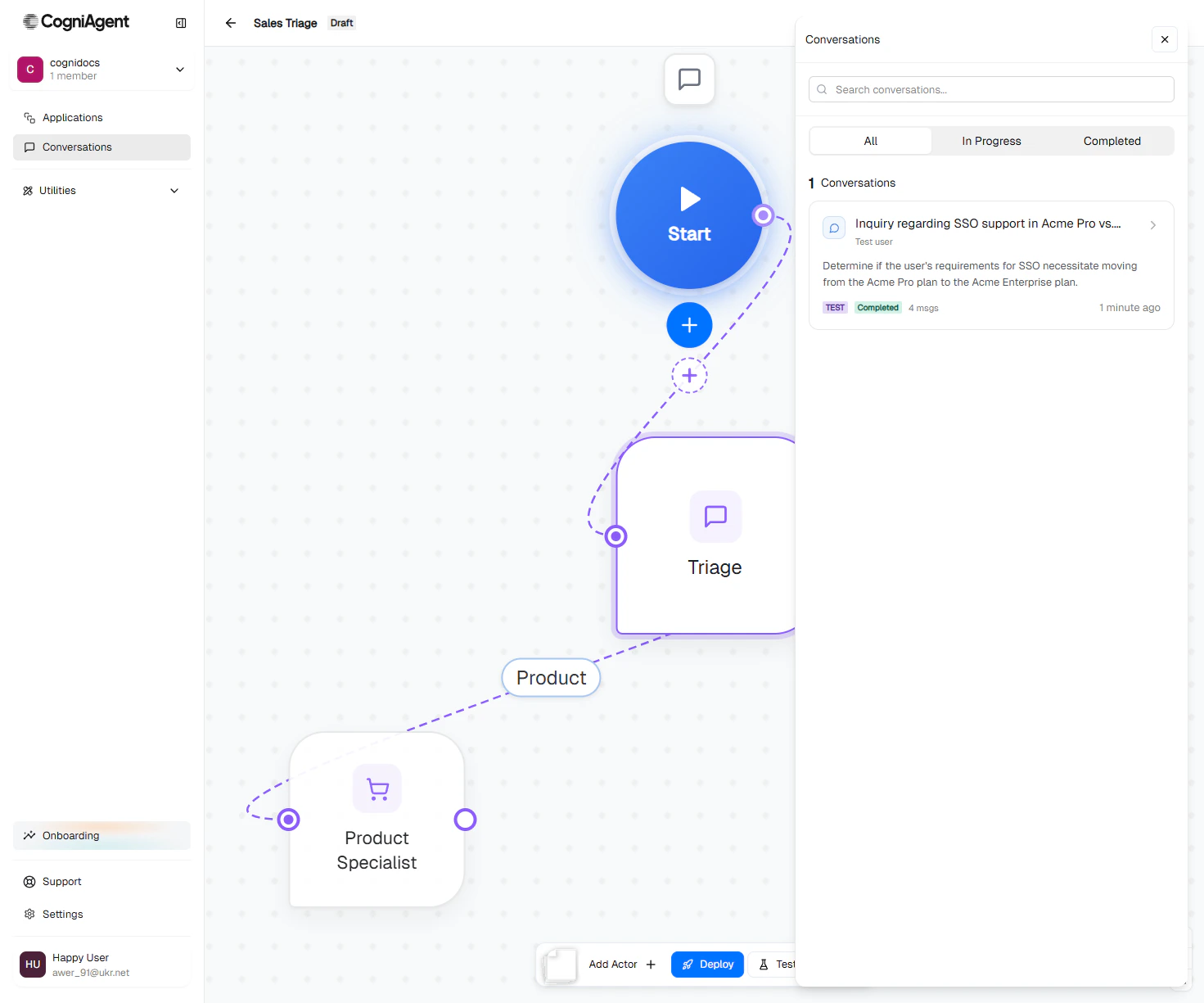
In the bottom toolbar of a flow's editor, click **Conversations**. The drawer opens on the right.
## The list view
Each row is one conversation. You see:
* **AI-generated title** — a short summary written by the platform (e.g. "Inquiry regarding SSO support in Acme Pro vs. Enterprise").
* **Participant** — who's on the other end (email, Slack handle, phone number, or "Test user" for test sessions).
* **Status** — `in-progress` or `completed`.
* **Test badge** — if the conversation came from the [Test drawer](/conversation-flows/operate/test-flow).
* **Message count** — how many turns.
* **Last activity** — when the most recent turn happened.
### Filters and search
* **All / In Progress / Completed** — switch which conversations show.
* **Search** — filter by participant name or identifier.
## The detail view
Click a conversation to see the full transcript.
## Opening the drawer
In the bottom toolbar of a flow's editor, click **Conversations**. The drawer opens on the right.
## The list view
Each row is one conversation. You see:
* **AI-generated title** — a short summary written by the platform (e.g. "Inquiry regarding SSO support in Acme Pro vs. Enterprise").
* **Participant** — who's on the other end (email, Slack handle, phone number, or "Test user" for test sessions).
* **Status** — `in-progress` or `completed`.
* **Test badge** — if the conversation came from the [Test drawer](/conversation-flows/operate/test-flow).
* **Message count** — how many turns.
* **Last activity** — when the most recent turn happened.
### Filters and search
* **All / In Progress / Completed** — switch which conversations show.
* **Search** — filter by participant name or identifier.
## The detail view
Click a conversation to see the full transcript.
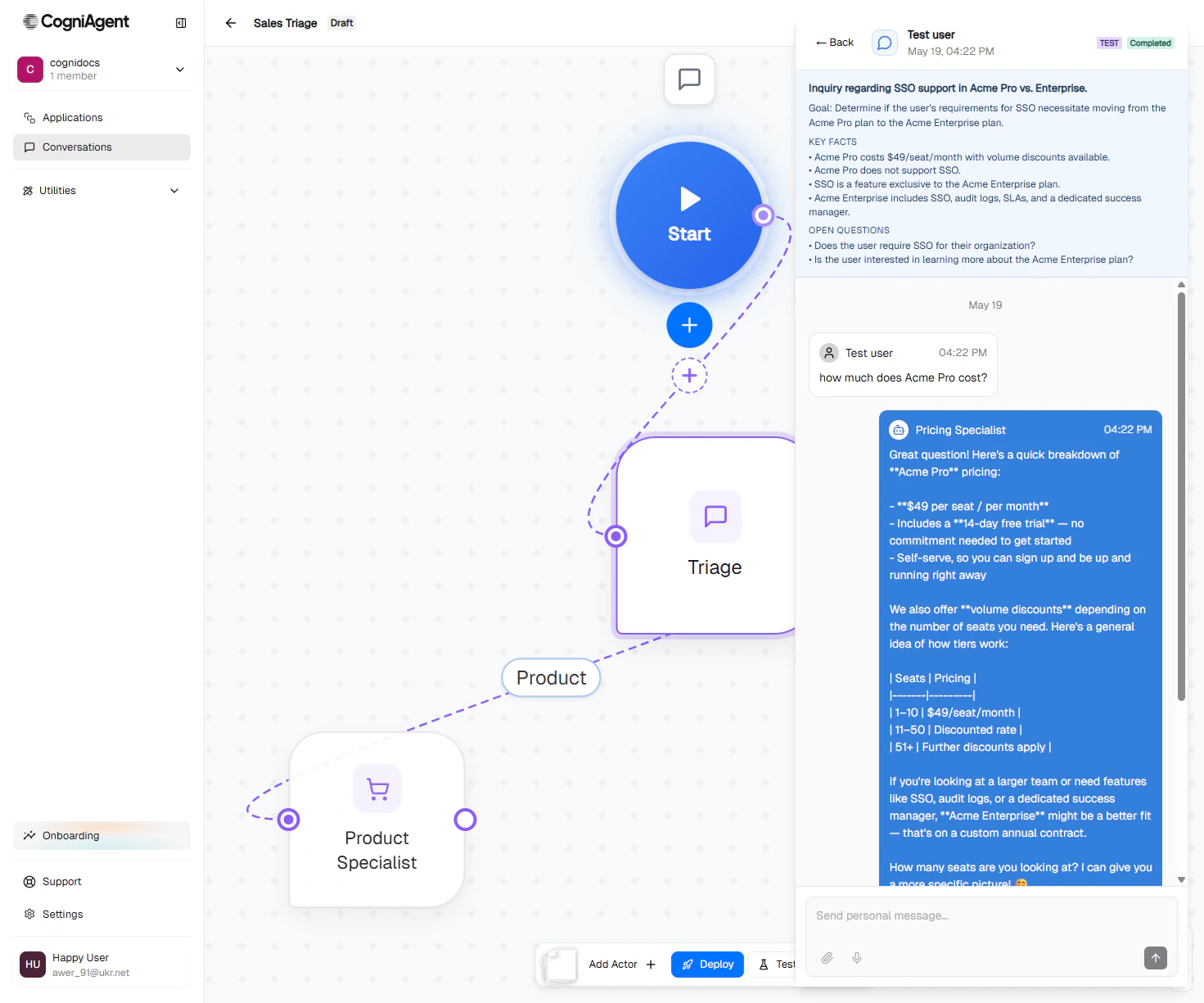 What you see per turn:
* The user's message (left-aligned).
* The actor's reply (right-aligned, with actor name and avatar).
* **Routing trace** below the actor reply — same decisions you see in the [Test drawer](/conversation-flows/operate/test-flow).
* **Tool call badges** — when the actor called an integration action or custom tool, a small badge shows the tool name, duration, and token count.
* **Delivery status** — for outbound messages, whether the platform actually delivered the reply on the channel.
## Common things you'll do here
Open the conversation, scroll through the turns, read the routing traces. Most "why did the actor do X?" questions are answered by the trace.
Look for:
* Routing decisions that picked the wrong actor (fix activation prompts).
* Tool calls with wrong arguments (fix actor instructions).
* Done() calls that fired prematurely (fix Definition of Done).
For Email/Slack/Teams channels, each outbound message has a delivery status badge. If it shows "failed", the integration connection probably hit an error — check the connection's status.
Some conversations linger — the user never replied, the session timed out, but it's still marked `in-progress`. Use the **End session** button to close it manually.
Found a real conversation that exposed a routing bug? Copy the user's messages and replay them in the [Test drawer](/conversation-flows/operate/test-flow). Edit prompts, retest, deploy when fixed.
## Privacy and retention
* Conversations are stored per workspace and visible to workspace members.
* Phone calls are stored as **text transcripts only** — no audio is retained.
* Test sessions live alongside real ones with the TEST badge. They're never delivered to real channels.
## Next
Replay a problem case in the sandbox.
Take edits live after debugging.
What you see per turn:
* The user's message (left-aligned).
* The actor's reply (right-aligned, with actor name and avatar).
* **Routing trace** below the actor reply — same decisions you see in the [Test drawer](/conversation-flows/operate/test-flow).
* **Tool call badges** — when the actor called an integration action or custom tool, a small badge shows the tool name, duration, and token count.
* **Delivery status** — for outbound messages, whether the platform actually delivered the reply on the channel.
## Common things you'll do here
Open the conversation, scroll through the turns, read the routing traces. Most "why did the actor do X?" questions are answered by the trace.
Look for:
* Routing decisions that picked the wrong actor (fix activation prompts).
* Tool calls with wrong arguments (fix actor instructions).
* Done() calls that fired prematurely (fix Definition of Done).
For Email/Slack/Teams channels, each outbound message has a delivery status badge. If it shows "failed", the integration connection probably hit an error — check the connection's status.
Some conversations linger — the user never replied, the session timed out, but it's still marked `in-progress`. Use the **End session** button to close it manually.
Found a real conversation that exposed a routing bug? Copy the user's messages and replay them in the [Test drawer](/conversation-flows/operate/test-flow). Edit prompts, retest, deploy when fixed.
## Privacy and retention
* Conversations are stored per workspace and visible to workspace members.
* Phone calls are stored as **text transcripts only** — no audio is retained.
* Test sessions live alongside real ones with the TEST badge. They're never delivered to real channels.
## Next
Replay a problem case in the sandbox.
Take edits live after debugging.