> ## Documentation Index
> Fetch the complete documentation index at: https://docs.cogniagent.ai/llms.txt
> Use this file to discover all available pages before exploring further.
# What a coworker can do
> Every capability your AI coworker has, on one screen — search the web, run code, drive a browser, talk to people, and use the apps your team already pays for.
Everything your coworker is allowed to do lives on one screen, and every line of it is a switch you control.
## What it does
A coworker is only as useful as the things it can reach. The **Capabilities** tab is where you decide what those are: whether it can search the web, run code, open a browser, email a colleague, or touch the apps your team already uses.
Nothing here is hidden or implied. If a switch is off, your coworker cannot do that thing — it will tell you it can't rather than quietly working around it.
## The three parts of the tab
Open any coworker and choose **Capabilities**. You'll find three sections, in this order.
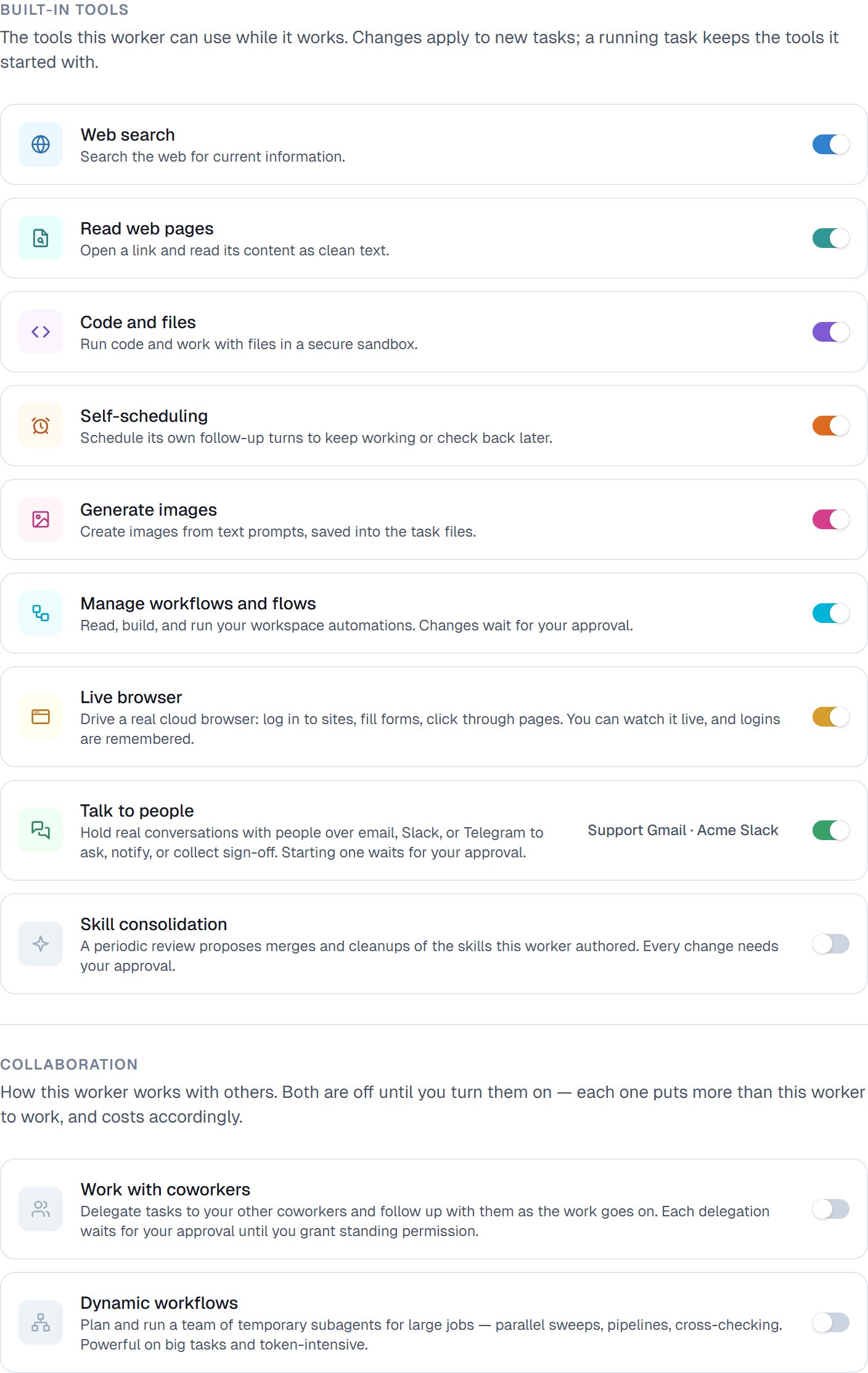 | Section | What's in it | Starts as |
| ------------------- | -------------------------------------------------------------- | ------------------------------------ |
| **Built-in tools** | Eight things every coworker can do without connecting anything | Depends on how you hired — see below |
| **Collaboration** | Two ways to put more than one coworker on a job | **Off**, always |
| **App connections** | The apps your workspace has connected | **None attached** |
Below those, a read-only list of the **skills** this coworker has learned. Skills are managed on the coworker's Files tab — see [What skills are](/cowork/skills/overview).
## The two rules that surprise people
**What starts switched on depends on how you hired.**
Build a coworker **from scratch** and every built-in tool is on. You narrow it down; you don't build it up.
Hire one of the **[ready-made coworkers](/cowork/coworkers/ready-made)** and it arrives already narrowed to what that job needs. A Research Analyst, for instance, comes with web search, reading pages, and code and files on — and self-scheduling, image generation, workflows and talking to people off, because a research job doesn't need them.
Either way, check this tab before the first task. It's the fastest way to understand what you've actually hired.
**Changes apply to the next task.** A task that's already running keeps the tools it started with. If you switch something on and the coworker still says it can't do it, start a new task.
The second one accounts for most "why didn't that work" moments. The tab says so under the section heading, but it's easy to miss when you're mid-flow.
## The eight built-in tools
Each is one switch, one line of explanation, and its own page here.
Look things up instead of guessing.
Open a link and read it properly.
Actually do the work — open a spreadsheet, run the numbers, hand the file back.
Use websites the way you do, and hand you the keyboard at a login.
Ask for a picture, get a file you can use.
Book its own follow-up so nothing waits on you remembering.
Use the automations you've already built.
Hold a real conversation with a real person and carry on from the answer.
There's a ninth row in this section, **Skill consolidation**, which is off by default. It's a periodic tidy-up of the skills this coworker has written for itself — see [Skills that improve themselves](/cowork/skills/improving).
## Collaboration: off until you say so
Two switches sit under a separate heading, and they behave differently from the eight above. Both are **off** when you hire a coworker, and the tab tells you why in plain terms: each one puts more than this coworker to work, and costs accordingly.
Hand work to another coworker and follow it as it goes.
Plan a team of temporary helpers for a job too big for one pass.
| Section | What's in it | Starts as |
| ------------------- | -------------------------------------------------------------- | ------------------------------------ |
| **Built-in tools** | Eight things every coworker can do without connecting anything | Depends on how you hired — see below |
| **Collaboration** | Two ways to put more than one coworker on a job | **Off**, always |
| **App connections** | The apps your workspace has connected | **None attached** |
Below those, a read-only list of the **skills** this coworker has learned. Skills are managed on the coworker's Files tab — see [What skills are](/cowork/skills/overview).
## The two rules that surprise people
**What starts switched on depends on how you hired.**
Build a coworker **from scratch** and every built-in tool is on. You narrow it down; you don't build it up.
Hire one of the **[ready-made coworkers](/cowork/coworkers/ready-made)** and it arrives already narrowed to what that job needs. A Research Analyst, for instance, comes with web search, reading pages, and code and files on — and self-scheduling, image generation, workflows and talking to people off, because a research job doesn't need them.
Either way, check this tab before the first task. It's the fastest way to understand what you've actually hired.
**Changes apply to the next task.** A task that's already running keeps the tools it started with. If you switch something on and the coworker still says it can't do it, start a new task.
The second one accounts for most "why didn't that work" moments. The tab says so under the section heading, but it's easy to miss when you're mid-flow.
## The eight built-in tools
Each is one switch, one line of explanation, and its own page here.
Look things up instead of guessing.
Open a link and read it properly.
Actually do the work — open a spreadsheet, run the numbers, hand the file back.
Use websites the way you do, and hand you the keyboard at a login.
Ask for a picture, get a file you can use.
Book its own follow-up so nothing waits on you remembering.
Use the automations you've already built.
Hold a real conversation with a real person and carry on from the answer.
There's a ninth row in this section, **Skill consolidation**, which is off by default. It's a periodic tidy-up of the skills this coworker has written for itself — see [Skills that improve themselves](/cowork/skills/improving).
## Collaboration: off until you say so
Two switches sit under a separate heading, and they behave differently from the eight above. Both are **off** when you hire a coworker, and the tab tells you why in plain terms: each one puts more than this coworker to work, and costs accordingly.
Hand work to another coworker and follow it as it goes.
Plan a team of temporary helpers for a job too big for one pass.
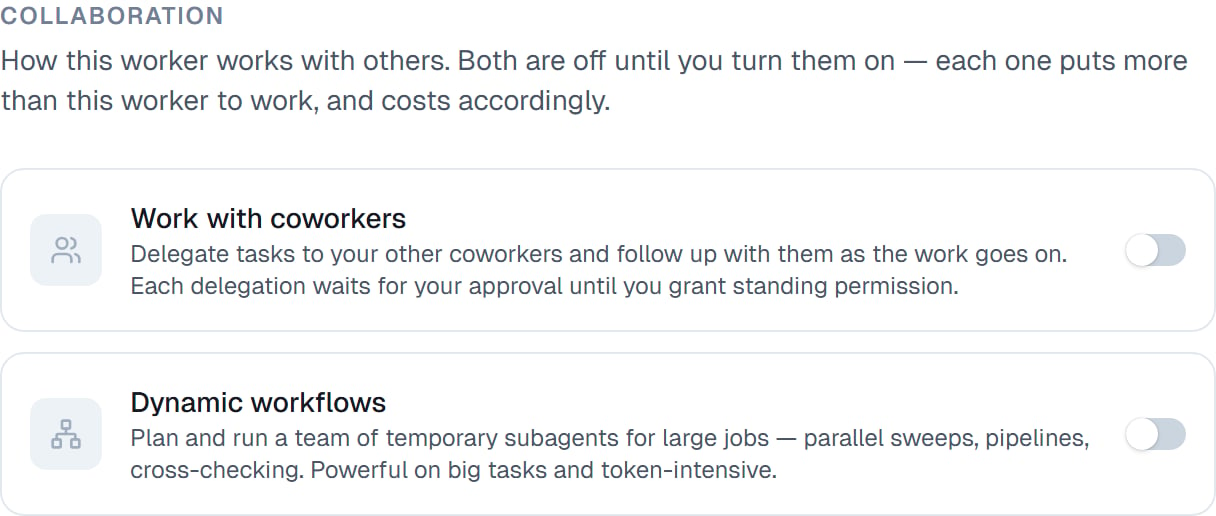 **Dynamic workflows needs Code and files.** Turn it on without that, and the row shows an honest warning rather than pretending it works:
> Needs "Code and files" turned on above to do anything.
**Dynamic workflows needs Code and files.** Turn it on without that, and the row shows an honest warning rather than pretending it works:
> Needs "Code and files" turned on above to do anything.
 ## App connections
Underneath, the apps this coworker may use — Gmail, Slack, your CRM, a spreadsheet. Attaching an app gives your coworker every action it supports by default, and you can narrow that to individual actions whenever you like.
This is the part most worth spending five minutes on, because it's where you decide whether a coworker can read your inbox or also send from it. See [Connecting your apps](/cowork/capabilities/connecting-your-apps).
## What it looks like in practice
Each row is the same shape: an icon that lights up in colour when the capability is on and greys out when it's off, the name, one line explaining it, and the switch. A couple of rows carry an extra button — **Talking to people** has **Set up channels**, which opens its settings inline without leaving the tab.
## App connections
Underneath, the apps this coworker may use — Gmail, Slack, your CRM, a spreadsheet. Attaching an app gives your coworker every action it supports by default, and you can narrow that to individual actions whenever you like.
This is the part most worth spending five minutes on, because it's where you decide whether a coworker can read your inbox or also send from it. See [Connecting your apps](/cowork/capabilities/connecting-your-apps).
## What it looks like in practice
Each row is the same shape: an icon that lights up in colour when the capability is on and greys out when it's off, the name, one line explaining it, and the switch. A couple of rows carry an extra button — **Talking to people** has **Set up channels**, which opens its settings inline without leaving the tab.
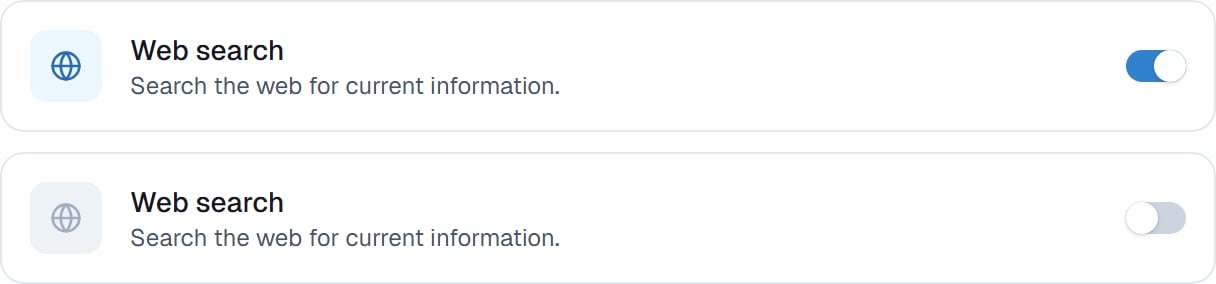 Changes save the moment you flip a switch. There's no Save button and no confirmation step.
## Good to know
**Narrowing a coworker makes it better, not weaker.** A shorter list of capabilities is a clearer job description. A coworker with fifteen apps attached spends effort deciding which one to reach for; a coworker with two does the job.
Capabilities are per coworker, not per workspace. Two coworkers can hold the same Gmail connection with completely different actions allowed on each.
## Common questions
Because the task was already running when you flipped the switch. A task keeps the capabilities it started with, all the way to the end. Start a new task and it'll be there.
Yes, for anything clearly outside its job. A support coworker has no use for image generation. It keeps the coworker focused and means fewer surprises.
Built-in tools cost nothing until they're used. The two Collaboration switches are different — they put additional coworkers or helpers to work, so a task that uses them costs more than one that doesn't. That's why they start off.
A capability is something your coworker can *do*. A skill is knowing *how* and *when* to do it — your way of working, written down. A coworker usually needs both: a "customer follow-up" skill is only useful alongside the ability to send email.
Yes. Permission rules let you keep a capability on but require your approval each time, or block one specific action while allowing the rest. See [Permission rules](/cowork/control/permission-rules).
## Next steps
The part worth five minutes of your time.
Keep a capability on, but on your terms.
What needs your yes before it happens.
Capabilities are what it can do. This is what it should do.
Changes save the moment you flip a switch. There's no Save button and no confirmation step.
## Good to know
**Narrowing a coworker makes it better, not weaker.** A shorter list of capabilities is a clearer job description. A coworker with fifteen apps attached spends effort deciding which one to reach for; a coworker with two does the job.
Capabilities are per coworker, not per workspace. Two coworkers can hold the same Gmail connection with completely different actions allowed on each.
## Common questions
Because the task was already running when you flipped the switch. A task keeps the capabilities it started with, all the way to the end. Start a new task and it'll be there.
Yes, for anything clearly outside its job. A support coworker has no use for image generation. It keeps the coworker focused and means fewer surprises.
Built-in tools cost nothing until they're used. The two Collaboration switches are different — they put additional coworkers or helpers to work, so a task that uses them costs more than one that doesn't. That's why they start off.
A capability is something your coworker can *do*. A skill is knowing *how* and *when* to do it — your way of working, written down. A coworker usually needs both: a "customer follow-up" skill is only useful alongside the ability to send email.
Yes. Permission rules let you keep a capability on but require your approval each time, or block one specific action while allowing the rest. See [Permission rules](/cowork/control/permission-rules).
## Next steps
The part worth five minutes of your time.
Keep a capability on, but on your terms.
What needs your yes before it happens.
Capabilities are what it can do. This is what it should do.