> ## Documentation Index
> Fetch the complete documentation index at: https://docs.cogniagent.ai/llms.txt
> Use this file to discover all available pages before exploring further.
# Talking to people
> Your AI coworker holds a real conversation over email or Slack — asks the question, waits for the answer, and carries on from the reply.
Your coworker holds a real conversation with a real person — asks the question, waits for the answer, and carries on.
## What it does
Work stalls on people. A missing detail on an order. A discount that needs a manager's nod. A delivery date only the supplier knows.
This capability lets your coworker go and ask. It emails the customer, or messages the manager in Slack, in its own words, with the context the moment needs. The person replies however they normally would. Your coworker reads the reply and keeps going.
It isn't a notification. Nobody has to log in to CogniAgent, learn anything, or click a special button. They just answer.
This is the **outbound** half — your coworker starting a conversation. For people reaching *your coworker* first, see [Message channels](/cowork/capabilities/message-channels).
## When you'd use it
* Email a customer for the one missing detail an order needs
* Ask a manager in Slack to approve a discount, then continue on their answer
* Chase a supplier for a delivery date and log the reply
* Collect sign-off from three people before publishing
* Check a fact with the person who'd know, mid-research
* Tell a colleague something's ready and wait to hear it's been picked up
## Turning it on
This capability has two parts: the switch, and the channels it's allowed to use. Without channels it has no way to reach anyone, so do both.
Open your coworker, choose **Capabilities**, and find **Talk to people** in the Built-in tools list. It's on by default.
 On that same row, click **Set up channels**. A panel opens inline — you don't leave the tab.
Each row starts with a chip: **Slack** or **Gmail**. Choose which one this channel is.
Pick from the connections your workspace already has. If there isn't one yet, **Connect** adds it right here without leaving the page.
The optional label is what your coworker knows the channel by — "Support Gmail", "Acme Slack". Worth filling in the moment you have more than one.
**Add channel** for another row, then **Save channels**.
On that same row, click **Set up channels**. A panel opens inline — you don't leave the tab.
Each row starts with a chip: **Slack** or **Gmail**. Choose which one this channel is.
Pick from the connections your workspace already has. If there isn't one yet, **Connect** adds it right here without leaving the page.
The optional label is what your coworker knows the channel by — "Support Gmail", "Acme Slack". Worth filling in the moment you have more than one.
**Add channel** for another row, then **Save channels**.
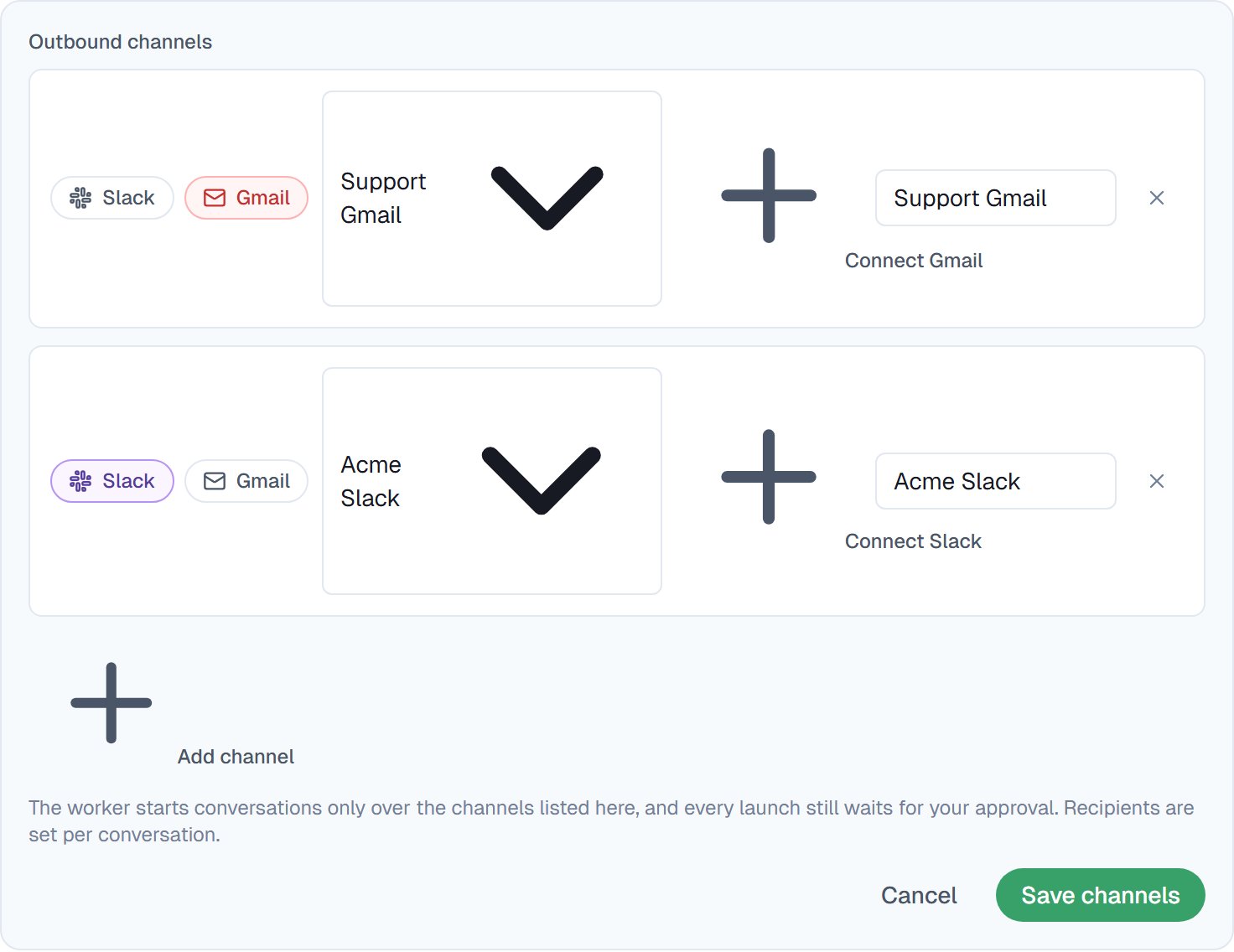 The panel prints the standing rule underneath:
> The worker starts conversations only over the channels listed here, and every launch still waits for your approval. Recipients are set per conversation.
That's the whole safety model in one sentence. Your coworker can only use channels you've listed, it asks you before starting any conversation, and who it talks to is decided per conversation rather than fixed in advance.
## What it looks like on the other end
An email or a Slack message from a real address on your side, written for the situation. The person replies normally — in their inbox, in the thread — and that reply comes back into the task.
Nothing about it looks like a form. That's why people actually answer.
## Good to know
**Give it the label.** A coworker with two channels and no labels has to guess which is which. "Support Gmail" and "Sales Gmail" takes ten seconds and removes the ambiguity.
Email and Slack only. A conversation has to start somewhere the recipient can be addressed, and those are the two places your coworker can reliably reach someone who hasn't messaged it first.
## The three ways a coworker involves a person
These get mixed up constantly. The difference is who's being asked, and where.
| | Who it asks | Where | Who starts it |
| ------------------------------------------------------------- | -------------------------------------------- | ------------------------ | ---------------- |
| **Talking to people** | Anyone — a customer, a colleague, a supplier | Their email or Slack | Your coworker |
| **[Approvals](/cowork/control/approvals)** | You | In the task | Your coworker |
| **[Message channels](/cowork/capabilities/message-channels)** | — | Slack, email or Telegram | The other person |
## Common questions
No. They get an ordinary email or Slack message and reply the way they always do. They never see CogniAgent at all.
No. It can only use the channels you've listed, and every conversation it wants to start waits for your approval first. You see who it wants to contact and what it wants to say.
Your coworker waits, and can chase or move on depending on what you asked for. Pair it with [Self-scheduling](/cowork/capabilities/self-scheduling) so it follows up on its own instead of sitting idle.
Yes — collecting sign-off from three people is a normal use. It tracks each conversation separately and carries on when it has what it needs.
An email action sends and forgets. This holds a conversation: it waits for the reply, reads it, and continues the work based on what the person said.
## Next steps
The other direction — people reaching your coworker.
What gets asked before a conversation starts.
Chasing a reply without you.
Where Gmail and Slack connections come from.
The panel prints the standing rule underneath:
> The worker starts conversations only over the channels listed here, and every launch still waits for your approval. Recipients are set per conversation.
That's the whole safety model in one sentence. Your coworker can only use channels you've listed, it asks you before starting any conversation, and who it talks to is decided per conversation rather than fixed in advance.
## What it looks like on the other end
An email or a Slack message from a real address on your side, written for the situation. The person replies normally — in their inbox, in the thread — and that reply comes back into the task.
Nothing about it looks like a form. That's why people actually answer.
## Good to know
**Give it the label.** A coworker with two channels and no labels has to guess which is which. "Support Gmail" and "Sales Gmail" takes ten seconds and removes the ambiguity.
Email and Slack only. A conversation has to start somewhere the recipient can be addressed, and those are the two places your coworker can reliably reach someone who hasn't messaged it first.
## The three ways a coworker involves a person
These get mixed up constantly. The difference is who's being asked, and where.
| | Who it asks | Where | Who starts it |
| ------------------------------------------------------------- | -------------------------------------------- | ------------------------ | ---------------- |
| **Talking to people** | Anyone — a customer, a colleague, a supplier | Their email or Slack | Your coworker |
| **[Approvals](/cowork/control/approvals)** | You | In the task | Your coworker |
| **[Message channels](/cowork/capabilities/message-channels)** | — | Slack, email or Telegram | The other person |
## Common questions
No. They get an ordinary email or Slack message and reply the way they always do. They never see CogniAgent at all.
No. It can only use the channels you've listed, and every conversation it wants to start waits for your approval first. You see who it wants to contact and what it wants to say.
Your coworker waits, and can chase or move on depending on what you asked for. Pair it with [Self-scheduling](/cowork/capabilities/self-scheduling) so it follows up on its own instead of sitting idle.
Yes — collecting sign-off from three people is a normal use. It tracks each conversation separately and carries on when it has what it needs.
An email action sends and forgets. This holds a conversation: it waits for the reply, reads it, and continues the work based on what the person said.
## Next steps
The other direction — people reaching your coworker.
What gets asked before a conversation starts.
Chasing a reply without you.
Where Gmail and Slack connections come from.