> ## Documentation Index
> Fetch the complete documentation index at: https://docs.cogniagent.ai/llms.txt
> Use this file to discover all available pages before exploring further.
# The conversation
> Working with your AI coworker is a conversation, not a form. Here's what's on screen and how to steer it while it works.
You ask, it works, you watch. You can step in at any point without stopping it.
## What's on screen
Three things, and you'll use all of them.
**The conversation** in the middle — your messages, your coworker's replies, and every step it took in between. Nothing is hidden; if it opened a file or searched for something, that's a row you can expand.
**The files panel** beside it — everything in the task. Anything your coworker produces lands here. See [Files](/cowork/files/overview).
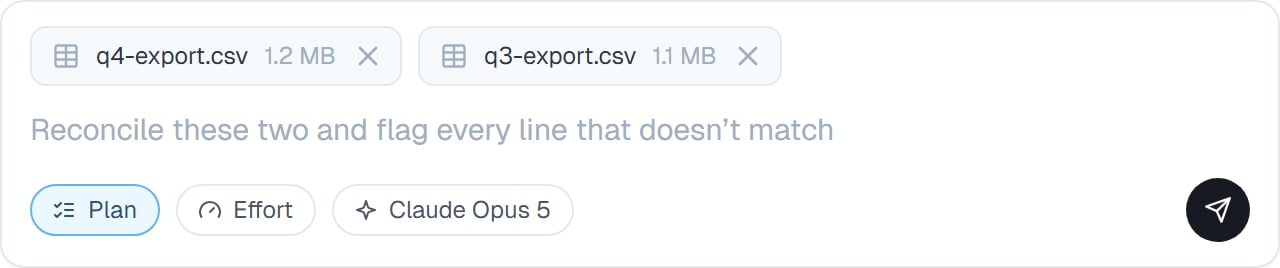
**The message box** at the bottom, which does more than it looks like. `/` opens the [command menu](/cowork/chat/slash-commands), `@` points at a file, and the paperclip attaches one.
 ## Asking well
The single biggest difference in output quality comes from the first message.
**Say what you want to end up with.** "A one-page summary I can send to my boss" produces something different from "look into this".
**Attach the real thing.** Upload the export rather than pasting three rows of it.
**Say what you already know.** Saving your coworker from re-deriving context you have is free speed.
**Say what to avoid.** "Don't email anyone" is worth writing if that matters.
You don't need to be precise on the first try. It's a conversation — say "not quite, more like this" and it adjusts, without starting over.
## Steering while it works
You don't have to wait for it to finish before saying something.
**Type while it's working.** Your message is queued and picked up as soon as the current step settles. Queued messages appear above the box, and you can edit or cancel one before it's sent.
**Correct it mid-task.** "Stop doing it that way" lands and it adjusts.
**Stop it.** If it's clearly off track, stop it and re-ask. Faster than watching it finish something wrong.
## Finishing
When your coworker considers the job done, it posts a short wrap-up you can expand for the detail.
A finished task isn't closed. Send another message and it picks straight back up with everything it knew — which is why "actually, also do X" works without re-explaining. You can mark a task done from the header, and even then a new message re-opens it.
## Common questions
Yes. It keeps working. Come back whenever and the whole conversation is there.
Anything leaving your workspace waits for approval. See [Approvals](/cowork/control/approvals) and [Permission rules](/cowork/control/permission-rules).
Just say so. Mid-task changes of direction are normal and it doesn't need to start again.
Related work, yes — the shared context helps. Genuinely separate jobs are better as separate tasks. See [Managing your tasks](/cowork/chat/tasks).
Every step is in the conversation and can be expanded. See [Watching progress](/cowork/chat/watching-progress).
## Next steps
Everything you can type.
Following the work.
Agree the approach first.
Getting files into the conversation.
## Asking well
The single biggest difference in output quality comes from the first message.
**Say what you want to end up with.** "A one-page summary I can send to my boss" produces something different from "look into this".
**Attach the real thing.** Upload the export rather than pasting three rows of it.
**Say what you already know.** Saving your coworker from re-deriving context you have is free speed.
**Say what to avoid.** "Don't email anyone" is worth writing if that matters.
You don't need to be precise on the first try. It's a conversation — say "not quite, more like this" and it adjusts, without starting over.
## Steering while it works
You don't have to wait for it to finish before saying something.
**Type while it's working.** Your message is queued and picked up as soon as the current step settles. Queued messages appear above the box, and you can edit or cancel one before it's sent.
**Correct it mid-task.** "Stop doing it that way" lands and it adjusts.
**Stop it.** If it's clearly off track, stop it and re-ask. Faster than watching it finish something wrong.
## Finishing
When your coworker considers the job done, it posts a short wrap-up you can expand for the detail.
A finished task isn't closed. Send another message and it picks straight back up with everything it knew — which is why "actually, also do X" works without re-explaining. You can mark a task done from the header, and even then a new message re-opens it.
## Common questions
Yes. It keeps working. Come back whenever and the whole conversation is there.
Anything leaving your workspace waits for approval. See [Approvals](/cowork/control/approvals) and [Permission rules](/cowork/control/permission-rules).
Just say so. Mid-task changes of direction are normal and it doesn't need to start again.
Related work, yes — the shared context helps. Genuinely separate jobs are better as separate tasks. See [Managing your tasks](/cowork/chat/tasks).
Every step is in the conversation and can be expanded. See [Watching progress](/cowork/chat/watching-progress).
## Next steps
Everything you can type.
Following the work.
Agree the approach first.
Getting files into the conversation.