> ## Documentation Index
> Fetch the complete documentation index at: https://docs.cogniagent.ai/llms.txt
> Use this file to discover all available pages before exploring further.
# Slash commands
> Type / in the chat for the shortcuts that steer your AI coworker — plan, review, keep working, switch model — plus your own skills and workflows.
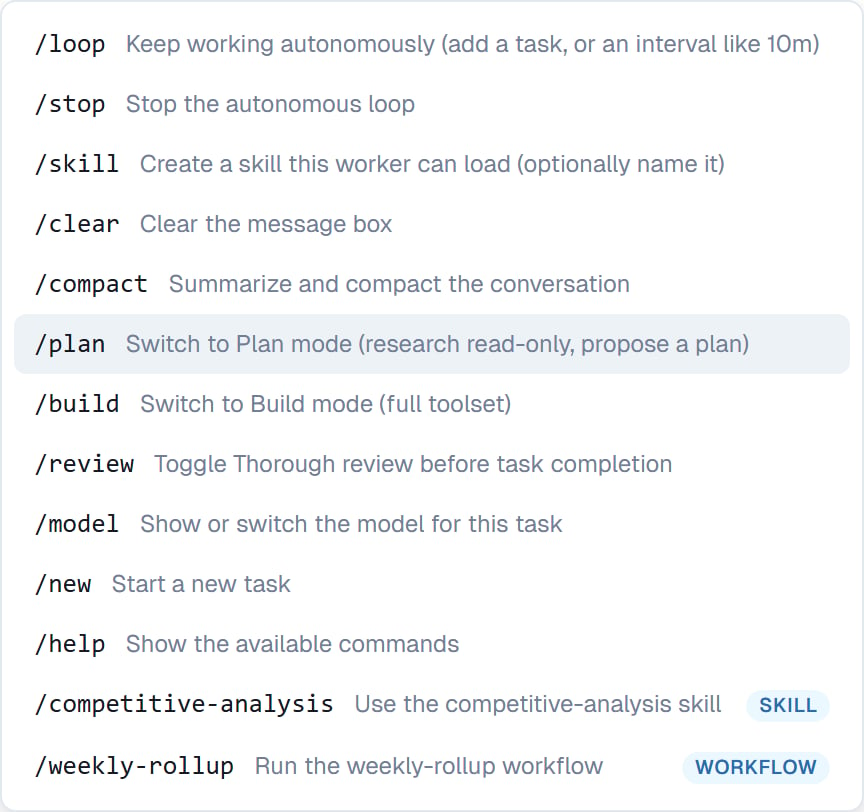
Type `/` in the message box and a menu appears: the shortcuts that steer your coworker, plus everything you've taught it.
## The commands
| Command | What it does |
| ---------- | -------------------------------------------------------------- |
| `/plan` | Switch to Plan mode — research only, propose a plan |
| `/build` | Switch to Build mode — the full toolset |
| `/review` | Turn Thorough review on or off before a task completes |
| `/loop` | Keep working on its own. Add a task, or an interval like `10m` |
| `/stop` | Stop the autonomous loop |
| `/model` | Show or switch the model for this task |
| `/skill` | Create a skill this coworker can use — optionally name it |
| `/compact` | Summarise and compact a long conversation |
| `/new` | Start a new task |
| `/clear` | Clear the message box |
| `/help` | Show the available commands |
 ## Your own commands too
The menu isn't only the built-in list. It also holds:
* **Your skills** — each shown as *"Use the **name** skill"*. See [Running a skill](/cowork/skills/running).
* **Your saved workflows** — each shown as *"Run the **name** workflow"*. See [Dynamic workflows](/cowork/capabilities/dynamic-workflows).
Both accept extra text, so `/competitive-analysis Northwind` runs your procedure against that subject.
If a workflow's name clashes with a built-in command or one of your skills, it doesn't get a second row in the menu — one `/deploy` that does two different things would be worse. You can still ask for it in plain words.
## The four worth knowing
Most people only ever use a handful.
**`/plan`** before anything expensive or irreversible. Your coworker researches and proposes an approach without changing anything, and you agree it first. See [Plan mode and Build mode](/cowork/chat/plan-and-build).
**`/review`** when being wrong is costly. It checks its own work properly before handing back. See [Thorough review](/cowork/chat/thorough-review).
**`/loop`** for a long job you want finished in one go rather than in check-in-sized pieces. See [Keep working](/cowork/autonomy/keep-working).
**`/compact`** when a conversation has gone on a long time and you'd rather not start a fresh task. See [Long conversations](/cowork/chat/long-conversations).
## Good to know
You don't have to memorise any of this. Type `/` and read the menu — every command carries its own one-line description.
`/clear` empties the message box you're typing in. It doesn't clear the conversation.
## Common questions
No. Plain English covers almost everything — "plan this first" works as well as `/plan`. Commands are quicker once you know them.
Yes, by [writing a skill](/cowork/skills/creating) or saving a workflow. Both appear in the menu by name.
`/loop` keeps working on the task in front of you. A [schedule](/cowork/autonomy/schedules) starts a fresh task on a timetable.
No. It starts a fresh one; the old task stays and can be returned to at any point.
## Next steps
The two most useful commands.
Your own entries in the menu.
What /model changes.
What /loop does.
## Your own commands too
The menu isn't only the built-in list. It also holds:
* **Your skills** — each shown as *"Use the **name** skill"*. See [Running a skill](/cowork/skills/running).
* **Your saved workflows** — each shown as *"Run the **name** workflow"*. See [Dynamic workflows](/cowork/capabilities/dynamic-workflows).
Both accept extra text, so `/competitive-analysis Northwind` runs your procedure against that subject.
If a workflow's name clashes with a built-in command or one of your skills, it doesn't get a second row in the menu — one `/deploy` that does two different things would be worse. You can still ask for it in plain words.
## The four worth knowing
Most people only ever use a handful.
**`/plan`** before anything expensive or irreversible. Your coworker researches and proposes an approach without changing anything, and you agree it first. See [Plan mode and Build mode](/cowork/chat/plan-and-build).
**`/review`** when being wrong is costly. It checks its own work properly before handing back. See [Thorough review](/cowork/chat/thorough-review).
**`/loop`** for a long job you want finished in one go rather than in check-in-sized pieces. See [Keep working](/cowork/autonomy/keep-working).
**`/compact`** when a conversation has gone on a long time and you'd rather not start a fresh task. See [Long conversations](/cowork/chat/long-conversations).
## Good to know
You don't have to memorise any of this. Type `/` and read the menu — every command carries its own one-line description.
`/clear` empties the message box you're typing in. It doesn't clear the conversation.
## Common questions
No. Plain English covers almost everything — "plan this first" works as well as `/plan`. Commands are quicker once you know them.
Yes, by [writing a skill](/cowork/skills/creating) or saving a workflow. Both appear in the menu by name.
`/loop` keeps working on the task in front of you. A [schedule](/cowork/autonomy/schedules) starts a fresh task on a timetable.
No. It starts a fresh one; the old task stays and can be returned to at any point.
## Next steps
The two most useful commands.
Your own entries in the menu.
What /model changes.
What /loop does.