> ## Documentation Index
> Fetch the complete documentation index at: https://docs.cogniagent.ai/llms.txt
> Use this file to discover all available pages before exploring further.
# Your roster and team view
> See every AI coworker you've hired, what each has been doing, how often they needed you — and which ones hand work to each other.
One screen shows your whole team: who's on it, what they've been doing, and how much of it needed you.
## What it does
Open **Cowork → Roster**. Every coworker you've hired appears as a card with its name, role, and what it's working on.
Above the cards sits a strip of numbers for the workspace as a whole, and below them a small diagram of who's been asking whom for help. Both cover a time window you can change.
## The numbers worth watching
Three figures, and the interesting ones aren't what people expect.
| | What it tells you |
| ------------------ | ---------------------------------------------------- |
| **Tasks finished** | Volume. Useful for a sense of scale, not much else. |
| **Asked for you** | How often your coworkers stopped and needed a human. |
| **Got stuck** | How often something didn't work. |
**Asked for you** is the one to watch. A coworker that asks constantly usually has instructions that are too vague, or capabilities too narrow for its job. A coworker that never asks on sensitive work may need [permission rules](/cowork/control/permission-rules) tightened rather than loosened.
**Got stuck** rising is normally a connection that's stopped working, or a job that's outgrown one coworker.
 Both numbers are also shown per coworker, so you can tell which one is the outlier.
## How work moves
Underneath, a diagram titled **How work moves** — who asked whom for help, with a thicker line for a busier pair. Each coworker is a circle sized by how much of the workspace's work runs through it.
It answers questions a list can't:
* Is one coworker doing everything while the others idle?
* Are two coworkers constantly asking each other, when one would do?
* Did the specialist I hired ever actually get used?
Both numbers are also shown per coworker, so you can tell which one is the outlier.
## How work moves
Underneath, a diagram titled **How work moves** — who asked whom for help, with a thicker line for a busier pair. Each coworker is a circle sized by how much of the workspace's work runs through it.
It answers questions a list can't:
* Is one coworker doing everything while the others idle?
* Are two coworkers constantly asking each other, when one would do?
* Did the specialist I hired ever actually get used?
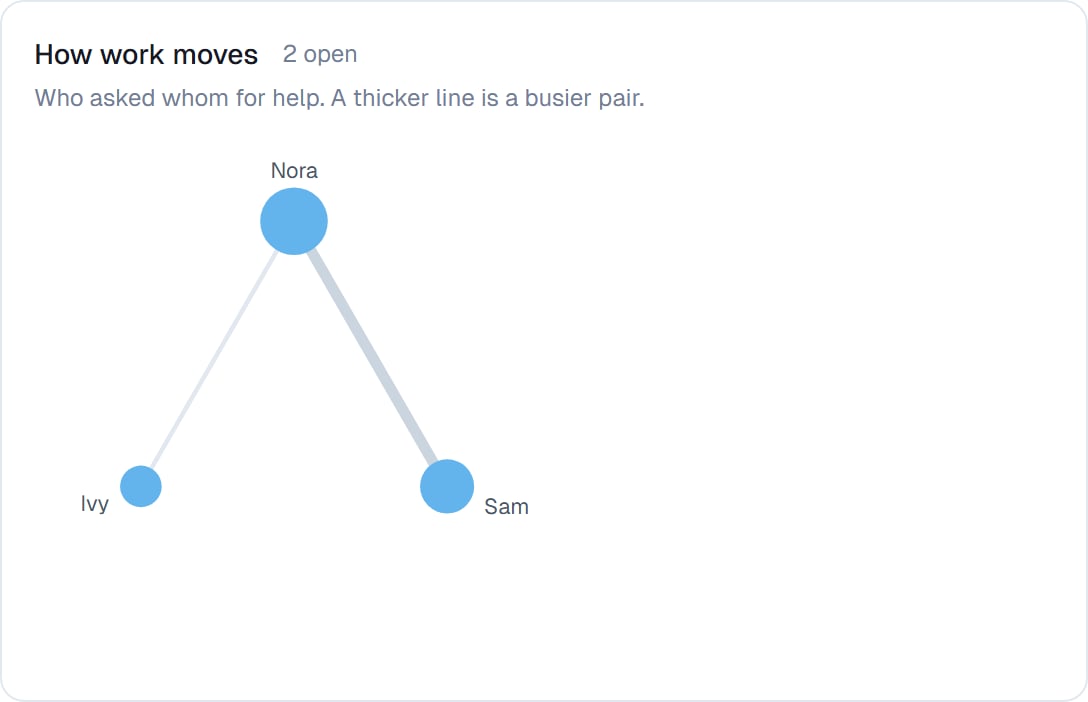 The panel also shows how many exchanges are still open.
The diagram only appears once your coworkers are actually handing work to each other, which needs [Working with coworkers](/cowork/capabilities/working-with-coworkers) switched on. A team of one has nothing to draw.
## Good to know
**Check the roster weekly, not daily.** The numbers are about patterns. Change the window to a longer period and the signal is much clearer than day-to-day noise.
A very large team shows the busiest dozen coworkers in the diagram, and tells you how many it left out rather than quietly dropping them.
## Common questions
Its card shows what it's currently working on. Open it to follow along — see [Managing your tasks](/cowork/chat/tasks).
Not necessarily, but it's worth asking whether it's doing things a specialist would do better. A lopsided diagram is usually the moment to hire a second coworker rather than push the first harder.
Yes — open it and choose the **Activity** tab for its full history in order.
Pause it. It stays on the roster, stops working, and keeps everything it learned. See [Retiring, re-hiring and templates](/cowork/coworkers/templates).
## Next steps
What the diagram is drawing.
Everything in flight.
Pause, re-hire, reuse.
Add someone to the team.
The panel also shows how many exchanges are still open.
The diagram only appears once your coworkers are actually handing work to each other, which needs [Working with coworkers](/cowork/capabilities/working-with-coworkers) switched on. A team of one has nothing to draw.
## Good to know
**Check the roster weekly, not daily.** The numbers are about patterns. Change the window to a longer period and the signal is much clearer than day-to-day noise.
A very large team shows the busiest dozen coworkers in the diagram, and tells you how many it left out rather than quietly dropping them.
## Common questions
Its card shows what it's currently working on. Open it to follow along — see [Managing your tasks](/cowork/chat/tasks).
Not necessarily, but it's worth asking whether it's doing things a specialist would do better. A lopsided diagram is usually the moment to hire a second coworker rather than push the first harder.
Yes — open it and choose the **Activity** tab for its full history in order.
Pause it. It stays on the roster, stops working, and keeps everything it learned. See [Retiring, re-hiring and templates](/cowork/coworkers/templates).
## Next steps
What the diagram is drawing.
Everything in flight.
Pause, re-hire, reuse.
Add someone to the team.