> ## Documentation Index
> Fetch the complete documentation index at: https://docs.cogniagent.ai/llms.txt
> Use this file to discover all available pages before exploring further.
# Seeing what changed
> When your AI coworker edits a file you gave it, see exactly which lines changed — rather than taking its word for it.
When your coworker edits a file, it shows you exactly what it changed.
## What it does
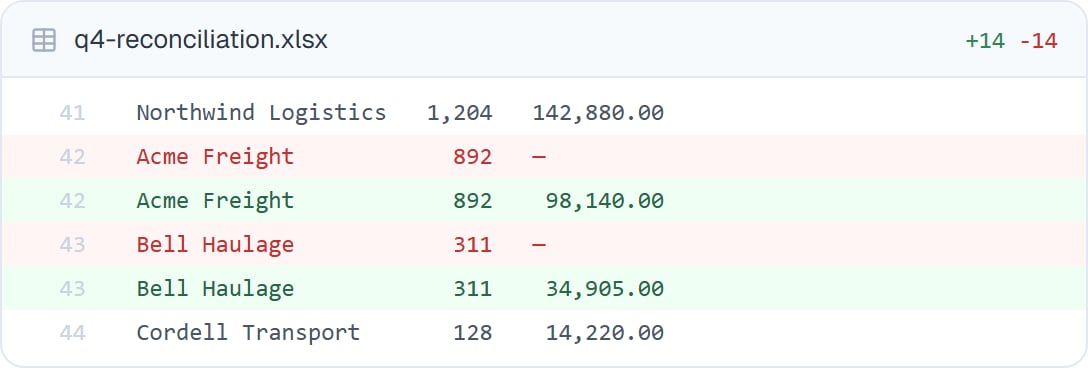
An edit appears in the conversation as a card showing the before and the after, line by line. Removed lines on one side, added lines on the other, unchanged content in between for context.
You don't have to open the file, remember what it used to say, or trust a summary. The change is right there in the conversation, at the moment it happened.
 ## Why it's the most important thing on this page
"I've updated the report" is not a verifiable statement. Six changed lines are.
The difference matters most when your coworker does something *almost* right — fixing four figures correctly and one incorrectly. A summary says "corrected the figures". The change shows you the one that's wrong.
## When you'd look
* Any edit to a file you'll send to someone else
* The first few times a coworker edits this kind of file, to calibrate
* When the summary sounds broader than you expected
* After a long autonomous run, to skim what actually happened
* When a number changed and you want to know which
**Skim, don't read.** You're looking for a line that surprises you. Most edits are exactly what was described, and the ones that aren't tend to stand out immediately.
## Good to know
Your coworker edits its own copy in the task's private workspace. Your original file isn't touched until you download the result and replace it yourself.
Not sure about a change? Say so in the chat. "Why did you change line 12?" is answerable, and often turns up an assumption worth correcting.
## Common questions
Ask your coworker to revert it — it can, and the original is still in the task. Or download the earlier version.
Open the result in the [preview](/cowork/files/previews) and read it as a table. For a spreadsheet, seeing the finished thing is usually clearer than a line comparison.
Every edit it makes to a file appears in the conversation as it happens. Nothing is changed off the record.
That's normal on a bulk job. Skim for the unexpected, or ask your coworker to summarise the kinds of change it made and check one of each.
## Next steps
Open the finished result.
Have it check before you do.
Everything else it did.
Back to the basics.
## Why it's the most important thing on this page
"I've updated the report" is not a verifiable statement. Six changed lines are.
The difference matters most when your coworker does something *almost* right — fixing four figures correctly and one incorrectly. A summary says "corrected the figures". The change shows you the one that's wrong.
## When you'd look
* Any edit to a file you'll send to someone else
* The first few times a coworker edits this kind of file, to calibrate
* When the summary sounds broader than you expected
* After a long autonomous run, to skim what actually happened
* When a number changed and you want to know which
**Skim, don't read.** You're looking for a line that surprises you. Most edits are exactly what was described, and the ones that aren't tend to stand out immediately.
## Good to know
Your coworker edits its own copy in the task's private workspace. Your original file isn't touched until you download the result and replace it yourself.
Not sure about a change? Say so in the chat. "Why did you change line 12?" is answerable, and often turns up an assumption worth correcting.
## Common questions
Ask your coworker to revert it — it can, and the original is still in the task. Or download the earlier version.
Open the result in the [preview](/cowork/files/previews) and read it as a table. For a spreadsheet, seeing the finished thing is usually clearer than a line comparison.
Every edit it makes to a file appears in the conversation as it happens. Nothing is changed off the record.
That's normal on a bulk job. Skim for the unexpected, or ask your coworker to summarise the kinds of change it made and check one of each.
## Next steps
Open the finished result.
Have it check before you do.
Everything else it did.
Back to the basics.