> ## Documentation Index
> Fetch the complete documentation index at: https://docs.cogniagent.ai/llms.txt
> Use this file to discover all available pages before exploring further.
# The file manager
> Browse everything in a task, upload what your AI coworker needs, and download what it produced — without leaving the conversation.
Everything in a task, in a panel beside the conversation.
## What you can do
The panel shows a folder tree of everything in the task — what you uploaded, what your coworker produced, and anything it organised into folders along the way.
From a file's menu:
* **Open** it in place — see [Previewing files](/cowork/files/previews)
* **Download** it
* **Rename** it
* **Delete** it
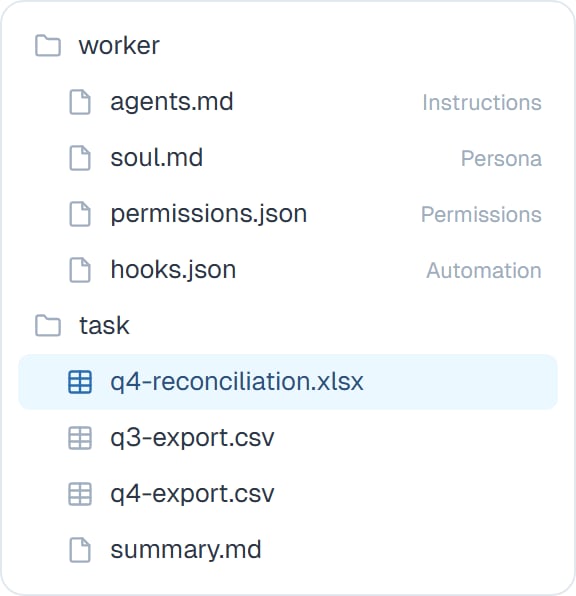 You can upload by dropping files onto the panel, and drag the divider to give the panel more room when you're working through results.
## Editing a file yourself
Text-based files open in an editor, so you can make a change yourself rather than asking. Handy for fixing one figure in a report or adjusting a line in a skill without a round trip.
Editing a coworker's control file — its instructions, personality, permissions — takes effect on the **next** task. A task already running keeps what it started with. The editor tells you this at the time.
## Good to know
**Give files clear names before uploading.** "Q3-sales-export.csv" and "Q3-sales-final-v2.csv" tell your coworker which is which. "export(1).csv" doesn't.
Uploading several related files at once is fine and often better — your coworker can work across them, which is exactly what you want for a reconciliation.
Deleting is immediate, and a task file that's gone is gone. Download first if you're unsure.
## Common questions
Download it from the panel. Or ask your coworker to email it, if it has an email app connected or [Talking to people](/cowork/capabilities/talking-to-people) set up.
Upload the files and your coworker can organise them. It's comfortable working across a set of files in one task.
It belongs to the task you uploaded it into. See [Files overview](/cowork/files/overview) for the difference between task and coworker files.
Ordinary business exports are fine. For a very large file, say what you're after up front so your coworker works through it rather than trying to hold it all at once.
## Next steps
Open a file in place.
Check an edit.
Point at a file in chat.
Task files versus coworker files.
You can upload by dropping files onto the panel, and drag the divider to give the panel more room when you're working through results.
## Editing a file yourself
Text-based files open in an editor, so you can make a change yourself rather than asking. Handy for fixing one figure in a report or adjusting a line in a skill without a round trip.
Editing a coworker's control file — its instructions, personality, permissions — takes effect on the **next** task. A task already running keeps what it started with. The editor tells you this at the time.
## Good to know
**Give files clear names before uploading.** "Q3-sales-export.csv" and "Q3-sales-final-v2.csv" tell your coworker which is which. "export(1).csv" doesn't.
Uploading several related files at once is fine and often better — your coworker can work across them, which is exactly what you want for a reconciliation.
Deleting is immediate, and a task file that's gone is gone. Download first if you're unsure.
## Common questions
Download it from the panel. Or ask your coworker to email it, if it has an email app connected or [Talking to people](/cowork/capabilities/talking-to-people) set up.
Upload the files and your coworker can organise them. It's comfortable working across a set of files in one task.
It belongs to the task you uploaded it into. See [Files overview](/cowork/files/overview) for the difference between task and coworker files.
Ordinary business exports are fine. For a very large file, say what you're after up front so your coworker works through it rather than trying to hold it all at once.
## Next steps
Open a file in place.
Check an edit.
Point at a file in chat.
Task files versus coworker files.