> ## Documentation Index
> Fetch the complete documentation index at: https://docs.cogniagent.ai/llms.txt
> Use this file to discover all available pages before exploring further.
# The Files page
> Browse, upload, search and organize Workspace files: list, columns or gallery views, filters, favorites, zip downloads and a 30-day Trash.
Everything your workspace keeps, in one place you already know how to use: folders, a list or a gallery, drag and drop, and a Trash that gives files back.
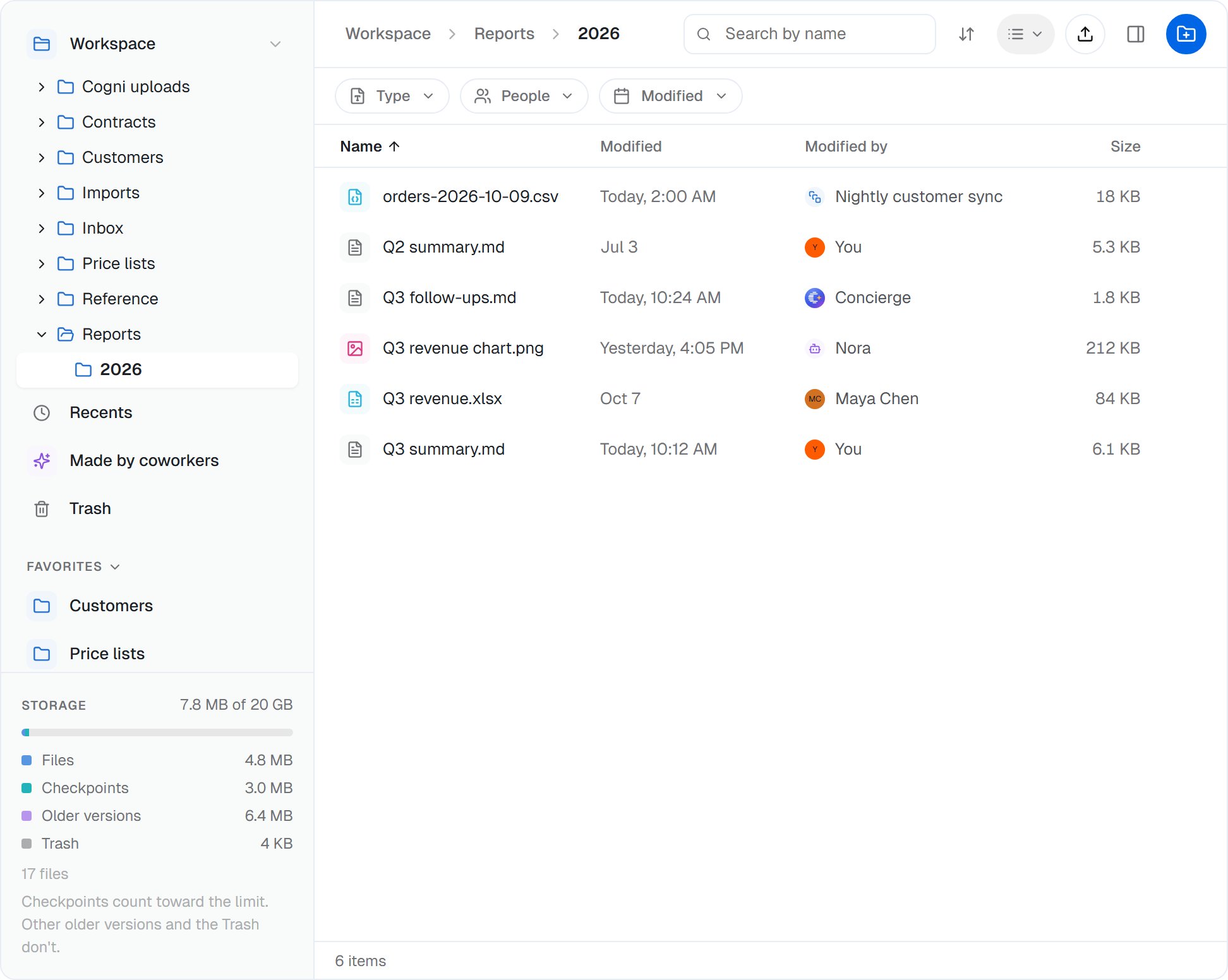 Open it from the sidebar: **Cowork → Files**.
## Find your way around
The sidebar lists every place you can open:
| Place | What's there |
| - | - |
| **Workspace** | The shared folder, [Workspace files](/cowork/files/workspace-files). Its folders show as a tree under it. |
| **Recents** | Files changed lately, newest first. |
| **Made by coworkers** | Files a coworker changed last. |
| **Trash** | What was deleted from Workspace files in the last 30 days. |
| **Favorites** | Folders and files you starred, for you only. |
| **Coworkers** | Each coworker's own files: its instructions, skills and anything saved to it. |
| **Tasks** | The files of the tasks you started. Under a task, **Cloud computer** shows its files as they are on the coworker's cloud computer, to look at but not change. |
The path bar at the top opens any folder above the one you're in. Drag files onto it to move them up.
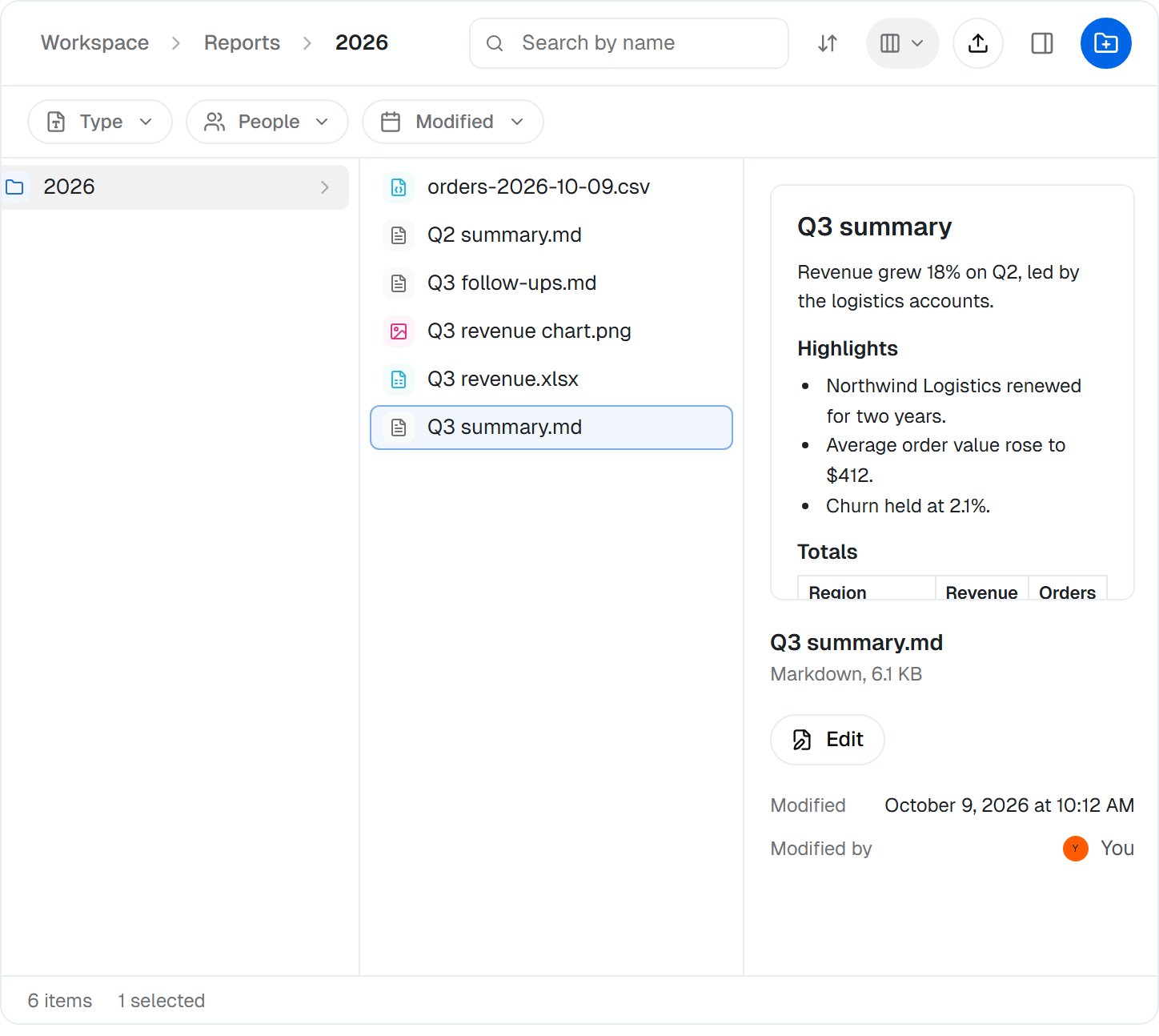
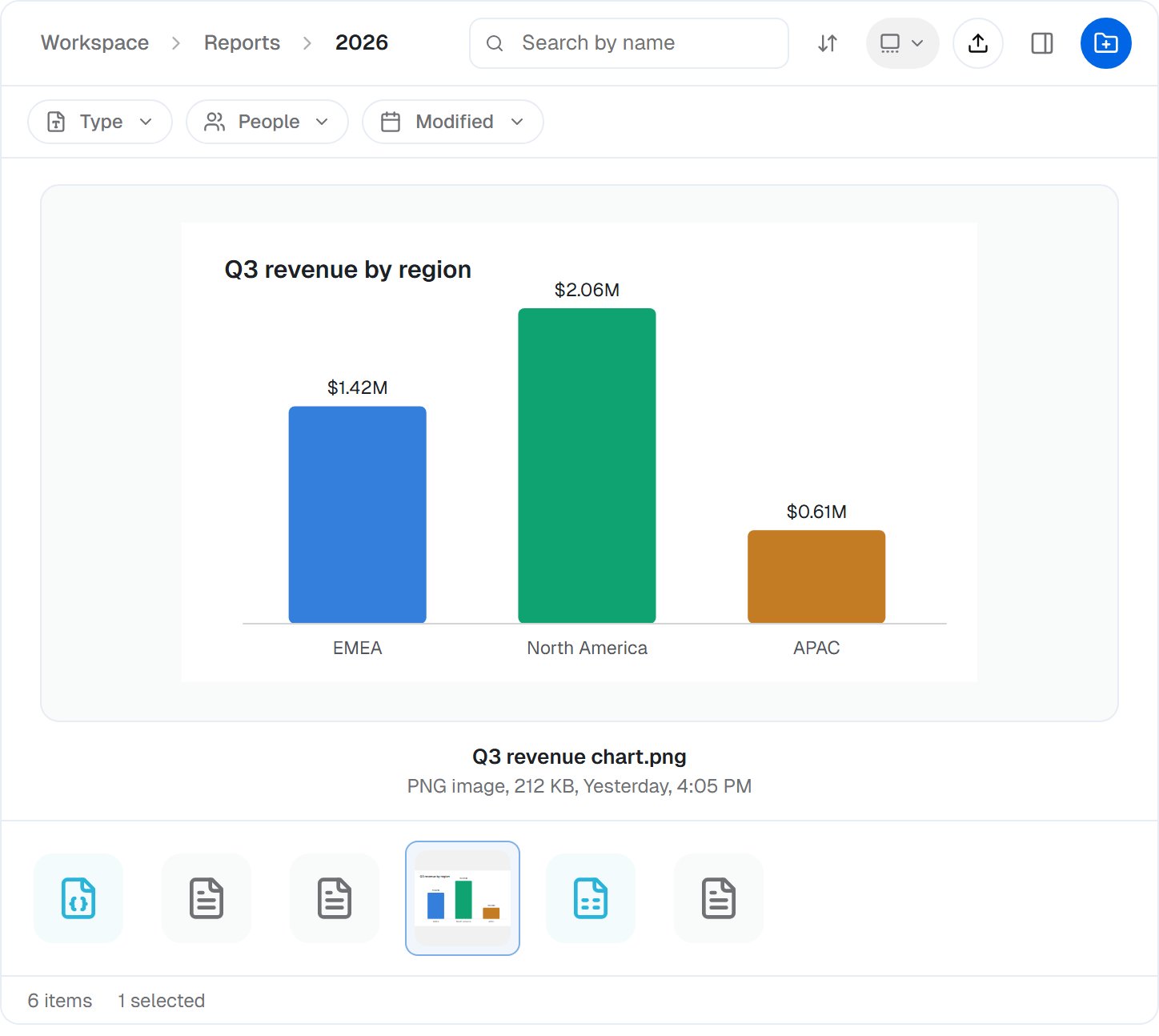
Show a folder four ways: as a list, a grid, columns or a gallery. In a narrow window the four collapse into one view button.
Open it from the sidebar: **Cowork → Files**.
## Find your way around
The sidebar lists every place you can open:
| Place | What's there |
| - | - |
| **Workspace** | The shared folder, [Workspace files](/cowork/files/workspace-files). Its folders show as a tree under it. |
| **Recents** | Files changed lately, newest first. |
| **Made by coworkers** | Files a coworker changed last. |
| **Trash** | What was deleted from Workspace files in the last 30 days. |
| **Favorites** | Folders and files you starred, for you only. |
| **Coworkers** | Each coworker's own files: its instructions, skills and anything saved to it. |
| **Tasks** | The files of the tasks you started. Under a task, **Cloud computer** shows its files as they are on the coworker's cloud computer, to look at but not change. |
The path bar at the top opens any folder above the one you're in. Drag files onto it to move them up.
Show a folder four ways: as a list, a grid, columns or a gallery. In a narrow window the four collapse into one view button.
 ### Filters
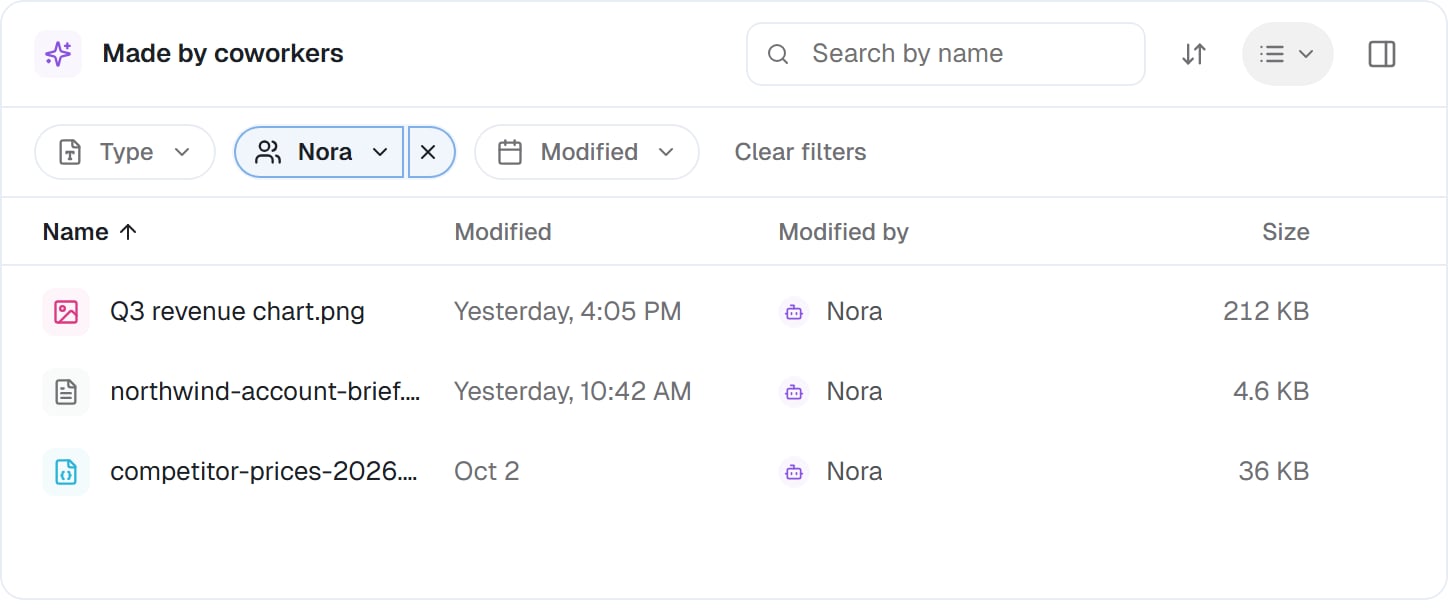
Under the toolbar, three chips narrow what you see: **Type**, **People** (who changed it last) and **Modified**. In **Made by coworkers** the people chip is called **Coworker**. **Clear filters** puts everything back. The sort button beside the views sorts by any column and groups files by kind or by date modified.
### Filters
Under the toolbar, three chips narrow what you see: **Type**, **People** (who changed it last) and **Modified**. In **Made by coworkers** the people chip is called **Coworker**. **Clear filters** puts everything back. The sort button beside the views sorts by any column and groups files by kind or by date modified.
 ### Search
**Search by name** finds files and folders by their names. At the top it searches all of Workspace; inside a folder it searches that folder and everything in it, and as soon as you type you can switch between **This folder** and the whole of Workspace. Search looks at names, not at what's inside files.
## Add files
* **Drag and drop** files or whole folders from your computer onto the list or onto a folder.
* **Upload** in the toolbar offers **Files…**, **A whole folder…** and **Import from URL…**.
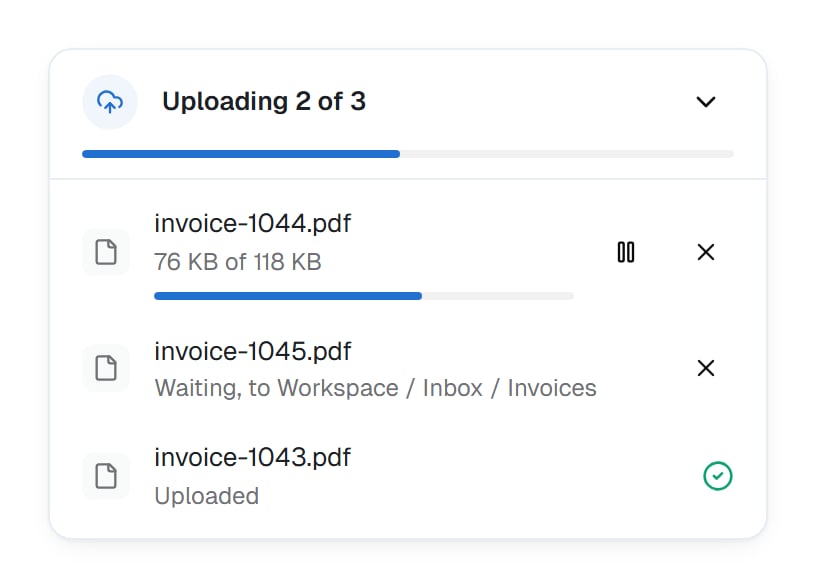
Each file can be up to 5 GB. Uploads run in a tray in the corner, with pause, cancel and a progress bar each. If the page reloads mid-upload, the tray offers to resume; a large file you pick again carries on where it stopped.
### Search
**Search by name** finds files and folders by their names. At the top it searches all of Workspace; inside a folder it searches that folder and everything in it, and as soon as you type you can switch between **This folder** and the whole of Workspace. Search looks at names, not at what's inside files.
## Add files
* **Drag and drop** files or whole folders from your computer onto the list or onto a folder.
* **Upload** in the toolbar offers **Files…**, **A whole folder…** and **Import from URL…**.
Each file can be up to 5 GB. Uploads run in a tray in the corner, with pause, cancel and a progress bar each. If the page reloads mid-upload, the tray offers to resume; a large file you pick again carries on where it stopped.
 ### Import from a link
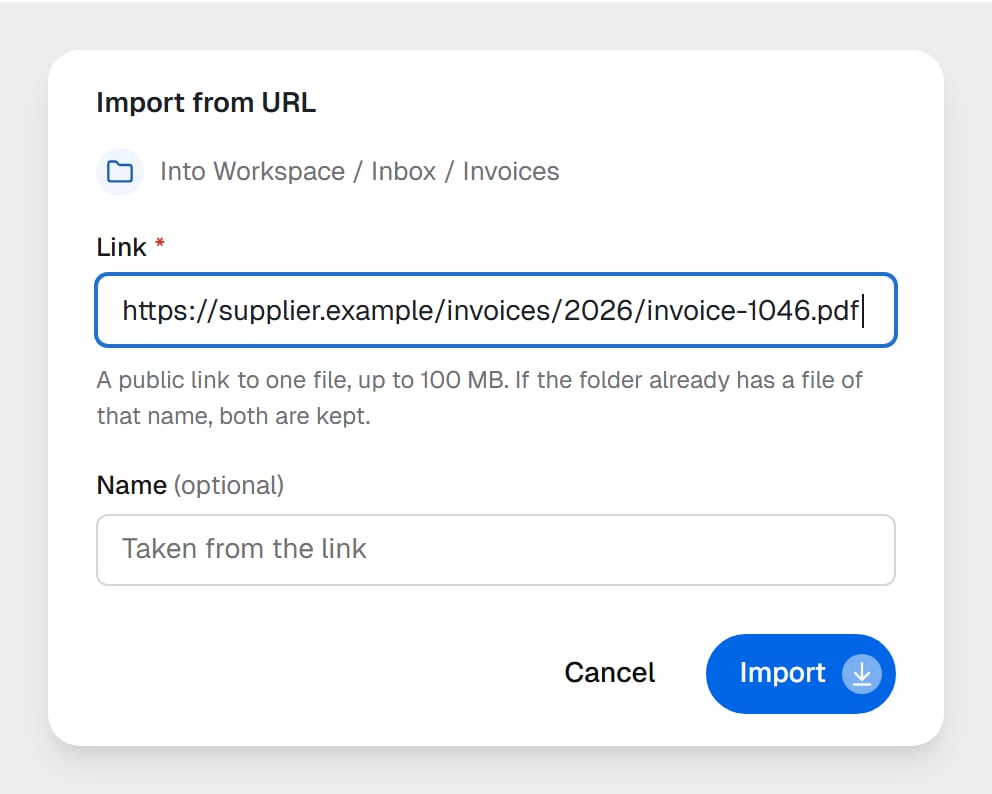
**Import from URL…** brings a file in from a public link, up to 100 MB, into the folder you're in. Give it a name, or leave **Name** empty to keep the one from the link. A link to an address on a private network is refused:
> That address is on a private network, so it can't be imported. Use a public link.
### Import from a link
**Import from URL…** brings a file in from a public link, up to 100 MB, into the folder you're in. Give it a name, or leave **Name** empty to keep the one from the link. A link to an address on a private network is refused:
> That address is on a private network, so it can't be imported. Use a public link.
 ### When a name is taken
If a file of the same name is already there, you choose:
| Choice | What happens |
| - | - |
| **Keep both** | The upload gets a numbered name, like "report (1).pdf". |
| **Replace** | Saved as a new version of the file. The old content stays in its [history](/cowork/files/editing-and-history). |
| **Skip** | Nothing is uploaded for this item. |
For a folder, **Merge** saves files with the same name inside as new versions. When several names clash, one tick applies your choice to the rest.
## Organize
Right-click a file, or use its **…** button, for everything you can do with it.
### When a name is taken
If a file of the same name is already there, you choose:
| Choice | What happens |
| - | - |
| **Keep both** | The upload gets a numbered name, like "report (1).pdf". |
| **Replace** | Saved as a new version of the file. The old content stays in its [history](/cowork/files/editing-and-history). |
| **Skip** | Nothing is uploaded for this item. |
For a folder, **Merge** saves files with the same name inside as new versions. When several names clash, one tick applies your choice to the rest.
## Organize
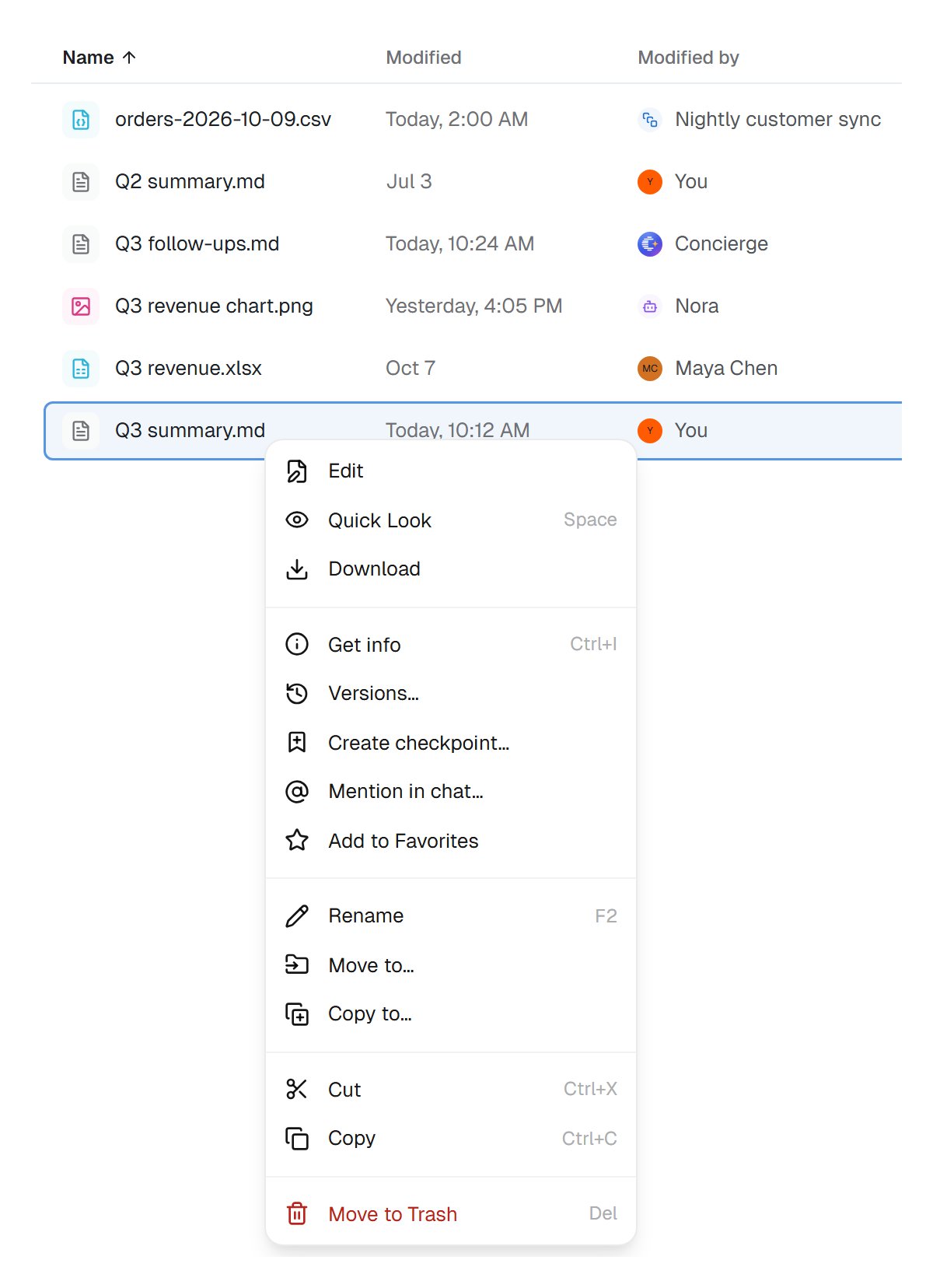
Right-click a file, or use its **…** button, for everything you can do with it.
 * **New folder** in the toolbar makes a folder where you are.
* **Rename**, **Move to…** and **Copy to…** work on files and whole folders. Drag a file onto a folder, the tree or the path bar to move it there.
* **Download** saves one file. A folder, or several selected items, comes down as one zip with **Download as zip**.
* **Add to Favorites** pins a folder or file to your sidebar.
* **Save to Workspace…**, on a coworker's or a task's files, copies them into the shared folder.
### The Trash
**Move to Trash** takes a file out of the folder, with an **Undo** right away. From the **Trash**, anyone can **Restore** it for 30 days.
> Only owners and admins can delete permanently. Items in the Trash are removed for good after 30 days.
Owners and admins also see **Empty Trash** there.
## Preview and edit
Press **Space**, or choose **Quick Look**, to open a file in place: documents, spreadsheets, PDFs, images and more. See [Previewing files](/cowork/files/previews). A web page or an SVG opens in a frame of its own, labelled so you know:
> Runs in an isolated frame, with no access to your account.
Double-click a text file to edit it; a file the editor can't open downloads instead. Editing, versions and checkpoints are on [Editing and file history](/cowork/files/editing-and-history).
## Point someone at a file
**Mention in chat…** puts a file into a message: one of your tasks, a new task with a coworker, or the Concierge. You can also drag a file from the Files page onto a task's message box. See [Workspace files and the Concierge](/cowork/files/with-the-concierge) and [Attaching and mentioning](/cowork/files/attaching-and-mentioning).
## Storage
The bar at the foot of the sidebar shows how full the workspace is, against its 20 GB.
* **New folder** in the toolbar makes a folder where you are.
* **Rename**, **Move to…** and **Copy to…** work on files and whole folders. Drag a file onto a folder, the tree or the path bar to move it there.
* **Download** saves one file. A folder, or several selected items, comes down as one zip with **Download as zip**.
* **Add to Favorites** pins a folder or file to your sidebar.
* **Save to Workspace…**, on a coworker's or a task's files, copies them into the shared folder.
### The Trash
**Move to Trash** takes a file out of the folder, with an **Undo** right away. From the **Trash**, anyone can **Restore** it for 30 days.
> Only owners and admins can delete permanently. Items in the Trash are removed for good after 30 days.
Owners and admins also see **Empty Trash** there.
## Preview and edit
Press **Space**, or choose **Quick Look**, to open a file in place: documents, spreadsheets, PDFs, images and more. See [Previewing files](/cowork/files/previews). A web page or an SVG opens in a frame of its own, labelled so you know:
> Runs in an isolated frame, with no access to your account.
Double-click a text file to edit it; a file the editor can't open downloads instead. Editing, versions and checkpoints are on [Editing and file history](/cowork/files/editing-and-history).
## Point someone at a file
**Mention in chat…** puts a file into a message: one of your tasks, a new task with a coworker, or the Concierge. You can also drag a file from the Files page onto a task's message box. See [Workspace files and the Concierge](/cowork/files/with-the-concierge) and [Attaching and mentioning](/cowork/files/attaching-and-mentioning).
## Storage
The bar at the foot of the sidebar shows how full the workspace is, against its 20 GB.
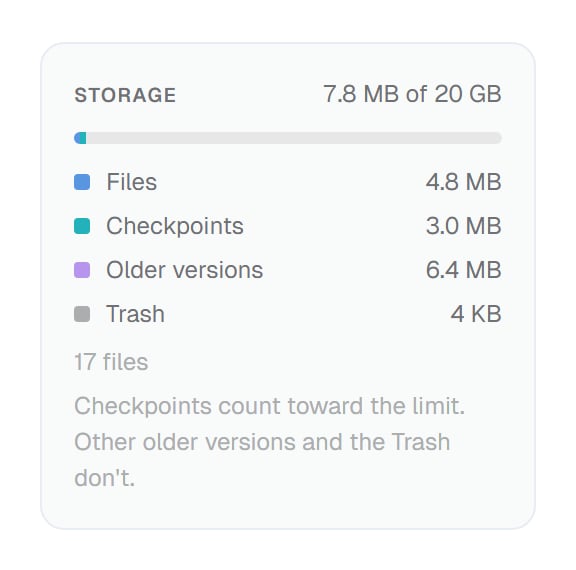 Files and [checkpoints](/cowork/files/editing-and-history#keep-a-version-for-good-checkpoints) count. Other older versions and the Trash don't. From 90% the bar turns orange; moving files to the Trash or removing checkpoints makes room.
## Keyboard shortcuts
On a Mac, use Cmd where this table says Ctrl.
| Keys | What they do |
| - | - |
| Space | Quick Look |
| Enter or F2 | Rename |
| Delete | Move to Trash |
| Ctrl+Z | Undo |
| Ctrl+A, Ctrl+C, Ctrl+X, Ctrl+V | Select all, copy, cut, paste |
| Ctrl+O or Ctrl+↓ | Open |
| Ctrl+↑ or Alt+↑ | Go to the folder above |
| Ctrl+I | Get info |
| Alt+Shift+N | New folder |
| Shift+F10 | Open the item menu |
| Arrow keys, Home, End | Move through the list; hold Shift to select as you go |
| Esc | Clear the selection |
| Any letter | Jump to the next name that starts with it |
## Good to know
**Star the folders you use every day.** Favorites sit in your own sidebar, so they help you without changing anyone else's.
Tasks are private to the person who started them, so the Tasks group lists yours only. Coworkers' own files are visible to everyone in the workspace.
## Common questions
Yes. Drag it onto the list, or choose **Upload → A whole folder…**. Its folders come along.
Open **Trash** in the sidebar, find the file and choose **Restore**. It goes back where it was. The Trash keeps files for 30 days.
Owners and admins. Everyone else can move files to the Trash and restore them.
Tasks are private to the person who started them. To share a file from a task, save it to Workspace files with **Save to Workspace…**.
## Next steps
Edit in place, compare and restore.
Who sees which files.
What opens in place.
The shared folder at a glance.
This documentation is built and hosted on [Mintlify](https://mintlify.com), a developer documentation platform.
Files and [checkpoints](/cowork/files/editing-and-history#keep-a-version-for-good-checkpoints) count. Other older versions and the Trash don't. From 90% the bar turns orange; moving files to the Trash or removing checkpoints makes room.
## Keyboard shortcuts
On a Mac, use Cmd where this table says Ctrl.
| Keys | What they do |
| - | - |
| Space | Quick Look |
| Enter or F2 | Rename |
| Delete | Move to Trash |
| Ctrl+Z | Undo |
| Ctrl+A, Ctrl+C, Ctrl+X, Ctrl+V | Select all, copy, cut, paste |
| Ctrl+O or Ctrl+↓ | Open |
| Ctrl+↑ or Alt+↑ | Go to the folder above |
| Ctrl+I | Get info |
| Alt+Shift+N | New folder |
| Shift+F10 | Open the item menu |
| Arrow keys, Home, End | Move through the list; hold Shift to select as you go |
| Esc | Clear the selection |
| Any letter | Jump to the next name that starts with it |
## Good to know
**Star the folders you use every day.** Favorites sit in your own sidebar, so they help you without changing anyone else's.
Tasks are private to the person who started them, so the Tasks group lists yours only. Coworkers' own files are visible to everyone in the workspace.
## Common questions
Yes. Drag it onto the list, or choose **Upload → A whole folder…**. Its folders come along.
Open **Trash** in the sidebar, find the file and choose **Restore**. It goes back where it was. The Trash keeps files for 30 days.
Owners and admins. Everyone else can move files to the Trash and restore them.
Tasks are private to the person who started them. To share a file from a task, save it to Workspace files with **Save to Workspace…**.
## Next steps
Edit in place, compare and restore.
Who sees which files.
What opens in place.
The shared folder at a glance.
This documentation is built and hosted on [Mintlify](https://mintlify.com), a developer documentation platform.