> ## Documentation Index
> Fetch the complete documentation index at: https://docs.cogniagent.ai/llms.txt
> Use this file to discover all available pages before exploring further.
# Workspace files in workflows
> Start a workflow when a file lands in a folder, write results back, read files with AI and update a database from code, all in Workspace files.
Your workflows work in the same folder as your team and your coworkers: they pick up the files people drop in, and put their results where everyone can find them.
 ## What it does
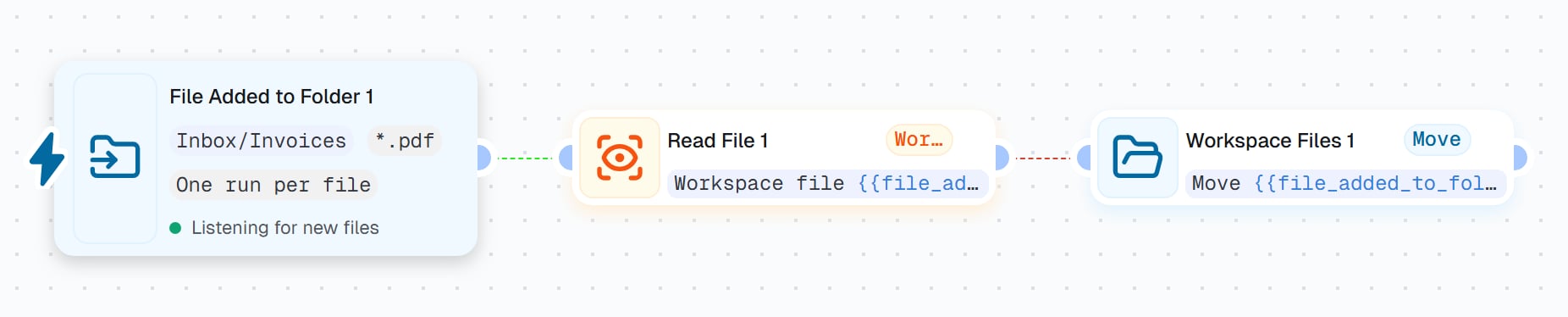
[Workspace files](/cowork/files/workspace-files) is one folder for everyone in your workspace. Your [workflows](/features/applications) can watch it, read from it, write to it and organize it, so a file a person or a coworker saves there can set work in motion, and the results come back to the same place.
Everything a workflow changes keeps its history like any other file, and the Files page names the workflow that made each change.
Start a workflow when files arrive in a folder.
Write, list, move, copy and delete files.
Read the text of a file in the folder.
Let Python work on files and databases in the folder.
## When you'd use it
* "Every invoice someone drops in `Inbox/Invoices` should be read and logged, then put away."
* "The weekly report should land in `Reports` where the whole team looks, not in someone's inbox."
* "Our coworker writes a summary each morning. Send it to the team once it's there."
* "We keep a small customer database in the folder, and a workflow updates it every night."
* "When the price list gets a new version, check that every product still has a price."
## Start when a file arrives
A **File Added to Folder** trigger watches one folder (or the whole workspace folder) and starts a run when a file is added, and if you like, when a file gets a new version. You choose whether a batch of files that arrive together starts one run or one run per file. If too many arrive in an hour, the rest wait their turn. Nothing is dropped.
## What it does
[Workspace files](/cowork/files/workspace-files) is one folder for everyone in your workspace. Your [workflows](/features/applications) can watch it, read from it, write to it and organize it, so a file a person or a coworker saves there can set work in motion, and the results come back to the same place.
Everything a workflow changes keeps its history like any other file, and the Files page names the workflow that made each change.
Start a workflow when files arrive in a folder.
Write, list, move, copy and delete files.
Read the text of a file in the folder.
Let Python work on files and databases in the folder.
## When you'd use it
* "Every invoice someone drops in `Inbox/Invoices` should be read and logged, then put away."
* "The weekly report should land in `Reports` where the whole team looks, not in someone's inbox."
* "Our coworker writes a summary each morning. Send it to the team once it's there."
* "We keep a small customer database in the folder, and a workflow updates it every night."
* "When the price list gets a new version, check that every product still has a price."
## Start when a file arrives
A **File Added to Folder** trigger watches one folder (or the whole workspace folder) and starts a run when a file is added, and if you like, when a file gets a new version. You choose whether a batch of files that arrive together starts one run or one run per file. If too many arrive in an hour, the rest wait their turn. Nothing is dropped.
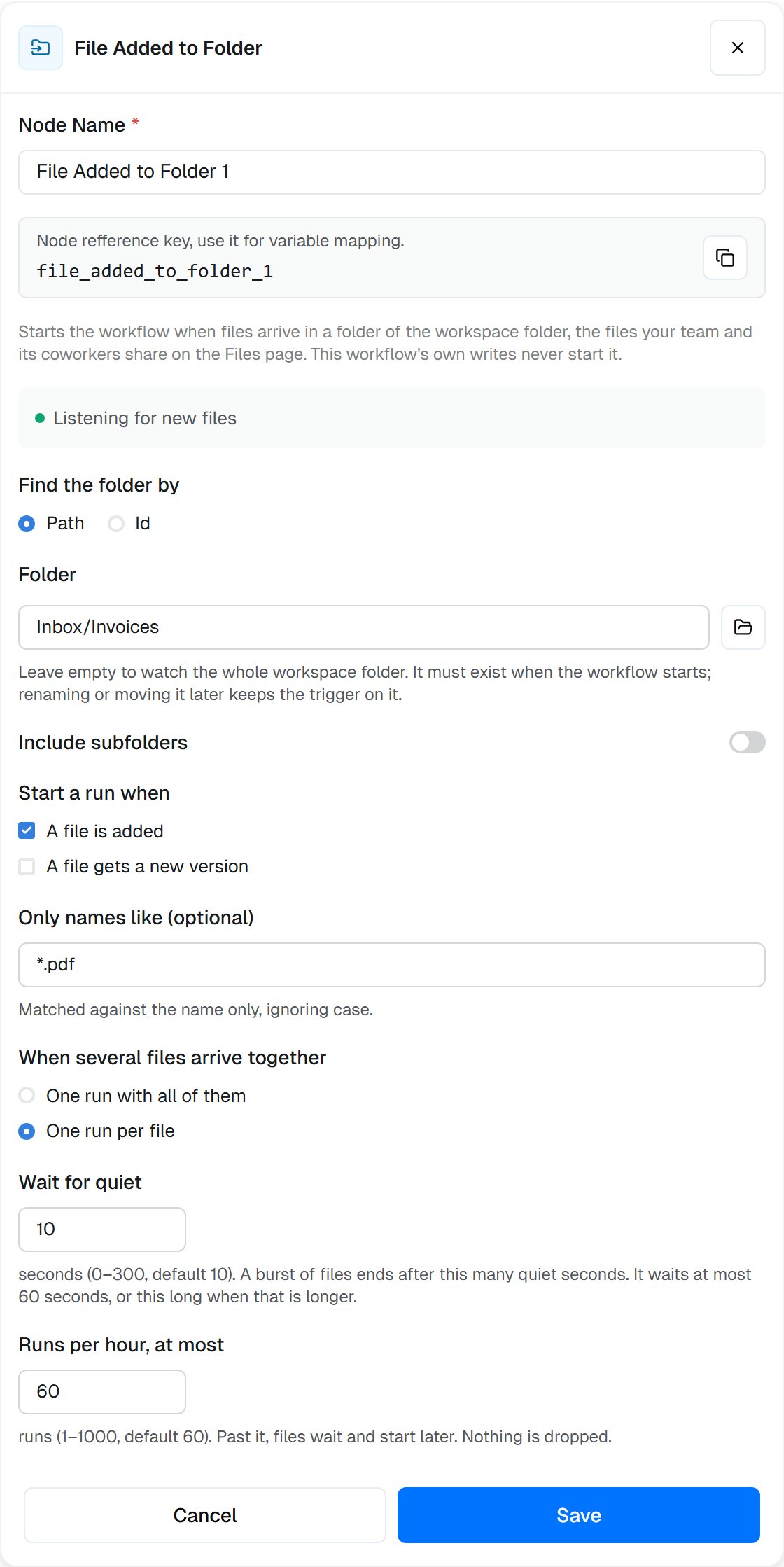 A workflow's own writes never start its own trigger, so it can save into the folder it watches without starting itself again.
## Save and organize files
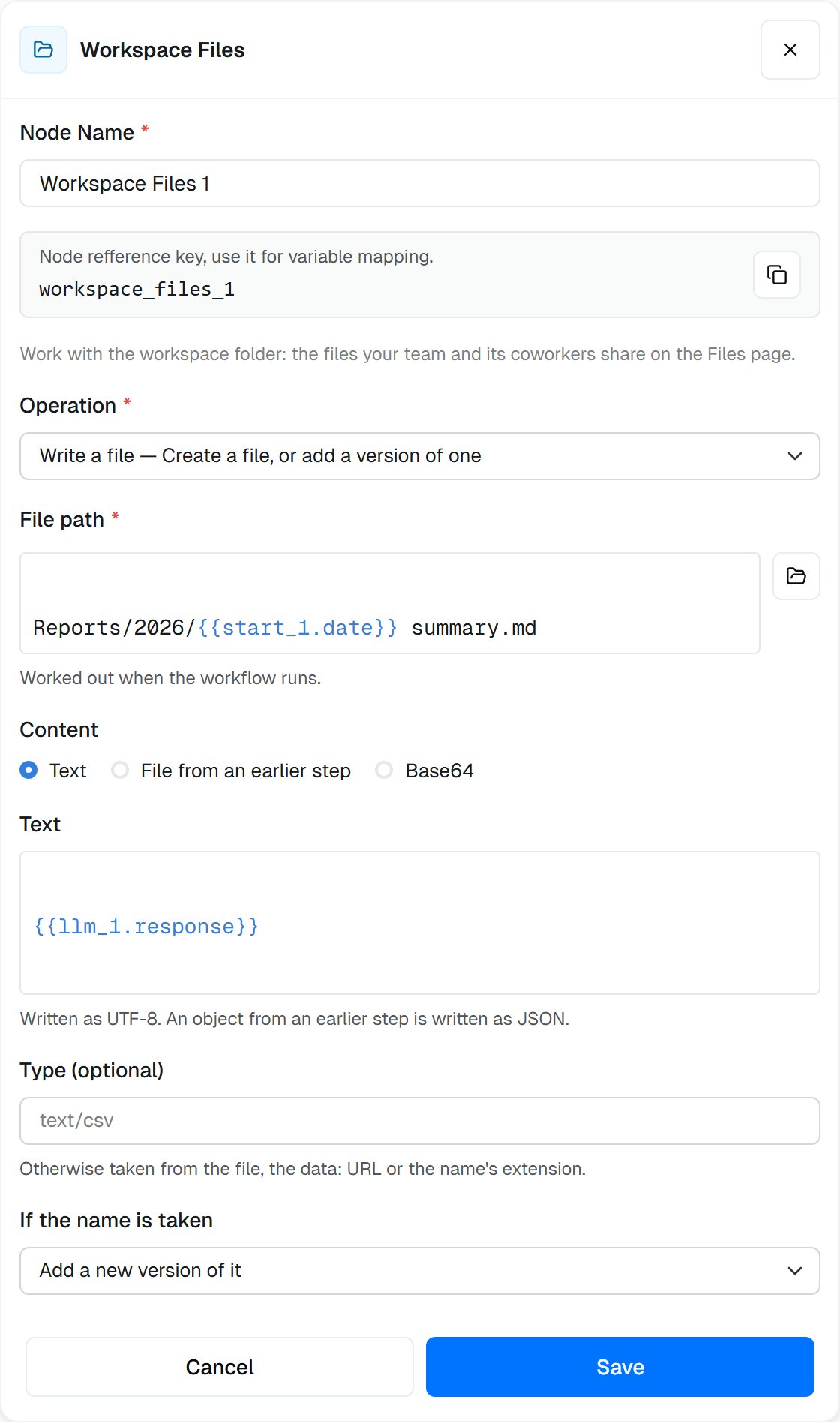
A **Workspace Files** step does one thing per step: write a file, list a folder, pass a file on, move or rename it, copy it, or move it to the Trash. Writing to a file that already exists adds a new version by default, so earlier ones stay in its history.
A workflow's own writes never start its own trigger, so it can save into the folder it watches without starting itself again.
## Save and organize files
A **Workspace Files** step does one thing per step: write a file, list a folder, pass a file on, move or rename it, copy it, or move it to the Trash. Writing to a file that already exists adds a new version by default, so earlier ones stay in its history.
 A workflow never deletes a file for good. What it deletes goes to the Trash, where you can restore it for 30 days.
## Read a file, or give it to AI
A **Read File** step reads the text of a file in the folder, by its path or from an earlier step, for files up to 50 MB. An AI step can also take a file from the folder as an attachment and work with it directly.
## Work on files with code
An **Execute Code** step can mount files or folders from Workspace files, so your Python works on a copy of them. When the code succeeds, the files it changed are saved back as new versions, and files you mark as read-only never are. If the code fails, nothing is saved. [Use a SQLite database with Workspace files](/guides/sqlite-workspace-files) walks through it with a database that a workflow updates every night.
## Send a file out
A file from the folder can go out with an **HTTP Request** step as a form field, to any service that takes uploads.
## Who made the change
On the Files page, a change a workflow made shows the workflow's name, with **Open the run** to see the run that made it. A version a code step saved also carries the note “Written by the Code node”. See [Editing and file history](/cowork/files/editing-and-history) for versions and restores.
## Good to know
A trigger watching a folder that another workflow, or a coworker, writes to starts on every one of those files. If that workflow is started by this one, each run starts the next. Keep their output in a different folder.
A workflow's write never pushes out a version a person made, however often a workflow saves the file. Your edit stays in its history for up to 30 days after it's replaced, or for good as a checkpoint.
## Common questions
No. A workflow's own writes never start its own File Added to Folder trigger, even in the folder it watches. Another workflow's writes, or a coworker's, do.
With **One run with all of them**, a burst of files starts one run, up to 500 files each by default; a larger burst starts more runs. With **One run per file**, each file starts its own. Past the hourly limit, files wait and start later. None are dropped.
In Workspace files, wherever the step put them, with the workflow's name as the author. Everyone who can see the folder sees them, coworkers included.
Its save becomes a new version, and your version stays in the file's history for up to 30 days. A workflow's write never pushes out a version a person made. A code step that finds you saved the file while it ran saves its result beside yours as a copy instead.
## Next steps
Every setting of the trigger.
Every operation of the step.
A database your workflow updates from code.
The shared folder itself.
This documentation is built and hosted on [Mintlify](https://mintlify.com), a developer documentation platform.
A workflow never deletes a file for good. What it deletes goes to the Trash, where you can restore it for 30 days.
## Read a file, or give it to AI
A **Read File** step reads the text of a file in the folder, by its path or from an earlier step, for files up to 50 MB. An AI step can also take a file from the folder as an attachment and work with it directly.
## Work on files with code
An **Execute Code** step can mount files or folders from Workspace files, so your Python works on a copy of them. When the code succeeds, the files it changed are saved back as new versions, and files you mark as read-only never are. If the code fails, nothing is saved. [Use a SQLite database with Workspace files](/guides/sqlite-workspace-files) walks through it with a database that a workflow updates every night.
## Send a file out
A file from the folder can go out with an **HTTP Request** step as a form field, to any service that takes uploads.
## Who made the change
On the Files page, a change a workflow made shows the workflow's name, with **Open the run** to see the run that made it. A version a code step saved also carries the note “Written by the Code node”. See [Editing and file history](/cowork/files/editing-and-history) for versions and restores.
## Good to know
A trigger watching a folder that another workflow, or a coworker, writes to starts on every one of those files. If that workflow is started by this one, each run starts the next. Keep their output in a different folder.
A workflow's write never pushes out a version a person made, however often a workflow saves the file. Your edit stays in its history for up to 30 days after it's replaced, or for good as a checkpoint.
## Common questions
No. A workflow's own writes never start its own File Added to Folder trigger, even in the folder it watches. Another workflow's writes, or a coworker's, do.
With **One run with all of them**, a burst of files starts one run, up to 500 files each by default; a larger burst starts more runs. With **One run per file**, each file starts its own. Past the hourly limit, files wait and start later. None are dropped.
In Workspace files, wherever the step put them, with the workflow's name as the author. Everyone who can see the folder sees them, coworkers included.
Its save becomes a new version, and your version stays in the file's history for up to 30 days. A workflow's write never pushes out a version a person made. A code step that finds you saved the file while it ran saves its result beside yours as a copy instead.
## Next steps
Every setting of the trigger.
Every operation of the step.
A database your workflow updates from code.
The shared folder itself.
This documentation is built and hosted on [Mintlify](https://mintlify.com), a developer documentation platform.