> ## Documentation Index
> Fetch the complete documentation index at: https://docs.cogniagent.ai/llms.txt
> Use this file to discover all available pages before exploring further.
# Previewing files
> Open spreadsheets, PDFs, documents and images right in the conversation — search inside a PDF, page through it, no download needed.
Open what your coworker produced without downloading it first.
## What opens in place
Click a file in the panel and it opens beside the conversation.
| | What you get |
| ------------------- | ----------------------------------------------------------------------- |
| **PDFs** | Full document, page by page, with search and a page rail to jump around |
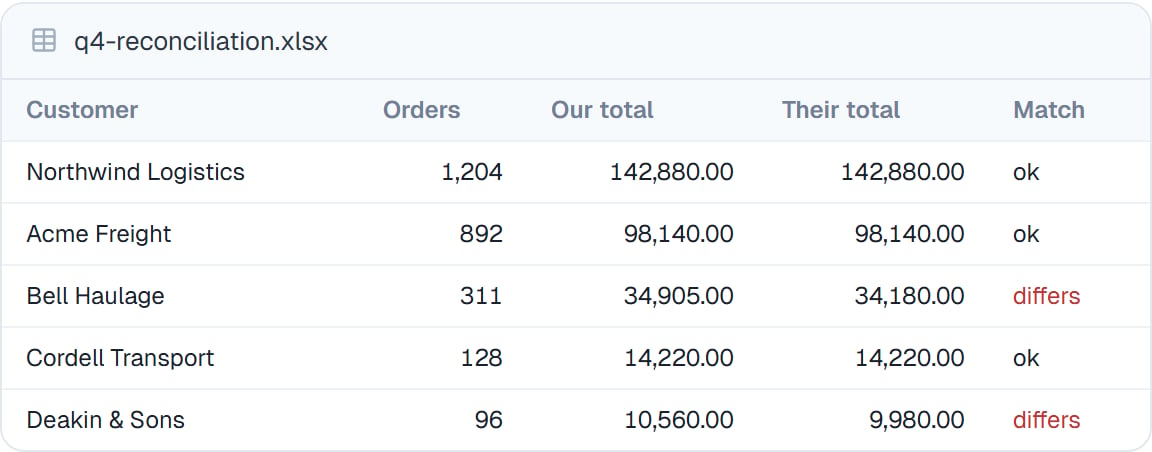
| **Spreadsheets** | Rendered as a table you can scroll and read |
| **CSV files** | The same, as a proper table rather than raw text |
| **Documents** | Formatted, the way they're meant to look |
| **Images** | Full size |
| **Markdown** | Formatted, not raw |
| **Web pages** | Rendered |
| **Data files** | Structured and readable rather than one long line |
| **Audio and video** | Played in place |
 The PDF viewer is the one worth knowing about. Search finds text inside the document, and the page rail down the side lets you jump to a page — so a coworker handing you a forty-page report gives you something you can actually check.
## Why this matters
The point isn't convenience. It's that **checking your coworker's work should be easier than doing it yourself**, or you won't check.
A result you have to download, find in your downloads folder and open in another application is a result you'll skim and accept. One that opens next to the conversation, where you can read the number and compare it against what your coworker said, is one you'll actually verify.
## Good to know
Ask questions about what you're looking at. "Row 40 looks wrong — where did that come from?" while the spreadsheet is open in front of you is a much better conversation than describing the problem from memory.
Previewing doesn't change anything. To edit, use the editor for text files — see [The file manager](/cowork/files/file-manager) — or ask your coworker.
## Common questions
Yes. The viewer has a search box that finds text in the document, and a page rail for jumping straight to a page.
Download it and open it locally. Anything unusual still downloads fine even when there's no preview for it.
It appears inline in the conversation and as a file in the panel. See [Generating images](/cowork/capabilities/generating-images).
Large files load progressively rather than all at once, so a long PDF opens quickly and fills in as you page through.
## Next steps
Compare before and after.
Where previews open from.
How the files got made.
Back to the basics.
The PDF viewer is the one worth knowing about. Search finds text inside the document, and the page rail down the side lets you jump to a page — so a coworker handing you a forty-page report gives you something you can actually check.
## Why this matters
The point isn't convenience. It's that **checking your coworker's work should be easier than doing it yourself**, or you won't check.
A result you have to download, find in your downloads folder and open in another application is a result you'll skim and accept. One that opens next to the conversation, where you can read the number and compare it against what your coworker said, is one you'll actually verify.
## Good to know
Ask questions about what you're looking at. "Row 40 looks wrong — where did that come from?" while the spreadsheet is open in front of you is a much better conversation than describing the problem from memory.
Previewing doesn't change anything. To edit, use the editor for text files — see [The file manager](/cowork/files/file-manager) — or ask your coworker.
## Common questions
Yes. The viewer has a search box that finds text in the document, and a page rail for jumping straight to a page.
Download it and open it locally. Anything unusual still downloads fine even when there's no preview for it.
It appears inline in the conversation and as a file in the panel. See [Generating images](/cowork/capabilities/generating-images).
Large files load progressively rather than all at once, so a long PDF opens quickly and fills in as you page through.
## Next steps
Compare before and after.
Where previews open from.
How the files got made.
Back to the basics.