> ## Documentation Index
> Fetch the complete documentation index at: https://docs.cogniagent.ai/llms.txt
> Use this file to discover all available pages before exploring further.
# Workspace files and the Concierge
> Ask the Concierge about a file in Workspace files, let it save what it writes with your approval, and attach files that land in Cogni uploads.
Point the Concierge at a file and ask what's in it; when it writes something worth keeping, it saves it to Workspace files after you say yes.
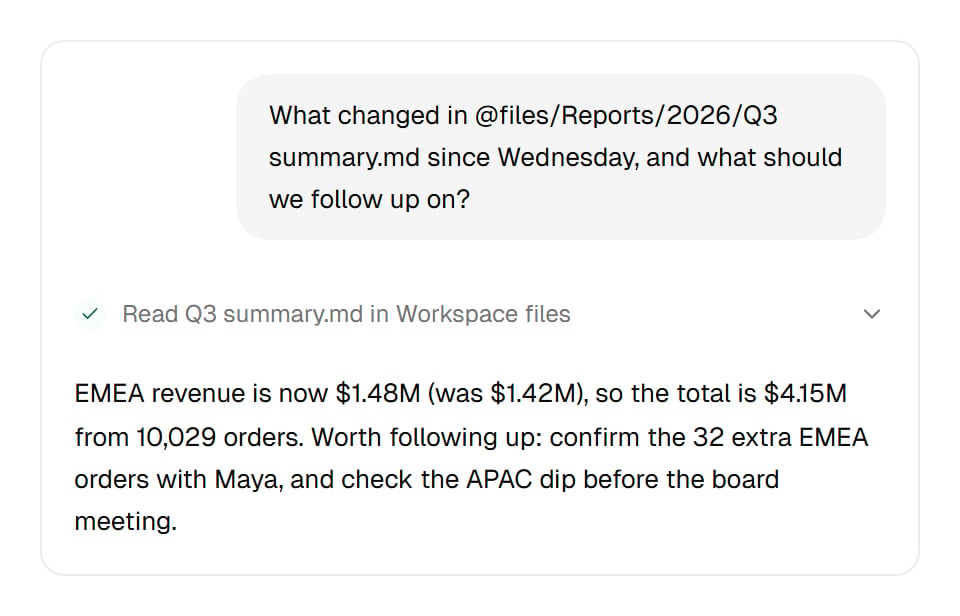 The Concierge is your workspace's assistant, the one you open from **Concierge** at the top of the app. It works with [Workspace files](/cowork/files/workspace-files) as you do, and every change it makes shows up in a file's history.
## Ask about a file
On the Files page, choose **Mention in chat…** on a file, then **Ask the Concierge**. The Concierge opens with the file already named in your message, as `@files/` and its path. Finish the question and send it; nothing is sent until you do.
The Concierge is your workspace's assistant, the one you open from **Concierge** at the top of the app. It works with [Workspace files](/cowork/files/workspace-files) as you do, and every change it makes shows up in a file's history.
## Ask about a file
On the Files page, choose **Mention in chat…** on a file, then **Ask the Concierge**. The Concierge opens with the file already named in your message, as `@files/` and its path. Finish the question and send it; nothing is sent until you do.
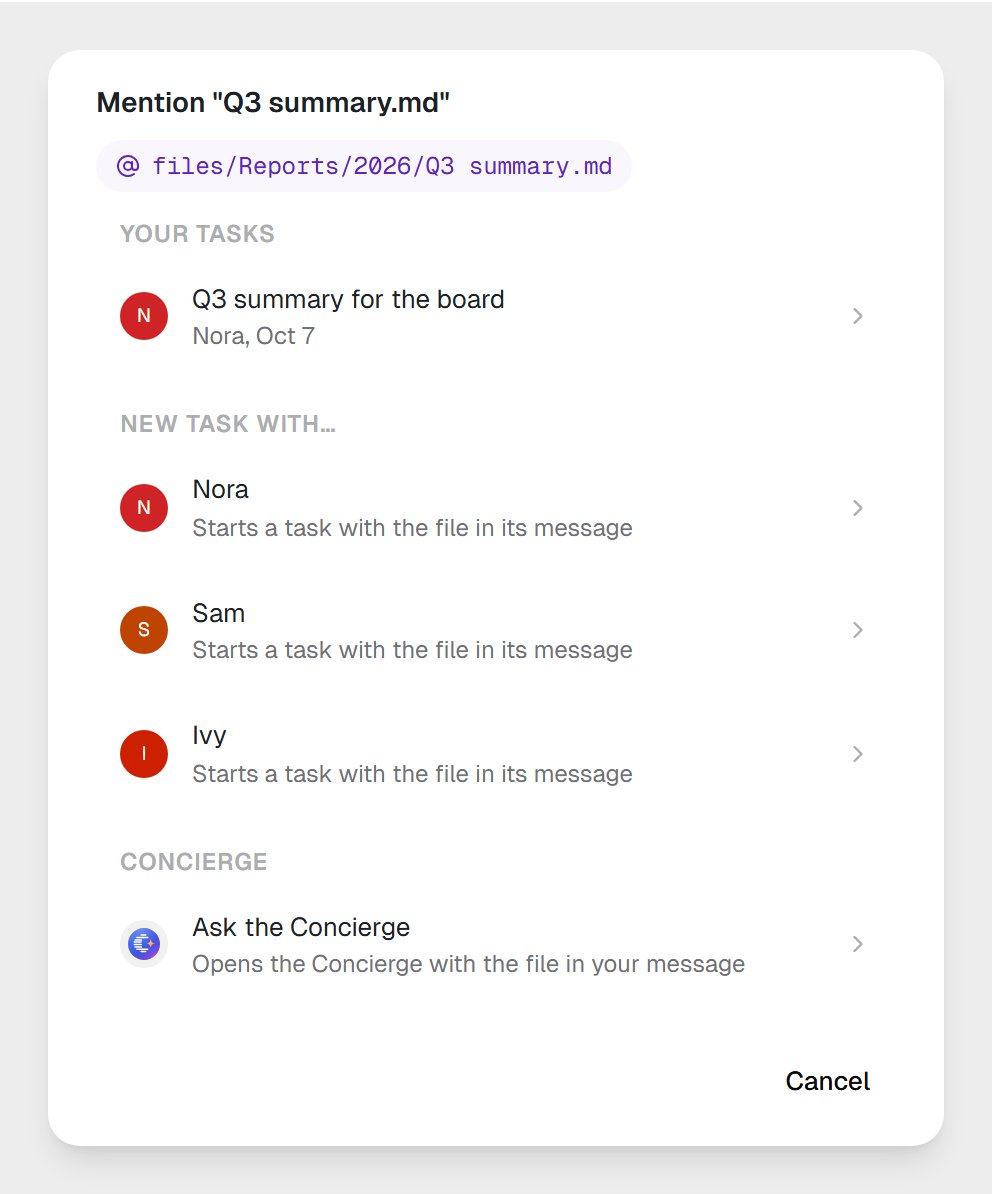 You can also type the mention yourself in any Concierge message: `@files/Reports/2026/Q3 summary.md`.
### What it can read
The Concierge lists folders, finds files by name and reads **text** files: Markdown, plain text, CSV, data files and the like, up to 5 MB each. A PDF, an image or an Office file it can find but not read; ask a coworker with **Code and files** to work on those.
## Let it save a file
When the Concierge writes something you might keep, such as a summary, a list or a draft, it can save it as a text file in Workspace files, up to 1 MB. It asks first, on a card that says exactly what it will do:
You can also type the mention yourself in any Concierge message: `@files/Reports/2026/Q3 summary.md`.
### What it can read
The Concierge lists folders, finds files by name and reads **text** files: Markdown, plain text, CSV, data files and the like, up to 5 MB each. A PDF, an image or an Office file it can find but not read; ask a coworker with **Code and files** to work on those.
## Let it save a file
When the Concierge writes something you might keep, such as a summary, a list or a draft, it can save it as a text file in Workspace files, up to 1 MB. It asks first, on a card that says exactly what it will do:
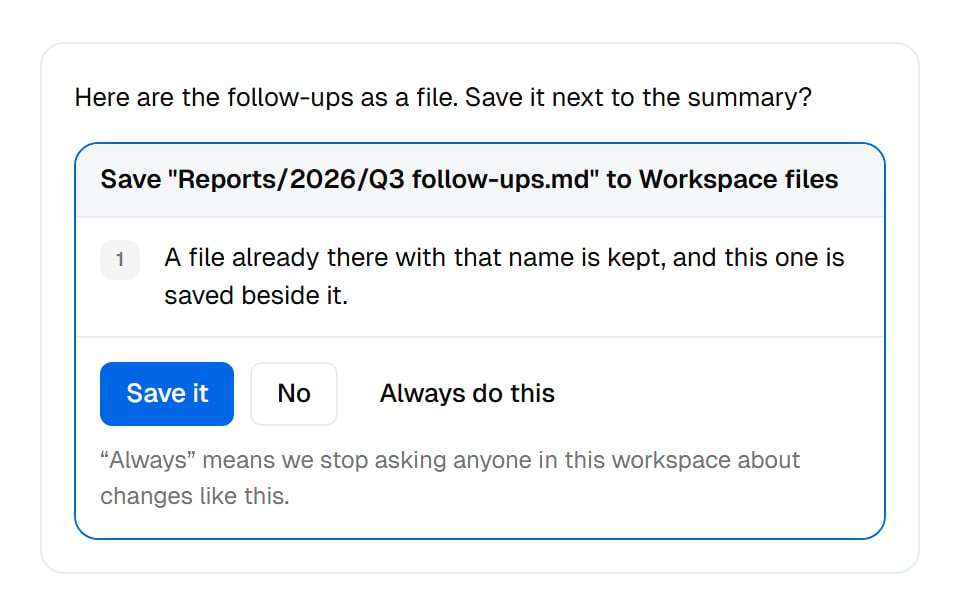 The card says one of two things:
> Save "Reports/2026/Q3 follow-ups.md" to Workspace files
>
> A file already there with that name is kept, and this one is saved beside it.
> Replace "Reports/2026/Q3 follow-ups.md" in Workspace files
>
> It becomes the file's new version. Earlier versions stay in its history.
**Save it** saves the file. **No** saves nothing, and the conversation carries on. **Always do this** saves it and stops asking:
> "Always" means we stop asking anyone in this workspace about changes like this.
## Attach a file
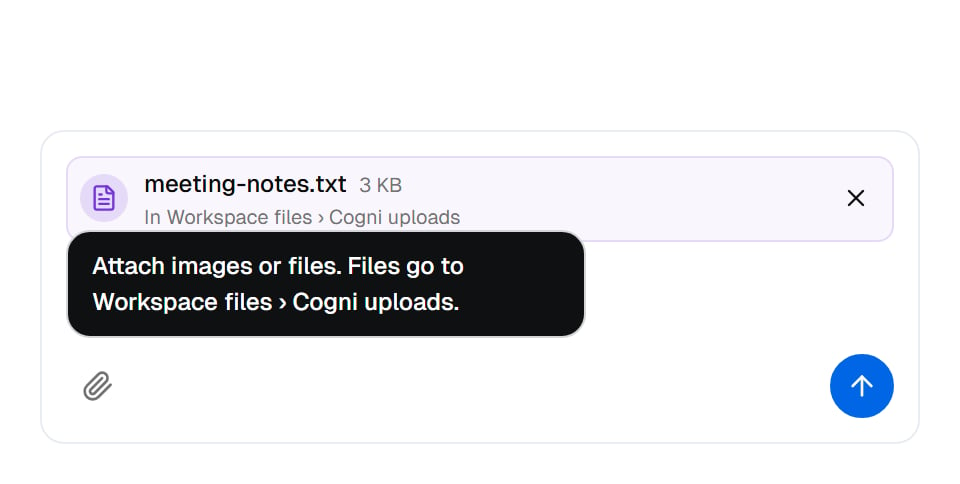
Drop a file into a Concierge message, or use its paperclip. Images go along with the message as they are. Any other file is uploaded into Workspace files first, into a folder called **Cogni uploads**, and the message names it there, so the Concierge and everyone else can open it later.
The card says one of two things:
> Save "Reports/2026/Q3 follow-ups.md" to Workspace files
>
> A file already there with that name is kept, and this one is saved beside it.
> Replace "Reports/2026/Q3 follow-ups.md" in Workspace files
>
> It becomes the file's new version. Earlier versions stay in its history.
**Save it** saves the file. **No** saves nothing, and the conversation carries on. **Always do this** saves it and stops asking:
> "Always" means we stop asking anyone in this workspace about changes like this.
## Attach a file
Drop a file into a Concierge message, or use its paperclip. Images go along with the message as they are. Any other file is uploaded into Workspace files first, into a folder called **Cogni uploads**, and the message names it there, so the Concierge and everyone else can open it later.
 ## Start a coworker task with a file
The same **Mention in chat…** dialog offers **New task with…** for every coworker with **Code and files** on. Pick one and a new task starts with the file in its message. Or pick one of **Your tasks** to put the file into a conversation you already have. See [Attaching and mentioning](/cowork/files/attaching-and-mentioning).
## In the file's history
A file the Concierge saves shows **Concierge** in **Modified by** on the Files page. Its Activity line reads **In your Concierge chat**, or names whose chat it was, so you know where it came from.
## Good to know
**Ask for a file, not just an answer.** "Save the follow-ups next to the summary" gets you something your team can open tomorrow, not a reply that scrolls away.
The Concierge reads text only. For a PDF, a spreadsheet or an image, start a task with a coworker that has **Code and files** on.
## Common questions
It can find it, but it reads text files only. Start a task with a coworker that has **Code and files** on, from **Mention in chat… → New task with…**, and it can open the PDF.
It asks before every save, on a card naming the file, until someone chooses **Always do this**. That choice stops the asking for everyone in the workspace.
Images go along with your message. Other files are uploaded into Workspace files, in **Cogni uploads**, and stay there like any other file.
No. A replace becomes the file's new version, and earlier versions stay in its history. See [Editing and file history](/cowork/files/editing-and-history).
## Next steps
Point a coworker at a file.
The shared folder at a glance.
Versions and who changed what.
Browse, upload and organise.
This documentation is built and hosted on [Mintlify](https://mintlify.com), a developer documentation platform.
## Start a coworker task with a file
The same **Mention in chat…** dialog offers **New task with…** for every coworker with **Code and files** on. Pick one and a new task starts with the file in its message. Or pick one of **Your tasks** to put the file into a conversation you already have. See [Attaching and mentioning](/cowork/files/attaching-and-mentioning).
## In the file's history
A file the Concierge saves shows **Concierge** in **Modified by** on the Files page. Its Activity line reads **In your Concierge chat**, or names whose chat it was, so you know where it came from.
## Good to know
**Ask for a file, not just an answer.** "Save the follow-ups next to the summary" gets you something your team can open tomorrow, not a reply that scrolls away.
The Concierge reads text only. For a PDF, a spreadsheet or an image, start a task with a coworker that has **Code and files** on.
## Common questions
It can find it, but it reads text files only. Start a task with a coworker that has **Code and files** on, from **Mention in chat… → New task with…**, and it can open the PDF.
It asks before every save, on a card naming the file, until someone chooses **Always do this**. That choice stops the asking for everyone in the workspace.
Images go along with your message. Other files are uploaded into Workspace files, in **Cogni uploads**, and stay there like any other file.
No. A replace becomes the file's new version, and earlier versions stay in its history. See [Editing and file history](/cowork/files/editing-and-history).
## Next steps
Point a coworker at a file.
The shared folder at a glance.
Versions and who changed what.
Browse, upload and organise.
This documentation is built and hosted on [Mintlify](https://mintlify.com), a developer documentation platform.