> ## Documentation Index
> Fetch the complete documentation index at: https://docs.cogniagent.ai/llms.txt
> Use this file to discover all available pages before exploring further.
# Connect MCP
> Connect Claude, Cursor, or any MCP-compatible AI to your CogniAgent workspace and manage applications and conversation flows by chatting.
CogniAgent exposes a **Model Context Protocol (MCP) server** that lets any MCP-compatible AI assistant — Claude Desktop, Claude Code, Cursor, Codex, and more — manage your entire workspace through natural conversation. Workflows, conversation flows, integrations, executions, deployments — all of it.
Once connected, you can say things like:
> *"Create a customer-support flow with two agents — Triage and Returns. Give Returns access to my Shopify integration. Deploy it."*
> *"Build a workflow that runs every morning at 9 AM, fetches new Stripe charges from the last 24 hours, and posts a summary to Slack."*
…and the AI does it, calling the right tools in the right order.
Just finished the [Quick Start](/quick-start)? MCP is the fastest way to keep building — your AI assistant becomes a co-pilot for everything you'd otherwise click through in the dashboard.
## What you can do via MCP
The MCP server exposes 40+ tools covering:
Create, update, and delete flows. Manage actors, edges, channels, and capabilities.
Inspect and edit workflow applications — triggers, actions, logic, executions.
Browse the 2,700+ app catalogue, set up new connections, inspect existing ones.
Start test sessions, read events, send messages, deploy, undeploy, end conversations.
## Why this is useful
For **operators**: build complex flows by describing them. The AI handles the wiring — actor configs, routing edges, capability setup — and you focus on the conversation design.
For **developers**: the same MCP tools are available programmatically. Build flows from scripts, generate documentation, sync flows across environments.
For **enterprises**: standardise flow patterns across teams. A central "AI assistant" can create workspaces, provision base flows, and onboard teams to spec.
## Getting started
### 1. Open API access in Workspace settings
Click the **workspace switcher** at the top of the left sidebar, then **Workspace settings**.
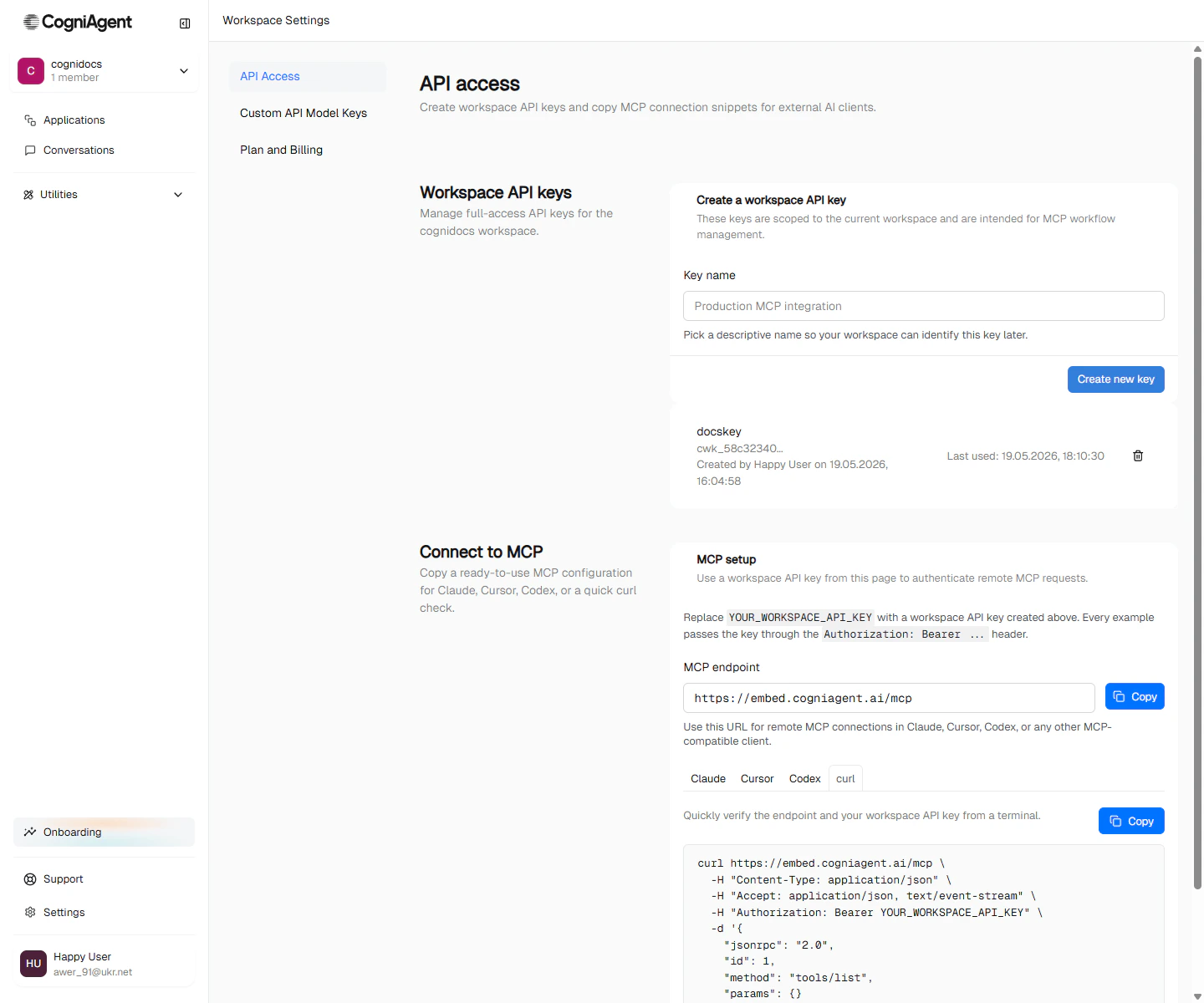
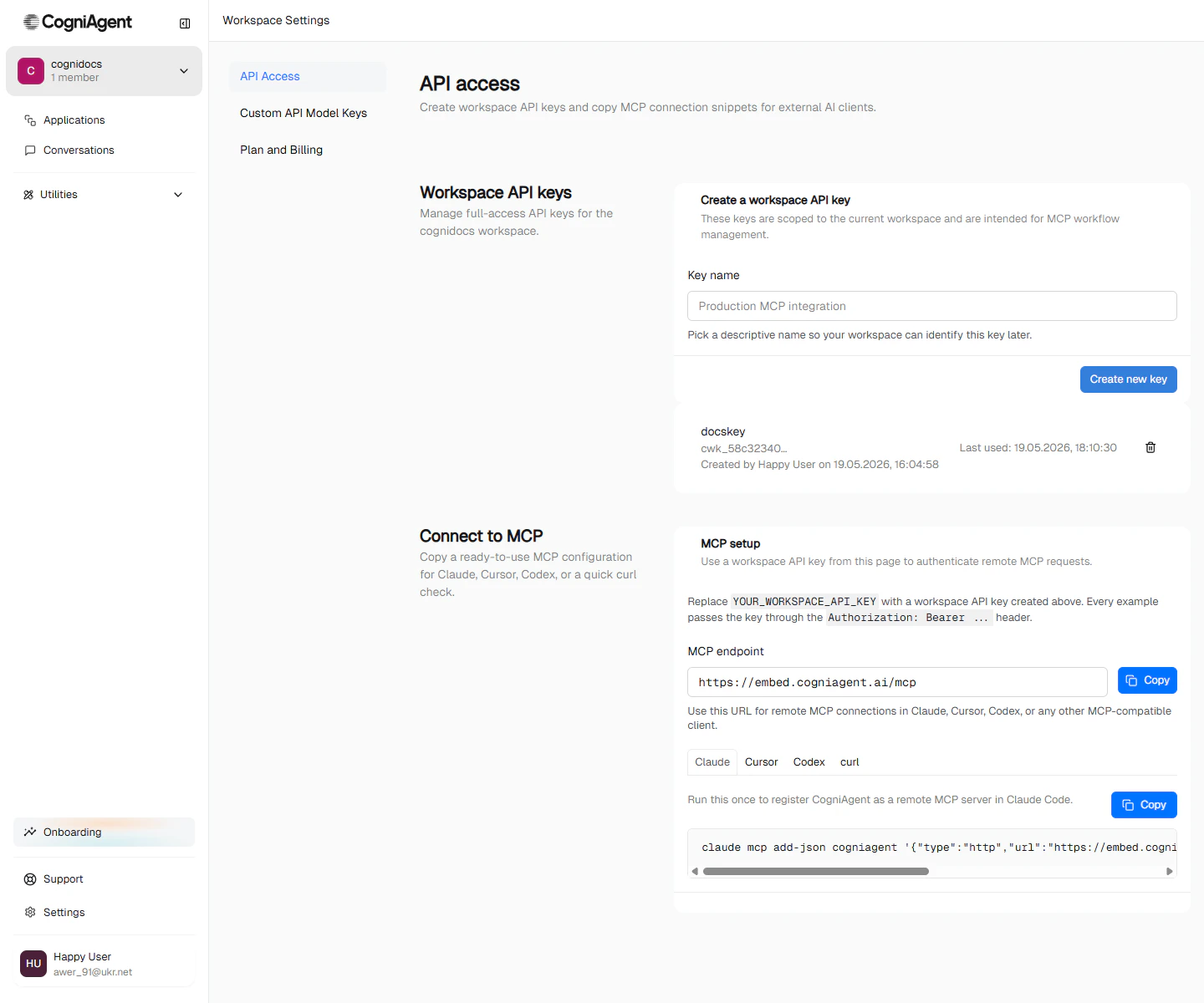 In Workspace settings, open the **API Access** tab. You'll find two sections — **Workspace API keys** on the left, and **Connect to MCP** on the right with ready-to-paste config for each client.
 ### 2. Create a workspace API key
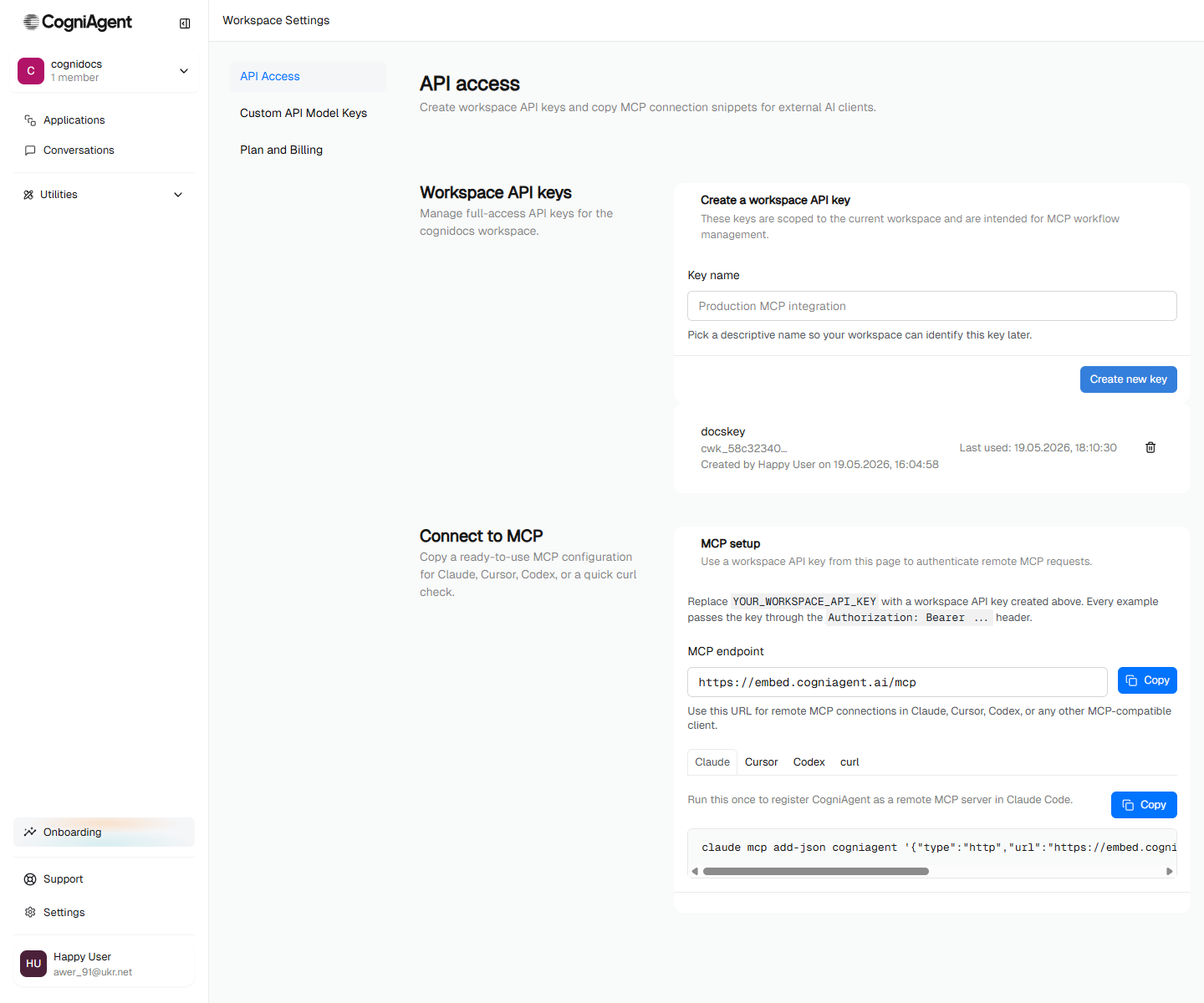
Under **Create a workspace API key**, type a descriptive name (e.g. `Production MCP integration`) and click **Create new key**. CogniAgent shows the full key **once** — copy it immediately. After you close the dialog, only a truncated preview (e.g. `cwk_58c32340…`) is visible.
**Treat the key like a password.** Anyone with this key can manage your workspace through MCP — create flows, deploy them, send messages.
Never commit keys to source control. If a key leaks, revoke it from this page immediately and create a new one.
The key list shows when each key was last used, so you can spot unused keys and revoke them.
### 3. Copy the MCP config for your client
The **Connect to MCP** card on the right has tabs for Claude, Cursor, Codex, and a raw `curl` check. Pick your client, replace `YOUR_WORKSPACE_API_KEY` with the key you just created, and paste.
### 2. Create a workspace API key
Under **Create a workspace API key**, type a descriptive name (e.g. `Production MCP integration`) and click **Create new key**. CogniAgent shows the full key **once** — copy it immediately. After you close the dialog, only a truncated preview (e.g. `cwk_58c32340…`) is visible.
**Treat the key like a password.** Anyone with this key can manage your workspace through MCP — create flows, deploy them, send messages.
Never commit keys to source control. If a key leaks, revoke it from this page immediately and create a new one.
The key list shows when each key was last used, so you can spot unused keys and revoke them.
### 3. Copy the MCP config for your client
The **Connect to MCP** card on the right has tabs for Claude, Cursor, Codex, and a raw `curl` check. Pick your client, replace `YOUR_WORKSPACE_API_KEY` with the key you just created, and paste.
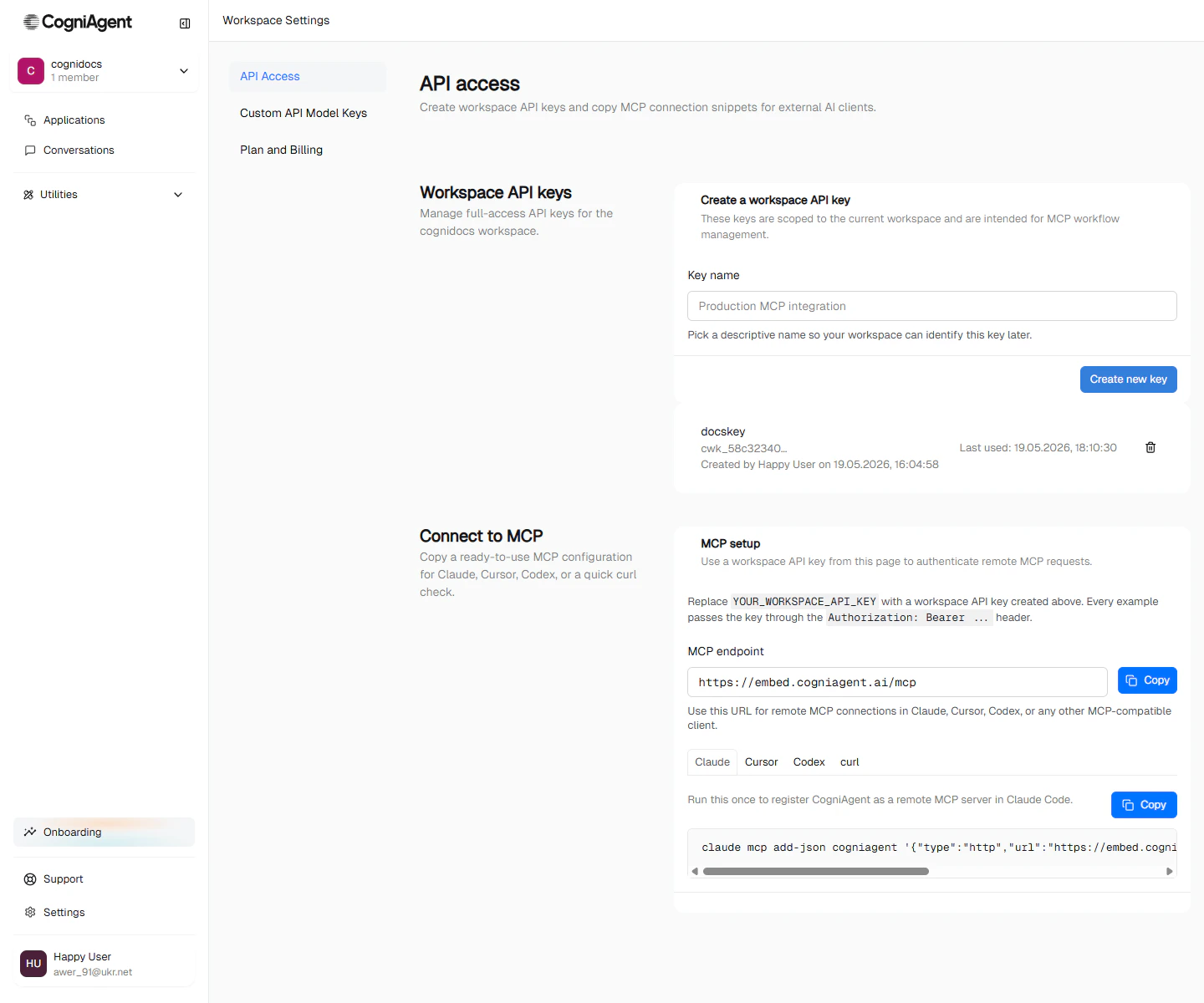 **Claude Code** — one-line registration:
```bash theme={null}
claude mcp add-json cogniagent '{"type":"http","url":"https://embed.cogniagent.ai/mcp","headers":{"Authorization":"Bearer YOUR_WORKSPACE_API_KEY"}}'
```
Verify with `/mcp` in Claude Code.
**Claude Desktop** — paste the block below into `mcpServers` in `claude_desktop_config.json`, then restart:
```json theme={null}
{
"mcpServers": {
"cogniagent": {
"url": "https://embed.cogniagent.ai/mcp",
"headers": {
"Authorization": "Bearer YOUR_WORKSPACE_API_KEY"
}
}
}
}
```
**Claude Code** — one-line registration:
```bash theme={null}
claude mcp add-json cogniagent '{"type":"http","url":"https://embed.cogniagent.ai/mcp","headers":{"Authorization":"Bearer YOUR_WORKSPACE_API_KEY"}}'
```
Verify with `/mcp` in Claude Code.
**Claude Desktop** — paste the block below into `mcpServers` in `claude_desktop_config.json`, then restart:
```json theme={null}
{
"mcpServers": {
"cogniagent": {
"url": "https://embed.cogniagent.ai/mcp",
"headers": {
"Authorization": "Bearer YOUR_WORKSPACE_API_KEY"
}
}
}
}
```
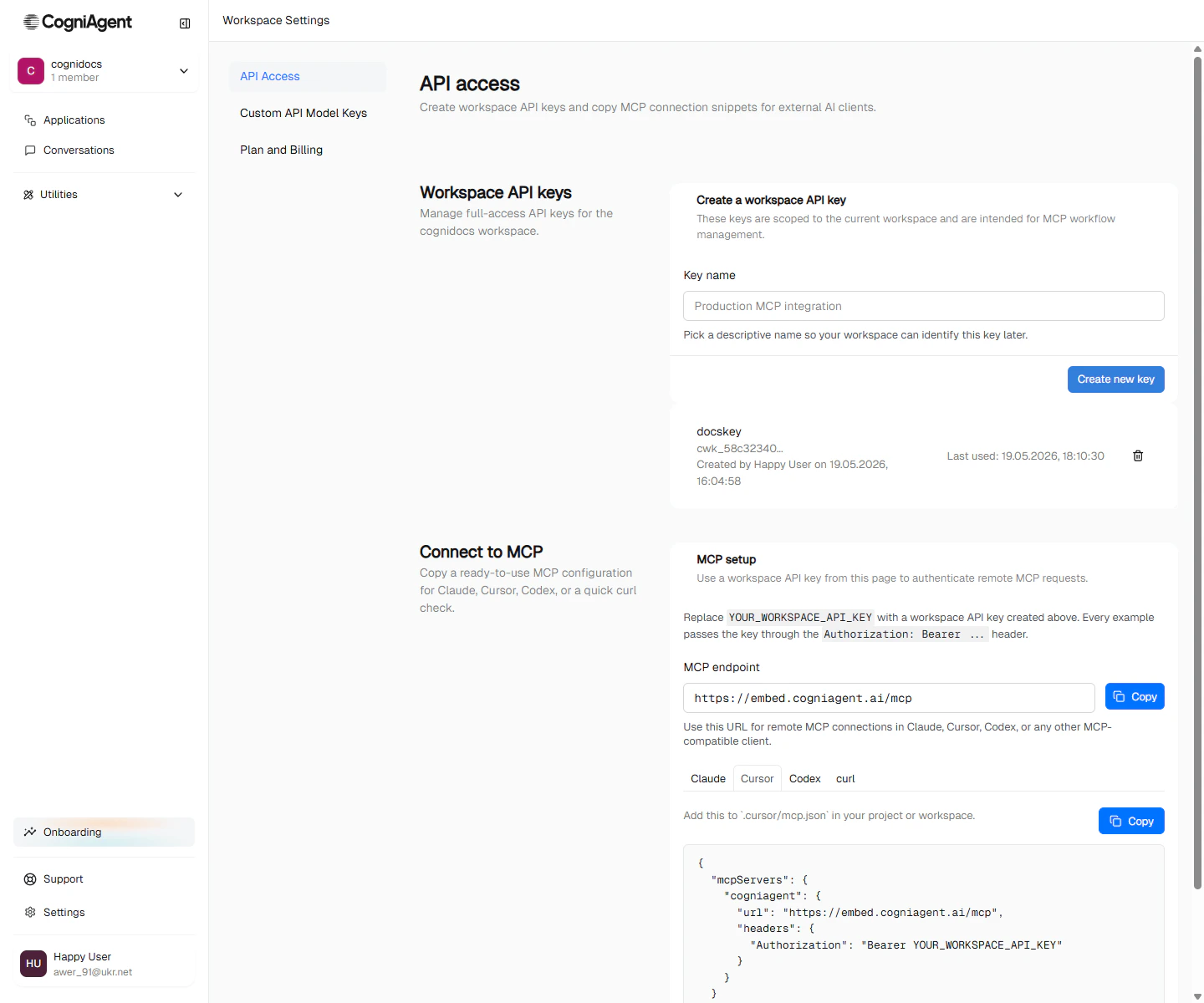 Paste into Cursor's MCP servers config:
```json theme={null}
{
"mcpServers": {
"cogniagent": {
"url": "https://embed.cogniagent.ai/mcp",
"headers": {
"Authorization": "Bearer YOUR_WORKSPACE_API_KEY"
}
}
}
}
```
Add to Codex's `mcp_servers.toml`:
```toml theme={null}
[mcp_servers.cogniagent]
url = "https://embed.cogniagent.ai/mcp"
http_headers = { Authorization = "Bearer YOUR_WORKSPACE_API_KEY" }
```
Paste into Cursor's MCP servers config:
```json theme={null}
{
"mcpServers": {
"cogniagent": {
"url": "https://embed.cogniagent.ai/mcp",
"headers": {
"Authorization": "Bearer YOUR_WORKSPACE_API_KEY"
}
}
}
}
```
Add to Codex's `mcp_servers.toml`:
```toml theme={null}
[mcp_servers.cogniagent]
url = "https://embed.cogniagent.ai/mcp"
http_headers = { Authorization = "Bearer YOUR_WORKSPACE_API_KEY" }
```
 Confirm the endpoint and key work before wiring up a real client — this lists every tool the MCP server exposes:
```bash theme={null}
curl https://embed.cogniagent.ai/mcp \
-H "Content-Type: application/json" \
-H "Accept: application/json, text/event-stream" \
-H "Authorization: Bearer YOUR_WORKSPACE_API_KEY" \
-d '{
"jsonrpc": "2.0",
"id": 1,
"method": "tools/list",
"params": {}
}'
```
Any other MCP-compatible client (Continue, custom Cline configs, your own SDK) just needs the **MCP endpoint** (`https://embed.cogniagent.ai/mcp`) plus an `Authorization: Bearer YOUR_WORKSPACE_API_KEY` header.
### 4. Verify it's working
Ask your assistant something simple:
> *"List my conversation flows."*
The assistant should call `list_conversation_flows` and show the result.
## A worked example — building Sales Triage by prompt
Open your assistant and paste:
> *"Build a Sales Triage flow in my workspace. It should have three agents: a Triage agent that asks one qualifying question, a Product Specialist who answers product questions, and a Pricing Specialist who handles pricing.*
>
> *The flow should be Responder mode. Set the global context to introduce Acme Inc., a SaaS company with two products: Acme Pro at \$49/seat/month with a 14-day trial, and Acme Enterprise with SSO, SLAs, and a dedicated success manager.*
>
> *Wire routing so Triage hands off based on user intent — to Product Specialist for product questions, to Pricing Specialist for pricing questions. Add a widget channel and deploy it. Then run a test conversation to verify routing works."*
A capable assistant does all of this — typically 8–12 MCP tool calls — and reports back with the flow ID, the test session transcript, and the routing trace.
## Discovering tools
The MCP server self-documents. Once connected, your assistant can call:
* `read_mcp_guide` — high-level guides for flow authoring, workflow authoring, integrations, focus modes.
* `get_node_howto` — per-node-type configuration shape.
These let the AI look up the right pattern before authoring — no need to hand it a copy of these docs.
## Tool surface, at a glance
| Category | Sample tools |
| -------------- | -------------------------------------------------------------------------------------------------------------------------------------------------------------------------------- |
| Flow lifecycle | `list_conversation_flows`, `get_conversation_flow`, `manage_conversation_flow` |
| Flow internals | `manage_conversation_flow_node`, `manage_conversation_flow_edge`, `list_conversation_flow_nodes` |
| Sessions | `start_conversation`, `start_test_session`, `read_test_events`, `send_test_message`, `list_conversations`, `get_conversation`, `end_test_session` |
| Deploy | `deploy_conversation_flow`, `undeploy_conversation_flow` |
| Workflows | `applications_list`, `application_get`, `get_workflow_graph`, `manage_workflow_node`, `manage_workflow_edge`, `manage_execution` |
| Integrations | `list_integration_apps`, `list_integration_actions`, `list_integration_connections`, `describe_connection_setup`, `start_oauth_connection`, `create_connection_with_credentials` |
| Knowledge | `list_knowledge_bases` |
| Models | `list_models` |
| Guides | `read_mcp_guide`, `get_node_howto` |
## Safety guardrails
The MCP server applies the same access controls as the UI:
* A workspace API key is scoped to the workspace it was created in — it cannot reach flows or workflows in any other workspace.
* Destructive operations (delete, undeploy) require an explicit confirmation in the AI's request — the server doesn't infer.
* The **Last used** column on the API Access page lets you spot unused or stale keys and revoke them.
## Limitations
* **No bulk operations.** The MCP server is designed for interactive authoring, not batch migrations. For bulk work, use the underlying API directly.
* **No streaming chat with end-users.** MCP is for *building and operating* flows. The actual user-facing conversations run on the channels you've configured.
* **Token rotation.** Tokens don't auto-rotate. Treat them like any long-lived API key and rotate periodically.
## Next
Multi-agent AI conversations the MCP server can build, test, and deploy.
Triggered automations — the other half of what MCP can manage.
The same flow this MCP example builds — but step-by-step in the UI.
The building blocks an AI assistant uses when authoring workflows for you.
Confirm the endpoint and key work before wiring up a real client — this lists every tool the MCP server exposes:
```bash theme={null}
curl https://embed.cogniagent.ai/mcp \
-H "Content-Type: application/json" \
-H "Accept: application/json, text/event-stream" \
-H "Authorization: Bearer YOUR_WORKSPACE_API_KEY" \
-d '{
"jsonrpc": "2.0",
"id": 1,
"method": "tools/list",
"params": {}
}'
```
Any other MCP-compatible client (Continue, custom Cline configs, your own SDK) just needs the **MCP endpoint** (`https://embed.cogniagent.ai/mcp`) plus an `Authorization: Bearer YOUR_WORKSPACE_API_KEY` header.
### 4. Verify it's working
Ask your assistant something simple:
> *"List my conversation flows."*
The assistant should call `list_conversation_flows` and show the result.
## A worked example — building Sales Triage by prompt
Open your assistant and paste:
> *"Build a Sales Triage flow in my workspace. It should have three agents: a Triage agent that asks one qualifying question, a Product Specialist who answers product questions, and a Pricing Specialist who handles pricing.*
>
> *The flow should be Responder mode. Set the global context to introduce Acme Inc., a SaaS company with two products: Acme Pro at \$49/seat/month with a 14-day trial, and Acme Enterprise with SSO, SLAs, and a dedicated success manager.*
>
> *Wire routing so Triage hands off based on user intent — to Product Specialist for product questions, to Pricing Specialist for pricing questions. Add a widget channel and deploy it. Then run a test conversation to verify routing works."*
A capable assistant does all of this — typically 8–12 MCP tool calls — and reports back with the flow ID, the test session transcript, and the routing trace.
## Discovering tools
The MCP server self-documents. Once connected, your assistant can call:
* `read_mcp_guide` — high-level guides for flow authoring, workflow authoring, integrations, focus modes.
* `get_node_howto` — per-node-type configuration shape.
These let the AI look up the right pattern before authoring — no need to hand it a copy of these docs.
## Tool surface, at a glance
| Category | Sample tools |
| -------------- | -------------------------------------------------------------------------------------------------------------------------------------------------------------------------------- |
| Flow lifecycle | `list_conversation_flows`, `get_conversation_flow`, `manage_conversation_flow` |
| Flow internals | `manage_conversation_flow_node`, `manage_conversation_flow_edge`, `list_conversation_flow_nodes` |
| Sessions | `start_conversation`, `start_test_session`, `read_test_events`, `send_test_message`, `list_conversations`, `get_conversation`, `end_test_session` |
| Deploy | `deploy_conversation_flow`, `undeploy_conversation_flow` |
| Workflows | `applications_list`, `application_get`, `get_workflow_graph`, `manage_workflow_node`, `manage_workflow_edge`, `manage_execution` |
| Integrations | `list_integration_apps`, `list_integration_actions`, `list_integration_connections`, `describe_connection_setup`, `start_oauth_connection`, `create_connection_with_credentials` |
| Knowledge | `list_knowledge_bases` |
| Models | `list_models` |
| Guides | `read_mcp_guide`, `get_node_howto` |
## Safety guardrails
The MCP server applies the same access controls as the UI:
* A workspace API key is scoped to the workspace it was created in — it cannot reach flows or workflows in any other workspace.
* Destructive operations (delete, undeploy) require an explicit confirmation in the AI's request — the server doesn't infer.
* The **Last used** column on the API Access page lets you spot unused or stale keys and revoke them.
## Limitations
* **No bulk operations.** The MCP server is designed for interactive authoring, not batch migrations. For bulk work, use the underlying API directly.
* **No streaming chat with end-users.** MCP is for *building and operating* flows. The actual user-facing conversations run on the channels you've configured.
* **Token rotation.** Tokens don't auto-rotate. Treat them like any long-lived API key and rotate periodically.
## Next
Multi-agent AI conversations the MCP server can build, test, and deploy.
Triggered automations — the other half of what MCP can manage.
The same flow this MCP example builds — but step-by-step in the UI.
The building blocks an AI assistant uses when authoring workflows for you.