> ## Documentation Index
> Fetch the complete documentation index at: https://docs.cogniagent.ai/llms.txt
> Use this file to discover all available pages before exploring further.
# App Action Node
> Do things in Gmail, Slack, Google Sheets, and 2,700+ other apps
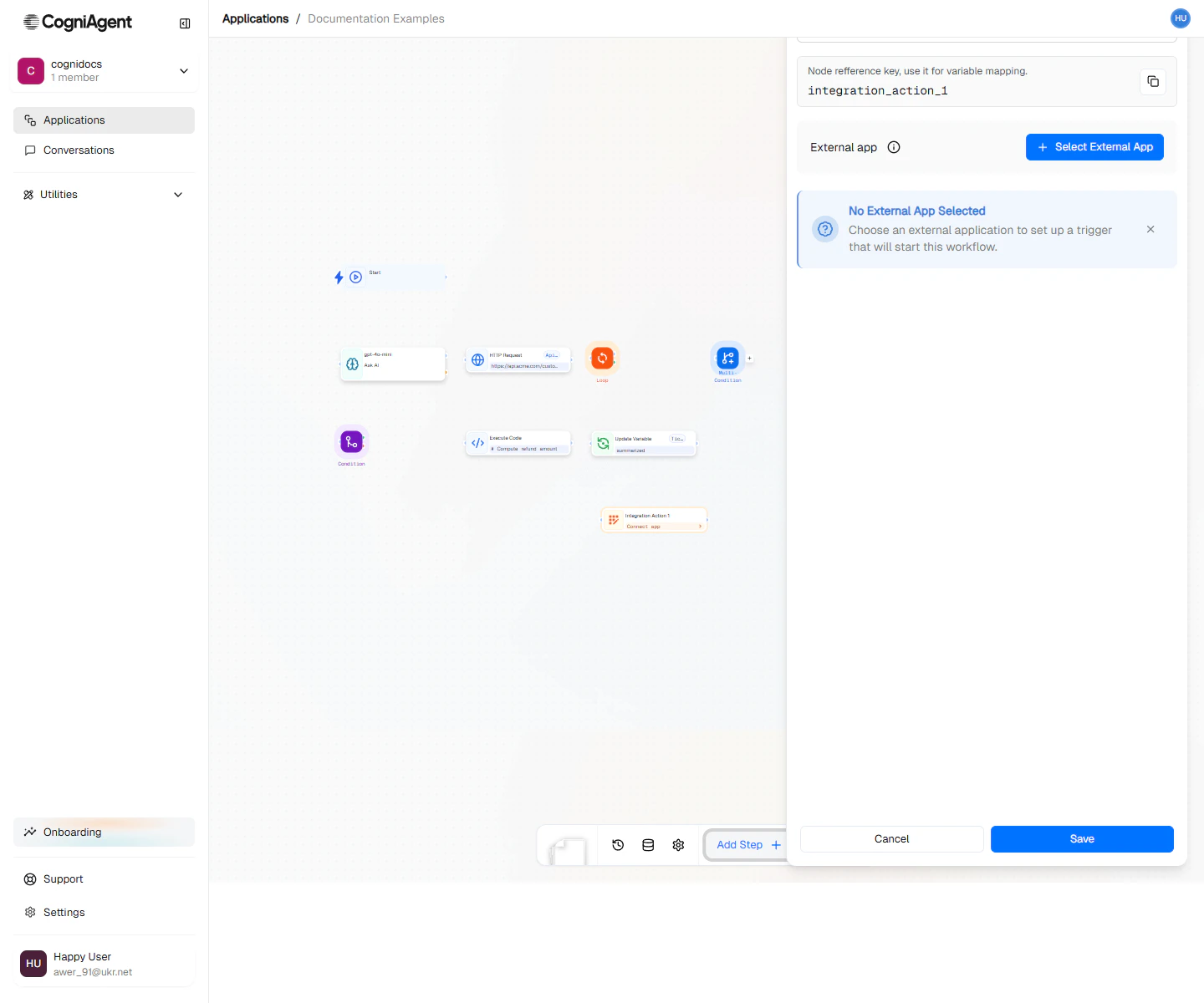
The App Action node lets you do things in other apps — send emails in Gmail, post messages to Slack, add rows to Google Sheets, create contacts in HubSpot, and much more. It works with 2,700+ apps through our [integrations](/features/integrations).
Think of it as your workflow reaching out and clicking buttons in other apps for you.
 ## When to Use
* **Emails** - Send, reply, organize, or move emails in Gmail/Outlook
* **Team chat** - Post messages to Slack, Teams, or Discord
* **Spreadsheets** - Add rows to Google Sheets, update Airtable
* **CRM** - Create contacts in HubSpot, update Salesforce
* **Project tools** - Create tasks in Asana, update Jira tickets
* **Any integrated app** - If it's in the list, you can automate it
This is for apps already connected with CogniAgent. For websites or services not in the list, use the [HTTP Request](/nodes/actions/http-request) node instead.
## Common Actions by App
### Gmail
| Action | Description |
| ------------------- | ---------------------------------- |
| Send Email | Send a new email |
| Reply to Email | Reply to an existing thread |
| Forward Email | Forward an email to new recipients |
| Add Label | Apply a label to an email |
| Move to Folder | Move email to a specific folder |
| Mark as Read/Unread | Change read status |
### Slack
| Action | Description |
| ----------------- | ------------------------------- |
| Send Message | Post to a channel or DM |
| Reply in Thread | Reply to a specific message |
| Upload File | Share a file in a channel |
| Add Reaction | Add emoji reaction to a message |
| Create Channel | Create a new channel |
| Invite to Channel | Add users to a channel |
### Google Sheets
| Action | Description |
| ------------------ | --------------------------------- |
| Append Row | Add a new row at the end |
| Update Row | Update an existing row |
| Get Row | Retrieve row data by number |
| Find Row | Search for rows matching criteria |
| Clear Range | Delete data from a range |
| Create Spreadsheet | Create a new spreadsheet |
### HubSpot
| Action | Description |
| -------------- | ------------------------- |
| Create Contact | Add a new contact |
| Update Contact | Modify contact properties |
| Create Deal | Add a new deal |
| Create Task | Create a task |
| Add Note | Add a note to a record |
## Example: Support Email Workflow
Automatically respond to support emails and log them:
Use Event from App (Gmail) to trigger on new emails to [support@company.com](mailto:support@company.com).
Use an Ask AI node to categorize as: billing, technical, general.
Add an External API node:
* App: **Google Sheets**
* Action: **Append Row**
* Spreadsheet: **Support Log**
* Values:
```
Date: {{timestamp}}
From: {{event_from_app_1.email.from}}
Subject: {{event_from_app_1.email.subject}}
Category: {{llm_1.response}}
```
Add another External API node:
* App: **Gmail**
* Action: **Reply to Email**
* Thread ID: `{{event_from_app_1.email.threadId}}`
* Body: `Thank you for contacting support. We've received your {{llm_1.response}} inquiry...`
Add a final External API node:
* App: **Slack**
* Action: **Send Message**
* Channel: **#support**
* Message: `New {{llm_1.response}} ticket from {{event_from_app_1.email.from}}`
## Example: Lead Capture to CRM
When a form is submitted, add the lead to your CRM:
```
Workflow: Lead Capture
├── Webhook (form submission)
├── Ask AI (score and qualify lead)
├── External API (HubSpot: Create Contact)
│ Parameters:
│ - email: {{webhook_1.body.email}}
│ - firstName: {{webhook_1.body.firstName}}
│ - lastName: {{webhook_1.body.lastName}}
│ - leadScore: {{llm_1.response.score}}
├── Condition (score > 70?)
│ ├── Met: External API (HubSpot: Create Deal)
│ └── Unmet: External API (HubSpot: Add to Nurture List)
└── External API (Slack: Notify sales team)
```
## Example: Automated Reporting
Generate and distribute a daily report:
```
Workflow: Daily Report
├── Scheduled Trigger (daily at 9 AM)
├── External API (Google Sheets: Get data from "Metrics" sheet)
├── Ask AI (generate summary and insights)
├── External API (Google Docs: Create document with report)
├── External API (Gmail: Send to stakeholders)
└── External API (Slack: Post summary to #reports)
```
## Connecting Your Apps
Before you can use this node, connect your apps:
1. Go to **Settings > Integrations**
2. Find the app you want to connect
3. Click **Connect** and log in to authorize it
4. Give the connection a name (helpful if you have multiple accounts)
Make sure the account you connect has permission to do what you want. For example, a "read-only" Gmail account won't be able to send emails.
## Using Data from Previous Steps
You can use information from earlier in your workflow:
```
To: {{webhook_1.body.email}}
Subject: Order Confirmation #{{webhook_1.body.orderId}}
Body: |
Dear {{webhook_1.body.firstName}},
Your order for {{webhook_1.body.productName}} has been confirmed.
Total: ${{webhook_1.body.total}}
```
## What If Something Goes Wrong?
Things can fail because:
* Your login expired and needs reconnecting
* You're sending too many requests too fast
* Some required information is missing
* The internet had a hiccup
You can check if it worked and handle failures:
```
├── External API (send email)
├── Condition (did it work?)
│ ├── Yes: Continue
│ └── No: Alert the team on Slack
```
Most External API actions automatically try again if there's a temporary problem. You usually don't need to handle these yourself.
## Rate Limits
Different apps have different rate limits:
| App | Typical Limit |
| ------------- | ------------------------------------------- |
| Gmail | 100 emails/day (free), 2000/day (Workspace) |
| Slack | 1 message/second per channel |
| Google Sheets | 100 requests/100 seconds |
| HubSpot | 100 requests/10 seconds |
CogniAgent handles rate limiting automatically when possible, queuing requests to stay within limits.
## Tips
Use the "Fill by AI" feature when configuring parameters. It can suggest values based on your workflow context.
When building emails or messages, use the Ask AI node first to generate content, then App Action to send it. This separates content creation from delivery.
For bulk operations (adding many rows, sending many messages), use a Loop node to iterate and process items one at a time. This avoids rate limits and makes debugging easier.
## Settings
What to call this node (shown on the canvas).
A short code to reference what this node returns.
Which app to use (Gmail, Slack, Google Sheets, etc.).
What you want to do in that app. The options change based on which app you choose.
Which account to use (if you've connected multiple accounts for the same app).
The details for your action. The form shows you what's needed based on what you're doing.
## Outputs
Outputs vary by app and action. Common patterns:
Whether the action completed successfully.
The full response from the API, structure depends on the action.
### Email Actions
* `messageId` - ID of the sent/modified message
* `threadId` - Conversation thread ID
### Slack Actions
* `ts` - Message timestamp (used for threading)
* `channel` - Channel ID
* `permalink` - Link to the message
### Google Sheets Actions
* `updatedRange` - Cells that were modified
* `values` - Row data (for get/find actions)
## Related Nodes
For APIs not in the integration list.
Trigger workflows from app events.
See all 2,700+ available integrations.
Communication channel details.
## When to Use
* **Emails** - Send, reply, organize, or move emails in Gmail/Outlook
* **Team chat** - Post messages to Slack, Teams, or Discord
* **Spreadsheets** - Add rows to Google Sheets, update Airtable
* **CRM** - Create contacts in HubSpot, update Salesforce
* **Project tools** - Create tasks in Asana, update Jira tickets
* **Any integrated app** - If it's in the list, you can automate it
This is for apps already connected with CogniAgent. For websites or services not in the list, use the [HTTP Request](/nodes/actions/http-request) node instead.
## Common Actions by App
### Gmail
| Action | Description |
| ------------------- | ---------------------------------- |
| Send Email | Send a new email |
| Reply to Email | Reply to an existing thread |
| Forward Email | Forward an email to new recipients |
| Add Label | Apply a label to an email |
| Move to Folder | Move email to a specific folder |
| Mark as Read/Unread | Change read status |
### Slack
| Action | Description |
| ----------------- | ------------------------------- |
| Send Message | Post to a channel or DM |
| Reply in Thread | Reply to a specific message |
| Upload File | Share a file in a channel |
| Add Reaction | Add emoji reaction to a message |
| Create Channel | Create a new channel |
| Invite to Channel | Add users to a channel |
### Google Sheets
| Action | Description |
| ------------------ | --------------------------------- |
| Append Row | Add a new row at the end |
| Update Row | Update an existing row |
| Get Row | Retrieve row data by number |
| Find Row | Search for rows matching criteria |
| Clear Range | Delete data from a range |
| Create Spreadsheet | Create a new spreadsheet |
### HubSpot
| Action | Description |
| -------------- | ------------------------- |
| Create Contact | Add a new contact |
| Update Contact | Modify contact properties |
| Create Deal | Add a new deal |
| Create Task | Create a task |
| Add Note | Add a note to a record |
## Example: Support Email Workflow
Automatically respond to support emails and log them:
Use Event from App (Gmail) to trigger on new emails to [support@company.com](mailto:support@company.com).
Use an Ask AI node to categorize as: billing, technical, general.
Add an External API node:
* App: **Google Sheets**
* Action: **Append Row**
* Spreadsheet: **Support Log**
* Values:
```
Date: {{timestamp}}
From: {{event_from_app_1.email.from}}
Subject: {{event_from_app_1.email.subject}}
Category: {{llm_1.response}}
```
Add another External API node:
* App: **Gmail**
* Action: **Reply to Email**
* Thread ID: `{{event_from_app_1.email.threadId}}`
* Body: `Thank you for contacting support. We've received your {{llm_1.response}} inquiry...`
Add a final External API node:
* App: **Slack**
* Action: **Send Message**
* Channel: **#support**
* Message: `New {{llm_1.response}} ticket from {{event_from_app_1.email.from}}`
## Example: Lead Capture to CRM
When a form is submitted, add the lead to your CRM:
```
Workflow: Lead Capture
├── Webhook (form submission)
├── Ask AI (score and qualify lead)
├── External API (HubSpot: Create Contact)
│ Parameters:
│ - email: {{webhook_1.body.email}}
│ - firstName: {{webhook_1.body.firstName}}
│ - lastName: {{webhook_1.body.lastName}}
│ - leadScore: {{llm_1.response.score}}
├── Condition (score > 70?)
│ ├── Met: External API (HubSpot: Create Deal)
│ └── Unmet: External API (HubSpot: Add to Nurture List)
└── External API (Slack: Notify sales team)
```
## Example: Automated Reporting
Generate and distribute a daily report:
```
Workflow: Daily Report
├── Scheduled Trigger (daily at 9 AM)
├── External API (Google Sheets: Get data from "Metrics" sheet)
├── Ask AI (generate summary and insights)
├── External API (Google Docs: Create document with report)
├── External API (Gmail: Send to stakeholders)
└── External API (Slack: Post summary to #reports)
```
## Connecting Your Apps
Before you can use this node, connect your apps:
1. Go to **Settings > Integrations**
2. Find the app you want to connect
3. Click **Connect** and log in to authorize it
4. Give the connection a name (helpful if you have multiple accounts)
Make sure the account you connect has permission to do what you want. For example, a "read-only" Gmail account won't be able to send emails.
## Using Data from Previous Steps
You can use information from earlier in your workflow:
```
To: {{webhook_1.body.email}}
Subject: Order Confirmation #{{webhook_1.body.orderId}}
Body: |
Dear {{webhook_1.body.firstName}},
Your order for {{webhook_1.body.productName}} has been confirmed.
Total: ${{webhook_1.body.total}}
```
## What If Something Goes Wrong?
Things can fail because:
* Your login expired and needs reconnecting
* You're sending too many requests too fast
* Some required information is missing
* The internet had a hiccup
You can check if it worked and handle failures:
```
├── External API (send email)
├── Condition (did it work?)
│ ├── Yes: Continue
│ └── No: Alert the team on Slack
```
Most External API actions automatically try again if there's a temporary problem. You usually don't need to handle these yourself.
## Rate Limits
Different apps have different rate limits:
| App | Typical Limit |
| ------------- | ------------------------------------------- |
| Gmail | 100 emails/day (free), 2000/day (Workspace) |
| Slack | 1 message/second per channel |
| Google Sheets | 100 requests/100 seconds |
| HubSpot | 100 requests/10 seconds |
CogniAgent handles rate limiting automatically when possible, queuing requests to stay within limits.
## Tips
Use the "Fill by AI" feature when configuring parameters. It can suggest values based on your workflow context.
When building emails or messages, use the Ask AI node first to generate content, then App Action to send it. This separates content creation from delivery.
For bulk operations (adding many rows, sending many messages), use a Loop node to iterate and process items one at a time. This avoids rate limits and makes debugging easier.
## Settings
What to call this node (shown on the canvas).
A short code to reference what this node returns.
Which app to use (Gmail, Slack, Google Sheets, etc.).
What you want to do in that app. The options change based on which app you choose.
Which account to use (if you've connected multiple accounts for the same app).
The details for your action. The form shows you what's needed based on what you're doing.
## Outputs
Outputs vary by app and action. Common patterns:
Whether the action completed successfully.
The full response from the API, structure depends on the action.
### Email Actions
* `messageId` - ID of the sent/modified message
* `threadId` - Conversation thread ID
### Slack Actions
* `ts` - Message timestamp (used for threading)
* `channel` - Channel ID
* `permalink` - Link to the message
### Google Sheets Actions
* `updatedRange` - Cells that were modified
* `values` - Row data (for get/find actions)
## Related Nodes
For APIs not in the integration list.
Trigger workflows from app events.
See all 2,700+ available integrations.
Communication channel details.