> ## Documentation Index
> Fetch the complete documentation index at: https://docs.cogniagent.ai/llms.txt
> Use this file to discover all available pages before exploring further.
# Execute Code Integrations
> Call your connected apps from Python — loops, batches and joins across apps in a single step
The [Execute Code](/nodes/actions/execute-code) node can call the apps you've connected — Gmail, Slack, Google Sheets, HubSpot and 2,700+ more — as ordinary Python functions. Read every row of a sheet, decide in code what to do with each one, and send a Slack message or create a CRM contact per row, all inside one step.
You decide which apps and which actions the code may use. The code decides when to call them, and with what.
## How it works
Each action you enable becomes a function under `integrations`:
```python theme={null}
integrations.slack.send_message(channel="#sales", markdown_text="Hello")
```
When the code calls it, the platform runs the action on the **connection you bound** and hands the result back to your code. The code itself never holds a password, API key or token — it only knows the function names.
```mermaid theme={null}
flowchart LR
A[Your Python code] -->|integrations.slack.send_message| B[Platform]
B -->|runs on your connection| C[Slack]
C --> B
B -->|result| A
```
## Code, LLM or Integration Action?
All three can call the same apps. The difference is who decides, and how many calls one step can make.
| | [Integration Action](/nodes/actions/integration-action) | [LLM with integrations](/nodes/actions/llm-integrations) | Execute Code with integrations |
| ------------- | ------------------------------------------------------- | -------------------------------------------------------- | -------------------------------------------------------------- |
| **What runs** | One action you picked, once | Any enabled action, model-decided | Any enabled action, as often as your code says |
| **Inputs** | You map every parameter | The model fills them from context | Your code passes them |
| **Behaviour** | Deterministic, same every run | Judgment-based, adapts to the data | Deterministic, and can loop and branch |
| **Best for** | "Always send this email" | "Read the thread, decide, then reply" | "For every qualified row, post a message and create a contact" |
Reach for code when the step repeats the same calls over many records, or joins data from two apps. An LLM node would spend a model turn — time and credits — on every call; code runs them back to back.
## Set up integrations
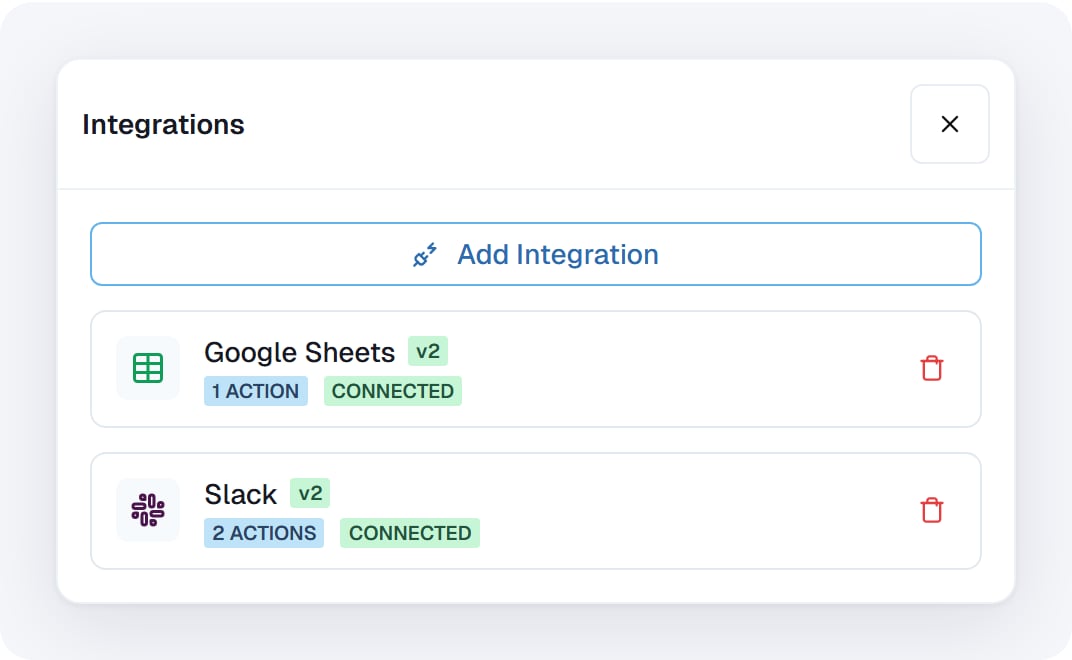
In the Execute Code node's panel, find **Integrations** above the code editor and click **Configure**.
Click **Add Integration** and browse or search the catalog. Pick the app the code needs.
Pick one of your existing connections, or click **Connect** to authorize a new account. Every call the code makes runs on this account. See [Integrations](/features/integrations) to manage connections.
Tick only the actions the code actually calls. Only enabled actions exist as functions.
Save. Under the code editor, **Integration functions** now lists every function you can call. Click one to insert it, or type `integrations.` to get suggestions.
 **Enable only what the step needs.** Every call runs for real on the connected account, and code — especially code written by AI — does exactly what it says. Narrow scope is the safety mechanism.
## Calling a function
The name is `integrations..`. The editor shows the exact names; for example Composio Slack's **Send message** is `integrations.slack.send_message`, and Pipedream Google Sheets' **Add Single Row** is `integrations.google_sheets.add_single_row`.
Pass the action's inputs **by name**, or as one dictionary:
```python theme={null}
integrations.slack.send_message(channel="#ops", markdown_text="Deploy finished")
message = {"channel": "#ops", "markdown_text": "Deploy finished"}
integrations.slack.send_message(message)
```
A wrong or missing argument name stops before anything is sent, with a normal Python `TypeError` that lists the accepted arguments. The editor underlines most of these before you run; see [Write code with the editor's help](/nodes/actions/execute-code#write-code-with-the-editors-help). In the code, `help(integrations.slack.send_message)` prints every argument and its description to `stdOut`.
Argument names follow each app's own action inputs, exactly as the Integration Action node shows them. Some apps group their inputs — for example `path={...}`, `query={...}` and `body={...}` — and those are passed as dictionaries.
The function returns the action's result as Python dictionaries and lists. It is the same data an [Integration Action](/nodes/actions/integration-action) node outputs under `data`, so a field you would read there as `{{sheet_step.data.valueRanges}}` is `result["valueRanges"]` here:
```python theme={null}
result = integrations.googlesheets.batch_get(spreadsheet_id=sheet_id, ranges=["Leads!A2:C"])
rows = result["valueRanges"][0].get("values", [])
```
Not sure what an action returns? Call it once and `print(result)`, then read the field names in the step's `stdOut`. Results can include extra fields the app adds, like `display_url`.
## When a call fails
A failed call raises `IntegrationError`. It carries `.code` (why, in one word) and `.message` (what happened):
| `.code` | Meaning |
| --------------------- | --------------------------------------------------------------- |
| `not_connected` | The app's connection is missing, removed or disabled |
| `action_failed` | The app refused or errored — `.message` has its answer |
| `invalid_arguments` | The arguments could not be sent (for example, larger than 5 MB) |
| `unknown_function` | The action is not enabled on this node |
| `call_limit_exceeded` | The step already made 200 calls |
| `timeout` | The app did not answer in time |
| `result_too_large` | The result is over 50 MB |
If the code doesn't catch it, the step fails and the error shows which call failed. To carry on past one bad record, catch it:
```python theme={null}
failed = []
for contact in webhook_1["body"]["contacts"]:
try:
integrations.hubspot.create_contact(email=contact["email"])
except IntegrationError as e:
failed.append({"email": contact["email"], "error": e.message})
output_data({"failed": failed})
```
**Calls already made are not undone.** If the step fails halfway through a loop, the first half of the messages were still sent. When a step may run again, make it safe to repeat — for example, check whether the record already exists before creating it. A `timeout` means the answer did not arrive in time, not that nothing happened.
## Connection health
The Integrations panel shows each app's connection state, the same as on the [LLM node](/nodes/actions/llm-integrations#connection-health). When an app can't be called, **Integration functions** in the editor says so, and the editor marks calls to it:
**Enable only what the step needs.** Every call runs for real on the connected account, and code — especially code written by AI — does exactly what it says. Narrow scope is the safety mechanism.
## Calling a function
The name is `integrations..`. The editor shows the exact names; for example Composio Slack's **Send message** is `integrations.slack.send_message`, and Pipedream Google Sheets' **Add Single Row** is `integrations.google_sheets.add_single_row`.
Pass the action's inputs **by name**, or as one dictionary:
```python theme={null}
integrations.slack.send_message(channel="#ops", markdown_text="Deploy finished")
message = {"channel": "#ops", "markdown_text": "Deploy finished"}
integrations.slack.send_message(message)
```
A wrong or missing argument name stops before anything is sent, with a normal Python `TypeError` that lists the accepted arguments. The editor underlines most of these before you run; see [Write code with the editor's help](/nodes/actions/execute-code#write-code-with-the-editors-help). In the code, `help(integrations.slack.send_message)` prints every argument and its description to `stdOut`.
Argument names follow each app's own action inputs, exactly as the Integration Action node shows them. Some apps group their inputs — for example `path={...}`, `query={...}` and `body={...}` — and those are passed as dictionaries.
The function returns the action's result as Python dictionaries and lists. It is the same data an [Integration Action](/nodes/actions/integration-action) node outputs under `data`, so a field you would read there as `{{sheet_step.data.valueRanges}}` is `result["valueRanges"]` here:
```python theme={null}
result = integrations.googlesheets.batch_get(spreadsheet_id=sheet_id, ranges=["Leads!A2:C"])
rows = result["valueRanges"][0].get("values", [])
```
Not sure what an action returns? Call it once and `print(result)`, then read the field names in the step's `stdOut`. Results can include extra fields the app adds, like `display_url`.
## When a call fails
A failed call raises `IntegrationError`. It carries `.code` (why, in one word) and `.message` (what happened):
| `.code` | Meaning |
| --------------------- | --------------------------------------------------------------- |
| `not_connected` | The app's connection is missing, removed or disabled |
| `action_failed` | The app refused or errored — `.message` has its answer |
| `invalid_arguments` | The arguments could not be sent (for example, larger than 5 MB) |
| `unknown_function` | The action is not enabled on this node |
| `call_limit_exceeded` | The step already made 200 calls |
| `timeout` | The app did not answer in time |
| `result_too_large` | The result is over 50 MB |
If the code doesn't catch it, the step fails and the error shows which call failed. To carry on past one bad record, catch it:
```python theme={null}
failed = []
for contact in webhook_1["body"]["contacts"]:
try:
integrations.hubspot.create_contact(email=contact["email"])
except IntegrationError as e:
failed.append({"email": contact["email"], "error": e.message})
output_data({"failed": failed})
```
**Calls already made are not undone.** If the step fails halfway through a loop, the first half of the messages were still sent. When a step may run again, make it safe to repeat — for example, check whether the record already exists before creating it. A `timeout` means the answer did not arrive in time, not that nothing happened.
## Connection health
The Integrations panel shows each app's connection state, the same as on the [LLM node](/nodes/actions/llm-integrations#connection-health). When an app can't be called, **Integration functions** in the editor says so, and the editor marks calls to it:
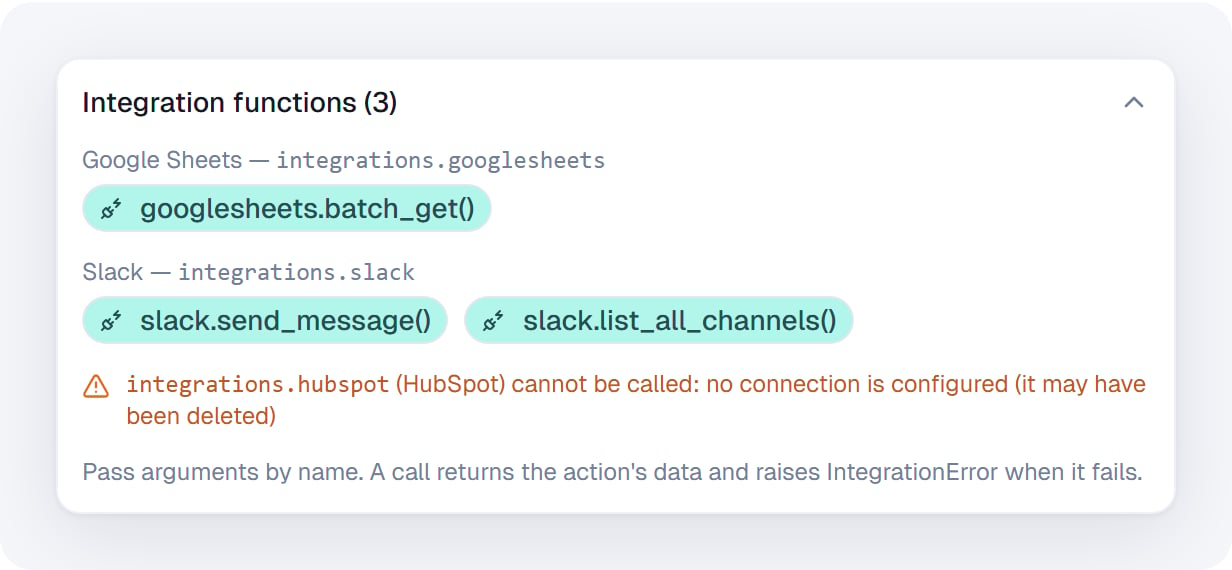 At run time, an app whose connection is missing or disabled is listed in the node's `skippedIntegrations` output, and calling it raises `IntegrationError` with code `not_connected`.
## What the step reports
Besides the usual Execute Code outputs, a step with bound apps adds:
* `integrationCalls` — how many calls the code made, how many failed, counts per function, and a list of the calls with how long each took.
* `skippedIntegrations` — apps that could not be bound, and why.
## Limits
* **200 calls** per run of the step.
* **5 MB** of arguments per call, and **50 MB** per result.
* Calls run **one at a time**, in the order your code makes them.
* Each call gets **2 minutes** to answer; after that it raises `IntegrationError` with code `timeout`.
## Security
* The code never receives passwords, API keys, tokens or connection IDs. Calls run on the platform, on the connection you bound.
* The code can call only the actions enabled on this node, and only while the step runs.
* The sandbox the code runs in is created for each run and deleted afterwards.
## Cost
The step is billed like any other Execute Code run. The app calls it makes are not charged separately.
## Related
The node this feature lives on — inputs, outputs, libraries.
Let a model decide which app actions to call.
Run one app action with fixed inputs.
Connect accounts and manage connections workspace-wide.
At run time, an app whose connection is missing or disabled is listed in the node's `skippedIntegrations` output, and calling it raises `IntegrationError` with code `not_connected`.
## What the step reports
Besides the usual Execute Code outputs, a step with bound apps adds:
* `integrationCalls` — how many calls the code made, how many failed, counts per function, and a list of the calls with how long each took.
* `skippedIntegrations` — apps that could not be bound, and why.
## Limits
* **200 calls** per run of the step.
* **5 MB** of arguments per call, and **50 MB** per result.
* Calls run **one at a time**, in the order your code makes them.
* Each call gets **2 minutes** to answer; after that it raises `IntegrationError` with code `timeout`.
## Security
* The code never receives passwords, API keys, tokens or connection IDs. Calls run on the platform, on the connection you bound.
* The code can call only the actions enabled on this node, and only while the step runs.
* The sandbox the code runs in is created for each run and deleted afterwards.
## Cost
The step is billed like any other Execute Code run. The app calls it makes are not charged separately.
## Related
The node this feature lives on — inputs, outputs, libraries.
Let a model decide which app actions to call.
Run one app action with fixed inputs.
Connect accounts and manage connections workspace-wide.