> ## Documentation Index
> Fetch the complete documentation index at: https://docs.cogniagent.ai/llms.txt
> Use this file to discover all available pages before exploring further.
# Execute Code Node
> Run custom code for tasks that need more flexibility
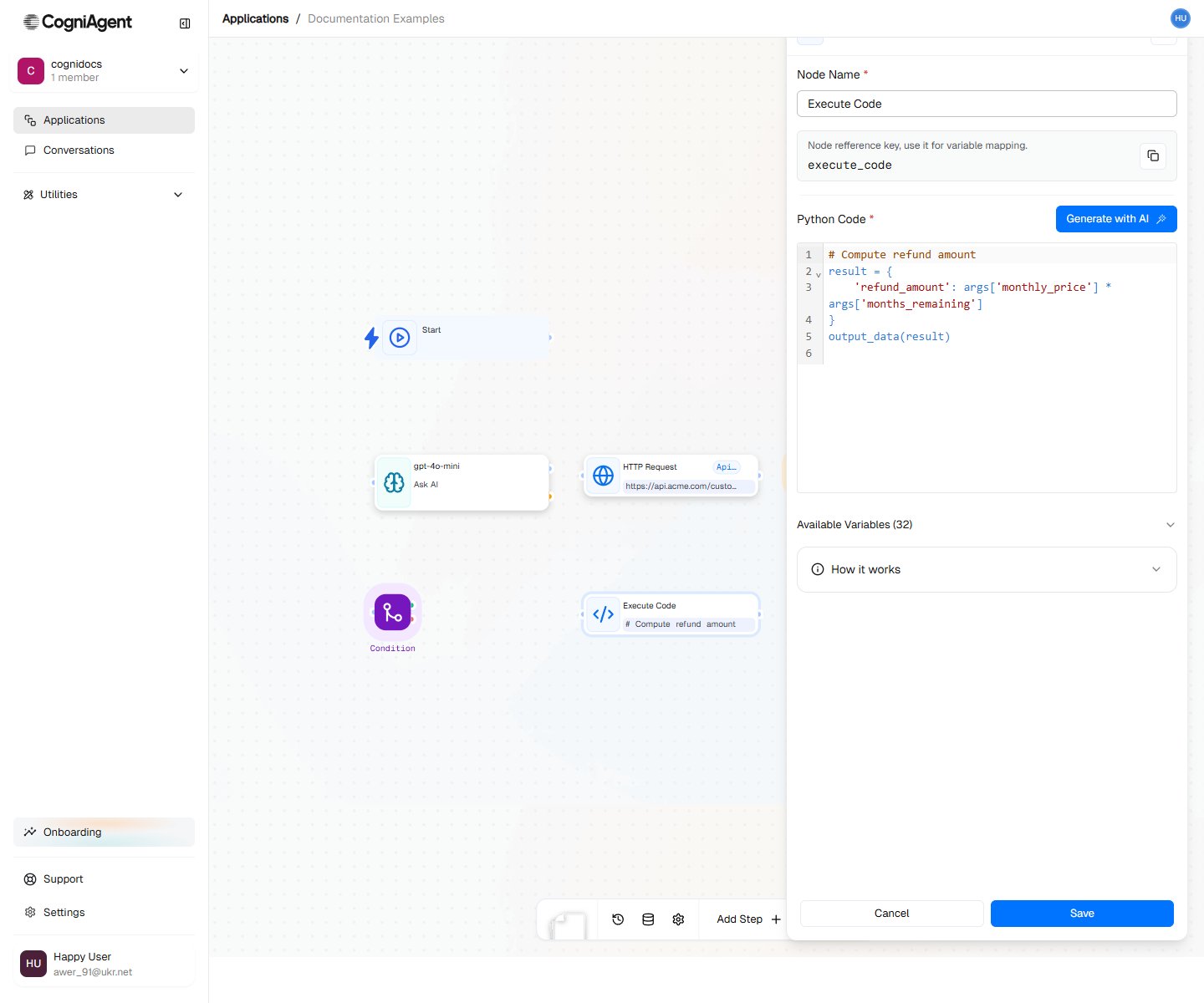
The Execute Code node lets you run your own code (Python or JavaScript) when you need something the other nodes can't do. It's like having a custom tool that does exactly what you need.
**Don't know how to code?** No problem! There's a "Generate with AI" button that writes the code for you - just describe what you want in plain English.
 ## When to Use
* **Changing data formats** - Rearrange, filter, or combine data
* **Calculations** - Math, percentages, date calculations
* **Text processing** - Find and replace, split text, format names
* **Connecting to special services** - Talk to services not in the app list
* **Creating files** - Make CSV files, JSON files, etc.
* **Custom rules** - Anything specific to your business
Click "Generate with AI" and describe what you want in plain English. The AI will write the code for you!
## Accessing Input Data
All previous node outputs are available in the `input` object:
### Python
```python theme={null}
# Access webhook data
customer_email = input["webhook_1"]["body"]["email"]
# Access Ask AI response
summary = input["llm_1"]["response"]
# Access loop variables
current_item = input["loop_1"]["currentItem"]
```
### JavaScript
```javascript theme={null}
// Access webhook data
const customerEmail = input.webhook_1.body.email;
// Access Ask AI response
const summary = input.llm_1.response;
// Access loop variables
const currentItem = input.loop_1.currentItem;
```
## Returning Data
Return a JSON-compatible value to pass data to subsequent nodes:
### Python
```python theme={null}
# Return a simple value
return "processed"
# Return an object
return {
"status": "success",
"count": 42,
"items": ["a", "b", "c"]
}
```
### JavaScript
```javascript theme={null}
// Return a simple value
return "processed";
// Return an object
return {
status: "success",
count: 42,
items: ["a", "b", "c"]
};
```
## Example: Data Transformation
Transform API response data into a specific format:
```python theme={null}
# Input: raw API response with nested data
raw_data = input["http_request_1"]["body"]["data"]["users"]
# Transform into simplified format
users = []
for user in raw_data:
users.append({
"id": user["id"],
"name": f"{user['firstName']} {user['lastName']}",
"email": user["contactInfo"]["primaryEmail"],
"active": user["status"] == "ACTIVE"
})
# Sort by name
users.sort(key=lambda x: x["name"])
return {
"users": users,
"totalCount": len(users)
}
```
## Example: CSV Generation
Create a CSV file from data:
```python theme={null}
import csv
import io
data = input["external_api_1"]["rows"]
output = io.StringIO()
writer = csv.DictWriter(output, fieldnames=["name", "email", "date"])
writer.writeheader()
writer.writerows(data)
csv_content = output.getvalue()
return {
"csv": csv_content,
"rowCount": len(data)
}
```
## Example: Regex Extraction
Extract patterns from text:
```python theme={null}
import re
text = input["llm_1"]["response"]
# Extract all email addresses
emails = re.findall(r'[\w\.-]+@[\w\.-]+\.\w+', text)
# Extract phone numbers
phones = re.findall(r'\+?[\d\-\(\)\s]{10,}', text)
# Extract URLs
urls = re.findall(r'https?://[^\s<>"{}|\\^`\[\]]+', text)
return {
"emails": list(set(emails)),
"phones": phones,
"urls": urls
}
```
## Example: API Call
Make HTTP requests to external services:
### Python
```python theme={null}
import requests
api_key = input["start_1"]["startingInputData"]["apiKey"]
query = input["llm_1"]["response"]
response = requests.get(
"https://api.example.com/search",
headers={"Authorization": f"Bearer {api_key}"},
params={"q": query}
)
if response.status_code == 200:
return {"success": True, "data": response.json()}
else:
return {"success": False, "error": response.text}
```
### JavaScript
```javascript theme={null}
const apiKey = input.start_1.startingInputData.apiKey;
const query = input.llm_1.response;
const response = await fetch(
`https://api.example.com/search?q=${encodeURIComponent(query)}`,
{
headers: { "Authorization": `Bearer ${apiKey}` }
}
);
if (response.ok) {
return { success: true, data: await response.json() };
} else {
return { success: false, error: await response.text() };
}
```
## Example: Date/Time Calculations
Calculate business days, deadlines, etc:
```python theme={null}
from datetime import datetime, timedelta
order_date = datetime.fromisoformat(input["webhook_1"]["body"]["orderDate"])
# Add 5 business days
days_added = 0
current_date = order_date
while days_added < 5:
current_date += timedelta(days=1)
if current_date.weekday() < 5: # Monday-Friday
days_added += 1
return {
"orderDate": order_date.isoformat(),
"estimatedDelivery": current_date.isoformat(),
"businessDays": 5
}
```
## Let AI Write the Code For You
Click the "Generate with AI" button and describe what you want in plain English:
**Example:** "Find all phone numbers and email addresses in the text"
**Example:** "Calculate the total of all the prices and add 10% tax"
**Example:** "Turn this list of items into a CSV format"
The AI will write the code for you based on what's available from previous nodes.
Be specific about what you want. The more detail you give, the better the code will be.
## Available Libraries
### Python
Pre-installed packages include:
* `requests` - HTTP client
* `json` - JSON parsing (built-in)
* `re` - Regular expressions (built-in)
* `datetime` - Date/time handling (built-in)
* `csv` - CSV processing (built-in)
* `pandas` - Data analysis
* `numpy` - Numerical computing
### JavaScript
Node.js built-ins plus:
* `fetch` - HTTP client (built-in)
* `lodash` - Utility functions
* `moment` - Date handling
* `csv-parse` - CSV processing
Need a package that's not available? Contact support to request additions.
## Error Handling
Use try-catch to handle errors gracefully:
### Python
```python theme={null}
try:
result = risky_operation(input["data"])
return {"success": True, "result": result}
except ValueError as e:
return {"success": False, "error": f"Invalid value: {e}"}
except Exception as e:
return {"success": False, "error": str(e)}
```
### JavaScript
```javascript theme={null}
try {
const result = riskyOperation(input.data);
return { success: true, result };
} catch (error) {
return { success: false, error: error.message };
}
```
## Security
Code runs in a sandboxed environment with limited permissions. You cannot:
* Access the file system beyond temp directories
* Make unlimited network requests
* Run indefinitely (timeout enforced)
This sandboxing protects your workflows and prevents accidental damage.
## Tips
Use `print()` (Python) or `console.log()` (JavaScript) for debugging. Output appears in `stdOut`.
Keep code focused on one task. For complex logic, use multiple Execute Code nodes with clear purposes.
Return structured objects rather than strings when possible. This makes it easier for subsequent nodes to access specific values.
## Settings
What to call this node (shown on the canvas).
A short code to reference this node's result.
Which coding language to use:
* **python** - Good for data work, popular and readable
* **javascript** - Good for web stuff
Your code. You can access data from previous nodes using `input["node_name"]["value"]`.
How long to let the code run before stopping it (in milliseconds). 30000 = 30 seconds.
## Outputs
Whatever your code sends back (using `return`).
Anything you printed (using `print()` in Python or `console.log()` in JavaScript).
Error messages if something went wrong.
0 if everything worked, something else if it didn't.
True if the code ran without crashing.
How long it took to run (in milliseconds).
Any files your code created.
## Related Nodes
For text understanding tasks, Ask AI may be more appropriate than code.
For simple API calls, HTTP Request node is easier than code.
## When to Use
* **Changing data formats** - Rearrange, filter, or combine data
* **Calculations** - Math, percentages, date calculations
* **Text processing** - Find and replace, split text, format names
* **Connecting to special services** - Talk to services not in the app list
* **Creating files** - Make CSV files, JSON files, etc.
* **Custom rules** - Anything specific to your business
Click "Generate with AI" and describe what you want in plain English. The AI will write the code for you!
## Accessing Input Data
All previous node outputs are available in the `input` object:
### Python
```python theme={null}
# Access webhook data
customer_email = input["webhook_1"]["body"]["email"]
# Access Ask AI response
summary = input["llm_1"]["response"]
# Access loop variables
current_item = input["loop_1"]["currentItem"]
```
### JavaScript
```javascript theme={null}
// Access webhook data
const customerEmail = input.webhook_1.body.email;
// Access Ask AI response
const summary = input.llm_1.response;
// Access loop variables
const currentItem = input.loop_1.currentItem;
```
## Returning Data
Return a JSON-compatible value to pass data to subsequent nodes:
### Python
```python theme={null}
# Return a simple value
return "processed"
# Return an object
return {
"status": "success",
"count": 42,
"items": ["a", "b", "c"]
}
```
### JavaScript
```javascript theme={null}
// Return a simple value
return "processed";
// Return an object
return {
status: "success",
count: 42,
items: ["a", "b", "c"]
};
```
## Example: Data Transformation
Transform API response data into a specific format:
```python theme={null}
# Input: raw API response with nested data
raw_data = input["http_request_1"]["body"]["data"]["users"]
# Transform into simplified format
users = []
for user in raw_data:
users.append({
"id": user["id"],
"name": f"{user['firstName']} {user['lastName']}",
"email": user["contactInfo"]["primaryEmail"],
"active": user["status"] == "ACTIVE"
})
# Sort by name
users.sort(key=lambda x: x["name"])
return {
"users": users,
"totalCount": len(users)
}
```
## Example: CSV Generation
Create a CSV file from data:
```python theme={null}
import csv
import io
data = input["external_api_1"]["rows"]
output = io.StringIO()
writer = csv.DictWriter(output, fieldnames=["name", "email", "date"])
writer.writeheader()
writer.writerows(data)
csv_content = output.getvalue()
return {
"csv": csv_content,
"rowCount": len(data)
}
```
## Example: Regex Extraction
Extract patterns from text:
```python theme={null}
import re
text = input["llm_1"]["response"]
# Extract all email addresses
emails = re.findall(r'[\w\.-]+@[\w\.-]+\.\w+', text)
# Extract phone numbers
phones = re.findall(r'\+?[\d\-\(\)\s]{10,}', text)
# Extract URLs
urls = re.findall(r'https?://[^\s<>"{}|\\^`\[\]]+', text)
return {
"emails": list(set(emails)),
"phones": phones,
"urls": urls
}
```
## Example: API Call
Make HTTP requests to external services:
### Python
```python theme={null}
import requests
api_key = input["start_1"]["startingInputData"]["apiKey"]
query = input["llm_1"]["response"]
response = requests.get(
"https://api.example.com/search",
headers={"Authorization": f"Bearer {api_key}"},
params={"q": query}
)
if response.status_code == 200:
return {"success": True, "data": response.json()}
else:
return {"success": False, "error": response.text}
```
### JavaScript
```javascript theme={null}
const apiKey = input.start_1.startingInputData.apiKey;
const query = input.llm_1.response;
const response = await fetch(
`https://api.example.com/search?q=${encodeURIComponent(query)}`,
{
headers: { "Authorization": `Bearer ${apiKey}` }
}
);
if (response.ok) {
return { success: true, data: await response.json() };
} else {
return { success: false, error: await response.text() };
}
```
## Example: Date/Time Calculations
Calculate business days, deadlines, etc:
```python theme={null}
from datetime import datetime, timedelta
order_date = datetime.fromisoformat(input["webhook_1"]["body"]["orderDate"])
# Add 5 business days
days_added = 0
current_date = order_date
while days_added < 5:
current_date += timedelta(days=1)
if current_date.weekday() < 5: # Monday-Friday
days_added += 1
return {
"orderDate": order_date.isoformat(),
"estimatedDelivery": current_date.isoformat(),
"businessDays": 5
}
```
## Let AI Write the Code For You
Click the "Generate with AI" button and describe what you want in plain English:
**Example:** "Find all phone numbers and email addresses in the text"
**Example:** "Calculate the total of all the prices and add 10% tax"
**Example:** "Turn this list of items into a CSV format"
The AI will write the code for you based on what's available from previous nodes.
Be specific about what you want. The more detail you give, the better the code will be.
## Available Libraries
### Python
Pre-installed packages include:
* `requests` - HTTP client
* `json` - JSON parsing (built-in)
* `re` - Regular expressions (built-in)
* `datetime` - Date/time handling (built-in)
* `csv` - CSV processing (built-in)
* `pandas` - Data analysis
* `numpy` - Numerical computing
### JavaScript
Node.js built-ins plus:
* `fetch` - HTTP client (built-in)
* `lodash` - Utility functions
* `moment` - Date handling
* `csv-parse` - CSV processing
Need a package that's not available? Contact support to request additions.
## Error Handling
Use try-catch to handle errors gracefully:
### Python
```python theme={null}
try:
result = risky_operation(input["data"])
return {"success": True, "result": result}
except ValueError as e:
return {"success": False, "error": f"Invalid value: {e}"}
except Exception as e:
return {"success": False, "error": str(e)}
```
### JavaScript
```javascript theme={null}
try {
const result = riskyOperation(input.data);
return { success: true, result };
} catch (error) {
return { success: false, error: error.message };
}
```
## Security
Code runs in a sandboxed environment with limited permissions. You cannot:
* Access the file system beyond temp directories
* Make unlimited network requests
* Run indefinitely (timeout enforced)
This sandboxing protects your workflows and prevents accidental damage.
## Tips
Use `print()` (Python) or `console.log()` (JavaScript) for debugging. Output appears in `stdOut`.
Keep code focused on one task. For complex logic, use multiple Execute Code nodes with clear purposes.
Return structured objects rather than strings when possible. This makes it easier for subsequent nodes to access specific values.
## Settings
What to call this node (shown on the canvas).
A short code to reference this node's result.
Which coding language to use:
* **python** - Good for data work, popular and readable
* **javascript** - Good for web stuff
Your code. You can access data from previous nodes using `input["node_name"]["value"]`.
How long to let the code run before stopping it (in milliseconds). 30000 = 30 seconds.
## Outputs
Whatever your code sends back (using `return`).
Anything you printed (using `print()` in Python or `console.log()` in JavaScript).
Error messages if something went wrong.
0 if everything worked, something else if it didn't.
True if the code ran without crashing.
How long it took to run (in milliseconds).
Any files your code created.
## Related Nodes
For text understanding tasks, Ask AI may be more appropriate than code.
For simple API calls, HTTP Request node is easier than code.