> ## Documentation Index
> Fetch the complete documentation index at: https://docs.cogniagent.ai/llms.txt
> Use this file to discover all available pages before exploring further.
# LLM Node
> Call a Large Language Model to write, summarize, analyze, categorize, or answer questions
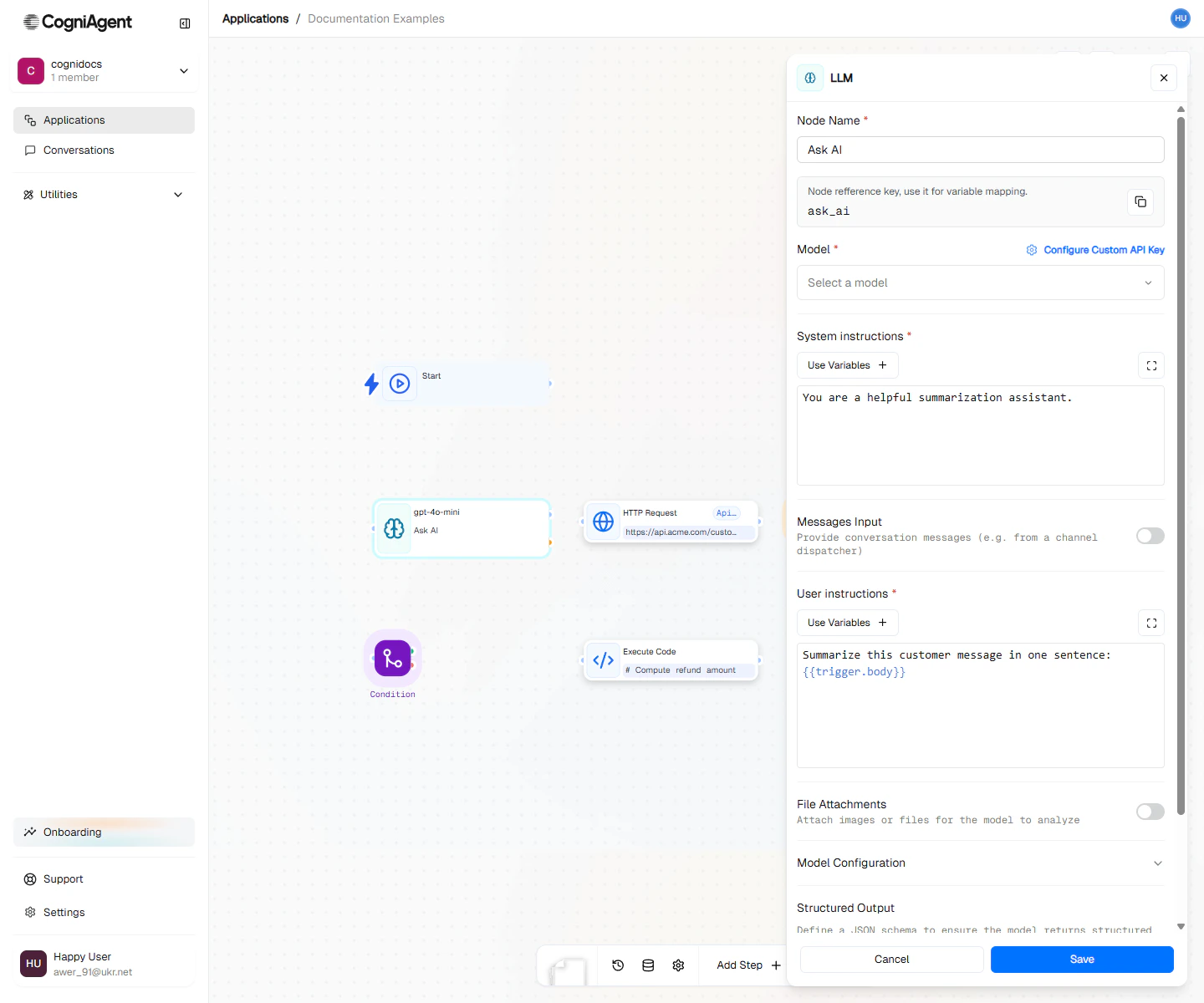
The LLM node lets you ask AI to help with text. It's like having a smart assistant that can summarize long emails, categorize support tickets, write responses, extract information from documents, and much more.
 ## When to Use
* **Summarizing** - Turn a long document into bullet points
* **Categorizing** - Sort emails into "Sales", "Support", "Spam", etc.
* **Extracting** - Pull out names, dates, and numbers from messy text
* **Writing** - Generate email replies, reports, or social posts
* **Translating** - Convert text to another language
* **Analyzing** - Detect if a message is positive or negative, urgent or not
* **Reformatting** - Turn a paragraph into a list, or vice versa
Use AI when you need to understand meaning. For simple tasks like removing spaces or splitting text, use Execute Code instead - it's faster and costs less.
## Example: Email Categorizer
Automatically categorize incoming support emails:
Add an App Trigger node for Gmail to receive incoming emails.
Add an LLM node with:
**System prompt:**
```
You are an email classifier for a software company's support team.
Categorize emails into exactly one of these categories:
- BUG_REPORT
- FEATURE_REQUEST
- BILLING
- ACCOUNT_ACCESS
- GENERAL_INQUIRY
Respond with only the category name, nothing else.
```
**User message:**
```
Categorize this email:
From: {{event_from_app_1.email.from}}
Subject: {{event_from_app_1.email.subject}}
Body: {{event_from_app_1.email.body}}
```
Add a Multi-Condition node using `{{llm_1.response}}` to route to different handling workflows.
## Example: Meeting Summary Generator
Create structured meeting notes from transcripts:
**System prompt:**
```
You are an expert at summarizing business meetings. Create clear,
actionable meeting summaries.
```
**User message:**
```
Summarize this meeting transcript into:
1. Key decisions made
2. Action items with owners
3. Open questions
4. Next steps
Transcript:
{{parse_file_1.content}}
```
**Output usage:**
```
# Send to Slack
{{llm_1.response}}
# Store for records
{{set_variable_1.value}}
```
## Example: Data Extraction
Extract structured data from unstructured text:
**System prompt:**
```
You are a data extraction assistant. Extract information precisely
as requested and return it in valid JSON format.
```
**User message:**
```
Extract the following from this invoice:
- Vendor name
- Invoice number
- Date
- Line items (description, quantity, unit price)
- Total amount
Return as JSON.
Invoice text:
{{parse_file_1.content}}
```
**Using the extracted data:**
Define the invoice fields in the node's **Structured Output** schema, and downstream nodes can reference them directly — no JSON parsing needed:
```
{{llm_1.structuredOutput.vendor_name}}
{{llm_1.structuredOutput.total_amount}}
```
## Tips for Getting Good Results
### Be Specific About What You Want
```
Good: "Summarize in 3 bullet points, max 15 words each"
Bad: "Summarize this"
```
The more specific you are, the better the result.
### Give Background Information
```
Good: "You're reading customer feedback for our project management software"
Bad: "Analyze this feedback"
```
Context helps the AI understand what it's working with.
### Tell It Exactly How to Respond
```
Good: "Respond with only 'APPROVE' or 'REJECT', nothing else"
Bad: "Tell me if this should be approved"
```
If you need a specific format, say so clearly.
### Show Examples
```
Good:
"Categorize as positive, negative, or neutral.
Examples:
- 'Love this product!' → positive
- 'Terrible experience' → negative
- 'It works fine' → neutral
Now categorize: {{input}}"
```
Examples help the AI understand exactly what you're looking for.
## Structured Output
When downstream steps need to parse the answer, don't ask for JSON in the prompt — use the node's **Structured Output** setting. Define the fields you want (for example `sentiment`, `topics`, `urgency`, `summary`) in the schema builder, and the node returns them as a real object on the `structuredOutput` output:
```
{{llm_1.structuredOutput.sentiment}}
{{llm_1.structuredOutput.urgency}}
```
This is much more reliable than parsing JSON out of free text, and Condition or Resolve Value nodes can use the fields directly.
Use temperature 0 when you need consistent, structured output. Higher temperatures can cause format variations.
## Which Model Should I Choose?
| What You're Doing | Best Choice |
| -------------------------------- | ----------------------------------------------------- |
| Complex analysis, hard questions | Largest available model (most capable, higher cost) |
| Most everyday tasks | Mid-tier model (good balance of speed and capability) |
| Simple tasks, lots of them | Smallest/fastest model (lowest cost) |
| Very long documents | Models with larger context windows |
Model names and capabilities change frequently. The model selector in the UI shows current options with their capabilities.
## Each Call Starts Fresh
Every LLM node call is independent — it has no memory of earlier LLM calls in the workflow. If a later step needs something from an earlier answer, pass it explicitly:
```
Earlier answer: {{llm_1.response}}
Now answer this follow-up question: ...
```
Advanced: the **messagesOverwrite** setting lets you supply the full message history yourself (an array of `{ role, content }` messages built by an earlier node), replacing the system/user instructions entirely.
## Letting the AI Use Your Apps
The LLM node isn't limited to text. In the config panel you can enable **Built-in Skills** — Web Search and Web Extract (both on by default) and Execute Python Code — and bind **Integrations**: connected apps like Gmail, Jira, or Slack whose actions the model can call as tools while the step runs.
That turns a single LLM step into a mini agent: it can look up an email thread, create a ticket, and then write its answer — all in one node.
Bind connected apps to the node, choose which actions the model may call, and guide it with per-action usage notes.
## Saving Money on AI Costs
* **Use simpler models for simple tasks** - Don't use GPT-4 when GPT-3.5 would work fine
* **Keep responses short when possible** - If you only need a yes/no answer, don't allow long responses
* **Save results to reuse later** - Use Update Variable so you don't have to ask the same question twice
* **Skip AI when you don't need it** - Use Condition nodes to avoid unnecessary AI calls
## Tips
Use the "Fill by AI" feature when configuring prompts. It can help you write better prompts based on your workflow context.
Chain multiple LLM nodes for complex tasks: one to analyze, one to decide, one to generate. This improves reliability and makes debugging easier.
## Settings
What to call this node (shown on the canvas).
A short code to reference this node's response.
Which AI provider to use — OpenAI, Anthropic, Google, and others. Pick it with the visual model selector.
Which specific AI model to use. Newer/larger models are smarter but cost more. The selector shows each model's capabilities (images, audio, files, and more).
System instructions — background context that tells the AI how to behave.
User instructions — what you want the AI to do. You can include data from previous nodes using `{{node_name.value}}`.
Files to send along with the instructions — images, audio, PDFs, and more. See [Working with files and AI](/guides/llm-modalities).
How creative vs. consistent the AI should be. 0 = same answer every time. 1 = more varied and creative. Part of the collapsible **Model Configuration** section.
How long the response can be. A token is roughly 3-4 characters for English text (varies by language and content).
How many times to try again if something goes wrong.
A schema describing the fields you want back. When set, the node returns a parsed object on the `structuredOutput` output.
Toggles for the built-in skills: Web Search and Web Extract (on by default) and Execute Python Code (off by default).
Connected apps and the actions the model may call. Configure them in the **Integrations** section — see [LLM Integrations](/nodes/actions/llm-integrations).
## Outputs
The model's text response.
The parsed object matching your Structured Output schema (only when the schema is configured).
The model's reasoning content, when the selected model exposes it.
Why the model stopped generating:
* `stop` - Natural completion
* `length` - Hit max tokens limit
Results of every skill and integration action the model called, grouped by tool name.
Files the model generated (images, audio, charts) or that its tools produced — usable by later nodes.
Integrations that could not be offered to the model — for example, because their connection was removed or disabled.
The model that actually served the call.
The resolved user instructions that were sent to the model.
Whether the call completed. On failure, `error` holds the details.
## Related Nodes
Let the model call actions on your connected apps.
Run another workflow you've built and use its output.
Process AI responses with custom code.
## When to Use
* **Summarizing** - Turn a long document into bullet points
* **Categorizing** - Sort emails into "Sales", "Support", "Spam", etc.
* **Extracting** - Pull out names, dates, and numbers from messy text
* **Writing** - Generate email replies, reports, or social posts
* **Translating** - Convert text to another language
* **Analyzing** - Detect if a message is positive or negative, urgent or not
* **Reformatting** - Turn a paragraph into a list, or vice versa
Use AI when you need to understand meaning. For simple tasks like removing spaces or splitting text, use Execute Code instead - it's faster and costs less.
## Example: Email Categorizer
Automatically categorize incoming support emails:
Add an App Trigger node for Gmail to receive incoming emails.
Add an LLM node with:
**System prompt:**
```
You are an email classifier for a software company's support team.
Categorize emails into exactly one of these categories:
- BUG_REPORT
- FEATURE_REQUEST
- BILLING
- ACCOUNT_ACCESS
- GENERAL_INQUIRY
Respond with only the category name, nothing else.
```
**User message:**
```
Categorize this email:
From: {{event_from_app_1.email.from}}
Subject: {{event_from_app_1.email.subject}}
Body: {{event_from_app_1.email.body}}
```
Add a Multi-Condition node using `{{llm_1.response}}` to route to different handling workflows.
## Example: Meeting Summary Generator
Create structured meeting notes from transcripts:
**System prompt:**
```
You are an expert at summarizing business meetings. Create clear,
actionable meeting summaries.
```
**User message:**
```
Summarize this meeting transcript into:
1. Key decisions made
2. Action items with owners
3. Open questions
4. Next steps
Transcript:
{{parse_file_1.content}}
```
**Output usage:**
```
# Send to Slack
{{llm_1.response}}
# Store for records
{{set_variable_1.value}}
```
## Example: Data Extraction
Extract structured data from unstructured text:
**System prompt:**
```
You are a data extraction assistant. Extract information precisely
as requested and return it in valid JSON format.
```
**User message:**
```
Extract the following from this invoice:
- Vendor name
- Invoice number
- Date
- Line items (description, quantity, unit price)
- Total amount
Return as JSON.
Invoice text:
{{parse_file_1.content}}
```
**Using the extracted data:**
Define the invoice fields in the node's **Structured Output** schema, and downstream nodes can reference them directly — no JSON parsing needed:
```
{{llm_1.structuredOutput.vendor_name}}
{{llm_1.structuredOutput.total_amount}}
```
## Tips for Getting Good Results
### Be Specific About What You Want
```
Good: "Summarize in 3 bullet points, max 15 words each"
Bad: "Summarize this"
```
The more specific you are, the better the result.
### Give Background Information
```
Good: "You're reading customer feedback for our project management software"
Bad: "Analyze this feedback"
```
Context helps the AI understand what it's working with.
### Tell It Exactly How to Respond
```
Good: "Respond with only 'APPROVE' or 'REJECT', nothing else"
Bad: "Tell me if this should be approved"
```
If you need a specific format, say so clearly.
### Show Examples
```
Good:
"Categorize as positive, negative, or neutral.
Examples:
- 'Love this product!' → positive
- 'Terrible experience' → negative
- 'It works fine' → neutral
Now categorize: {{input}}"
```
Examples help the AI understand exactly what you're looking for.
## Structured Output
When downstream steps need to parse the answer, don't ask for JSON in the prompt — use the node's **Structured Output** setting. Define the fields you want (for example `sentiment`, `topics`, `urgency`, `summary`) in the schema builder, and the node returns them as a real object on the `structuredOutput` output:
```
{{llm_1.structuredOutput.sentiment}}
{{llm_1.structuredOutput.urgency}}
```
This is much more reliable than parsing JSON out of free text, and Condition or Resolve Value nodes can use the fields directly.
Use temperature 0 when you need consistent, structured output. Higher temperatures can cause format variations.
## Which Model Should I Choose?
| What You're Doing | Best Choice |
| -------------------------------- | ----------------------------------------------------- |
| Complex analysis, hard questions | Largest available model (most capable, higher cost) |
| Most everyday tasks | Mid-tier model (good balance of speed and capability) |
| Simple tasks, lots of them | Smallest/fastest model (lowest cost) |
| Very long documents | Models with larger context windows |
Model names and capabilities change frequently. The model selector in the UI shows current options with their capabilities.
## Each Call Starts Fresh
Every LLM node call is independent — it has no memory of earlier LLM calls in the workflow. If a later step needs something from an earlier answer, pass it explicitly:
```
Earlier answer: {{llm_1.response}}
Now answer this follow-up question: ...
```
Advanced: the **messagesOverwrite** setting lets you supply the full message history yourself (an array of `{ role, content }` messages built by an earlier node), replacing the system/user instructions entirely.
## Letting the AI Use Your Apps
The LLM node isn't limited to text. In the config panel you can enable **Built-in Skills** — Web Search and Web Extract (both on by default) and Execute Python Code — and bind **Integrations**: connected apps like Gmail, Jira, or Slack whose actions the model can call as tools while the step runs.
That turns a single LLM step into a mini agent: it can look up an email thread, create a ticket, and then write its answer — all in one node.
Bind connected apps to the node, choose which actions the model may call, and guide it with per-action usage notes.
## Saving Money on AI Costs
* **Use simpler models for simple tasks** - Don't use GPT-4 when GPT-3.5 would work fine
* **Keep responses short when possible** - If you only need a yes/no answer, don't allow long responses
* **Save results to reuse later** - Use Update Variable so you don't have to ask the same question twice
* **Skip AI when you don't need it** - Use Condition nodes to avoid unnecessary AI calls
## Tips
Use the "Fill by AI" feature when configuring prompts. It can help you write better prompts based on your workflow context.
Chain multiple LLM nodes for complex tasks: one to analyze, one to decide, one to generate. This improves reliability and makes debugging easier.
## Settings
What to call this node (shown on the canvas).
A short code to reference this node's response.
Which AI provider to use — OpenAI, Anthropic, Google, and others. Pick it with the visual model selector.
Which specific AI model to use. Newer/larger models are smarter but cost more. The selector shows each model's capabilities (images, audio, files, and more).
System instructions — background context that tells the AI how to behave.
User instructions — what you want the AI to do. You can include data from previous nodes using `{{node_name.value}}`.
Files to send along with the instructions — images, audio, PDFs, and more. See [Working with files and AI](/guides/llm-modalities).
How creative vs. consistent the AI should be. 0 = same answer every time. 1 = more varied and creative. Part of the collapsible **Model Configuration** section.
How long the response can be. A token is roughly 3-4 characters for English text (varies by language and content).
How many times to try again if something goes wrong.
A schema describing the fields you want back. When set, the node returns a parsed object on the `structuredOutput` output.
Toggles for the built-in skills: Web Search and Web Extract (on by default) and Execute Python Code (off by default).
Connected apps and the actions the model may call. Configure them in the **Integrations** section — see [LLM Integrations](/nodes/actions/llm-integrations).
## Outputs
The model's text response.
The parsed object matching your Structured Output schema (only when the schema is configured).
The model's reasoning content, when the selected model exposes it.
Why the model stopped generating:
* `stop` - Natural completion
* `length` - Hit max tokens limit
Results of every skill and integration action the model called, grouped by tool name.
Files the model generated (images, audio, charts) or that its tools produced — usable by later nodes.
Integrations that could not be offered to the model — for example, because their connection was removed or disabled.
The model that actually served the call.
The resolved user instructions that were sent to the model.
Whether the call completed. On failure, `error` holds the details.
## Related Nodes
Let the model call actions on your connected apps.
Run another workflow you've built and use its output.
Process AI responses with custom code.