> ## Documentation Index
> Fetch the complete documentation index at: https://docs.cogniagent.ai/llms.txt
> Use this file to discover all available pages before exploring further.
# Read File Node
> Read text from PDFs, Word documents, images, and other files
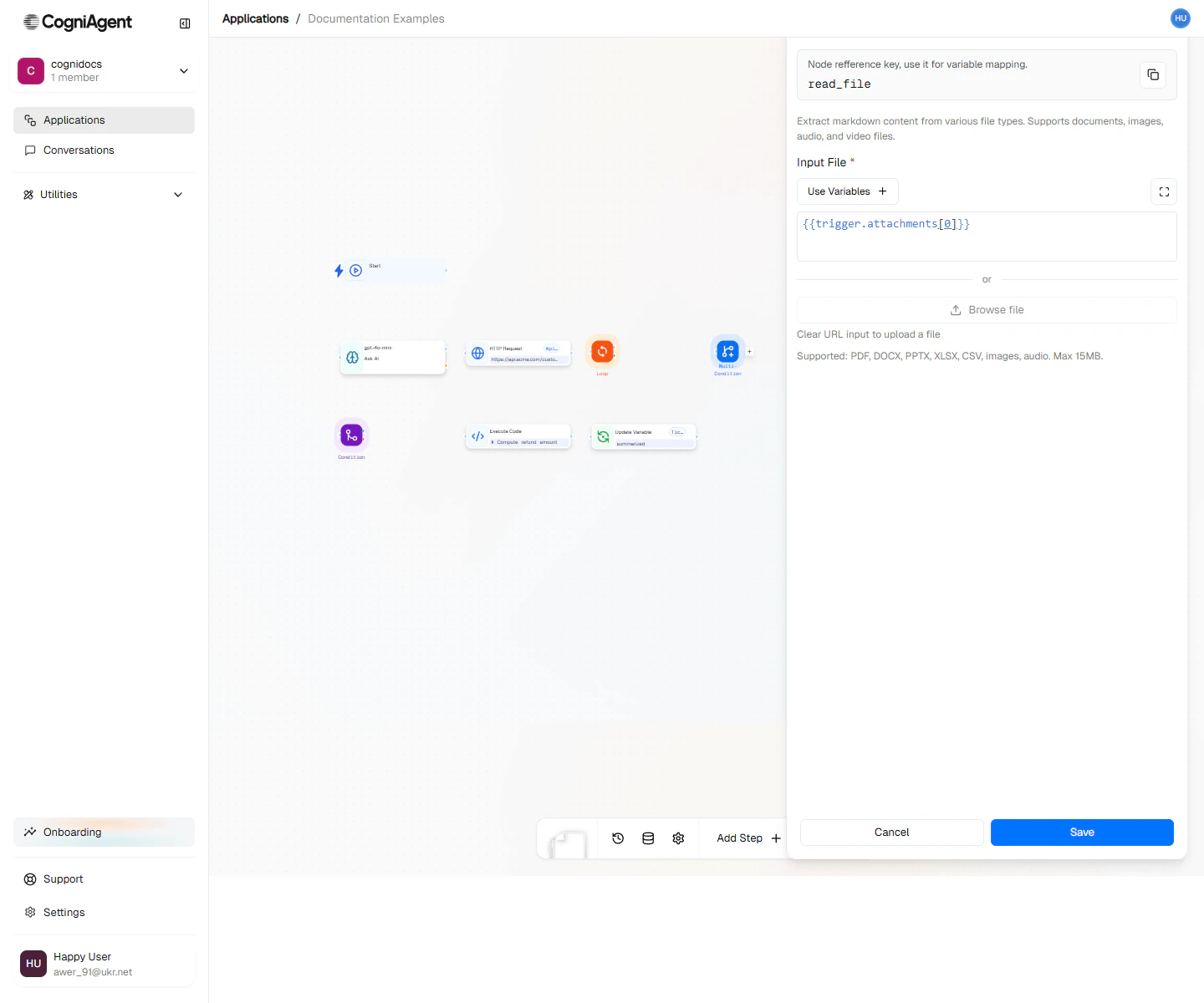
The Read File node reads the text content from files. Got a PDF you need to analyze? An email attachment to process? An image with text in it? This node extracts the text so you can work with it.
 ## When to Use
* **Reading documents** - Get the text from PDFs, Word docs, PowerPoints
* **Processing attachments** - Read files that came with emails
* **Reading text from images** - Extract words from photos, scans, screenshots
* **Importing data** - Read CSV or Excel files
* **Processing forms** - Get the filled-in data from PDF forms
## Supported File Types
### Documents
| Format | Extension | Notes |
| ---------- | --------------- | ------------------------------ |
| PDF | .pdf | Text and image-based (via OCR) |
| Word | .docx, .doc | Modern and legacy formats |
| PowerPoint | .pptx, .ppt | Extracts slide text |
| Text | .txt, .md, .rtf | Plain text files |
### Spreadsheets
| Format | Extension | Notes |
| ------ | ----------- | ------------------------ |
| Excel | .xlsx, .xls | Returns structured data |
| CSV | .csv | Parsed into rows/columns |
### Images
| Format | Extension | Notes |
| ------ | ------------------------------ | -------------------- |
| Images | .png, .jpg, .jpeg, .gif, .webp | OCR extraction |
| TIFF | .tiff | Often used for scans |
## Example: Email Attachment Processor
Extract and analyze content from email attachments:
Use Event from App (Gmail) to trigger on emails with attachments.
Add a Loop node to iterate over `{{event_from_app_1.email.attachments}}`:
```
├── Loop (over attachments)
│ └── Read File (fileReference: {{loop_1.currentItem}})
```
Use Ask AI node to analyze or summarize:
```
Summarize this document in 3 bullet points:
{{parse_file_1.content}}
```
Add to a spreadsheet or send via Slack.
## Example: Invoice Data Extraction
Extract structured data from PDF invoices:
```
Workflow: Invoice Processor
├── Event from App (Gmail: emails from billing@vendor.com)
├── Read File (attachment, mode: structured)
├── Ask AI (extract invoice data into JSON)
│ Prompt:
│ "Extract from this invoice:
│ - Invoice number
│ - Date
│ - Vendor name
│ - Line items (description, quantity, amount)
│ - Total
│
│ Document: {{parse_file_1.content}}"
├── Execute Code (validate and format data)
└── External API (add to accounting system)
```
## Example: Resume Scanner
Process job applications:
```
Workflow: Resume Scanner
├── Webhook (from careers page upload)
├── Read File (from upload)
├── Ask AI (extract candidate info)
│ "Extract:
│ - Name
│ - Email
│ - Phone
│ - Years of experience
│ - Key skills
│ - Education
│
│ Resume: {{parse_file_1.content}}"
├── External API (HubSpot: create contact)
└── External API (Slack: notify recruiting team)
```
## Working with Multi-Page Documents
### Process All Pages Together
```
Summary of the entire document:
{{parse_file_1.content}}
```
### Process Pages Individually
```
├── Read File (PDF)
├── Loop (over {{parse_file_1.pages}})
│ ├── Ask AI (analyze page {{loop_1.currentIndex + 1}})
│ └── Update Variable (append results)
└── Ask AI (synthesize all page analyses)
```
### Extract Specific Pages
Configuration: `pages: "1,5-10"`
Only extracts pages 1 and 5 through 10.
## Handling Tables
For documents with tables, use **structured** extraction mode:
```
├── Read File (mode: structured)
├── Execute Code
│ # Access tables
│ tables = input["parse_file_1"]["tables"]
│
│ # First table, first row
│ header = tables[0]["rows"][0]
│
│ # Convert to records
│ records = []
│ for row in tables[0]["rows"][1:]:
│ record = dict(zip(header, row))
│ records.append(record)
│
│ return {"records": records}
└── Loop (over records)
```
## Reading Text from Images and Scans
If your file is an image or a scanned document, use OCR mode to read the text:
**Set extraction mode to:** **ocr**
OCR takes longer (usually 2-5 seconds per page) and isn't always perfect. Double-check important extractions.
**For better results:**
* Use higher quality images
* Make sure the text is clear and readable
* Note that handwriting usually doesn't work well
## When Things Go Wrong
File reading can fail because:
* The file is damaged
* The file type isn't supported
* The file is password-protected
* The file is too big
You can check if it worked:
```
├── Read File
├── Condition (did it work?)
│ ├── Yes: Continue processing
│ └── No: Send alert about the problem
```
Password-protected PDFs can't be read. Ask users to provide files without passwords.
## File Size Limits
| File Type | Max Size |
| --------------- | -------- |
| PDF | 50 MB |
| Word/PowerPoint | 25 MB |
| Images | 10 MB |
| CSV/Excel | 25 MB |
For larger files, consider splitting or pre-processing.
## Tips
For long documents, extract text first and then use Ask AI to summarize or answer specific questions. Don't try to process entire books in one go.
Use **structured** mode when you need to preserve tables. Use **text** mode when you just need the words and don't care about formatting.
Store parsed content in a variable if you need to reference it multiple times. Parsing is compute-intensive.
## Settings
What to call this node (shown on the canvas).
A short code to reference this node's content.
Where the file is coming from:
* **url** - Download it from a web address
* **base64** - The file content encoded as text
* **previous\_node** - A file from an earlier step (like an email attachment)
The web address to download from (if using URL source).
The encoded file content (if using base64 source).
Reference to a file from an earlier node (if using previous\_node source).
How to read the file:
* **text** - Just get the words
* **structured** - Try to keep tables and lists intact
* **ocr** - Read text from images or scanned documents
Which pages to read (for documents with multiple pages). Examples: `1-5`, `1,3,5`, or `all`.
## Outputs
The extracted text content.
Array of page contents (for multi-page documents).
File metadata:
* `pageCount` - Number of pages
* `fileType` - Detected file type
* `fileSize` - Size in bytes
* `title` - Document title (if available)
* `author` - Document author (if available)
* `createdAt` - Creation date (if available)
Extracted tables (when using structured mode).
Whether extraction completed successfully.
## Related Nodes
Analyze and extract insights from parsed content.
Process multiple files or pages.
## When to Use
* **Reading documents** - Get the text from PDFs, Word docs, PowerPoints
* **Processing attachments** - Read files that came with emails
* **Reading text from images** - Extract words from photos, scans, screenshots
* **Importing data** - Read CSV or Excel files
* **Processing forms** - Get the filled-in data from PDF forms
## Supported File Types
### Documents
| Format | Extension | Notes |
| ---------- | --------------- | ------------------------------ |
| PDF | .pdf | Text and image-based (via OCR) |
| Word | .docx, .doc | Modern and legacy formats |
| PowerPoint | .pptx, .ppt | Extracts slide text |
| Text | .txt, .md, .rtf | Plain text files |
### Spreadsheets
| Format | Extension | Notes |
| ------ | ----------- | ------------------------ |
| Excel | .xlsx, .xls | Returns structured data |
| CSV | .csv | Parsed into rows/columns |
### Images
| Format | Extension | Notes |
| ------ | ------------------------------ | -------------------- |
| Images | .png, .jpg, .jpeg, .gif, .webp | OCR extraction |
| TIFF | .tiff | Often used for scans |
## Example: Email Attachment Processor
Extract and analyze content from email attachments:
Use Event from App (Gmail) to trigger on emails with attachments.
Add a Loop node to iterate over `{{event_from_app_1.email.attachments}}`:
```
├── Loop (over attachments)
│ └── Read File (fileReference: {{loop_1.currentItem}})
```
Use Ask AI node to analyze or summarize:
```
Summarize this document in 3 bullet points:
{{parse_file_1.content}}
```
Add to a spreadsheet or send via Slack.
## Example: Invoice Data Extraction
Extract structured data from PDF invoices:
```
Workflow: Invoice Processor
├── Event from App (Gmail: emails from billing@vendor.com)
├── Read File (attachment, mode: structured)
├── Ask AI (extract invoice data into JSON)
│ Prompt:
│ "Extract from this invoice:
│ - Invoice number
│ - Date
│ - Vendor name
│ - Line items (description, quantity, amount)
│ - Total
│
│ Document: {{parse_file_1.content}}"
├── Execute Code (validate and format data)
└── External API (add to accounting system)
```
## Example: Resume Scanner
Process job applications:
```
Workflow: Resume Scanner
├── Webhook (from careers page upload)
├── Read File (from upload)
├── Ask AI (extract candidate info)
│ "Extract:
│ - Name
│ - Email
│ - Phone
│ - Years of experience
│ - Key skills
│ - Education
│
│ Resume: {{parse_file_1.content}}"
├── External API (HubSpot: create contact)
└── External API (Slack: notify recruiting team)
```
## Working with Multi-Page Documents
### Process All Pages Together
```
Summary of the entire document:
{{parse_file_1.content}}
```
### Process Pages Individually
```
├── Read File (PDF)
├── Loop (over {{parse_file_1.pages}})
│ ├── Ask AI (analyze page {{loop_1.currentIndex + 1}})
│ └── Update Variable (append results)
└── Ask AI (synthesize all page analyses)
```
### Extract Specific Pages
Configuration: `pages: "1,5-10"`
Only extracts pages 1 and 5 through 10.
## Handling Tables
For documents with tables, use **structured** extraction mode:
```
├── Read File (mode: structured)
├── Execute Code
│ # Access tables
│ tables = input["parse_file_1"]["tables"]
│
│ # First table, first row
│ header = tables[0]["rows"][0]
│
│ # Convert to records
│ records = []
│ for row in tables[0]["rows"][1:]:
│ record = dict(zip(header, row))
│ records.append(record)
│
│ return {"records": records}
└── Loop (over records)
```
## Reading Text from Images and Scans
If your file is an image or a scanned document, use OCR mode to read the text:
**Set extraction mode to:** **ocr**
OCR takes longer (usually 2-5 seconds per page) and isn't always perfect. Double-check important extractions.
**For better results:**
* Use higher quality images
* Make sure the text is clear and readable
* Note that handwriting usually doesn't work well
## When Things Go Wrong
File reading can fail because:
* The file is damaged
* The file type isn't supported
* The file is password-protected
* The file is too big
You can check if it worked:
```
├── Read File
├── Condition (did it work?)
│ ├── Yes: Continue processing
│ └── No: Send alert about the problem
```
Password-protected PDFs can't be read. Ask users to provide files without passwords.
## File Size Limits
| File Type | Max Size |
| --------------- | -------- |
| PDF | 50 MB |
| Word/PowerPoint | 25 MB |
| Images | 10 MB |
| CSV/Excel | 25 MB |
For larger files, consider splitting or pre-processing.
## Tips
For long documents, extract text first and then use Ask AI to summarize or answer specific questions. Don't try to process entire books in one go.
Use **structured** mode when you need to preserve tables. Use **text** mode when you just need the words and don't care about formatting.
Store parsed content in a variable if you need to reference it multiple times. Parsing is compute-intensive.
## Settings
What to call this node (shown on the canvas).
A short code to reference this node's content.
Where the file is coming from:
* **url** - Download it from a web address
* **base64** - The file content encoded as text
* **previous\_node** - A file from an earlier step (like an email attachment)
The web address to download from (if using URL source).
The encoded file content (if using base64 source).
Reference to a file from an earlier node (if using previous\_node source).
How to read the file:
* **text** - Just get the words
* **structured** - Try to keep tables and lists intact
* **ocr** - Read text from images or scanned documents
Which pages to read (for documents with multiple pages). Examples: `1-5`, `1,3,5`, or `all`.
## Outputs
The extracted text content.
Array of page contents (for multi-page documents).
File metadata:
* `pageCount` - Number of pages
* `fileType` - Detected file type
* `fileSize` - Size in bytes
* `title` - Document title (if available)
* `author` - Document author (if available)
* `createdAt` - Creation date (if available)
Extracted tables (when using structured mode).
Whether extraction completed successfully.
## Related Nodes
Analyze and extract insights from parsed content.
Process multiple files or pages.