> ## Documentation Index
> Fetch the complete documentation index at: https://docs.cogniagent.ai/llms.txt
> Use this file to discover all available pages before exploring further.
# Update Variable Node
> Save information to use later in your workflow
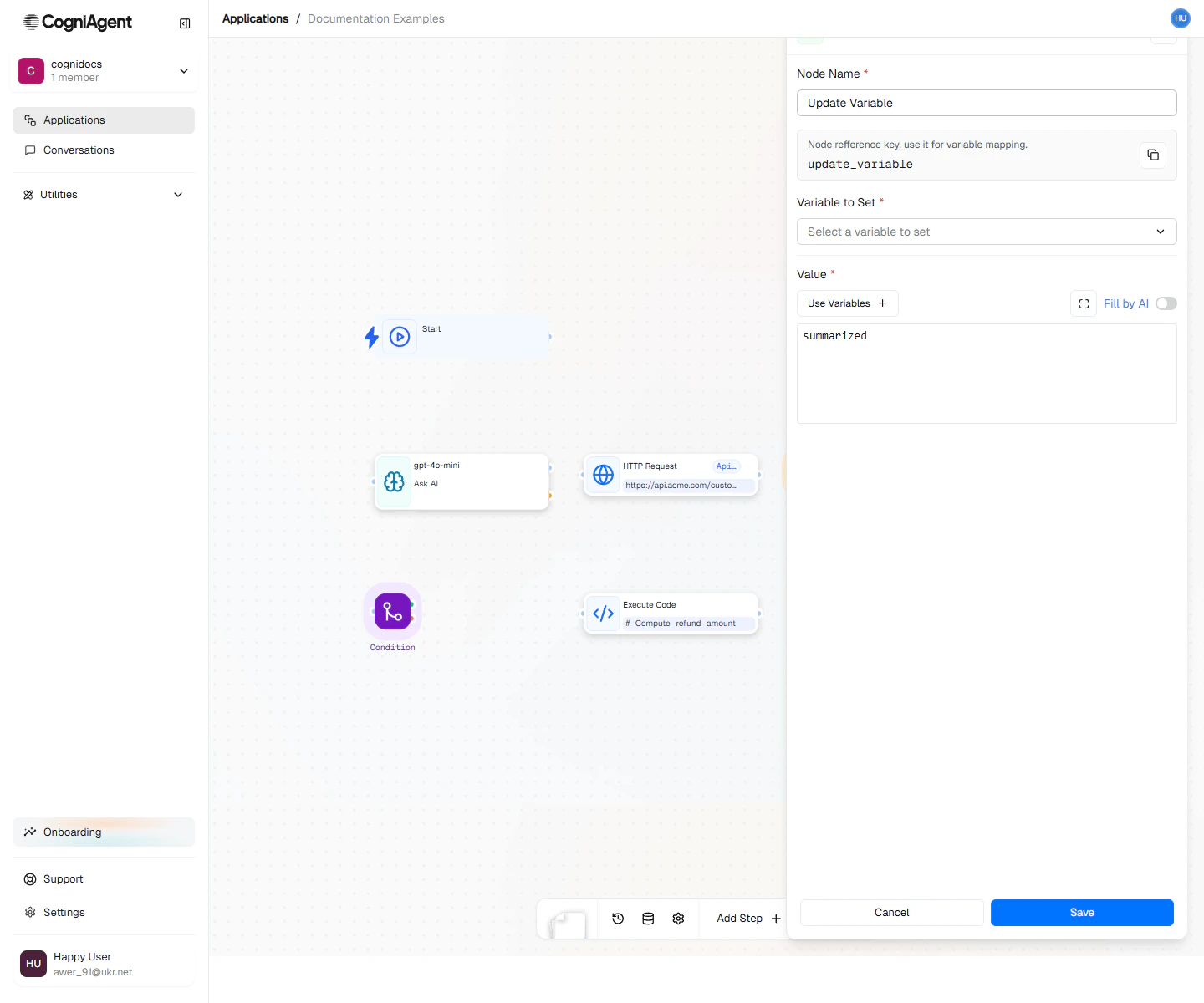
The Update Variable node saves information so you can use it later in your workflow. Think of it like writing something down on a sticky note so you don't forget it.
 ## When to Use
* **Remember something** - Save an AI response to use in multiple places
* **Collect results** - Build a list of results as you loop through items
* **Track progress** - Keep track of counts or status
* **Give things names** - Create easy-to-remember names for complex data
* **Save between runs** - Some variables can persist even after the workflow ends
* **Save different things based on conditions** - Store different values depending on what happened
## Example: Store Processing Results
Save AI analysis results for use in multiple downstream nodes:
Use an Ask AI node to analyze incoming data and return structured results.
Add an Update Variable node:
* Variable name: `analysisResults`
* Value: `{{llm_1.response}}`
* Scope: **execution**
Reference `{{set_variable_1.value}}` in subsequent nodes:
* Send to CRM
* Include in Slack notification
* Add to spreadsheet
**Why this helps:**
* Cleaner references: `{{set_variable_1.value.score}}` vs `{{llm_1.response.score}}`
* Parse JSON once, use everywhere
* Clear documentation of what data means
## Example: Accumulate Loop Results
Collect results from each loop iteration:
```
├── Update Variable (processedItems = [], initialize empty array)
├── Loop (over incoming items)
│ ├── Ask AI (process each item)
│ └── Update Variable (processedItems, append {{llm_1.response}})
└── External API (Slack: Post summary of {{set_variable_1.value.length}} items)
```
**Configuration for accumulation:**
* Variable name: `processedItems`
* Value: `{{llm_1.response}}`
* Operation: **append**
Each iteration adds to the array.
## Example: Persistent Counter
Track how many times a workflow has run:
**Configuration:**
* Variable name: `runCount`
* Value: `1`
* Operation: **increment**
* Scope: **application** (persists between runs)
Access the count: `{{set_variable_1.value}}`
Use this for:
* Rate limiting
* Usage tracking
* Triggering actions after N runs
## Example: Conditional Storage
Store different values based on conditions:
```
├── Ask AI (analyze email sentiment)
├── Condition (sentiment == "negative")
│ ├── Met: Update Variable (priority = "high")
│ └── Unmet: Update Variable (priority = "normal")
├── Wait & Combine
└── External API (create ticket with priority = {{set_variable_1.value}})
```
Both branches set the same variable name, and Wait & Combine waits for whichever branch executes.
## Two Ways to Save Variables
### During This Run Only (Default)
Most variables only exist while your workflow is running:
```
Run 1: Save counter = 5
Run 2: counter doesn't exist (starts fresh again)
```
**Good for:**
* Temporary calculations
* Storing results while working
* Most everyday use cases
### Remember Between Runs
Some variables can be remembered even after the workflow ends:
```
Run 1: Save totalProcessed = 100
Run 2: Add 1 to totalProcessed → 101
Run 3: Read totalProcessed → 101
```
**Good for:**
* Counting things over time
* Remembering when something last happened
* Settings that rarely change
Persistent variables are shared between all runs. If your workflow runs multiple times at once, they might conflict. Use "during this run only" when possible.
## Operations
### Set (Replace)
Replace the entire value:
```
Before: items = ["a", "b"]
Set: items = ["x", "y", "z"]
After: items = ["x", "y", "z"]
```
### Append (Arrays)
Add an item to an existing array:
```
Before: items = ["a", "b"]
Append: "c"
After: items = ["a", "b", "c"]
```
### Increment (Numbers)
Add to an existing number:
```
Before: count = 5
Increment: 3
After: count = 8
```
Works with negative values for decrementing.
### Merge (objects)
Combine objects, with new values overwriting:
```
Before: config = {host: "old", port: 80}
Merge: {host: "new", timeout: 30}
After: config = {host: "new", port: 80, timeout: 30}
```
## Accessing Variables
### From the Same Run
Use the Update Variable node's output:
```
{{set_variable_1.value}}
{{set_variable_1.value.propertyName}}
```
### Application Variables
Application-scoped variables can be referenced by name:
```
{{variables.runCount}}
{{variables.lastProcessedId}}
```
## Tips
Initialize variables at the start of your workflow before loops or conditional branches. This ensures the variable exists regardless of which path executes.
Use descriptive variable names that explain the data's purpose: `qualifiedLeads` is better than `data1`.
Store structured objects rather than multiple individual variables when data is related:
```json theme={null}
{
"customer": {
"name": "...",
"email": "...",
"tier": "..."
}
}
```
Don't use Update Variable inside a loop if you just need the final result. Each iteration overwrites the previous value. Use **append** to collect all results.
## Settings
What to call this node (shown on the canvas).
A short code to reference this node's value.
What to call the variable. Use clear names like `customerEmail` or `totalAmount`.
What to save. Can be typed directly, or pulled from a previous node.
How long to keep the variable:
* **execution** - Only during this run (default, use this most of the time)
* **application** - Remember it even after the workflow ends
What to do with the value:
* **set** - Replace whatever was there before
* **append** - Add to an existing list
* **increment** - Add to an existing number
* **merge** - Combine with an existing object
## Outputs
The value that was stored.
The previous value (useful for tracking changes).
The name of the variable that was set.
## Related Nodes
Trigger workflows when application variables change.
Iterate over collections, accumulating results.
## When to Use
* **Remember something** - Save an AI response to use in multiple places
* **Collect results** - Build a list of results as you loop through items
* **Track progress** - Keep track of counts or status
* **Give things names** - Create easy-to-remember names for complex data
* **Save between runs** - Some variables can persist even after the workflow ends
* **Save different things based on conditions** - Store different values depending on what happened
## Example: Store Processing Results
Save AI analysis results for use in multiple downstream nodes:
Use an Ask AI node to analyze incoming data and return structured results.
Add an Update Variable node:
* Variable name: `analysisResults`
* Value: `{{llm_1.response}}`
* Scope: **execution**
Reference `{{set_variable_1.value}}` in subsequent nodes:
* Send to CRM
* Include in Slack notification
* Add to spreadsheet
**Why this helps:**
* Cleaner references: `{{set_variable_1.value.score}}` vs `{{llm_1.response.score}}`
* Parse JSON once, use everywhere
* Clear documentation of what data means
## Example: Accumulate Loop Results
Collect results from each loop iteration:
```
├── Update Variable (processedItems = [], initialize empty array)
├── Loop (over incoming items)
│ ├── Ask AI (process each item)
│ └── Update Variable (processedItems, append {{llm_1.response}})
└── External API (Slack: Post summary of {{set_variable_1.value.length}} items)
```
**Configuration for accumulation:**
* Variable name: `processedItems`
* Value: `{{llm_1.response}}`
* Operation: **append**
Each iteration adds to the array.
## Example: Persistent Counter
Track how many times a workflow has run:
**Configuration:**
* Variable name: `runCount`
* Value: `1`
* Operation: **increment**
* Scope: **application** (persists between runs)
Access the count: `{{set_variable_1.value}}`
Use this for:
* Rate limiting
* Usage tracking
* Triggering actions after N runs
## Example: Conditional Storage
Store different values based on conditions:
```
├── Ask AI (analyze email sentiment)
├── Condition (sentiment == "negative")
│ ├── Met: Update Variable (priority = "high")
│ └── Unmet: Update Variable (priority = "normal")
├── Wait & Combine
└── External API (create ticket with priority = {{set_variable_1.value}})
```
Both branches set the same variable name, and Wait & Combine waits for whichever branch executes.
## Two Ways to Save Variables
### During This Run Only (Default)
Most variables only exist while your workflow is running:
```
Run 1: Save counter = 5
Run 2: counter doesn't exist (starts fresh again)
```
**Good for:**
* Temporary calculations
* Storing results while working
* Most everyday use cases
### Remember Between Runs
Some variables can be remembered even after the workflow ends:
```
Run 1: Save totalProcessed = 100
Run 2: Add 1 to totalProcessed → 101
Run 3: Read totalProcessed → 101
```
**Good for:**
* Counting things over time
* Remembering when something last happened
* Settings that rarely change
Persistent variables are shared between all runs. If your workflow runs multiple times at once, they might conflict. Use "during this run only" when possible.
## Operations
### Set (Replace)
Replace the entire value:
```
Before: items = ["a", "b"]
Set: items = ["x", "y", "z"]
After: items = ["x", "y", "z"]
```
### Append (Arrays)
Add an item to an existing array:
```
Before: items = ["a", "b"]
Append: "c"
After: items = ["a", "b", "c"]
```
### Increment (Numbers)
Add to an existing number:
```
Before: count = 5
Increment: 3
After: count = 8
```
Works with negative values for decrementing.
### Merge (objects)
Combine objects, with new values overwriting:
```
Before: config = {host: "old", port: 80}
Merge: {host: "new", timeout: 30}
After: config = {host: "new", port: 80, timeout: 30}
```
## Accessing Variables
### From the Same Run
Use the Update Variable node's output:
```
{{set_variable_1.value}}
{{set_variable_1.value.propertyName}}
```
### Application Variables
Application-scoped variables can be referenced by name:
```
{{variables.runCount}}
{{variables.lastProcessedId}}
```
## Tips
Initialize variables at the start of your workflow before loops or conditional branches. This ensures the variable exists regardless of which path executes.
Use descriptive variable names that explain the data's purpose: `qualifiedLeads` is better than `data1`.
Store structured objects rather than multiple individual variables when data is related:
```json theme={null}
{
"customer": {
"name": "...",
"email": "...",
"tier": "..."
}
}
```
Don't use Update Variable inside a loop if you just need the final result. Each iteration overwrites the previous value. Use **append** to collect all results.
## Settings
What to call this node (shown on the canvas).
A short code to reference this node's value.
What to call the variable. Use clear names like `customerEmail` or `totalAmount`.
What to save. Can be typed directly, or pulled from a previous node.
How long to keep the variable:
* **execution** - Only during this run (default, use this most of the time)
* **application** - Remember it even after the workflow ends
What to do with the value:
* **set** - Replace whatever was there before
* **append** - Add to an existing list
* **increment** - Add to an existing number
* **merge** - Combine with an existing object
## Outputs
The value that was stored.
The previous value (useful for tracking changes).
The name of the variable that was set.
## Related Nodes
Trigger workflows when application variables change.
Iterate over collections, accumulating results.