> ## Documentation Index
> Fetch the complete documentation index at: https://docs.cogniagent.ai/llms.txt
> Use this file to discover all available pages before exploring further.
# Workspace Files Node
> Write, list, move, copy and delete files in Workspace files from a workflow, the folder your team and coworkers share.
The Workspace Files node works with Workspace files, the folder your team and its coworkers share on the Files page. Save a report where people will find it, pick up the files someone dropped in a folder, or file documents away once a workflow has handled them.
 The node is offered in the step picker only where your workspace has Workspace files. See [Workspace files](/cowork/files/workspace-files) for the folder itself.
## When to use
* **Keep a result as a file**: a daily report, an export, an AI summary that people open on the Files page
* **Pick up files people drop in a folder**: list `Inbox` and loop over what's there
* **File things away**: move a processed invoice to `Inbox/Done`, or rename it
* **Keep a copy before a risky change**: copy a database to `Backups` before a step rewrites it
* **Tidy up**: move old files to the Trash, where they can be restored for 30 days
To read a file's text, use [Read File](/nodes/actions/read-file#read-a-file-from-workspace-files) instead: this node passes files on, it doesn't read them. To start a workflow when a file arrives, use [File Added to Folder](/nodes/triggers/file-added-to-folder).
## Operations
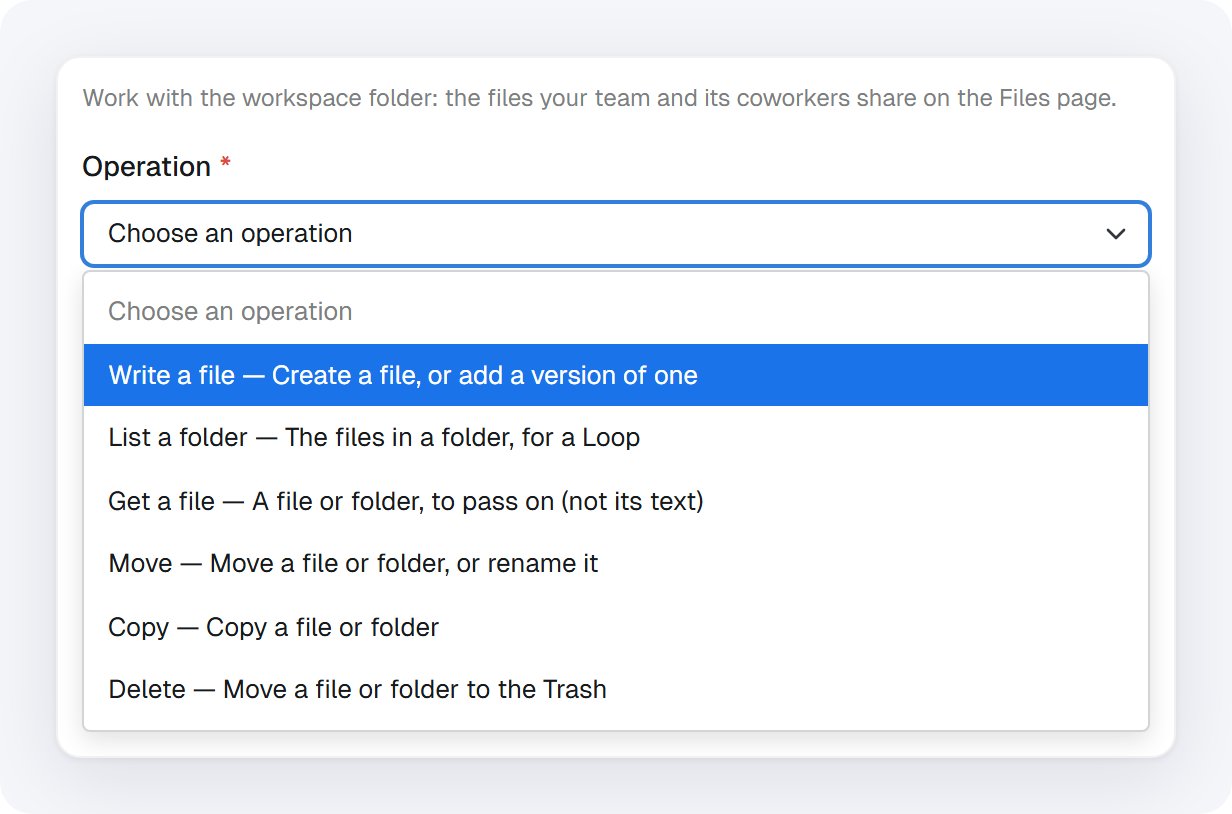
Pick one operation per step. The form shows only the settings that operation uses.
| Operation | What it does |
| - | - |
| **Write a file** | Create a file, or add a version of one |
| **List a folder** | The files in a folder, for a Loop |
| **Get a file** | A file or folder, to pass on (not its text) |
| **Move** | Move a file or folder, or rename it |
| **Copy** | Copy a file or folder |
| **Delete** | Move a file or folder to the Trash |
The node is offered in the step picker only where your workspace has Workspace files. See [Workspace files](/cowork/files/workspace-files) for the folder itself.
## When to use
* **Keep a result as a file**: a daily report, an export, an AI summary that people open on the Files page
* **Pick up files people drop in a folder**: list `Inbox` and loop over what's there
* **File things away**: move a processed invoice to `Inbox/Done`, or rename it
* **Keep a copy before a risky change**: copy a database to `Backups` before a step rewrites it
* **Tidy up**: move old files to the Trash, where they can be restored for 30 days
To read a file's text, use [Read File](/nodes/actions/read-file#read-a-file-from-workspace-files) instead: this node passes files on, it doesn't read them. To start a workflow when a file arrives, use [File Added to Folder](/nodes/triggers/file-added-to-folder).
## Operations
Pick one operation per step. The form shows only the settings that operation uses.
| Operation | What it does |
| - | - |
| **Write a file** | Create a file, or add a version of one |
| **List a folder** | The files in a folder, for a Loop |
| **Get a file** | A file or folder, to pass on (not its text) |
| **Move** | Move a file or folder, or rename it |
| **Copy** | Copy a file or folder |
| **Delete** | Move a file or folder to the Trash |
 Everything the node does, it does as your workflow. On the Files page, its changes show your workflow's name, with **Open the run** to see the run that made them.
## Write a file
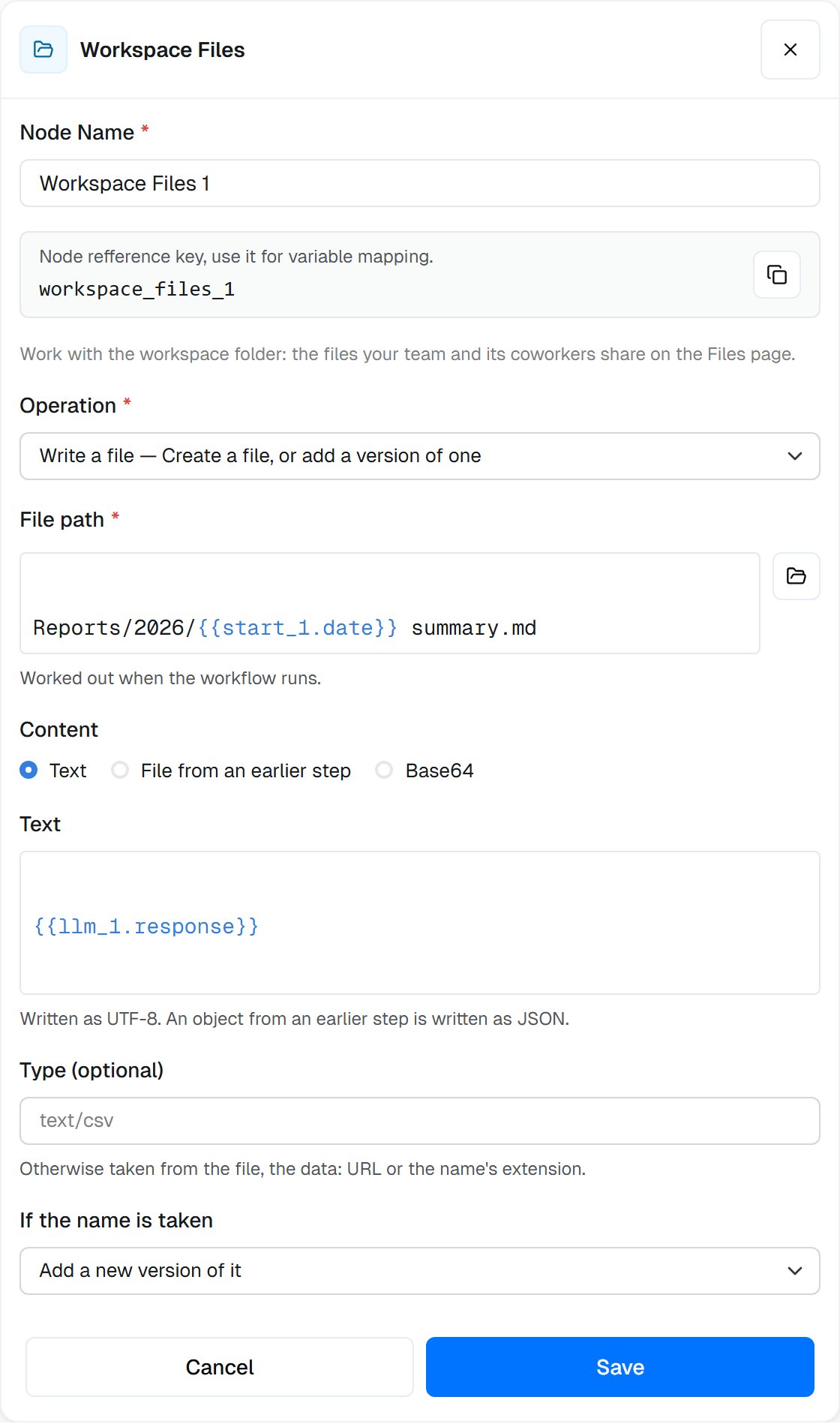
Give a **File path**, including folders. Folders that don't exist yet are created. Then choose where the **Content** comes from:
* **Text**: written as UTF-8. An object from an earlier step is written as JSON.
* **File from an earlier step**: one file, as a single reference, for example `{{gmail_1.files[0]}}` or `{{execute_code_1.files[0]}}`.
* **Base64**: raw base64, or a `data:` URL.
**Type (optional)** sets the file's type. Otherwise it is taken from the file, the `data:` URL or the name's extension.
**If the name is taken** decides what happens when a file already has that name:
| Choice | What happens |
| - | - |
| **Add a new version of it** (default) | The file gets a new version; earlier versions stay in its history |
| **Keep both ("name (1).ext")** | The new file is saved beside it under a numbered name |
| **Leave the existing file** | Nothing is written; `outcome` is `skipped` |
| **Fail the step** | The step stops with an error |
Writing the same content again makes no new version (`outcome` `unchanged`). Rewriting one file several times in the same run within 10 minutes keeps one version for that run (`outcome` `coalesced`), so a Loop that rewrites a file doesn't fill its history.
## List a folder
Give the **Folder** to list, or leave it empty for the workspace folder itself. Narrow the list with **Only names like** (`*.pdf`, `report-??.csv` or `*.{csv,tsv}`; matched against the name only, ignoring case) and **Include subfolders**. **At most** caps the list: 100 files by default, 1,000 at most.
`files` holds the matching files, ready for a [Loop](/nodes/logic/loop). `truncated` is `true` when more files matched than the list returned.
## Get, move, copy and delete
These four act on one file or folder:
* **Get a file** passes the file (or folder) on to later steps. Nothing is read.
* **Move** puts it in a **Destination folder** (empty for the workspace folder; a missing folder is created), and can give it a **New name**. `previousPath` says where it was. Moving onto a name that's already taken fails.
* **Copy** makes a copy in the destination folder, with an optional new name. **If the name is taken**: **Fail the step** (default) or **Keep both ("name (copy).ext")**: a copy kept beside a taken name is called "name (copy).ext", then "name (copy 2).ext".
* **Delete** moves it to the Trash, where it can be restored for 30 days. A workflow never deletes a file for good.
## Choosing the file
**Find it by** offers two ways:
* **Path**: a path in the workspace folder, like `Inbox/Invoices/invoice-1043.pdf`. Names match whatever their case.
* **Id or earlier step**: a file's id, or a workspace file an earlier step passed on, like `{{workspace_files_1.file}}` or `{{loop_1.currentItem}}`. An id keeps pointing at the same file after it is renamed or moved.
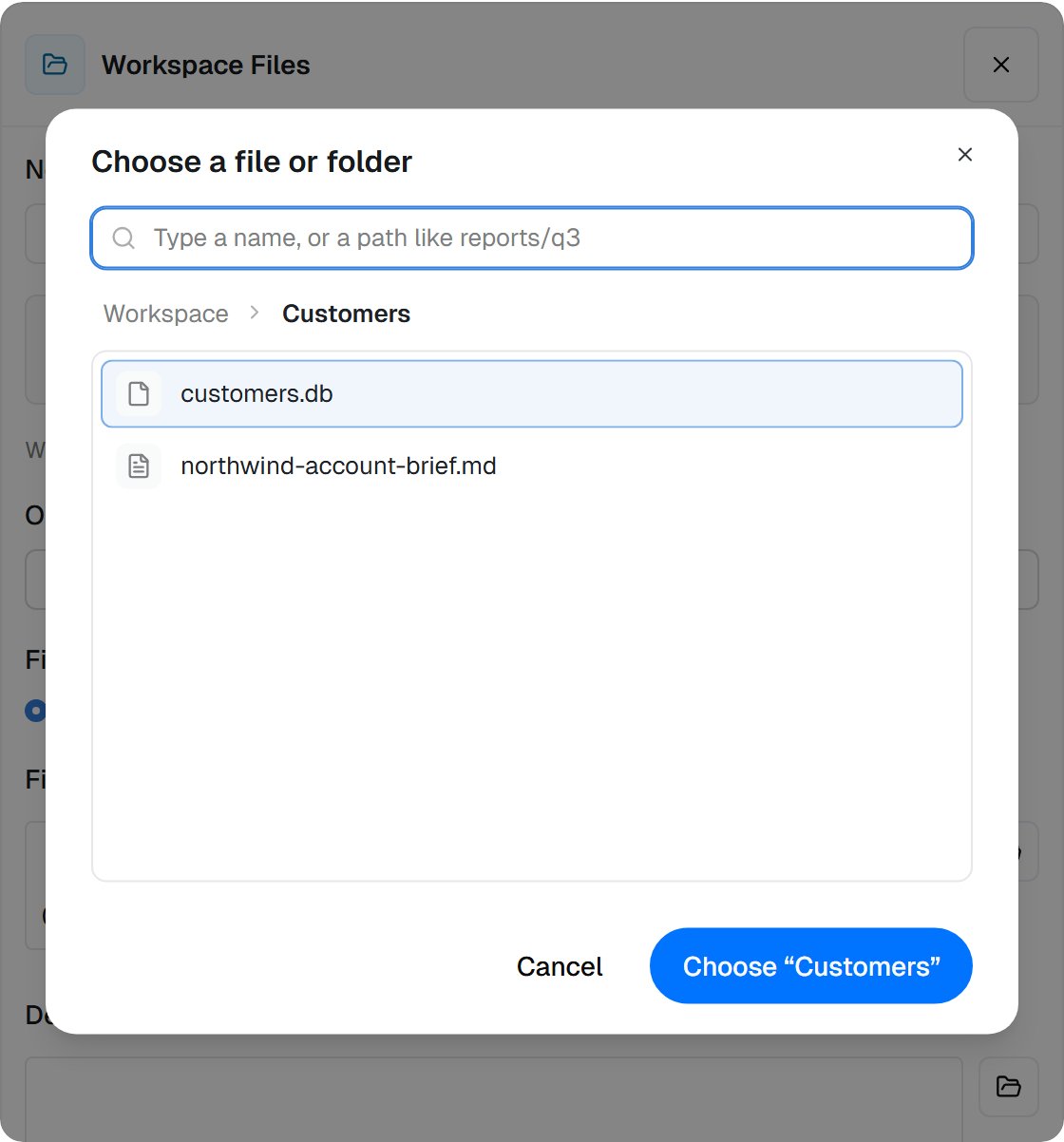
Every path field takes `{{…}}` values from earlier steps, worked out when the workflow runs. Or click the folder button beside the field to pick from the workspace folder. Type part of a name to find it, or a path like `reports/q3` to look in another folder.
Everything the node does, it does as your workflow. On the Files page, its changes show your workflow's name, with **Open the run** to see the run that made them.
## Write a file
Give a **File path**, including folders. Folders that don't exist yet are created. Then choose where the **Content** comes from:
* **Text**: written as UTF-8. An object from an earlier step is written as JSON.
* **File from an earlier step**: one file, as a single reference, for example `{{gmail_1.files[0]}}` or `{{execute_code_1.files[0]}}`.
* **Base64**: raw base64, or a `data:` URL.
**Type (optional)** sets the file's type. Otherwise it is taken from the file, the `data:` URL or the name's extension.
**If the name is taken** decides what happens when a file already has that name:
| Choice | What happens |
| - | - |
| **Add a new version of it** (default) | The file gets a new version; earlier versions stay in its history |
| **Keep both ("name (1).ext")** | The new file is saved beside it under a numbered name |
| **Leave the existing file** | Nothing is written; `outcome` is `skipped` |
| **Fail the step** | The step stops with an error |
Writing the same content again makes no new version (`outcome` `unchanged`). Rewriting one file several times in the same run within 10 minutes keeps one version for that run (`outcome` `coalesced`), so a Loop that rewrites a file doesn't fill its history.
## List a folder
Give the **Folder** to list, or leave it empty for the workspace folder itself. Narrow the list with **Only names like** (`*.pdf`, `report-??.csv` or `*.{csv,tsv}`; matched against the name only, ignoring case) and **Include subfolders**. **At most** caps the list: 100 files by default, 1,000 at most.
`files` holds the matching files, ready for a [Loop](/nodes/logic/loop). `truncated` is `true` when more files matched than the list returned.
## Get, move, copy and delete
These four act on one file or folder:
* **Get a file** passes the file (or folder) on to later steps. Nothing is read.
* **Move** puts it in a **Destination folder** (empty for the workspace folder; a missing folder is created), and can give it a **New name**. `previousPath` says where it was. Moving onto a name that's already taken fails.
* **Copy** makes a copy in the destination folder, with an optional new name. **If the name is taken**: **Fail the step** (default) or **Keep both ("name (copy).ext")**: a copy kept beside a taken name is called "name (copy).ext", then "name (copy 2).ext".
* **Delete** moves it to the Trash, where it can be restored for 30 days. A workflow never deletes a file for good.
## Choosing the file
**Find it by** offers two ways:
* **Path**: a path in the workspace folder, like `Inbox/Invoices/invoice-1043.pdf`. Names match whatever their case.
* **Id or earlier step**: a file's id, or a workspace file an earlier step passed on, like `{{workspace_files_1.file}}` or `{{loop_1.currentItem}}`. An id keeps pointing at the same file after it is renamed or moved.
Every path field takes `{{…}}` values from earlier steps, worked out when the workflow runs. Or click the folder button beside the field to pick from the workspace folder. Type part of a name to find it, or a path like `reports/q3` to look in another folder.
 ## Examples
After an [LLM](/nodes/actions/llm) step, add a Workspace Files step:
* **Operation**: Write a file
* **File path**: `Reports/2026/{{start_1.date}} summary.md`
* **Content**: Text, `{{llm_1.response}}`
* **If the name is taken**: Add a new version of it
Run it twice on the same day and the file keeps both versions in its history.
At the end of an invoice workflow started by [File Added to Folder](/nodes/triggers/file-added-to-folder):
* **Operation**: Move
* **Find it by**: Id or earlier step, `{{file_added_to_folder_1.file}}`
* **Destination folder**: `Inbox/Done`
Using the file's id means the move still finds it if someone renamed it in the meantime.
1. Workspace Files, **List a folder**: Folder `Inbox`, Only names like `*.pdf`.
2. A [Loop](/nodes/logic/loop) over `{{workspace_files_1.files}}`.
3. Inside the loop, [Read File](/nodes/actions/read-file) with **Read**: Workspace file, **Find it by**: Id or earlier step, `{{loop_1.currentItem}}`.
4. Then a Workspace Files **Move** of `{{loop_1.currentItem}}` (Id or earlier step) to `Inbox/Done`.
Before an [Execute Code](/nodes/actions/execute-code#work-with-workspace-files) step that rewrites `Customers/customers.db`:
* **Operation**: Copy
* **File or folder**: `Customers/customers.db`
* **Destination folder**: `Backups`
* **If the name is taken**: Keep both ("name (copy).ext")
The first run's copy is `Backups/customers.db`. Each later run adds another: `customers (copy).db`, `customers (copy 2).db` and so on. Every copy counts toward your workspace's storage. For a version you want to keep, a [checkpoint](/cowork/files/editing-and-history) is often enough.
## Passing files on
The `file` output is a workspace file that later steps can use directly:
* [Read File](/nodes/actions/read-file) reads its text
* an [LLM](/nodes/actions/llm) step can take it as an attachment
* an [HTTP Request](/nodes/actions/http-request) can send it as a form field
* another Workspace Files step can act on it by id
## When things go wrong
| What you see | Why |
| - | - |
| `File "…" not found in this workspace.` (or `File or folder "…"`) | The path is misspelled, the file was moved, or the id belongs to another workspace |
| `"…" is in the Trash.` | Restore it on the Files page first |
| `A file or folder named "…" already exists in "…".` | **If the name is taken** is **Fail the step**, or a move landed on a name in use |
| `This workspace has reached its 20 GB storage limit.` | The workspace is full. Nothing was written. Moving files to the Trash frees space; older versions and the Trash don't count |
| A path with `{{…}}` is refused | The value it was worked out to is empty, ends in `/`, or has an empty, `.` or `..` folder name |
| A delete fails in a run that already trashed many files | A workflow run moves at most 50 files to the Trash. Delete large folders on the Files page |
| A write fails before anything is sent | One write holds at most 100 MB |
## Settings
`write`, `list`, `get`, `move`, `copy` or `delete`, shown as **Write a file**, **List a folder**, **Get a file**, **Move**, **Copy** and **Delete**.
**Write a file**: the file to write (**File path**), folders included. **List a folder**: the **Folder** to list; empty is the workspace folder. Get, move, copy and delete: the **File or folder**, when **Find it by** is **Path**. `{{…}}` allowed.
**Find it by**, for get, move, copy and delete: `path` or `id` (**Id or earlier step**).
The file or folder when **Find it by** is **Id or earlier step**: an id, or a workspace file from an earlier step such as `{{workspace_files_1.file}}`.
**Content** for a write: `text`, `file` (**File from an earlier step**) or `base64`.
The **Text** to write. An object from an earlier step is written as JSON.
The **File** to write: one file from an earlier step, as a single reference.
The **Base64 content** to write: raw base64, or a `data:` URL.
**Type (optional)**, like `text/csv`.
**If the name is taken**. Write: `version` (default), `keep_both`, `skip` or `fail`. Copy: `fail` (default) or `keep_both`.
**Only names like (optional)**, for a list: a pattern such as `*.pdf`, matched against the name only, ignoring case.
**Include subfolders**, for a list.
**At most**, for a list: 1 to 1,000 files.
**Destination folder**, for a move or copy. Empty is the workspace folder; a missing folder is created.
**New name (optional)**, for a move or copy.
## Outputs
Which outputs a step offers depends on its operation.
Whether the operation succeeded. Every operation.
The operation that ran: `write`, `list`, `get`, `move`, `copy` or `delete`.
Write, get, move, copy and delete: the file written, found, moved, copied or deleted, with `fileId`, `versionId`, `path`, `name`, `size`, `mimeType`, `revision`, `createdAt` and `updatedAt`. Pass it to Read File, an LLM attachment or an HTTP Request form field. `file.path`, `file.name` and `file.fileId` are offered on their own too.
List: the folder that was listed. Get, move, copy and delete of a folder: the folder itself, instead of `file`.
Write: `created`, `versioned`, `coalesced`, `unchanged` or `skipped`.
Move: where the file or folder was before.
List: the matching files, ready for a Loop. `files[0]` is the first.
List: how many files were returned.
List: `true` when more files matched than the limit returned.
Delete: `true` once it is in the Trash.
Delete: whether it is in the Trash.
## Related
Start a workflow when files arrive in a folder.
Read the text of a workspace file.
Every way a workflow works with the shared folder.
Keep a database in Workspace files and update it from code.
This documentation is built and hosted on [Mintlify](https://mintlify.com), a developer documentation platform.
## Examples
After an [LLM](/nodes/actions/llm) step, add a Workspace Files step:
* **Operation**: Write a file
* **File path**: `Reports/2026/{{start_1.date}} summary.md`
* **Content**: Text, `{{llm_1.response}}`
* **If the name is taken**: Add a new version of it
Run it twice on the same day and the file keeps both versions in its history.
At the end of an invoice workflow started by [File Added to Folder](/nodes/triggers/file-added-to-folder):
* **Operation**: Move
* **Find it by**: Id or earlier step, `{{file_added_to_folder_1.file}}`
* **Destination folder**: `Inbox/Done`
Using the file's id means the move still finds it if someone renamed it in the meantime.
1. Workspace Files, **List a folder**: Folder `Inbox`, Only names like `*.pdf`.
2. A [Loop](/nodes/logic/loop) over `{{workspace_files_1.files}}`.
3. Inside the loop, [Read File](/nodes/actions/read-file) with **Read**: Workspace file, **Find it by**: Id or earlier step, `{{loop_1.currentItem}}`.
4. Then a Workspace Files **Move** of `{{loop_1.currentItem}}` (Id or earlier step) to `Inbox/Done`.
Before an [Execute Code](/nodes/actions/execute-code#work-with-workspace-files) step that rewrites `Customers/customers.db`:
* **Operation**: Copy
* **File or folder**: `Customers/customers.db`
* **Destination folder**: `Backups`
* **If the name is taken**: Keep both ("name (copy).ext")
The first run's copy is `Backups/customers.db`. Each later run adds another: `customers (copy).db`, `customers (copy 2).db` and so on. Every copy counts toward your workspace's storage. For a version you want to keep, a [checkpoint](/cowork/files/editing-and-history) is often enough.
## Passing files on
The `file` output is a workspace file that later steps can use directly:
* [Read File](/nodes/actions/read-file) reads its text
* an [LLM](/nodes/actions/llm) step can take it as an attachment
* an [HTTP Request](/nodes/actions/http-request) can send it as a form field
* another Workspace Files step can act on it by id
## When things go wrong
| What you see | Why |
| - | - |
| `File "…" not found in this workspace.` (or `File or folder "…"`) | The path is misspelled, the file was moved, or the id belongs to another workspace |
| `"…" is in the Trash.` | Restore it on the Files page first |
| `A file or folder named "…" already exists in "…".` | **If the name is taken** is **Fail the step**, or a move landed on a name in use |
| `This workspace has reached its 20 GB storage limit.` | The workspace is full. Nothing was written. Moving files to the Trash frees space; older versions and the Trash don't count |
| A path with `{{…}}` is refused | The value it was worked out to is empty, ends in `/`, or has an empty, `.` or `..` folder name |
| A delete fails in a run that already trashed many files | A workflow run moves at most 50 files to the Trash. Delete large folders on the Files page |
| A write fails before anything is sent | One write holds at most 100 MB |
## Settings
`write`, `list`, `get`, `move`, `copy` or `delete`, shown as **Write a file**, **List a folder**, **Get a file**, **Move**, **Copy** and **Delete**.
**Write a file**: the file to write (**File path**), folders included. **List a folder**: the **Folder** to list; empty is the workspace folder. Get, move, copy and delete: the **File or folder**, when **Find it by** is **Path**. `{{…}}` allowed.
**Find it by**, for get, move, copy and delete: `path` or `id` (**Id or earlier step**).
The file or folder when **Find it by** is **Id or earlier step**: an id, or a workspace file from an earlier step such as `{{workspace_files_1.file}}`.
**Content** for a write: `text`, `file` (**File from an earlier step**) or `base64`.
The **Text** to write. An object from an earlier step is written as JSON.
The **File** to write: one file from an earlier step, as a single reference.
The **Base64 content** to write: raw base64, or a `data:` URL.
**Type (optional)**, like `text/csv`.
**If the name is taken**. Write: `version` (default), `keep_both`, `skip` or `fail`. Copy: `fail` (default) or `keep_both`.
**Only names like (optional)**, for a list: a pattern such as `*.pdf`, matched against the name only, ignoring case.
**Include subfolders**, for a list.
**At most**, for a list: 1 to 1,000 files.
**Destination folder**, for a move or copy. Empty is the workspace folder; a missing folder is created.
**New name (optional)**, for a move or copy.
## Outputs
Which outputs a step offers depends on its operation.
Whether the operation succeeded. Every operation.
The operation that ran: `write`, `list`, `get`, `move`, `copy` or `delete`.
Write, get, move, copy and delete: the file written, found, moved, copied or deleted, with `fileId`, `versionId`, `path`, `name`, `size`, `mimeType`, `revision`, `createdAt` and `updatedAt`. Pass it to Read File, an LLM attachment or an HTTP Request form field. `file.path`, `file.name` and `file.fileId` are offered on their own too.
List: the folder that was listed. Get, move, copy and delete of a folder: the folder itself, instead of `file`.
Write: `created`, `versioned`, `coalesced`, `unchanged` or `skipped`.
Move: where the file or folder was before.
List: the matching files, ready for a Loop. `files[0]` is the first.
List: how many files were returned.
List: `true` when more files matched than the limit returned.
Delete: `true` once it is in the Trash.
Delete: whether it is in the Trash.
## Related
Start a workflow when files arrive in a folder.
Read the text of a workspace file.
Every way a workflow works with the shared folder.
Keep a database in Workspace files and update it from code.
This documentation is built and hosted on [Mintlify](https://mintlify.com), a developer documentation platform.