> ## Documentation Index
> Fetch the complete documentation index at: https://docs.cogniagent.ai/llms.txt
> Use this file to discover all available pages before exploring further.
# Condition Node
> Go different directions based on yes/no questions
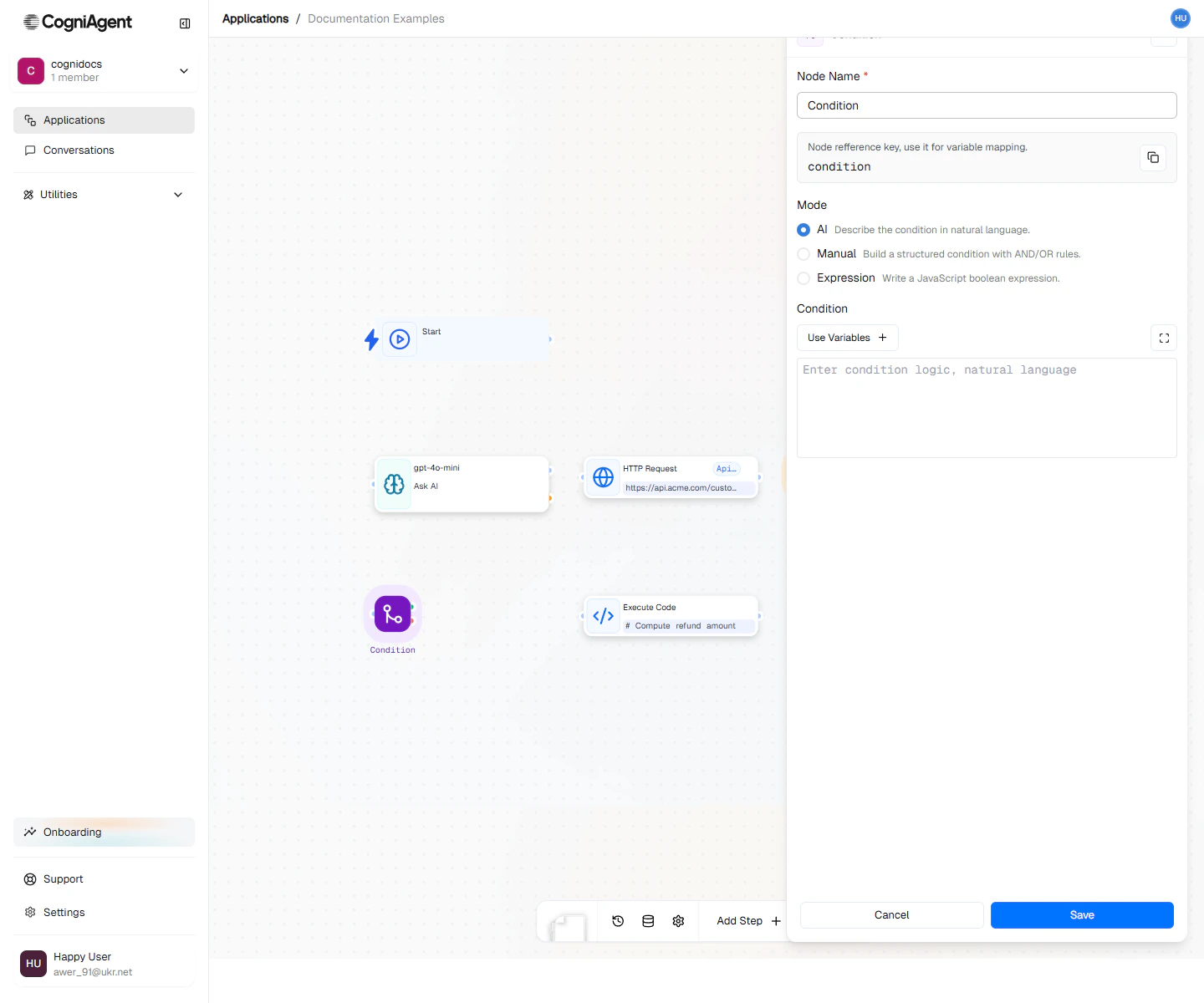
The Condition node asks a yes/no question and sends your workflow down different paths based on the answer. It's like a fork in the road: "If this is true, go left. If not, go right."
 ## When to Use
* **Checking data** - Make sure something looks right before continuing
* **Making decisions** - Do different things based on what happened
* **Handling errors** - Check if something worked, handle it if not
* **Filtering** - Only process things that match certain criteria
## Three Ways to Set Up Conditions
### Manual Mode (Easiest - No Code)
Just pick from dropdown menus:
1. Choose what to check (like the email subject)
2. Choose how to check it (contains, equals, greater than, etc.)
3. Enter what you're looking for
**Example: Check if an email subject contains "urgent"**
```
Check: {{event_from_app_1.email.subject}}
How: contains
Value: urgent
```
**What you can check for:**
| Check | What It Means |
| ------------ | ------------------------- |
| equals | Exactly matches |
| not equals | Doesn't match |
| contains | Includes this text |
| not contains | Doesn't include this text |
| starts with | Begins with this |
| ends with | Ends with this |
| greater than | Number is bigger |
| less than | Number is smaller |
| is empty | Nothing there |
| is not empty | Something there |
### Expression Mode (More Flexible)
Type a formula. Useful when you need to check multiple things:
```
{{llm_1.score}} > 80
```
```
{{webhook_1.body.amount}} > 1000 AND {{webhook_1.body.customer.tier}} == "enterprise"
```
**You can use:**
* Comparisons: `==` (equals), `!=` (not equals), `>`, `<`, `>=`, `<=`
* Logic: `AND`, `OR`, `NOT`
* Parentheses: `( )` to group things
### AI Mode (Let AI Decide)
Just describe what you're looking for in plain English:
```
The email seems like a complaint or sounds frustrated with our service.
```
The AI reads the data and decides if your description matches.
AI mode takes 1-3 seconds to think. Use manual or expression mode when you can for faster results.
## Example: Lead Qualification
Route leads based on score:
Use an Ask AI node to analyze lead data and return a score 0-100.
Add a Condition node:
* Mode: **expression**
* Expression: `{{llm_1.response.score}} >= 70`
* **Met** → External API (add to "Hot Leads" in CRM)
* **Unmet** → External API (add to "Nurture" campaign)
**Workflow:**
```
├── Webhook (new lead)
├── Ask AI (score lead 0-100)
├── Condition (score >= 70?)
│ ├── Met: External API (CRM: Hot Leads)
│ └── Unmet: External API (Nurture campaign)
```
## Example: Error Handling
Check if an API call succeeded:
```
├── HTTP Request (call external API)
├── Condition (statusCode == 200?)
│ ├── Met: Continue with data processing
│ │ └── Ask AI (analyze response)
│ └── Unmet: Error handling
│ ├── Update Variable (log error)
│ └── External API (Slack: alert team)
```
**Configuration:**
* Mode: **expression**
* Expression: `{{http_request_1.statusCode}} == 200 AND {{http_request_1.success}} == true`
## Example: Content Filtering
Only process emails that meet criteria:
```
├── Event from App (Gmail)
├── Condition (should process?)
│ ├── Met: Continue workflow
│ └── Unmet: (no connection - ends here)
```
**Manual mode configuration:**
* Group 1 (AND):
* `{{event_from_app_1.email.from}}` NOT contains `noreply`
* `{{event_from_app_1.email.subject}}` NOT starts with `Re:`
* `{{event_from_app_1.email.subject}}` NOT starts with `Fwd:`
## Combining Conditions
### AND Logic (all must be true)
Manual mode: Add rules to the same group
Expression mode:
```
{{a}} > 10 AND {{b}} == "active" AND {{c}} != null
```
### OR Logic (any can be true)
Manual mode: Create multiple groups
Expression mode:
```
{{status}} == "urgent" OR {{priority}} > 5 OR {{escalated}} == true
```
### Complex Logic
Use parentheses in expression mode:
```
({{score}} > 80 OR {{tier}} == "enterprise") AND {{status}} != "blocked"
```
## Nested Conditions
Chain conditions for complex decision trees:
```
├── Condition (is customer?)
│ ├── Met:
│ │ └── Condition (is enterprise?)
│ │ ├── Met: Enterprise flow
│ │ └── Unmet: Standard customer flow
│ └── Unmet:
│ └── Condition (is qualified lead?)
│ ├── Met: Lead nurture flow
│ └── Unmet: Cold prospect flow
```
For more than 3-4 branches, consider using a Multi-Condition node instead of nested Conditions. It's cleaner and easier to maintain.
## Tips
Use descriptive condition names like "Is High Priority?" or "Has Valid Email" instead of "Condition 1".
The unmet branch doesn't need to connect to anything. If a condition is unmet and there's no unmet path, that execution branch simply ends.
Be careful with type comparisons. `"100"` (string) is not equal to `100` (number). Use Execute Code to convert types if needed.
## Settings
What to call this node (shown on the canvas).
A short code to reference this node's result.
How to set up your condition:
* **manual** - Choose from dropdowns (easiest, no code needed)
* **expression** - Type a formula like `{{score}} > 80`
* **ai** - Describe it in plain English and let AI figure it out
For manual mode: the rules you've set up.
For expression mode: your formula.
For AI mode: your plain English description.
## Outputs
The Condition node has two outputs:
**Green (Yes)** - Goes here when the condition is true.
**Red (No)** - Goes here when the condition is false.
True or false - you can use this value in later nodes.
## Related Nodes
For multi-way branching with more than two paths.
Rejoin branches after conditional splits.
## When to Use
* **Checking data** - Make sure something looks right before continuing
* **Making decisions** - Do different things based on what happened
* **Handling errors** - Check if something worked, handle it if not
* **Filtering** - Only process things that match certain criteria
## Three Ways to Set Up Conditions
### Manual Mode (Easiest - No Code)
Just pick from dropdown menus:
1. Choose what to check (like the email subject)
2. Choose how to check it (contains, equals, greater than, etc.)
3. Enter what you're looking for
**Example: Check if an email subject contains "urgent"**
```
Check: {{event_from_app_1.email.subject}}
How: contains
Value: urgent
```
**What you can check for:**
| Check | What It Means |
| ------------ | ------------------------- |
| equals | Exactly matches |
| not equals | Doesn't match |
| contains | Includes this text |
| not contains | Doesn't include this text |
| starts with | Begins with this |
| ends with | Ends with this |
| greater than | Number is bigger |
| less than | Number is smaller |
| is empty | Nothing there |
| is not empty | Something there |
### Expression Mode (More Flexible)
Type a formula. Useful when you need to check multiple things:
```
{{llm_1.score}} > 80
```
```
{{webhook_1.body.amount}} > 1000 AND {{webhook_1.body.customer.tier}} == "enterprise"
```
**You can use:**
* Comparisons: `==` (equals), `!=` (not equals), `>`, `<`, `>=`, `<=`
* Logic: `AND`, `OR`, `NOT`
* Parentheses: `( )` to group things
### AI Mode (Let AI Decide)
Just describe what you're looking for in plain English:
```
The email seems like a complaint or sounds frustrated with our service.
```
The AI reads the data and decides if your description matches.
AI mode takes 1-3 seconds to think. Use manual or expression mode when you can for faster results.
## Example: Lead Qualification
Route leads based on score:
Use an Ask AI node to analyze lead data and return a score 0-100.
Add a Condition node:
* Mode: **expression**
* Expression: `{{llm_1.response.score}} >= 70`
* **Met** → External API (add to "Hot Leads" in CRM)
* **Unmet** → External API (add to "Nurture" campaign)
**Workflow:**
```
├── Webhook (new lead)
├── Ask AI (score lead 0-100)
├── Condition (score >= 70?)
│ ├── Met: External API (CRM: Hot Leads)
│ └── Unmet: External API (Nurture campaign)
```
## Example: Error Handling
Check if an API call succeeded:
```
├── HTTP Request (call external API)
├── Condition (statusCode == 200?)
│ ├── Met: Continue with data processing
│ │ └── Ask AI (analyze response)
│ └── Unmet: Error handling
│ ├── Update Variable (log error)
│ └── External API (Slack: alert team)
```
**Configuration:**
* Mode: **expression**
* Expression: `{{http_request_1.statusCode}} == 200 AND {{http_request_1.success}} == true`
## Example: Content Filtering
Only process emails that meet criteria:
```
├── Event from App (Gmail)
├── Condition (should process?)
│ ├── Met: Continue workflow
│ └── Unmet: (no connection - ends here)
```
**Manual mode configuration:**
* Group 1 (AND):
* `{{event_from_app_1.email.from}}` NOT contains `noreply`
* `{{event_from_app_1.email.subject}}` NOT starts with `Re:`
* `{{event_from_app_1.email.subject}}` NOT starts with `Fwd:`
## Combining Conditions
### AND Logic (all must be true)
Manual mode: Add rules to the same group
Expression mode:
```
{{a}} > 10 AND {{b}} == "active" AND {{c}} != null
```
### OR Logic (any can be true)
Manual mode: Create multiple groups
Expression mode:
```
{{status}} == "urgent" OR {{priority}} > 5 OR {{escalated}} == true
```
### Complex Logic
Use parentheses in expression mode:
```
({{score}} > 80 OR {{tier}} == "enterprise") AND {{status}} != "blocked"
```
## Nested Conditions
Chain conditions for complex decision trees:
```
├── Condition (is customer?)
│ ├── Met:
│ │ └── Condition (is enterprise?)
│ │ ├── Met: Enterprise flow
│ │ └── Unmet: Standard customer flow
│ └── Unmet:
│ └── Condition (is qualified lead?)
│ ├── Met: Lead nurture flow
│ └── Unmet: Cold prospect flow
```
For more than 3-4 branches, consider using a Multi-Condition node instead of nested Conditions. It's cleaner and easier to maintain.
## Tips
Use descriptive condition names like "Is High Priority?" or "Has Valid Email" instead of "Condition 1".
The unmet branch doesn't need to connect to anything. If a condition is unmet and there's no unmet path, that execution branch simply ends.
Be careful with type comparisons. `"100"` (string) is not equal to `100` (number). Use Execute Code to convert types if needed.
## Settings
What to call this node (shown on the canvas).
A short code to reference this node's result.
How to set up your condition:
* **manual** - Choose from dropdowns (easiest, no code needed)
* **expression** - Type a formula like `{{score}} > 80`
* **ai** - Describe it in plain English and let AI figure it out
For manual mode: the rules you've set up.
For expression mode: your formula.
For AI mode: your plain English description.
## Outputs
The Condition node has two outputs:
**Green (Yes)** - Goes here when the condition is true.
**Red (No)** - Goes here when the condition is false.
True or false - you can use this value in later nodes.
## Related Nodes
For multi-way branching with more than two paths.
Rejoin branches after conditional splits.