> ## Documentation Index
> Fetch the complete documentation index at: https://docs.cogniagent.ai/llms.txt
> Use this file to discover all available pages before exploring further.
# Loop Node
> Repeat the same steps for each item in a list
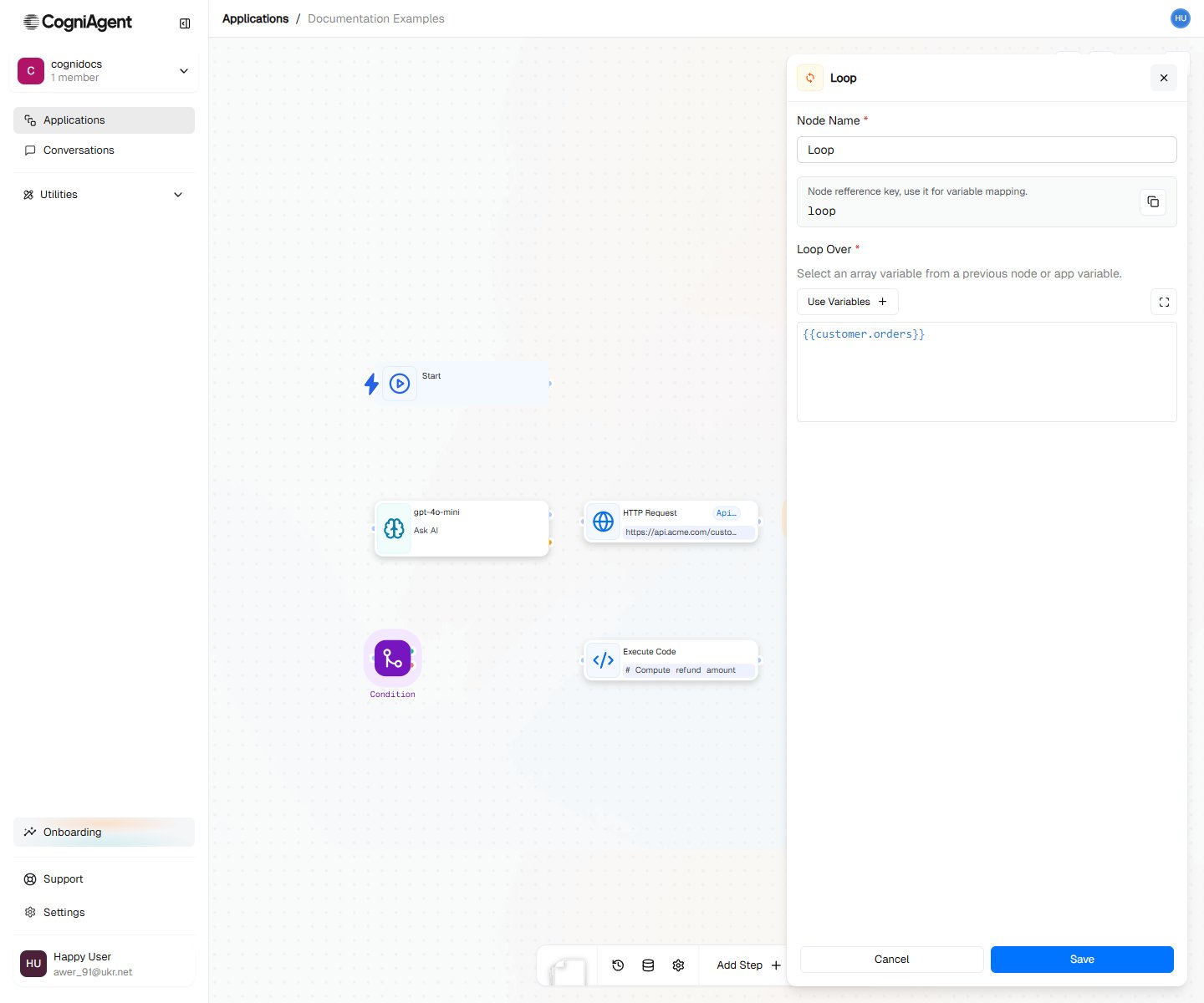
The Loop node repeats the same actions for every item in a list. If you have 10 emails to process, it does the same thing 10 times - once for each email.
Think of it like a factory assembly line: each item comes through, gets the same treatment, then moves on.
 ## When to Use
* **Processing lists** - Handle each email, each row in a spreadsheet, each file
* **Sending to multiple people** - Send personalized emails to everyone on a list
* **Processing data** - Do the same thing to every item
* **Collecting results** - Gather what you learned from each item
## Example: Process Email Attachments
Extract and analyze each attachment from an email:
Use Event from App (Gmail) to trigger on emails with attachments.
Add a Loop node:
* Iterable data: `{{event_from_app_1.email.attachments}}`
Inside the loop:
* Read File (current attachment)
* Ask AI (analyze content)
* Update Variable (append results)
Send summary of all analyzed attachments.
**Workflow:**
```
├── Event from App (Gmail with attachments)
├── Update Variable (results = [], initialize)
├── Loop (over attachments)
│ ├── Read File ({{loop_1.currentItem}})
│ ├── Ask AI (analyze: {{parse_file_1.content}})
│ └── Update Variable (results, append {{llm_1.response}})
└── External API (Slack: "Processed {{loop_1.completedCount}} files")
```
## Example: Send Personalized Emails
Send individual emails to a list of recipients:
```
├── HTTP Request (get recipient list from CRM)
├── Loop (over {{http_request_1.body.contacts}})
│ ├── Ask AI (generate personalized message for {{loop_1.currentItem.name}})
│ └── External API (Gmail: send to {{loop_1.currentItem.email}})
└── Update Variable (log: sent {{loop_1.completedCount}} emails)
```
**Accessing item properties:**
```
Name: {{loop_1.currentItem.name}}
Email: {{loop_1.currentItem.email}}
Company: {{loop_1.currentItem.company}}
```
## Example: Process Spreadsheet Rows
Handle each row from a Google Sheet:
```
├── External API (Google Sheets: get all rows)
├── Loop (over {{external_api_1.values}})
│ ├── Condition (row has email?)
│ │ ├── Met:
│ │ │ ├── Ask AI (classify lead)
│ │ │ └── External API (HubSpot: create/update contact)
│ │ └── Unmet: (skip row)
└── External API (Slack: "Processed {{loop_1.completedCount}} leads")
```
## Collecting Results from Each Loop
If you want to remember what happened with each item:
### Save Results as You Go
```
├── Update Variable (allResults = [], create empty list first)
├── Loop (over items)
│ ├── Ask AI (analyze the item)
│ └── Update Variable (allResults, add this result to the list)
└── Ask AI (summarize all the results)
```
This way, after the loop ends, you have a list of everything that happened.
### Process Results with Code
```python theme={null}
# Get all the results we collected
results = input["set_variable_1"]["value"]
# Count successes and failures
successful = [r for r in results if r["success"]]
failed = [r for r in results if not r["success"]]
return {
"total": len(results),
"successful": len(successful),
"failed": len(failed)
}
```
## Loops Inside Loops
Sometimes you need to loop through a list that's inside another list:
```
├── Loop (for each department)
│ └── Loop (for each employee in that department)
│ └── Send email to that employee
```
Be careful with loops inside loops - the numbers multiply! 10 departments with 50 employees each = 500 total emails.
## Conditional Processing
Skip items that don't meet criteria:
```
├── Loop (over items)
│ ├── Condition (should process?)
│ │ ├── Met: Process item
│ │ └── Unmet: (skip - no action)
```
The unmet branch doesn't need to connect to anything.
## Using Index and Position
**First item handling:**
```
├── Loop
│ ├── Condition ({{loop_1.isFirst}})
│ │ ├── Met: Send "Starting batch of {{loop_1.totalCount}} items"
│ │ └── Unmet: (continue)
│ └── Process item
```
**Last item handling:**
```
├── Loop
│ ├── Process item
│ ├── Condition ({{loop_1.isLast}})
│ │ ├── Met: Send "Completed all {{loop_1.totalCount}} items"
│ │ └── Unmet: (continue)
```
**Using index for numbering:**
```
Item {{loop_1.currentIndex + 1}} of {{loop_1.totalCount}}: {{loop_1.currentItem.name}}
```
## Loop Completion
The nodes connected after the loop (not inside it) execute once after all iterations complete:
```
├── Loop (over 10 items)
│ └── [Executes 10 times]
└── After Loop [Executes 1 time after loop completes]
```
## Error Handling
By default, if one iteration fails, the loop continues with remaining items. To handle errors:
```
├── Loop (over items)
│ ├── HTTP Request (call API)
│ ├── Condition (success?)
│ │ ├── Met: Update Variable (successes, append)
│ │ └── Unmet: Update Variable (failures, append)
```
Then after the loop, check failures and alert if needed.
## How Long Will It Take?
Items are processed one at a time. If you have 100 items and each takes 3 seconds, that's 5 minutes total.
**If your loop is slow:**
* Some services let you send multiple items at once - check if yours does
* Test with just a few items first before running the full list
* Make sure your timeout is long enough
## Tips
Create your results list before the loop starts. Use `Update Variable` to create an empty list `[]`, then add to it inside the loop.
Use `isFirst` to send a "starting now" message, and `isLast` to send a "all done" message.
While building and testing, add a condition that only processes the first 3 items. Once everything works, remove that condition.
## Settings
What to call this node (shown on the canvas).
A short code to reference this node's data.
The list to loop through. Examples:
* `{{http_request_1.body.items}}` - items from a web request
* `{{event_from_app_1.email.attachments}}` - files attached to an email
* `{{external_api_1.values}}` - rows from a spreadsheet
## Outputs
During each loop iteration:
The item being processed right now.
Which number item this is (starts at 0, so the first item is 0, second is 1, etc.).
True if this is the first item.
True if this is the last item.
How many items there are in total.
After the loop finishes:
How many items were processed.
## Related Nodes
Filter items within loops.
Accumulate results across iterations.
## When to Use
* **Processing lists** - Handle each email, each row in a spreadsheet, each file
* **Sending to multiple people** - Send personalized emails to everyone on a list
* **Processing data** - Do the same thing to every item
* **Collecting results** - Gather what you learned from each item
## Example: Process Email Attachments
Extract and analyze each attachment from an email:
Use Event from App (Gmail) to trigger on emails with attachments.
Add a Loop node:
* Iterable data: `{{event_from_app_1.email.attachments}}`
Inside the loop:
* Read File (current attachment)
* Ask AI (analyze content)
* Update Variable (append results)
Send summary of all analyzed attachments.
**Workflow:**
```
├── Event from App (Gmail with attachments)
├── Update Variable (results = [], initialize)
├── Loop (over attachments)
│ ├── Read File ({{loop_1.currentItem}})
│ ├── Ask AI (analyze: {{parse_file_1.content}})
│ └── Update Variable (results, append {{llm_1.response}})
└── External API (Slack: "Processed {{loop_1.completedCount}} files")
```
## Example: Send Personalized Emails
Send individual emails to a list of recipients:
```
├── HTTP Request (get recipient list from CRM)
├── Loop (over {{http_request_1.body.contacts}})
│ ├── Ask AI (generate personalized message for {{loop_1.currentItem.name}})
│ └── External API (Gmail: send to {{loop_1.currentItem.email}})
└── Update Variable (log: sent {{loop_1.completedCount}} emails)
```
**Accessing item properties:**
```
Name: {{loop_1.currentItem.name}}
Email: {{loop_1.currentItem.email}}
Company: {{loop_1.currentItem.company}}
```
## Example: Process Spreadsheet Rows
Handle each row from a Google Sheet:
```
├── External API (Google Sheets: get all rows)
├── Loop (over {{external_api_1.values}})
│ ├── Condition (row has email?)
│ │ ├── Met:
│ │ │ ├── Ask AI (classify lead)
│ │ │ └── External API (HubSpot: create/update contact)
│ │ └── Unmet: (skip row)
└── External API (Slack: "Processed {{loop_1.completedCount}} leads")
```
## Collecting Results from Each Loop
If you want to remember what happened with each item:
### Save Results as You Go
```
├── Update Variable (allResults = [], create empty list first)
├── Loop (over items)
│ ├── Ask AI (analyze the item)
│ └── Update Variable (allResults, add this result to the list)
└── Ask AI (summarize all the results)
```
This way, after the loop ends, you have a list of everything that happened.
### Process Results with Code
```python theme={null}
# Get all the results we collected
results = input["set_variable_1"]["value"]
# Count successes and failures
successful = [r for r in results if r["success"]]
failed = [r for r in results if not r["success"]]
return {
"total": len(results),
"successful": len(successful),
"failed": len(failed)
}
```
## Loops Inside Loops
Sometimes you need to loop through a list that's inside another list:
```
├── Loop (for each department)
│ └── Loop (for each employee in that department)
│ └── Send email to that employee
```
Be careful with loops inside loops - the numbers multiply! 10 departments with 50 employees each = 500 total emails.
## Conditional Processing
Skip items that don't meet criteria:
```
├── Loop (over items)
│ ├── Condition (should process?)
│ │ ├── Met: Process item
│ │ └── Unmet: (skip - no action)
```
The unmet branch doesn't need to connect to anything.
## Using Index and Position
**First item handling:**
```
├── Loop
│ ├── Condition ({{loop_1.isFirst}})
│ │ ├── Met: Send "Starting batch of {{loop_1.totalCount}} items"
│ │ └── Unmet: (continue)
│ └── Process item
```
**Last item handling:**
```
├── Loop
│ ├── Process item
│ ├── Condition ({{loop_1.isLast}})
│ │ ├── Met: Send "Completed all {{loop_1.totalCount}} items"
│ │ └── Unmet: (continue)
```
**Using index for numbering:**
```
Item {{loop_1.currentIndex + 1}} of {{loop_1.totalCount}}: {{loop_1.currentItem.name}}
```
## Loop Completion
The nodes connected after the loop (not inside it) execute once after all iterations complete:
```
├── Loop (over 10 items)
│ └── [Executes 10 times]
└── After Loop [Executes 1 time after loop completes]
```
## Error Handling
By default, if one iteration fails, the loop continues with remaining items. To handle errors:
```
├── Loop (over items)
│ ├── HTTP Request (call API)
│ ├── Condition (success?)
│ │ ├── Met: Update Variable (successes, append)
│ │ └── Unmet: Update Variable (failures, append)
```
Then after the loop, check failures and alert if needed.
## How Long Will It Take?
Items are processed one at a time. If you have 100 items and each takes 3 seconds, that's 5 minutes total.
**If your loop is slow:**
* Some services let you send multiple items at once - check if yours does
* Test with just a few items first before running the full list
* Make sure your timeout is long enough
## Tips
Create your results list before the loop starts. Use `Update Variable` to create an empty list `[]`, then add to it inside the loop.
Use `isFirst` to send a "starting now" message, and `isLast` to send a "all done" message.
While building and testing, add a condition that only processes the first 3 items. Once everything works, remove that condition.
## Settings
What to call this node (shown on the canvas).
A short code to reference this node's data.
The list to loop through. Examples:
* `{{http_request_1.body.items}}` - items from a web request
* `{{event_from_app_1.email.attachments}}` - files attached to an email
* `{{external_api_1.values}}` - rows from a spreadsheet
## Outputs
During each loop iteration:
The item being processed right now.
Which number item this is (starts at 0, so the first item is 0, second is 1, etc.).
True if this is the first item.
True if this is the last item.
How many items there are in total.
After the loop finishes:
How many items were processed.
## Related Nodes
Filter items within loops.
Accumulate results across iterations.