> ## Documentation Index
> Fetch the complete documentation index at: https://docs.cogniagent.ai/llms.txt
> Use this file to discover all available pages before exploring further.
# AI Trigger Node
> Trigger workflows using AI-evaluated natural language conditions
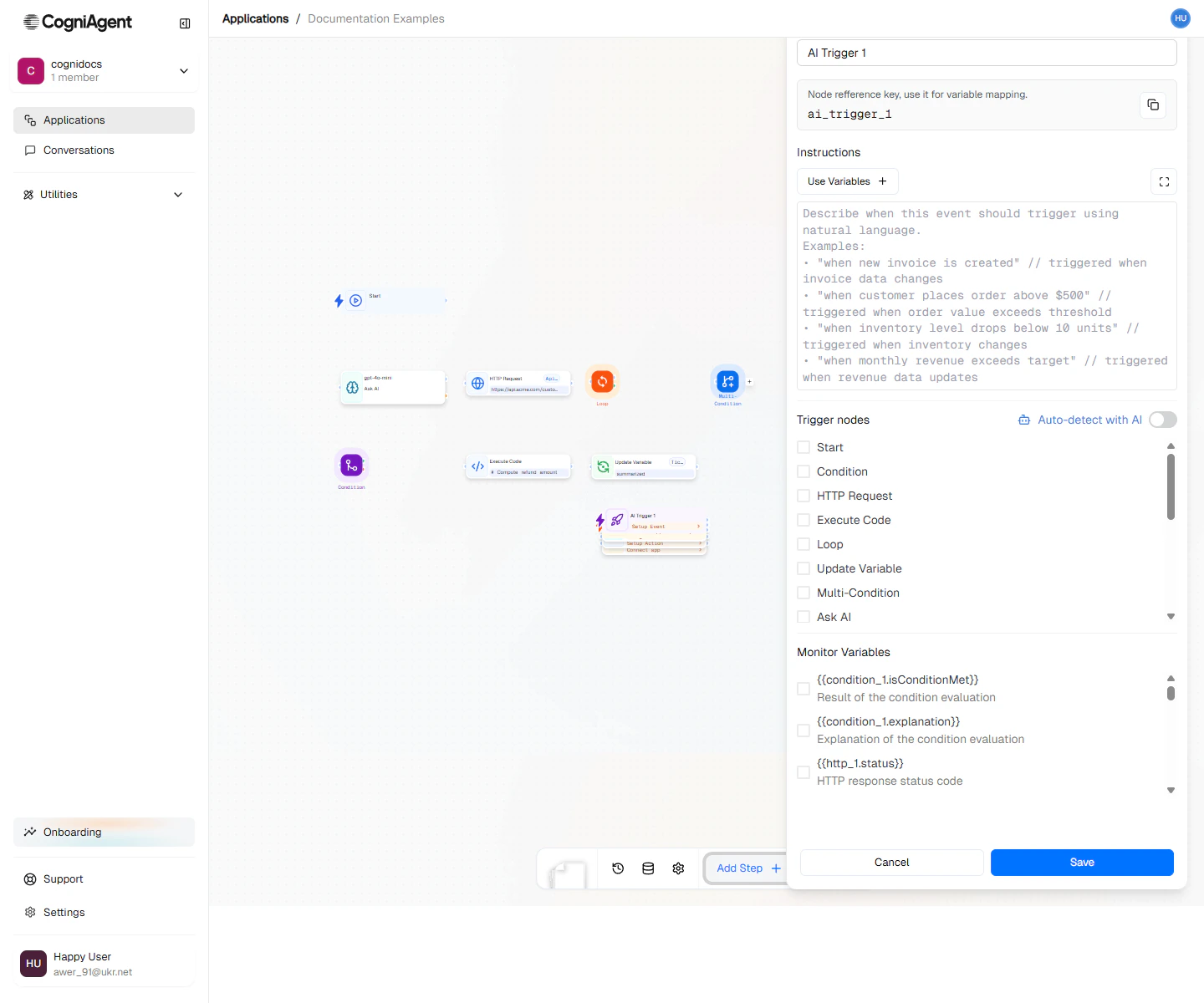
The AI Trigger node uses artificial intelligence to evaluate complex trigger conditions described in natural language. Instead of writing code or configuring rules, simply describe when you want the workflow to start.
 ## When to Use
* **Complex conditions** - Triggers that are hard to express as simple rules
* **Content-based triggers** - Start workflows based on the meaning or sentiment of incoming data
* **Intent detection** - Trigger when messages match certain intents
* **Quality thresholds** - Start processing when content meets certain criteria
## Writing Effective Conditions
The AI evaluates your condition against incoming data. Write conditions that are:
**Specific and unambiguous:**
```
Good: "The email is from a customer requesting a refund for a product"
Bad: "Important email"
```
**Focused on observable criteria:**
```
Good: "The message expresses frustration or uses urgent language"
Bad: "The customer seems unhappy"
```
**Clear about what to include/exclude:**
```
Good: "A support ticket about billing issues, not general inquiries"
Bad: "Billing related"
```
## Example: Urgent Email Router
Automatically escalate emails that need immediate attention:
Add an AI Trigger node with:
* Data source: **Gmail channel**
* Condition:
```
The email indicates an urgent issue that requires immediate attention.
This includes: system outages, security concerns, angry customers
threatening to cancel, or time-sensitive requests with deadlines
within 24 hours. Exclude routine support questions and general inquiries.
```
Connect to an External API (Slack) node to post to your `#urgent-support` channel:
```
Urgent email detected from {{ai_custom_event_1.eventData.sender}}
Subject: {{ai_custom_event_1.eventData.subject}}
Reason: {{ai_custom_event_1.matchReason}}
```
Add another External API node to create a high-priority ticket in your support system.
## Example: Lead Quality Filter
Only process high-quality leads from form submissions:
```
Condition: The form submission appears to be from a qualified B2B lead.
Indicators of qualification:
- Uses a business email domain (not gmail, yahoo, etc.)
- Company size is mentioned or implied to be 50+ employees
- Budget or timeline is mentioned
- Specific use case is described
Exclude: Students, personal projects, competitors researching the product.
```
**Workflow:**
```
├── AI Trigger (qualified leads only)
├── Ask AI (extract and structure lead details)
├── External API (add to CRM as qualified)
└── External API (notify sales team in Slack)
```
## Example: Content Moderation
Trigger review for potentially problematic content:
```
Condition: The message contains content that may need human review.
This includes:
- Mentions of legal issues or threats
- Personal information (SSN, credit cards, passwords)
- Complaints about employees by name
- Language suggesting mental health crisis
Do not flag: Normal complaints, feature requests, or general feedback.
```
## How It Works
1. Data arrives from the configured source (email, message, webhook, etc.)
2. The AI model evaluates the data against your condition
3. If the condition is met (confidence above threshold), the workflow triggers
4. The original data is passed through as `eventData`
AI evaluation typically takes 1-3 seconds. For high-volume triggers, consider using rule-based conditions (Condition node) for simple criteria.
## Confidence Threshold
By default, the event triggers when the AI is reasonably confident the condition is met. You can access the confidence score to add additional filtering:
```
# In a subsequent Condition node:
{{ai_custom_event_1.matchConfidence}} > 0.8
```
This ensures only high-confidence matches proceed.
## Tips
Include examples in your condition to help the AI understand edge cases: "Examples of urgent: 'System is down', 'Can't access my account for 2 hours'. Not urgent: 'When will feature X be available?'"
Use the `matchReason` output to log why emails/messages were flagged. This helps you refine the condition over time.
AI evaluation adds latency and cost compared to rule-based triggers. Use this node when the condition genuinely requires natural language understanding.
## Combining with Other Events
Use AI Triggers alongside other triggers:
* **AI Trigger** for complex, nuanced conditions
* **Condition node** (after Event from App) for simple rule-based filtering
* **Scheduled Trigger** for scheduled AI analysis of accumulated data
## Settings
Display name shown on the canvas.
Unique identifier for referencing outputs.
Natural language description of when the event should trigger. Be specific and clear about the criteria.
Where to look for data to evaluate:
* **channel** - Monitor a connected app channel (Gmail, Slack, etc.)
* **variable** - Monitor a workflow variable
* **webhook** - Evaluate incoming webhook data
Configuration specific to the data source (channel ID, variable name, etc.).
## Outputs
The data that triggered the event, structured based on the source.
AI confidence score (0-1) that the condition was met.
Brief explanation of why the AI determined the condition was met.
## Related Nodes
Get raw events from apps, then filter with Condition nodes.
Add rule-based filtering after any trigger.
## When to Use
* **Complex conditions** - Triggers that are hard to express as simple rules
* **Content-based triggers** - Start workflows based on the meaning or sentiment of incoming data
* **Intent detection** - Trigger when messages match certain intents
* **Quality thresholds** - Start processing when content meets certain criteria
## Writing Effective Conditions
The AI evaluates your condition against incoming data. Write conditions that are:
**Specific and unambiguous:**
```
Good: "The email is from a customer requesting a refund for a product"
Bad: "Important email"
```
**Focused on observable criteria:**
```
Good: "The message expresses frustration or uses urgent language"
Bad: "The customer seems unhappy"
```
**Clear about what to include/exclude:**
```
Good: "A support ticket about billing issues, not general inquiries"
Bad: "Billing related"
```
## Example: Urgent Email Router
Automatically escalate emails that need immediate attention:
Add an AI Trigger node with:
* Data source: **Gmail channel**
* Condition:
```
The email indicates an urgent issue that requires immediate attention.
This includes: system outages, security concerns, angry customers
threatening to cancel, or time-sensitive requests with deadlines
within 24 hours. Exclude routine support questions and general inquiries.
```
Connect to an External API (Slack) node to post to your `#urgent-support` channel:
```
Urgent email detected from {{ai_custom_event_1.eventData.sender}}
Subject: {{ai_custom_event_1.eventData.subject}}
Reason: {{ai_custom_event_1.matchReason}}
```
Add another External API node to create a high-priority ticket in your support system.
## Example: Lead Quality Filter
Only process high-quality leads from form submissions:
```
Condition: The form submission appears to be from a qualified B2B lead.
Indicators of qualification:
- Uses a business email domain (not gmail, yahoo, etc.)
- Company size is mentioned or implied to be 50+ employees
- Budget or timeline is mentioned
- Specific use case is described
Exclude: Students, personal projects, competitors researching the product.
```
**Workflow:**
```
├── AI Trigger (qualified leads only)
├── Ask AI (extract and structure lead details)
├── External API (add to CRM as qualified)
└── External API (notify sales team in Slack)
```
## Example: Content Moderation
Trigger review for potentially problematic content:
```
Condition: The message contains content that may need human review.
This includes:
- Mentions of legal issues or threats
- Personal information (SSN, credit cards, passwords)
- Complaints about employees by name
- Language suggesting mental health crisis
Do not flag: Normal complaints, feature requests, or general feedback.
```
## How It Works
1. Data arrives from the configured source (email, message, webhook, etc.)
2. The AI model evaluates the data against your condition
3. If the condition is met (confidence above threshold), the workflow triggers
4. The original data is passed through as `eventData`
AI evaluation typically takes 1-3 seconds. For high-volume triggers, consider using rule-based conditions (Condition node) for simple criteria.
## Confidence Threshold
By default, the event triggers when the AI is reasonably confident the condition is met. You can access the confidence score to add additional filtering:
```
# In a subsequent Condition node:
{{ai_custom_event_1.matchConfidence}} > 0.8
```
This ensures only high-confidence matches proceed.
## Tips
Include examples in your condition to help the AI understand edge cases: "Examples of urgent: 'System is down', 'Can't access my account for 2 hours'. Not urgent: 'When will feature X be available?'"
Use the `matchReason` output to log why emails/messages were flagged. This helps you refine the condition over time.
AI evaluation adds latency and cost compared to rule-based triggers. Use this node when the condition genuinely requires natural language understanding.
## Combining with Other Events
Use AI Triggers alongside other triggers:
* **AI Trigger** for complex, nuanced conditions
* **Condition node** (after Event from App) for simple rule-based filtering
* **Scheduled Trigger** for scheduled AI analysis of accumulated data
## Settings
Display name shown on the canvas.
Unique identifier for referencing outputs.
Natural language description of when the event should trigger. Be specific and clear about the criteria.
Where to look for data to evaluate:
* **channel** - Monitor a connected app channel (Gmail, Slack, etc.)
* **variable** - Monitor a workflow variable
* **webhook** - Evaluate incoming webhook data
Configuration specific to the data source (channel ID, variable name, etc.).
## Outputs
The data that triggered the event, structured based on the source.
AI confidence score (0-1) that the condition was met.
Brief explanation of why the AI determined the condition was met.
## Related Nodes
Get raw events from apps, then filter with Condition nodes.
Add rule-based filtering after any trigger.