> ## Documentation Index
> Fetch the complete documentation index at: https://docs.cogniagent.ai/llms.txt
> Use this file to discover all available pages before exploring further.
# App Trigger Node
> Trigger workflows from integrated applications like Gmail, Slack, and more
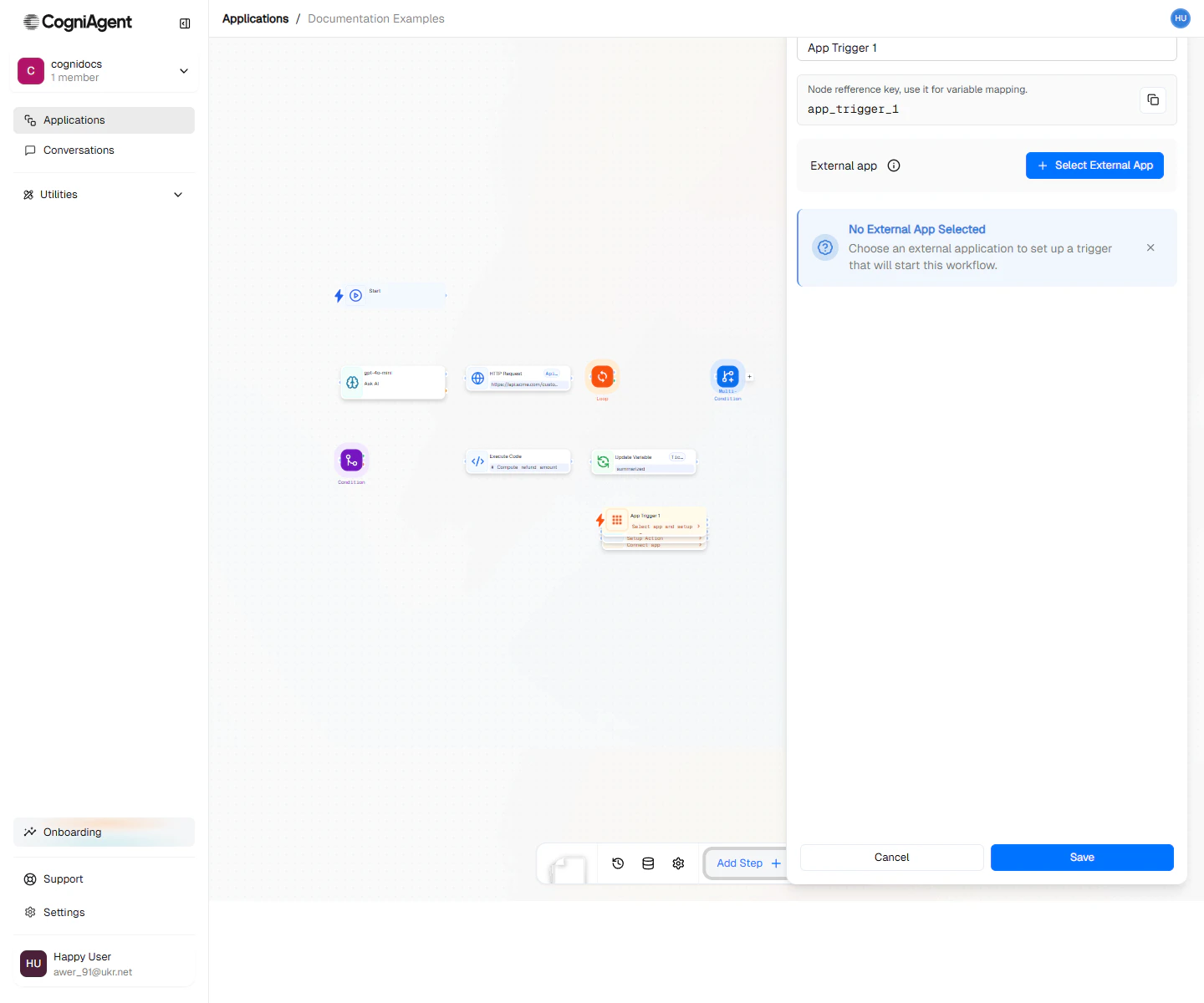
The Event from App node triggers your workflow when something happens in a connected application. Receive emails from Gmail, messages from Slack, new rows in Google Sheets, and events from 2,700+ [integrated apps](/features/integrations).
 ## When to Use
* **Email automation** - Process incoming emails from Gmail or Outlook
* **Chat responses** - Respond to Slack or Teams messages
* **Data ingestion** - React to new spreadsheet rows or database records
* **CRM triggers** - Start workflows when deals close or contacts are updated
* **Form processing** - Handle submissions from Typeform, JotForm, etc.
## Example: Email Auto-Responder
Automatically acknowledge incoming support emails:
Add an Event from App node:
* App: **Gmail**
* Channel: **[support@yourcompany.com](mailto:support@yourcompany.com)**
* Event type: **new\_email**
Add a Condition node to filter:
```
NOT ({{event_from_app_1.email.from}} contains "noreply")
AND NOT ({{event_from_app_1.email.subject}} contains "Re:")
```
Use an Ask AI node:
```
Write a brief, professional auto-acknowledgment for this support email.
From: {{event_from_app_1.email.from}}
Subject: {{event_from_app_1.email.subject}}
Include:
- Thanks for reaching out
- We've received their message
- Expected response time (24-48 hours)
- Ticket reference number: SUPP-{{timestamp}}
```
Connect to an External API (Gmail) node to send the reply, referencing the original thread.
## Example: Slack Command Handler
Respond to specific commands in a Slack channel:
```
Workflow: Slack Bot Commands
├── Event from App (Slack #support, messages starting with "!")
├── Multi-Condition (route based on command)
│ ├── !status → HTTP Request (check service status) → App Action (Slack post)
│ ├── !ticket → External API (create ticket) → App Action (Slack post)
│ └── default → App Action (Slack post "Unknown command")
```
**Configuration:**
* App: Slack
* Channel: #support
* Event type: message
* Filter: `text starts with "!"`
## Example: Spreadsheet Data Processor
Process new leads added to a Google Sheet:
```
Workflow: Lead Processor
├── Event from App (Google Sheets "Leads" sheet, row_added)
├── Ask AI (qualify and categorize the lead)
├── External API (add to CRM with categorization)
└── Condition (high value lead?)
├── Met: External API (Slack alert to sales)
└── Unmet: Update Variable (log for weekly digest)
```
**Accessing row data:**
```
Company: {{event_from_app_1.row.Company}}
Email: {{event_from_app_1.row.Email}}
Budget: {{event_from_app_1.row.Budget}}
```
## Popular Integrations
### Communication
* **Gmail** - Incoming emails, replies, labels
* **Slack** - Messages, reactions, mentions, channel events
* **Microsoft Teams** - Messages, mentions
* **Discord** - Messages in servers
### Productivity
* **Google Sheets** - New rows, updates, cell changes
* **Notion** - Page created, database item added
* **Airtable** - Record created, updated
### CRM & Sales
* **HubSpot** - Contact created, deal closed
* **Salesforce** - Lead created, opportunity updated
* **Pipedrive** - Deal won, activity completed
### Forms
* **Typeform** - New submission
* **Google Forms** - New response
* **JotForm** - New submission
### Support
* **Zendesk** - Ticket created, updated
* **Intercom** - New conversation, message
* **Freshdesk** - Ticket events
CogniAgent supports 2,700+ apps through our [integration platform](/features/integrations). If you don't see your app, check Settings > Integrations for the full list.
## Filtering Events
Use filters to only trigger on specific events:
**Gmail - Only from specific senders:**
```json theme={null}
{
"from": {
"contains": "@important-client.com"
}
}
```
**Slack - Only mentions of your bot:**
```json theme={null}
{
"text": {
"contains": "@cognibot"
}
}
```
**Google Sheets - Only rows with specific values:**
```json theme={null}
{
"Status": {
"equals": "New"
}
}
```
## Connecting Apps
Before using Event from App, connect the application:
1. Go to **Settings > Integrations**
2. Find your app and click **Connect**
3. Authorize CogniAgent to access your account
4. Configure which channels/resources to access
The application must be running to receive events. Events that occur while stopped are not queued.
## Tips
Combine Event from App with Condition nodes for precise filtering. The event node gets all events; the Condition node filters to exactly what you need.
Use the `threadId` (Gmail) or `thread_ts` (Slack) to maintain conversation context when sending replies.
## Settings
Display name shown on the canvas.
Unique identifier for referencing outputs.
The connected application to monitor (Gmail, Slack, Google Sheets, etc.).
The specific channel within the app:
* Gmail: email address or label
* Slack: channel or direct message
* Google Sheets: specific spreadsheet
* Custom: depends on the integration
What type of event to listen for:
* Gmail: `new_email`, `email_replied`, `email_labeled`
* Slack: `message`, `reaction`, `mention`
* Google Sheets: `row_added`, `row_updated`, `cell_changed`
Optional filters to narrow which events trigger the workflow.
## Outputs
Outputs vary by app and event type. Common patterns:
### Gmail Events
The email object containing:
* `from` - Sender email address
* `to` - Recipient(s)
* `subject` - Email subject line
* `body` - Email content (HTML and plain text)
* `attachments` - Array of attachment metadata
* `threadId` - Conversation thread identifier
* `receivedAt` - Timestamp
### Slack Events
The message object containing:
* `text` - Message content
* `user` - User who sent the message
* `channel` - Channel ID
* `timestamp` - Message timestamp
* `thread_ts` - Thread ID if in a thread
### Google Sheets Events
The row data as key-value pairs (header names as keys).
The row number that was added or changed.
## Related Nodes
Send actions back to the same apps that trigger events.
Use AI to filter events based on content meaning.
Browse all 2,700+ available integrations.
Communication channel documentation.
## When to Use
* **Email automation** - Process incoming emails from Gmail or Outlook
* **Chat responses** - Respond to Slack or Teams messages
* **Data ingestion** - React to new spreadsheet rows or database records
* **CRM triggers** - Start workflows when deals close or contacts are updated
* **Form processing** - Handle submissions from Typeform, JotForm, etc.
## Example: Email Auto-Responder
Automatically acknowledge incoming support emails:
Add an Event from App node:
* App: **Gmail**
* Channel: **[support@yourcompany.com](mailto:support@yourcompany.com)**
* Event type: **new\_email**
Add a Condition node to filter:
```
NOT ({{event_from_app_1.email.from}} contains "noreply")
AND NOT ({{event_from_app_1.email.subject}} contains "Re:")
```
Use an Ask AI node:
```
Write a brief, professional auto-acknowledgment for this support email.
From: {{event_from_app_1.email.from}}
Subject: {{event_from_app_1.email.subject}}
Include:
- Thanks for reaching out
- We've received their message
- Expected response time (24-48 hours)
- Ticket reference number: SUPP-{{timestamp}}
```
Connect to an External API (Gmail) node to send the reply, referencing the original thread.
## Example: Slack Command Handler
Respond to specific commands in a Slack channel:
```
Workflow: Slack Bot Commands
├── Event from App (Slack #support, messages starting with "!")
├── Multi-Condition (route based on command)
│ ├── !status → HTTP Request (check service status) → App Action (Slack post)
│ ├── !ticket → External API (create ticket) → App Action (Slack post)
│ └── default → App Action (Slack post "Unknown command")
```
**Configuration:**
* App: Slack
* Channel: #support
* Event type: message
* Filter: `text starts with "!"`
## Example: Spreadsheet Data Processor
Process new leads added to a Google Sheet:
```
Workflow: Lead Processor
├── Event from App (Google Sheets "Leads" sheet, row_added)
├── Ask AI (qualify and categorize the lead)
├── External API (add to CRM with categorization)
└── Condition (high value lead?)
├── Met: External API (Slack alert to sales)
└── Unmet: Update Variable (log for weekly digest)
```
**Accessing row data:**
```
Company: {{event_from_app_1.row.Company}}
Email: {{event_from_app_1.row.Email}}
Budget: {{event_from_app_1.row.Budget}}
```
## Popular Integrations
### Communication
* **Gmail** - Incoming emails, replies, labels
* **Slack** - Messages, reactions, mentions, channel events
* **Microsoft Teams** - Messages, mentions
* **Discord** - Messages in servers
### Productivity
* **Google Sheets** - New rows, updates, cell changes
* **Notion** - Page created, database item added
* **Airtable** - Record created, updated
### CRM & Sales
* **HubSpot** - Contact created, deal closed
* **Salesforce** - Lead created, opportunity updated
* **Pipedrive** - Deal won, activity completed
### Forms
* **Typeform** - New submission
* **Google Forms** - New response
* **JotForm** - New submission
### Support
* **Zendesk** - Ticket created, updated
* **Intercom** - New conversation, message
* **Freshdesk** - Ticket events
CogniAgent supports 2,700+ apps through our [integration platform](/features/integrations). If you don't see your app, check Settings > Integrations for the full list.
## Filtering Events
Use filters to only trigger on specific events:
**Gmail - Only from specific senders:**
```json theme={null}
{
"from": {
"contains": "@important-client.com"
}
}
```
**Slack - Only mentions of your bot:**
```json theme={null}
{
"text": {
"contains": "@cognibot"
}
}
```
**Google Sheets - Only rows with specific values:**
```json theme={null}
{
"Status": {
"equals": "New"
}
}
```
## Connecting Apps
Before using Event from App, connect the application:
1. Go to **Settings > Integrations**
2. Find your app and click **Connect**
3. Authorize CogniAgent to access your account
4. Configure which channels/resources to access
The application must be running to receive events. Events that occur while stopped are not queued.
## Tips
Combine Event from App with Condition nodes for precise filtering. The event node gets all events; the Condition node filters to exactly what you need.
Use the `threadId` (Gmail) or `thread_ts` (Slack) to maintain conversation context when sending replies.
## Settings
Display name shown on the canvas.
Unique identifier for referencing outputs.
The connected application to monitor (Gmail, Slack, Google Sheets, etc.).
The specific channel within the app:
* Gmail: email address or label
* Slack: channel or direct message
* Google Sheets: specific spreadsheet
* Custom: depends on the integration
What type of event to listen for:
* Gmail: `new_email`, `email_replied`, `email_labeled`
* Slack: `message`, `reaction`, `mention`
* Google Sheets: `row_added`, `row_updated`, `cell_changed`
Optional filters to narrow which events trigger the workflow.
## Outputs
Outputs vary by app and event type. Common patterns:
### Gmail Events
The email object containing:
* `from` - Sender email address
* `to` - Recipient(s)
* `subject` - Email subject line
* `body` - Email content (HTML and plain text)
* `attachments` - Array of attachment metadata
* `threadId` - Conversation thread identifier
* `receivedAt` - Timestamp
### Slack Events
The message object containing:
* `text` - Message content
* `user` - User who sent the message
* `channel` - Channel ID
* `timestamp` - Message timestamp
* `thread_ts` - Thread ID if in a thread
### Google Sheets Events
The row data as key-value pairs (header names as keys).
The row number that was added or changed.
## Related Nodes
Send actions back to the same apps that trigger events.
Use AI to filter events based on content meaning.
Browse all 2,700+ available integrations.
Communication channel documentation.