> ## Documentation Index
> Fetch the complete documentation index at: https://docs.cogniagent.ai/llms.txt
> Use this file to discover all available pages before exploring further.
# File Added to Folder Trigger
> Start a workflow when files are added to, or changed in, a folder of Workspace files, one run per file or one run per batch.
The File Added to Folder trigger starts your workflow when files arrive in a folder of Workspace files, the folder your team and its coworkers share on the Files page. Someone drops an invoice in `Inbox/Invoices`, a coworker writes a report to `Reports`, a scanner uploads a batch: the workflow takes it from there.
 The trigger is offered in the step picker only where your workspace has Workspace files. See [Workspace files](/cowork/files/workspace-files) for the folder itself.
## When to use
* **Process what people drop in a folder**: invoices into `Inbox/Invoices`, signed contracts into `Contracts/Signed`
* **React to a coworker's work**: summarize or send on each report a coworker writes to `Reports`
* **Handle uploads in bulk**: a batch of 200 scans arrives, and one run handles them all
* **Follow changes**: start a run each time a price list gets a new version
## When not to use it
* **Files already in the folder** never start it. To process those, run a [Workspace Files](/nodes/actions/workspace-files) **List a folder** step on a schedule, or from a [Start](/nodes/triggers/start) trigger.
* **Files an app receives**, like Gmail attachments or Google Drive uploads, use that app's [App Trigger](/nodes/triggers/app-trigger).
## Settings
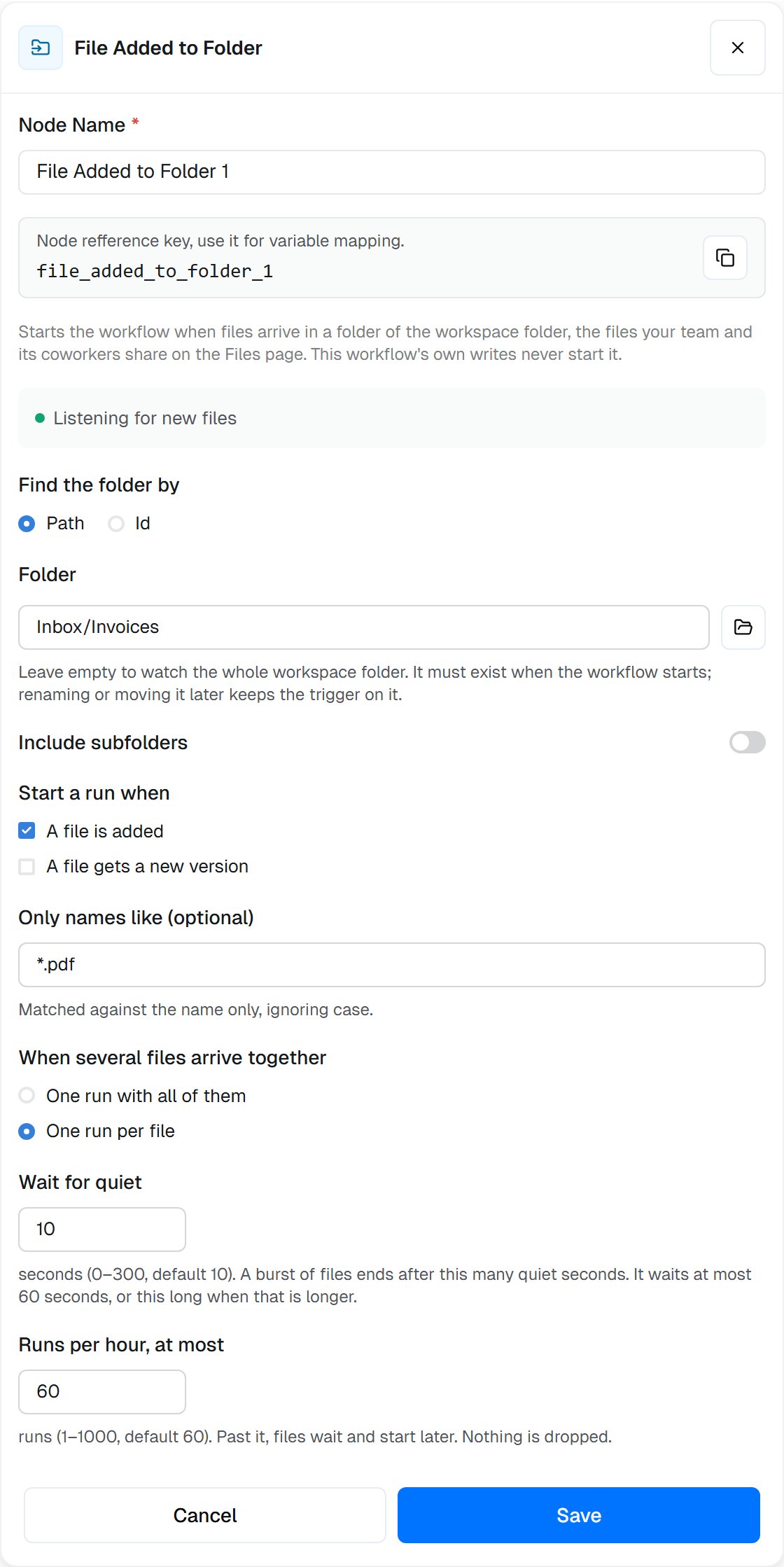
**Find the folder by**: **Path** or **Id**.
**Folder** to watch, like `Inbox/Invoices`. Leave it empty to watch the whole workspace folder. It must exist when the workflow starts; renaming or moving it later keeps the trigger on it. Pick it with the folder button, or type it. A trigger is set up once, when the workflow starts, so it can't use `{{…}}`.
The folder's id, when **Find the folder by** is **Id**: picked from the folder, or pasted from the Files page.
**Include subfolders**: also start on files in folders inside it. A folder moved or copied in brings its files along.
**Start a run when**: **A file is added** and, or, **A file gets a new version**. At least one.
**Only names like (optional)**: only names that match, like `*.pdf` or `invoice-*.{pdf,png}`. Matched against the name only, ignoring case.
**When several files arrive together**: **One run with all of them** (`batch`) or **One run per file** (`each`).
**Wait for quiet**, in seconds (0–300). A burst of files ends after this many quiet seconds. It waits at most 60 seconds, or this long when that is longer.
**Files per run, at most** (1–1,000), with **One run with all of them**. A larger burst starts more runs.
**Runs per hour, at most** (1–1,000). Past it, files wait and start later. Nothing is dropped.
## What starts a run
A file counts as **added** when it is uploaded or created in the folder, copied or moved into it, renamed into it, or restored from the Trash into it. It gets a **new version** when someone saves it again.
* **This workflow's own writes never start it**, also when it writes into the folder it watches.
* **Other writers do.** People, coworkers and other workflows all start it, including a workflow or coworker this one asks to do something. Don't let them write back into the watched folder, or each run starts the next.
* **Each version starts at most one run.** Moving a file out and back in doesn't start it again.
* **Files that were there before** the workflow started, or that arrived while it was stopped or the trigger was turned off, never start it.
* **A file that leaves before its run starts** (deleted, or moved out while its burst is still waiting) doesn't start one. A file renamed inside the folder while it waits starts its run under the new name.
* **Nothing is dropped.** Past the hourly limit, files wait and start runs as the hour frees up.
A trigger watching a folder that another workflow writes to starts on every one of those files. If that workflow is started by this one, each run starts the next one, limited only by **Runs per hour, at most**.
## On the canvas
While the workflow is running, the trigger's card shows the folder it watches, the choices that differ from the defaults, and what it is doing:
* **Listening for new files**: it starts runs as files arrive.
* **Paused: 60 runs an hour reached**: the hourly limit holds files back. Hover the line to see how many are waiting and when they start. They start on their own.
The trigger is offered in the step picker only where your workspace has Workspace files. See [Workspace files](/cowork/files/workspace-files) for the folder itself.
## When to use
* **Process what people drop in a folder**: invoices into `Inbox/Invoices`, signed contracts into `Contracts/Signed`
* **React to a coworker's work**: summarize or send on each report a coworker writes to `Reports`
* **Handle uploads in bulk**: a batch of 200 scans arrives, and one run handles them all
* **Follow changes**: start a run each time a price list gets a new version
## When not to use it
* **Files already in the folder** never start it. To process those, run a [Workspace Files](/nodes/actions/workspace-files) **List a folder** step on a schedule, or from a [Start](/nodes/triggers/start) trigger.
* **Files an app receives**, like Gmail attachments or Google Drive uploads, use that app's [App Trigger](/nodes/triggers/app-trigger).
## Settings
**Find the folder by**: **Path** or **Id**.
**Folder** to watch, like `Inbox/Invoices`. Leave it empty to watch the whole workspace folder. It must exist when the workflow starts; renaming or moving it later keeps the trigger on it. Pick it with the folder button, or type it. A trigger is set up once, when the workflow starts, so it can't use `{{…}}`.
The folder's id, when **Find the folder by** is **Id**: picked from the folder, or pasted from the Files page.
**Include subfolders**: also start on files in folders inside it. A folder moved or copied in brings its files along.
**Start a run when**: **A file is added** and, or, **A file gets a new version**. At least one.
**Only names like (optional)**: only names that match, like `*.pdf` or `invoice-*.{pdf,png}`. Matched against the name only, ignoring case.
**When several files arrive together**: **One run with all of them** (`batch`) or **One run per file** (`each`).
**Wait for quiet**, in seconds (0–300). A burst of files ends after this many quiet seconds. It waits at most 60 seconds, or this long when that is longer.
**Files per run, at most** (1–1,000), with **One run with all of them**. A larger burst starts more runs.
**Runs per hour, at most** (1–1,000). Past it, files wait and start later. Nothing is dropped.
## What starts a run
A file counts as **added** when it is uploaded or created in the folder, copied or moved into it, renamed into it, or restored from the Trash into it. It gets a **new version** when someone saves it again.
* **This workflow's own writes never start it**, also when it writes into the folder it watches.
* **Other writers do.** People, coworkers and other workflows all start it, including a workflow or coworker this one asks to do something. Don't let them write back into the watched folder, or each run starts the next.
* **Each version starts at most one run.** Moving a file out and back in doesn't start it again.
* **Files that were there before** the workflow started, or that arrived while it was stopped or the trigger was turned off, never start it.
* **A file that leaves before its run starts** (deleted, or moved out while its burst is still waiting) doesn't start one. A file renamed inside the folder while it waits starts its run under the new name.
* **Nothing is dropped.** Past the hourly limit, files wait and start runs as the hour frees up.
A trigger watching a folder that another workflow writes to starts on every one of those files. If that workflow is started by this one, each run starts the next one, limited only by **Runs per hour, at most**.
## On the canvas
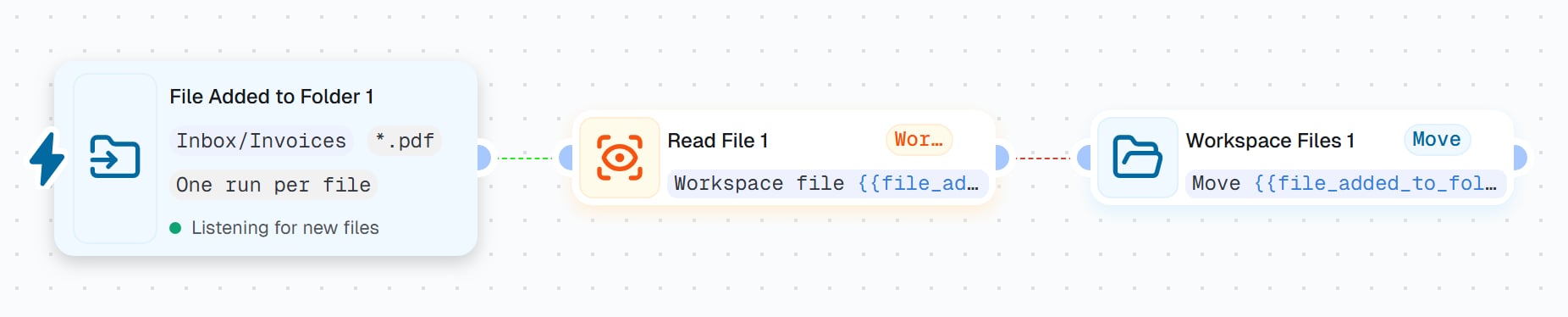
While the workflow is running, the trigger's card shows the folder it watches, the choices that differ from the defaults, and what it is doing:
* **Listening for new files**: it starts runs as files arrive.
* **Paused: 60 runs an hour reached**: the hourly limit holds files back. Hover the line to see how many are waiting and when they start. They start on their own.
 ## Example: invoice intake
Add File Added to Folder: **Folder** `Inbox/Invoices`, **Start a run when** A file is added, **Only names like** `*.pdf`, **One run per file**.
Add [Read File](/nodes/actions/read-file#read-a-file-from-workspace-files): **Read** Workspace file, **Find it by** Id or earlier step, `{{file_added_to_folder_1.file}}`.
Add an [LLM](/nodes/actions/llm) step that extracts the invoice number, supplier and total from `{{read_file_1.content}}`, and send them on to your accounting app.
Add [Workspace Files](/nodes/actions/workspace-files): **Move**, **Find it by** Id or earlier step, `{{file_added_to_folder_1.file}}`, **Destination folder** `Inbox/Done`. `Inbox/Done` is outside the watched folder, and this workflow's own writes never start it anyway.
With **One run with all of them**, loop over `{{file_added_to_folder_1.files}}` instead and use `{{loop_1.currentItem}}` in each step.
## Outputs
The files of this run, oldest first, ready for a Loop, Read File or an LLM attachment. `files[0]` is the first.
The first file (the only one when each file starts its own run), with `fileId`, `versionId`, `path`, `name`, `size` and `mimeType`. `file.path`, `file.name` and `file.fileId` are offered on their own too. To act on the file, use its id: it survives a rename or a move.
How many files this run received.
What happened to each file, oldest first: `event` (`added` or `changed`), `file`, `actor` (who: `user`, `coworker` or `workflow`) and `at` (when). `{{file_added_to_folder_1.events[0].actor.type}}` says who added the first file.
The watched folder: `id` and `path`.
`batch` (one run per burst of files) or `each` (one run per file).
`true` when a folder that arrived held more files than one run lists.
When the run was started, in ISO format.
The examples use `file_added_to_folder_1`, the key a trigger gets when you keep its default name. Yours is shown under **Node Name**.
## Related
Write, list, move, copy and delete files from a workflow.
Read the text of the file that arrived.
Every way a workflow works with the shared folder.
Handle each file of a batch in turn.
This documentation is built and hosted on [Mintlify](https://mintlify.com), a developer documentation platform.
## Example: invoice intake
Add File Added to Folder: **Folder** `Inbox/Invoices`, **Start a run when** A file is added, **Only names like** `*.pdf`, **One run per file**.
Add [Read File](/nodes/actions/read-file#read-a-file-from-workspace-files): **Read** Workspace file, **Find it by** Id or earlier step, `{{file_added_to_folder_1.file}}`.
Add an [LLM](/nodes/actions/llm) step that extracts the invoice number, supplier and total from `{{read_file_1.content}}`, and send them on to your accounting app.
Add [Workspace Files](/nodes/actions/workspace-files): **Move**, **Find it by** Id or earlier step, `{{file_added_to_folder_1.file}}`, **Destination folder** `Inbox/Done`. `Inbox/Done` is outside the watched folder, and this workflow's own writes never start it anyway.
With **One run with all of them**, loop over `{{file_added_to_folder_1.files}}` instead and use `{{loop_1.currentItem}}` in each step.
## Outputs
The files of this run, oldest first, ready for a Loop, Read File or an LLM attachment. `files[0]` is the first.
The first file (the only one when each file starts its own run), with `fileId`, `versionId`, `path`, `name`, `size` and `mimeType`. `file.path`, `file.name` and `file.fileId` are offered on their own too. To act on the file, use its id: it survives a rename or a move.
How many files this run received.
What happened to each file, oldest first: `event` (`added` or `changed`), `file`, `actor` (who: `user`, `coworker` or `workflow`) and `at` (when). `{{file_added_to_folder_1.events[0].actor.type}}` says who added the first file.
The watched folder: `id` and `path`.
`batch` (one run per burst of files) or `each` (one run per file).
`true` when a folder that arrived held more files than one run lists.
When the run was started, in ISO format.
The examples use `file_added_to_folder_1`, the key a trigger gets when you keep its default name. Yours is shown under **Node Name**.
## Related
Write, list, move, copy and delete files from a workflow.
Read the text of the file that arrived.
Every way a workflow works with the shared folder.
Handle each file of a batch in turn.
This documentation is built and hosted on [Mintlify](https://mintlify.com), a developer documentation platform.