> ## Documentation Index
> Fetch the complete documentation index at: https://docs.cogniagent.ai/llms.txt
> Use this file to discover all available pages before exploring further.
# On Variable Update Node
> Trigger workflows when application variable values change
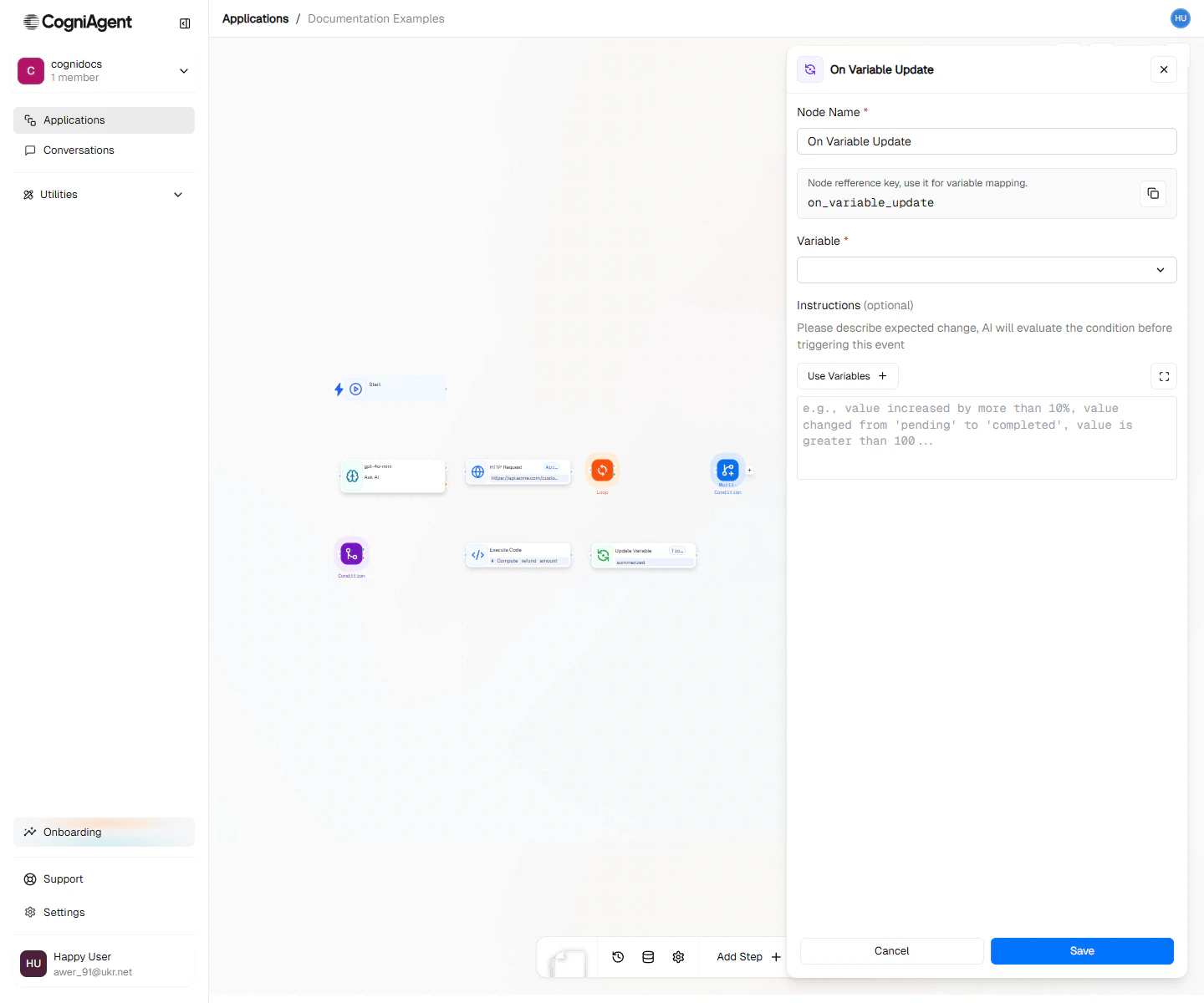
The On Variable Update node triggers your workflow when a specific application variable is updated. This enables reactive patterns where one part of your system can signal another to take action.
 ## When to Use
* **State-driven workflows** - React to status changes in your application
* **Threshold monitoring** - Trigger when counters or metrics cross thresholds
* **Data synchronization** - Propagate changes across systems
* **Event broadcasting** - One workflow updates a variable, others react
* **Decoupled logic** - Separate "what happened" from "what to do about it"
## Example: Order Status Notifications
Notify customers when their order status changes:
Add an On Variable Update node:
* Variable name: **order\_status**
* Change type: **any**
Use a Multi-Condition node on `{{variable_changed_1.newValue}}`:
* **processing** → "Your order is being prepared"
* **shipped** → "Your order is on the way"
* **delivered** → "Your order has been delivered"
Connect to an External API (email or SMS) node to notify the customer.
**Workflow structure:**
```
├── On Variable Update (order_status)
├── Multi-Condition (based on new status)
│ ├── processing → Ask AI (prepare email) → External API (send email)
│ ├── shipped → Ask AI (prepare email + tracking) → External API
│ └── delivered → Ask AI (feedback request) → External API
```
## Example: Threshold Alert
Alert when error count exceeds a threshold:
**Monitor workflow:**
```
├── On Variable Update (error_count, increase)
├── Condition (newValue > 10)
│ ├── Met: External API (Slack alert)
│ └── Unmet: (no action)
```
**Configuration:**
* Variable: `error_count`
* Change type: `increase`
Then in your Condition node:
```
{{variable_changed_1.newValue}} > 10
AND {{variable_changed_1.previousValue}} <= 10
```
This ensures you alert only when crossing the threshold, not on every increase.
## Example: Configuration Propagation
Update multiple systems when a configuration changes:
```
Workflow: Config Propagator
├── On Variable Update (api_rate_limit)
├── Loop (over list of services)
│ └── HTTP Request (update service config)
└── External API (Slack - notify team of change)
```
This pattern keeps distributed systems in sync when central configuration changes.
## Use Patterns
### Event Broadcasting
One workflow sets a variable, multiple workflows react:
```
Workflow A (main process):
└── Update Variable (status = "complete")
Workflow B (notifications):
├── On Variable Update (status, specific: "complete")
└── External API (send notifications)
Workflow C (cleanup):
├── On Variable Update (status, specific: "complete")
└── Execute Code (archive data)
```
### State Machine
Build state machines where transitions trigger actions:
```
Variable: application_state
Values: draft → review → approved → published
Workflow: State Transition Handler
├── On Variable Update (application_state)
├── Multi-Condition
│ ├── review → External API (notify reviewers)
│ ├── approved → External API (notify author)
│ └── published → Execute Code (update search index)
```
### Counter-Based Triggers
Trigger actions based on accumulated counts:
```
# When signup count reaches milestones
├── On Variable Update (signup_count, increase)
├── Condition (newValue % 100 == 0)
│ └── Met: External API (celebrate milestone in Slack)
```
## Tips
Use specific value triggers when you care about a particular state, and `any` triggers when you need to react to all changes.
Access both `previousValue` and `newValue` to implement transition logic - different actions for different state changes.
Avoid circular dependencies where a variable change triggers a workflow that changes the same variable. This can create infinite loops.
Variable changes from Update Variable nodes within the same workflow don't trigger On Variable Update events in that same workflow run. This prevents self-triggering.
## Settings
Display name shown on the canvas.
Unique identifier for referencing outputs.
The name of the application variable to monitor.
What type of change to trigger on:
* **any** - Any change to the variable
* **specific** - Only when changed to a specific value
* **increase** - When numeric value increases
* **decrease** - When numeric value decreases
For `specific` change type: the value that triggers the event.
## Outputs
Name of the variable that changed.
The value before the change.
The current value after the change.
ISO timestamp of when the change occurred.
Identifier of what triggered the change (workflow ID, node key, or "manual").
## Related Nodes
Update variables that trigger this event.
Add logic based on the changed value.
## When to Use
* **State-driven workflows** - React to status changes in your application
* **Threshold monitoring** - Trigger when counters or metrics cross thresholds
* **Data synchronization** - Propagate changes across systems
* **Event broadcasting** - One workflow updates a variable, others react
* **Decoupled logic** - Separate "what happened" from "what to do about it"
## Example: Order Status Notifications
Notify customers when their order status changes:
Add an On Variable Update node:
* Variable name: **order\_status**
* Change type: **any**
Use a Multi-Condition node on `{{variable_changed_1.newValue}}`:
* **processing** → "Your order is being prepared"
* **shipped** → "Your order is on the way"
* **delivered** → "Your order has been delivered"
Connect to an External API (email or SMS) node to notify the customer.
**Workflow structure:**
```
├── On Variable Update (order_status)
├── Multi-Condition (based on new status)
│ ├── processing → Ask AI (prepare email) → External API (send email)
│ ├── shipped → Ask AI (prepare email + tracking) → External API
│ └── delivered → Ask AI (feedback request) → External API
```
## Example: Threshold Alert
Alert when error count exceeds a threshold:
**Monitor workflow:**
```
├── On Variable Update (error_count, increase)
├── Condition (newValue > 10)
│ ├── Met: External API (Slack alert)
│ └── Unmet: (no action)
```
**Configuration:**
* Variable: `error_count`
* Change type: `increase`
Then in your Condition node:
```
{{variable_changed_1.newValue}} > 10
AND {{variable_changed_1.previousValue}} <= 10
```
This ensures you alert only when crossing the threshold, not on every increase.
## Example: Configuration Propagation
Update multiple systems when a configuration changes:
```
Workflow: Config Propagator
├── On Variable Update (api_rate_limit)
├── Loop (over list of services)
│ └── HTTP Request (update service config)
└── External API (Slack - notify team of change)
```
This pattern keeps distributed systems in sync when central configuration changes.
## Use Patterns
### Event Broadcasting
One workflow sets a variable, multiple workflows react:
```
Workflow A (main process):
└── Update Variable (status = "complete")
Workflow B (notifications):
├── On Variable Update (status, specific: "complete")
└── External API (send notifications)
Workflow C (cleanup):
├── On Variable Update (status, specific: "complete")
└── Execute Code (archive data)
```
### State Machine
Build state machines where transitions trigger actions:
```
Variable: application_state
Values: draft → review → approved → published
Workflow: State Transition Handler
├── On Variable Update (application_state)
├── Multi-Condition
│ ├── review → External API (notify reviewers)
│ ├── approved → External API (notify author)
│ └── published → Execute Code (update search index)
```
### Counter-Based Triggers
Trigger actions based on accumulated counts:
```
# When signup count reaches milestones
├── On Variable Update (signup_count, increase)
├── Condition (newValue % 100 == 0)
│ └── Met: External API (celebrate milestone in Slack)
```
## Tips
Use specific value triggers when you care about a particular state, and `any` triggers when you need to react to all changes.
Access both `previousValue` and `newValue` to implement transition logic - different actions for different state changes.
Avoid circular dependencies where a variable change triggers a workflow that changes the same variable. This can create infinite loops.
Variable changes from Update Variable nodes within the same workflow don't trigger On Variable Update events in that same workflow run. This prevents self-triggering.
## Settings
Display name shown on the canvas.
Unique identifier for referencing outputs.
The name of the application variable to monitor.
What type of change to trigger on:
* **any** - Any change to the variable
* **specific** - Only when changed to a specific value
* **increase** - When numeric value increases
* **decrease** - When numeric value decreases
For `specific` change type: the value that triggers the event.
## Outputs
Name of the variable that changed.
The value before the change.
The current value after the change.
ISO timestamp of when the change occurred.
Identifier of what triggered the change (workflow ID, node key, or "manual").
## Related Nodes
Update variables that trigger this event.
Add logic based on the changed value.