> ## Documentation Index
> Fetch the complete documentation index at: https://docs.cogniagent.ai/llms.txt
> Use this file to discover all available pages before exploring further.
# Scheduled Trigger Node
> Schedule workflows to run automatically on intervals
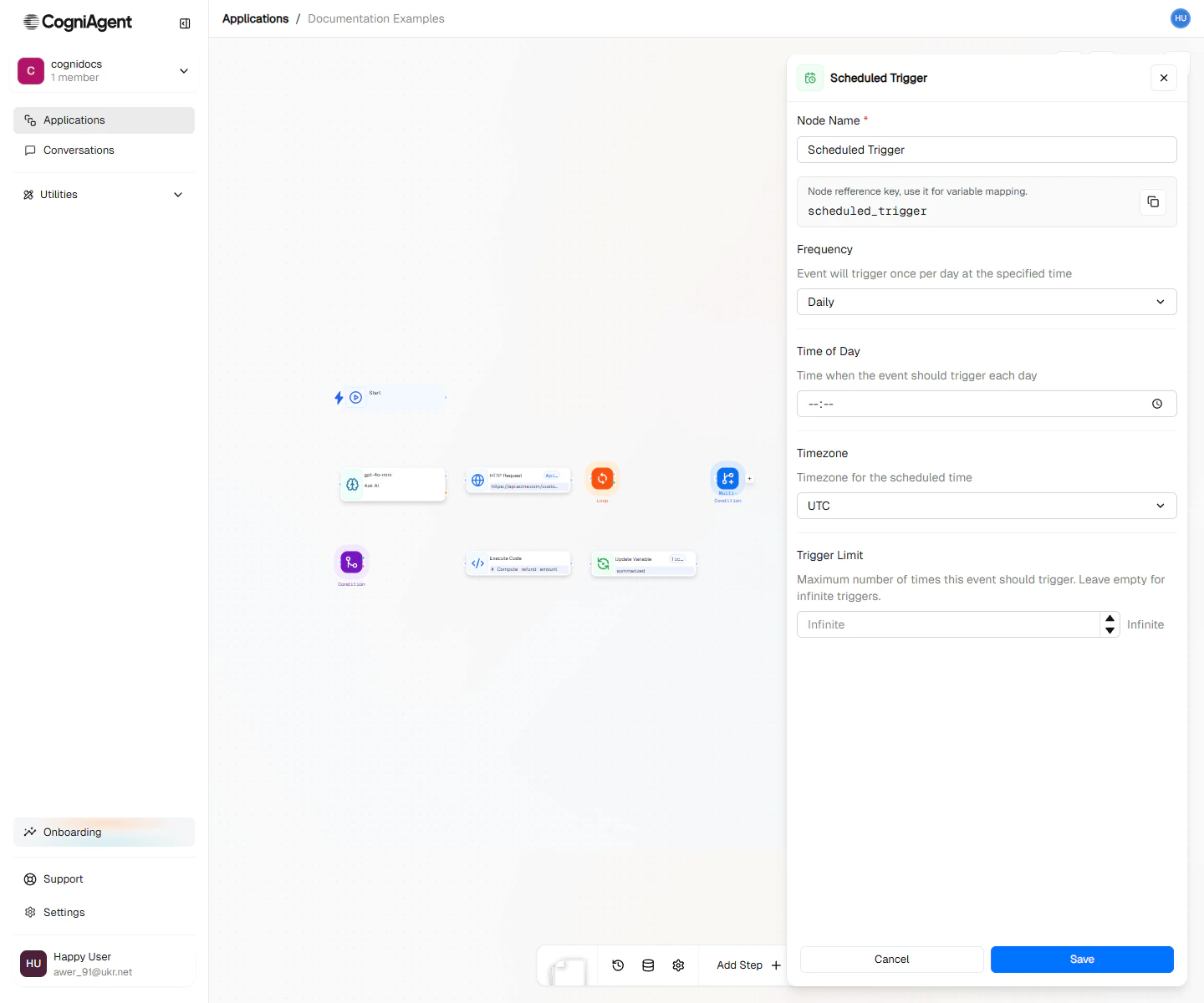
The Scheduled Trigger node triggers your workflow on a schedule. Define when and how often your automation runs, from every few minutes to weekly or monthly intervals.
 ## When to Use
* **Daily reports** - Generate and send summaries every morning
* **Data synchronization** - Sync records between systems hourly
* **Monitoring** - Check service status at regular intervals
* **Reminders** - Send scheduled notifications to team members
* **Cleanup tasks** - Archive old data weekly or monthly
## Example: Daily Sales Summary
Send a daily sales report to your team every morning:
Add a Scheduled Trigger node:
* Schedule type: **daily**
* Time: **09:00**
* Timezone: **America/New\_York**
Connect to an External API node that queries your CRM or database for yesterday's sales.
Use an Ask AI node to summarize the data:
```
Create a brief sales summary for {{recurrent_event_1.scheduledTime}}:
Total sales: {{external_api_1.totalSales}}
New customers: {{external_api_1.newCustomers}}
Top products: {{external_api_1.topProducts}}
Format as a Slack message with highlights and any concerns.
```
Connect to an External API node (Slack) to post the summary to your sales channel.
## Example: Hourly Website Monitor
Check if your website is responding and alert if it's down:
```
Workflow: Website Health Check
├── Scheduled Trigger (every 15 minutes)
├── HTTP Request (GET https://yoursite.com/health)
├── Condition (check status code == 200)
│ ├── Met: Update Variable (lastHealthyCheck = now)
│ └── Unmet: External API (send Slack alert)
```
## Schedule Types Explained
### Interval
Runs repeatedly with a fixed gap between executions.
```
Every 30 minutes → 9:00, 9:30, 10:00, 10:30...
```
Minimum interval is 5 minutes to prevent excessive resource usage.
### Daily
Runs once per day at the specified time.
```
Daily at 09:00 America/New_York
```
### Weekly
Runs on specific days at the specified time.
```
Weekly on Monday, Wednesday, Friday at 14:00 UTC
```
### Monthly
Runs on specific dates each month.
```
Monthly on the 1st and 15th at 08:00 Europe/London
```
If a date doesn't exist in a month (like the 31st in February), that execution is skipped.
### Cron Expressions
For advanced scheduling, use standard cron syntax:
```
┌───────────── minute (0 - 59)
│ ┌───────────── hour (0 - 23)
│ │ ┌───────────── day of month (1 - 31)
│ │ │ ┌───────────── month (1 - 12)
│ │ │ │ ┌───────────── day of week (0 - 6, Sunday = 0)
│ │ │ │ │
* * * * *
```
**Examples:**
* `0 9 * * 1-5` - 9 AM on weekdays
* `0 */2 * * *` - Every 2 hours
* `0 0 1 * *` - Midnight on the 1st of each month
* `30 8 * * 1` - 8:30 AM every Monday
## Timezone Handling
Always set the timezone explicitly to avoid confusion. UTC is the default but rarely what users expect for business workflows.
Common timezones:
* `America/New_York` (Eastern)
* `America/Los_Angeles` (Pacific)
* `Europe/London`
* `Europe/Paris`
* `Asia/Tokyo`
* `Australia/Sydney`
## Missed Executions
If the application is stopped during a scheduled time, that execution is missed. CogniAgent does not "catch up" on missed executions when the application restarts.
For critical scheduled tasks, consider adding monitoring to verify executions occurred.
## Tips
Start with a longer interval during development (e.g., hourly), then tighten it once the workflow is tested.
Use the `executionCount` output to implement logic that runs differently on the first execution versus subsequent runs.
## Settings
Display name shown on the canvas.
Unique identifier for referencing outputs.
The type of schedule:
* **interval** - Run every X minutes/hours
* **daily** - Run once per day at a specific time
* **weekly** - Run on specific days of the week
* **monthly** - Run on specific days of the month
* **cron** - Advanced scheduling with cron expressions
For interval type: number of minutes between runs. Minimum: 5 minutes.
For daily/weekly/monthly: time to run in HH:MM format (24-hour).
For weekly: which days to run. Array of day names or numbers (0=Sunday).
For monthly: which dates to run (1-31).
For cron type: standard cron expression (e.g., `0 9 * * 1-5`).
Timezone for the schedule (e.g., `America/New_York`, `Europe/London`).
## Outputs
ISO timestamp of when this execution was scheduled.
How many times this recurrent event has triggered (since application start).
ISO timestamp of the previous execution (null for first run).
## Related Nodes
Trigger based on intelligent conditions instead of fixed schedules.
Add delays within a workflow instead of scheduling.
## When to Use
* **Daily reports** - Generate and send summaries every morning
* **Data synchronization** - Sync records between systems hourly
* **Monitoring** - Check service status at regular intervals
* **Reminders** - Send scheduled notifications to team members
* **Cleanup tasks** - Archive old data weekly or monthly
## Example: Daily Sales Summary
Send a daily sales report to your team every morning:
Add a Scheduled Trigger node:
* Schedule type: **daily**
* Time: **09:00**
* Timezone: **America/New\_York**
Connect to an External API node that queries your CRM or database for yesterday's sales.
Use an Ask AI node to summarize the data:
```
Create a brief sales summary for {{recurrent_event_1.scheduledTime}}:
Total sales: {{external_api_1.totalSales}}
New customers: {{external_api_1.newCustomers}}
Top products: {{external_api_1.topProducts}}
Format as a Slack message with highlights and any concerns.
```
Connect to an External API node (Slack) to post the summary to your sales channel.
## Example: Hourly Website Monitor
Check if your website is responding and alert if it's down:
```
Workflow: Website Health Check
├── Scheduled Trigger (every 15 minutes)
├── HTTP Request (GET https://yoursite.com/health)
├── Condition (check status code == 200)
│ ├── Met: Update Variable (lastHealthyCheck = now)
│ └── Unmet: External API (send Slack alert)
```
## Schedule Types Explained
### Interval
Runs repeatedly with a fixed gap between executions.
```
Every 30 minutes → 9:00, 9:30, 10:00, 10:30...
```
Minimum interval is 5 minutes to prevent excessive resource usage.
### Daily
Runs once per day at the specified time.
```
Daily at 09:00 America/New_York
```
### Weekly
Runs on specific days at the specified time.
```
Weekly on Monday, Wednesday, Friday at 14:00 UTC
```
### Monthly
Runs on specific dates each month.
```
Monthly on the 1st and 15th at 08:00 Europe/London
```
If a date doesn't exist in a month (like the 31st in February), that execution is skipped.
### Cron Expressions
For advanced scheduling, use standard cron syntax:
```
┌───────────── minute (0 - 59)
│ ┌───────────── hour (0 - 23)
│ │ ┌───────────── day of month (1 - 31)
│ │ │ ┌───────────── month (1 - 12)
│ │ │ │ ┌───────────── day of week (0 - 6, Sunday = 0)
│ │ │ │ │
* * * * *
```
**Examples:**
* `0 9 * * 1-5` - 9 AM on weekdays
* `0 */2 * * *` - Every 2 hours
* `0 0 1 * *` - Midnight on the 1st of each month
* `30 8 * * 1` - 8:30 AM every Monday
## Timezone Handling
Always set the timezone explicitly to avoid confusion. UTC is the default but rarely what users expect for business workflows.
Common timezones:
* `America/New_York` (Eastern)
* `America/Los_Angeles` (Pacific)
* `Europe/London`
* `Europe/Paris`
* `Asia/Tokyo`
* `Australia/Sydney`
## Missed Executions
If the application is stopped during a scheduled time, that execution is missed. CogniAgent does not "catch up" on missed executions when the application restarts.
For critical scheduled tasks, consider adding monitoring to verify executions occurred.
## Tips
Start with a longer interval during development (e.g., hourly), then tighten it once the workflow is tested.
Use the `executionCount` output to implement logic that runs differently on the first execution versus subsequent runs.
## Settings
Display name shown on the canvas.
Unique identifier for referencing outputs.
The type of schedule:
* **interval** - Run every X minutes/hours
* **daily** - Run once per day at a specific time
* **weekly** - Run on specific days of the week
* **monthly** - Run on specific days of the month
* **cron** - Advanced scheduling with cron expressions
For interval type: number of minutes between runs. Minimum: 5 minutes.
For daily/weekly/monthly: time to run in HH:MM format (24-hour).
For weekly: which days to run. Array of day names or numbers (0=Sunday).
For monthly: which dates to run (1-31).
For cron type: standard cron expression (e.g., `0 9 * * 1-5`).
Timezone for the schedule (e.g., `America/New_York`, `Europe/London`).
## Outputs
ISO timestamp of when this execution was scheduled.
How many times this recurrent event has triggered (since application start).
ISO timestamp of the previous execution (null for first run).
## Related Nodes
Trigger based on intelligent conditions instead of fixed schedules.
Add delays within a workflow instead of scheduling.