
How file inputs work
Every AI model in CogniAgent lists what kinds of files it understands. When you attach a file to an LLM step:- CogniAgent looks at the file’s type (image, audio, video, PDF, text, other).
- It checks whether the model you picked accepts that type natively.
- If yes, the file is sent to the model as-is, with no information loss.
- If no, CogniAgent falls back to extracting text from the file so the model at least sees a written description of the contents.
What you can send in
Images
Images
Best for: photos, screenshots, charts, diagrams, scanned documentsModels with vision support can describe what’s in an image, extract text from a screenshot, read a chart, identify objects, or compare two images side by side.Common models that accept images: GPT-4o, Claude Sonnet, Gemini Flash, Gemini Pro.The file goes through unchanged — the AI sees the actual pixels, not a text description. That means it can pick up details like layout, color, handwriting, and visual relationships that text extraction would lose.
Audio
Audio
Best for: voice memos, call recordings, meeting audio, music samplesAudio-capable models can transcribe speech, summarize what was said, identify speakers, classify the tone, or analyze music.Common models that accept audio: Gemini Flash and Pro (including 3.x), GPT-4o audio preview.Supported formats include WAV, MP3, OGG, FLAC, WebM, M4A, Opus, and AAC. CogniAgent picks the right format automatically based on the file.
Video
Video
Best for: short clips, screen recordings, product demos, security footageVideo-capable models can describe what happens in a clip, find a specific moment, transcribe spoken content, or summarize a recording.Common models that accept video: Gemini Pro and Flash 2.x / 3.x.Keep clips short — most models cap at a few minutes per video and longer files cost more to process.
PDFs and documents
PDFs and documents
Best for: contracts, invoices, reports, scanned forms, research papersModels with file support read PDFs as documents — they understand page layout, embedded images, and formatting, not just the raw text.Common models that accept PDFs: Gemini, GPT-4 file mode, Claude.For models that don’t accept PDFs natively, CogniAgent automatically extracts the text using its document converter so you still get a usable result.
Plain text and structured data
Plain text and structured data
Best for: CSV, JSON, Markdown, XML, YAML, plain logsText-based files are inlined into the prompt directly. Every model can read them, so you don’t need a specialized vision or audio model.Use this for: data extraction from CSVs, parsing API responses, summarizing logs, working with config files.
Attaching files to an LLM step
You attach files the same way regardless of type. There are two modes:- Static attachment
- Dynamic attachment
Upload a fixed file from your computer. The same file is sent every time the workflow runs.Use this for reference materials — a product catalog PDF, a brand guidelines document, an example image.
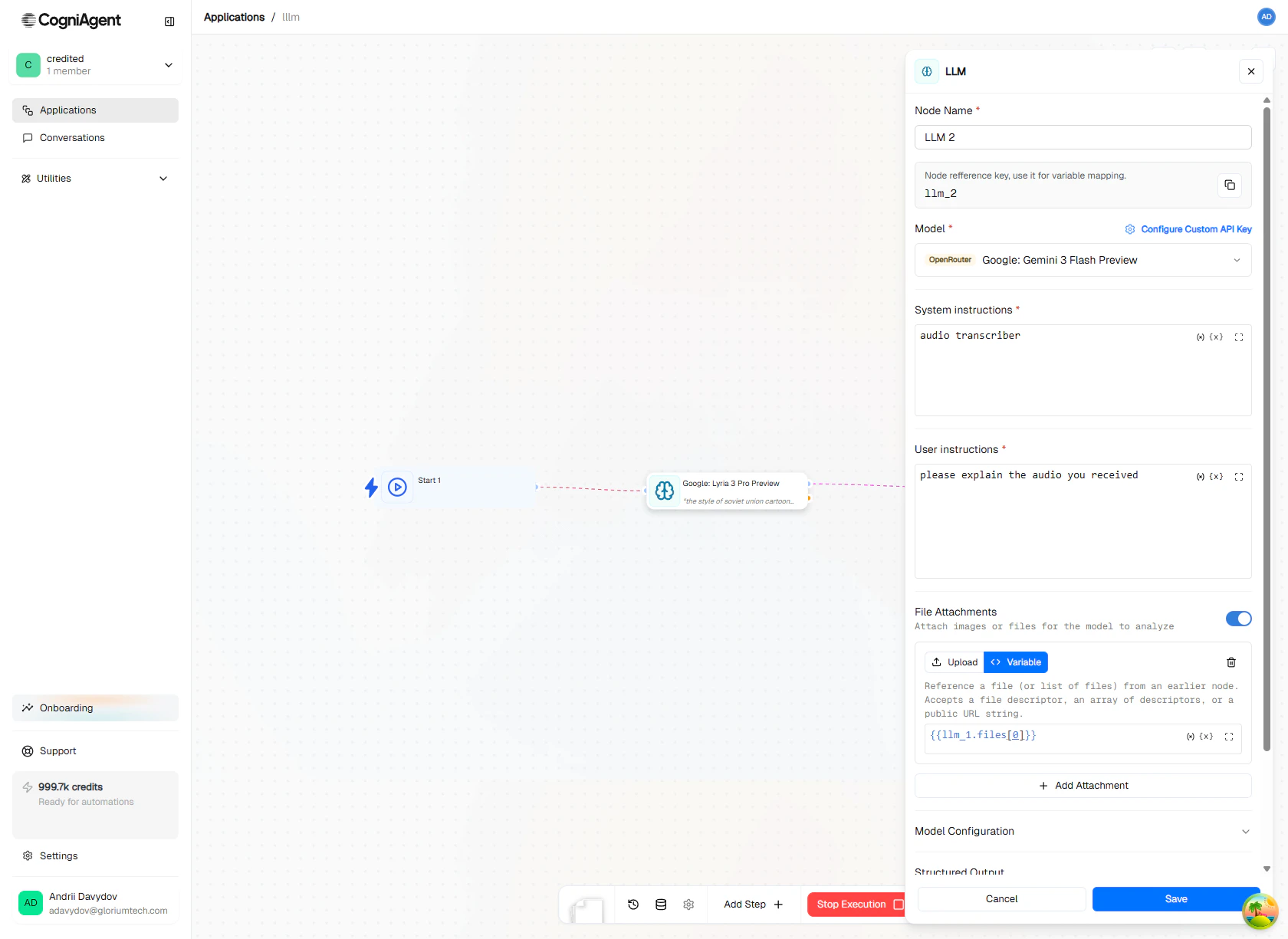
Attach files statically or dynamically — point at a variable like {{parse_file_1.files}} to feed in whatever the previous step produced.
When the model can’t read your file
If you attach a file type the selected model doesn’t support natively, CogniAgent falls back to text extraction: This means a PDF on a vision-only model still works (you get extracted text instead of layout-aware understanding), but an audio file on a text-only model only works if the audio converter can transcribe it locally.Generating files with AI
Some AI models don’t just read files — they create them. LLM captures generated files automatically and exposes them on the node’sfiles output so downstream steps can use them.
Generated images
Generated images
Image-generation models like Gemini Flash Image produce one or more images in response to your prompt. You don’t need any special configuration — just pick the model and describe what you want.The generated image lands in
{{llm_1.files}} and can be attached to an email, posted to a Slack channel, or sent to another AI step.Generated audio
Generated audio
Audio-generation models like Lyria produce music or speech. CogniAgent automatically streams the audio response, saves it as a file, and exposes it on
{{llm_1.files}} the same way as images.Use cases: generate a voice greeting for a phone agent, create a custom ringtone, produce a short music clip for a podcast intro.Audio generation requires streaming under the hood — CogniAgent handles this automatically when you pick an audio-output model. You don’t need to change any settings.
Files generated by Execute Code
Files generated by Execute Code
When you enable the Execute Python Code capability on an LLM node, the AI can write code that produces files — CSVs, charts, processed images, transformed documents. Any file the code writes to the sandbox is uploaded automatically and surfaced on the node’s output.Example: ask the AI to analyze sales data from a CSV and chart the results.Both
revenue.png and the JSON output appear in {{llm_1.files}} and {{llm_1.response}} respectively.Using generated files in later steps
Files coming out of an LLM node are CogniAgent file descriptors — they carry the file name, size, and type, and you reference them like any other variable.1
Pass to another LLM step
Use
{{llm_1.files}} in the attachments field of a follow-up LLM step. Use this to chain steps — generate, then analyze, then describe.2
Send via email
Most email channels and integrations accept file descriptors as attachments. Drop
{{llm_1.files}} into the attachments field and the file rides along with the message.3
Save as a variable
Use Update Variable to store a file descriptor for later in the workflow. Useful when the same file is needed in several steps.
4
Let users download it
Generated files appear in the execution history with a download button. CogniAgent mints a fresh secure link each time you click — no stale URLs.
Tips and gotchas
Model lists change frequently. The badges shown next to each model in the picker are the source of truth for what that model can read and produce — they’re synced from the upstream provider and update as new models ship.
Related
LLM Node
Full reference for configuring the LLM step.
Read File
Pull a file into your workflow from another node or step.
Execute Code
Run Python in a sandbox — files it writes are surfaced as outputs.
Execute Workflow
For multi-step AI tasks, delegate to a dedicated workflow.