
Execution mode
Open Settings in the left rail of the canvas. Under How triggers start runs, choose how events are grouped across runs. The two choices keep their older names, Multi instance and Single instance, as a small caption, so you can match them to the API and older docs.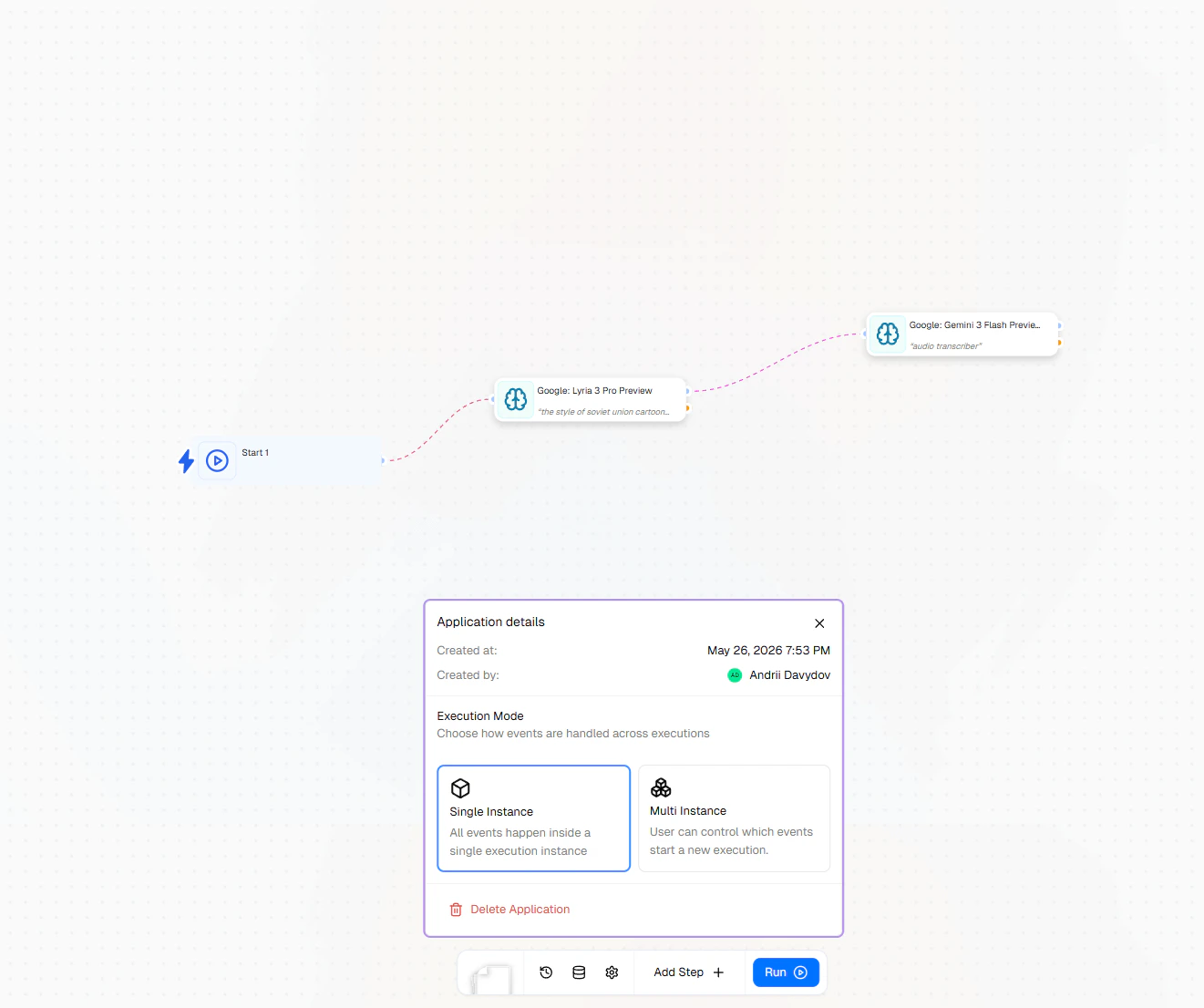
A run per event (Multi instance)
A run per event (Multi instance)
Best for: workflows where each incoming event should be tracked
separately — one execution per support ticket, per order, per
inbound call.Triggers configured to start a new run spawn a fresh
execution for every event. Each run is fully independent —
its own history, its own variables, its own lifecycle.Use a run per event when you want isolated runs you can audit or
reproduce individually.
The execution mode is a property of the workflow, not of an
individual run. Switching modes affects how future triggers are
routed; existing executions are unaffected.
Run buttons
The run controls sit in the editor header, next to the status pill. They depend on the mode and on whether the workflow is on:
While the latest run of a run per event workflow is still going, the header also shows Stop run, which stops that run, the same as Stop run in Runs. A run with steps that can still receive events, such as a trigger or a webhook, keeps going until it is stopped (see Auto-stop).
The bottom of the left rail has the same controls as icon buttons. There, a run per event workflow that is on also shows Turn off.
Click the status pill (On, Off, Paused or Needs attention) to see how the workflow starts and its last run. For a run per event workflow it also has Turn on / Turn off.
Run and Run now open the Run workflow dialog. It shows an estimate of what the run costs and your credit balance. For a one shared run workflow it also says that starting the run turns the workflow on. Open More options to set Run name (optional), which is shown in the run list so you can find the run later.
If the workflow has problems, Turn on and Run first show a Before turning on (N) (or Before running) check listing them, with Turn on anyway (or Run anyway). See Version history for rolling back a change that caused them.
How an execution ends
An execution moves through one of four terminal states:Auto-stop
The engine watches each execution and stops it automatically when no more work is possible. This keeps the execution list clean and frees up resources — you don’t have to stop every finished run. An execution auto-stops when all of the following are true:- Every branch of the workflow has finished running.
- The graph has no node types that can receive new events later — no triggers, webhooks, scheduled events, portal entry points, dispatchers, or Chat & Voice Agent steps.
- No queued jobs remain for this execution.
completed— every node that ran succeeded.failed— one or more nodes failed.
Auto-stop runs the same cleanup as manual stop. Pipedream triggers,
scheduled cron jobs, channel pollers, and active dispatcher
conversations are all released before the execution is marked
terminal.
Manual stop
In a one shared run (Single instance) workflow, click Stop and turn off in the header to halt the running execution and turn the workflow off. In a run per event (Multi instance) workflow, click Stop run in the header while the latest run is going, or open Runs and click Stop run on any run. Use Turn off in the status pill to switch the workflow off. The execution is markedstopped and the
engine performs the same cleanup as auto-stop.
Viewing executions
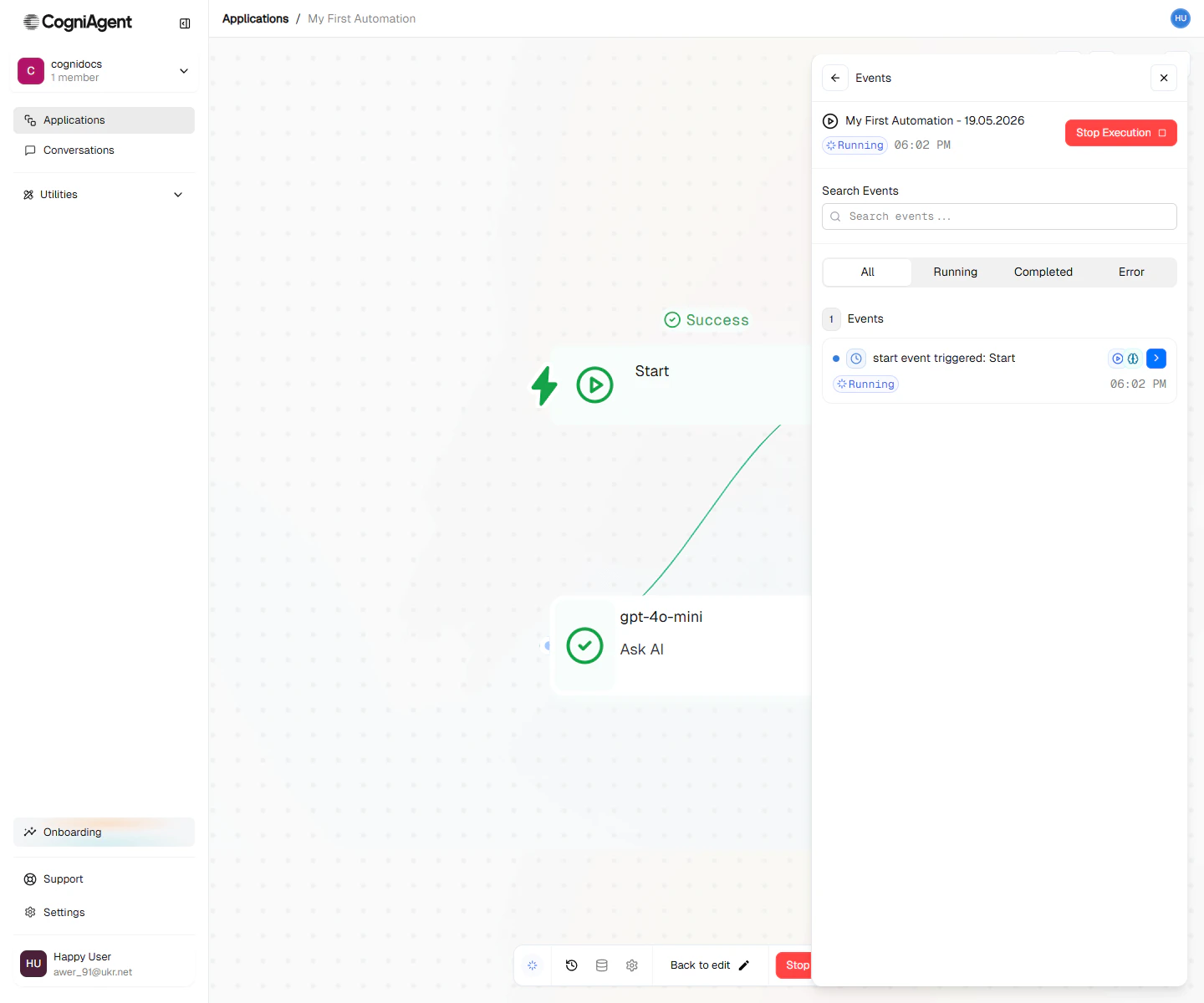
Click Runs in the left rail to open the execution history and live event log. Each row is one run of the workflow, with its status, start time, and duration.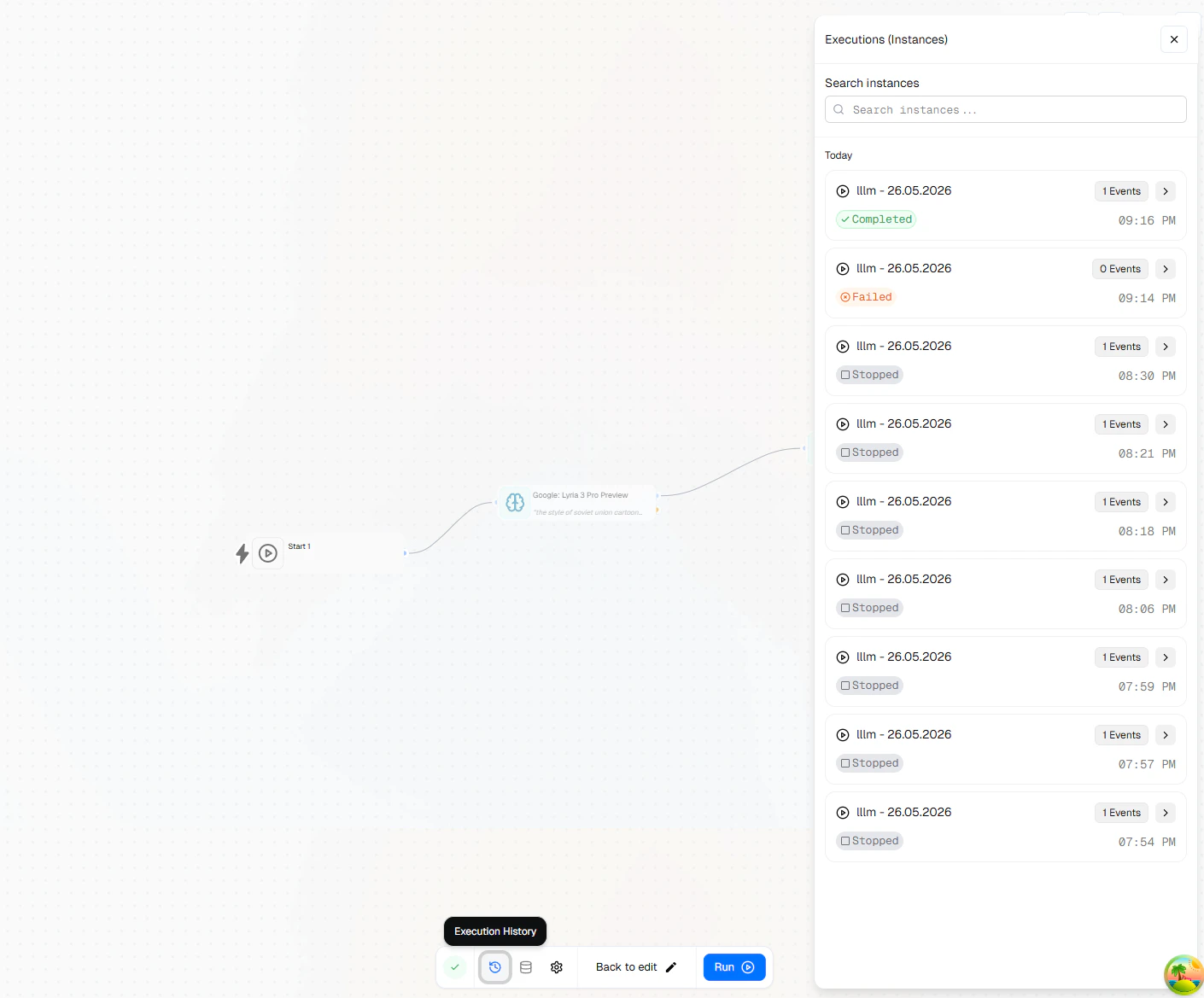
Choosing between modes
Choose a run per event when...
Choose a run per event when...
- Each incoming event represents an independent unit of work (“process this order from start to finish”).
- You need isolated history per event for auditing or debugging.
- Different events should be able to fail independently without affecting each other.
Next steps
Run a workflow
Walk through starting a run end-to-end.
Trigger nodes
See which trigger types can spawn or feed an execution.