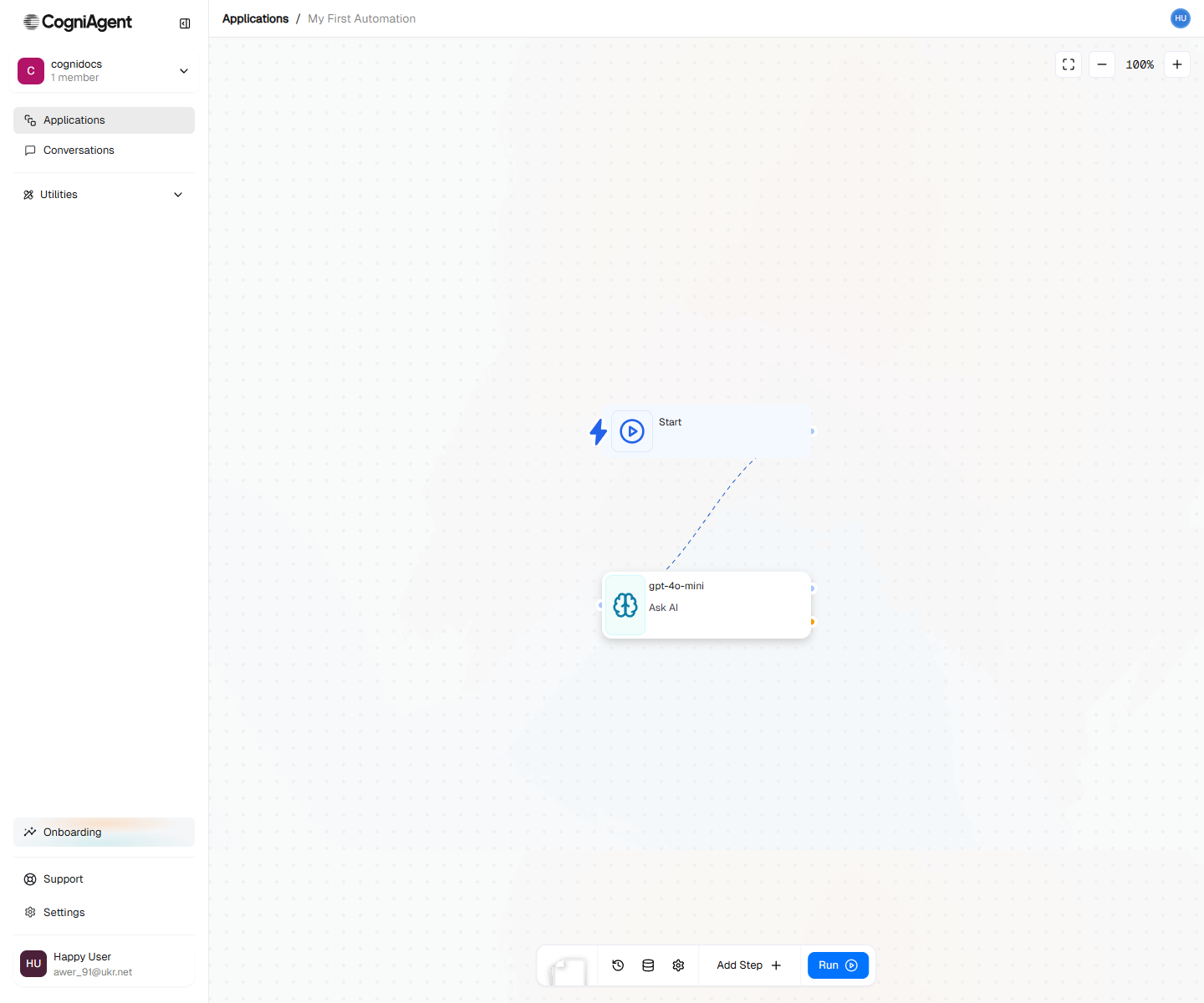
A simple workflow you run manually. It starts with a Start trigger and uses an LLM action to generate a motivational quote. This teaches you the core concepts: workflows, triggers, and actions.
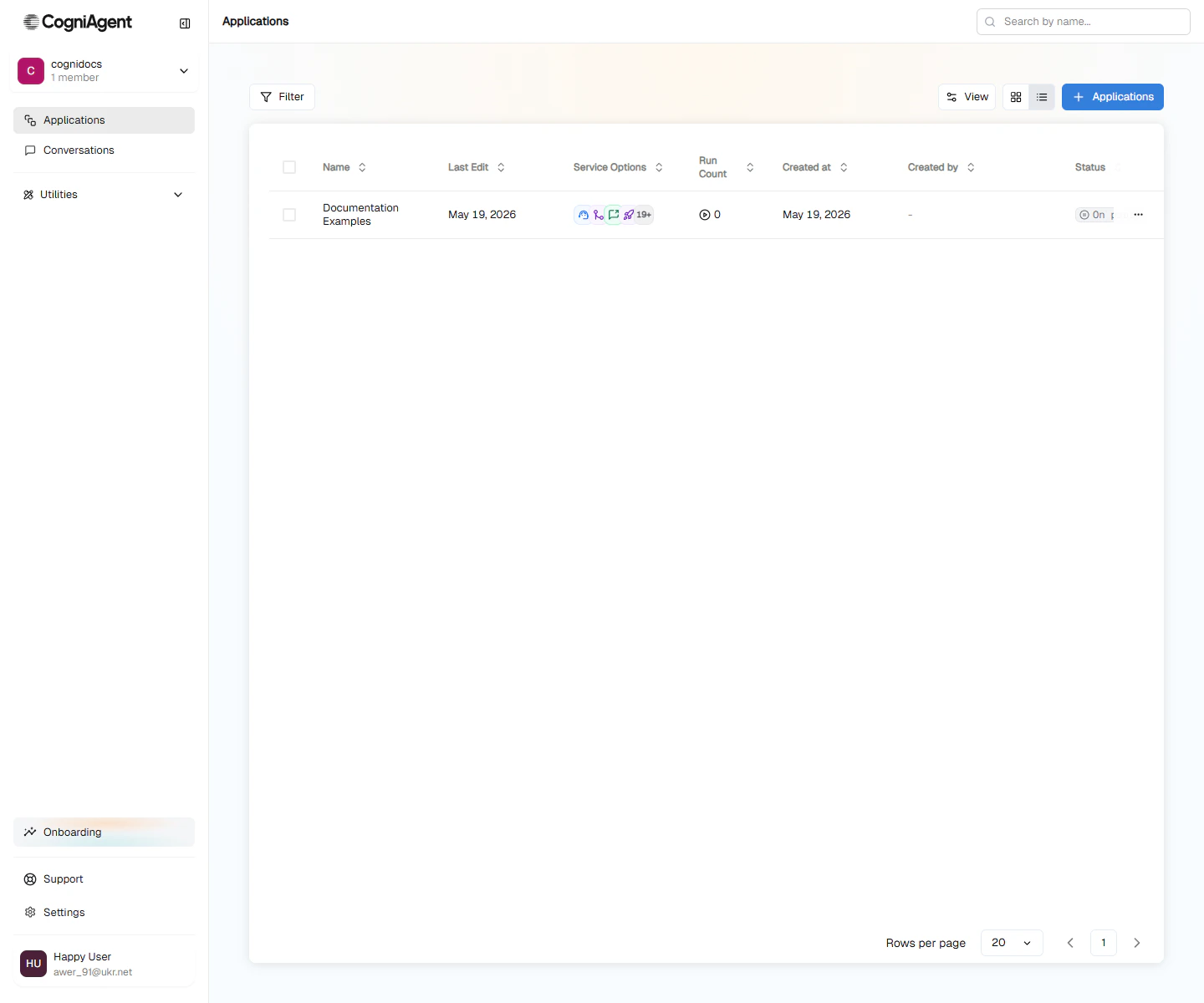
Log in to CogniAgent and click Workflows in the left sidebar.
The Workflows list — each row is one workflow.
2
Click + Workflow
Click the + Workflow button in the toolbar.
3
Name your workflow
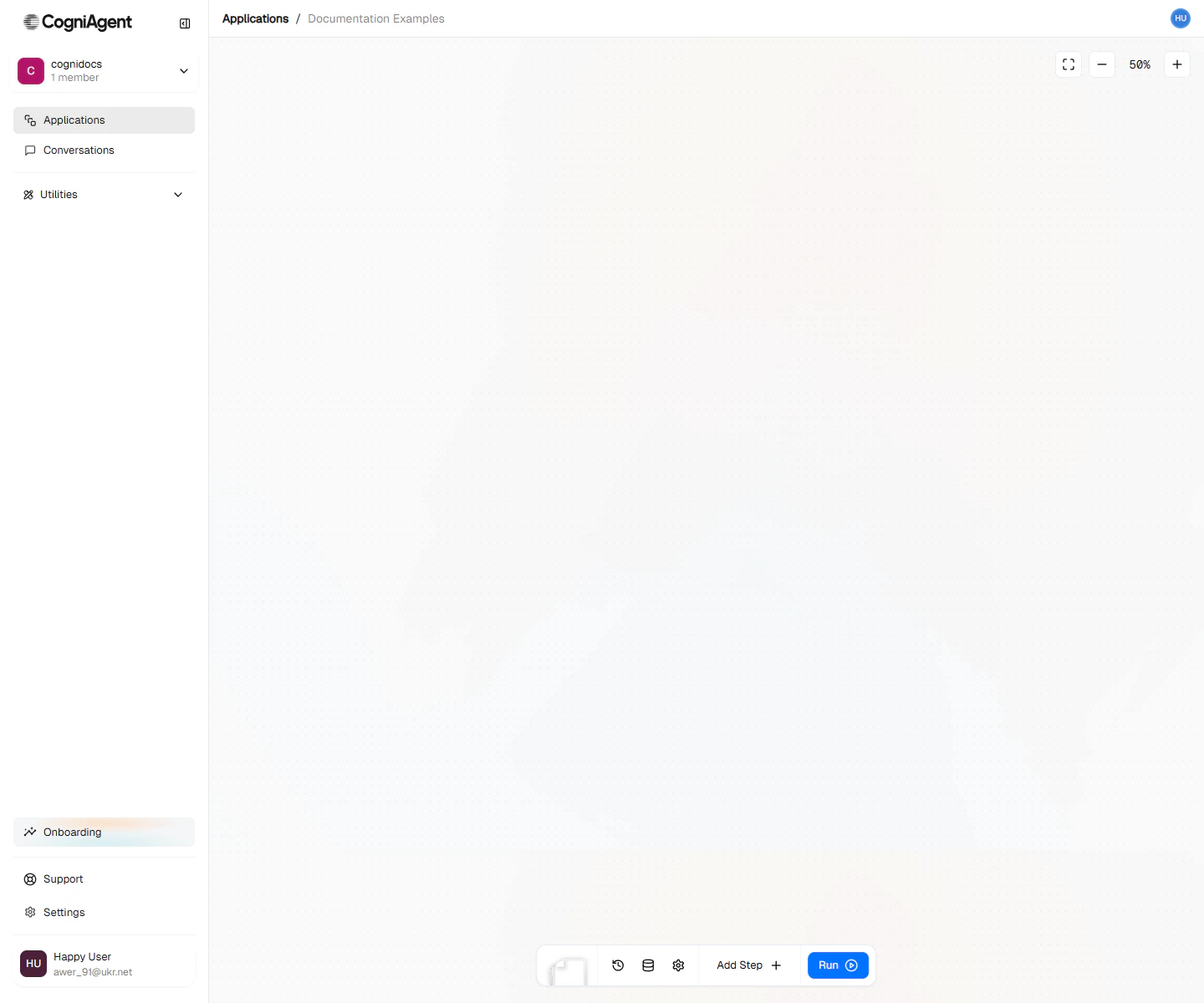
The workflow opens as Untitled workflow with its name ready to type. Give it a descriptive name like “My First Automation” and press Enter. The empty canvas asks What should this workflow do? and offers trigger chips, templates and Start from scratch.
A new workflow opens on an empty canvas. Use the Add step button in the left rail to add your first node.
Use clear, descriptive names for your workflows. You’ll thank yourself later when you have multiple automations running.
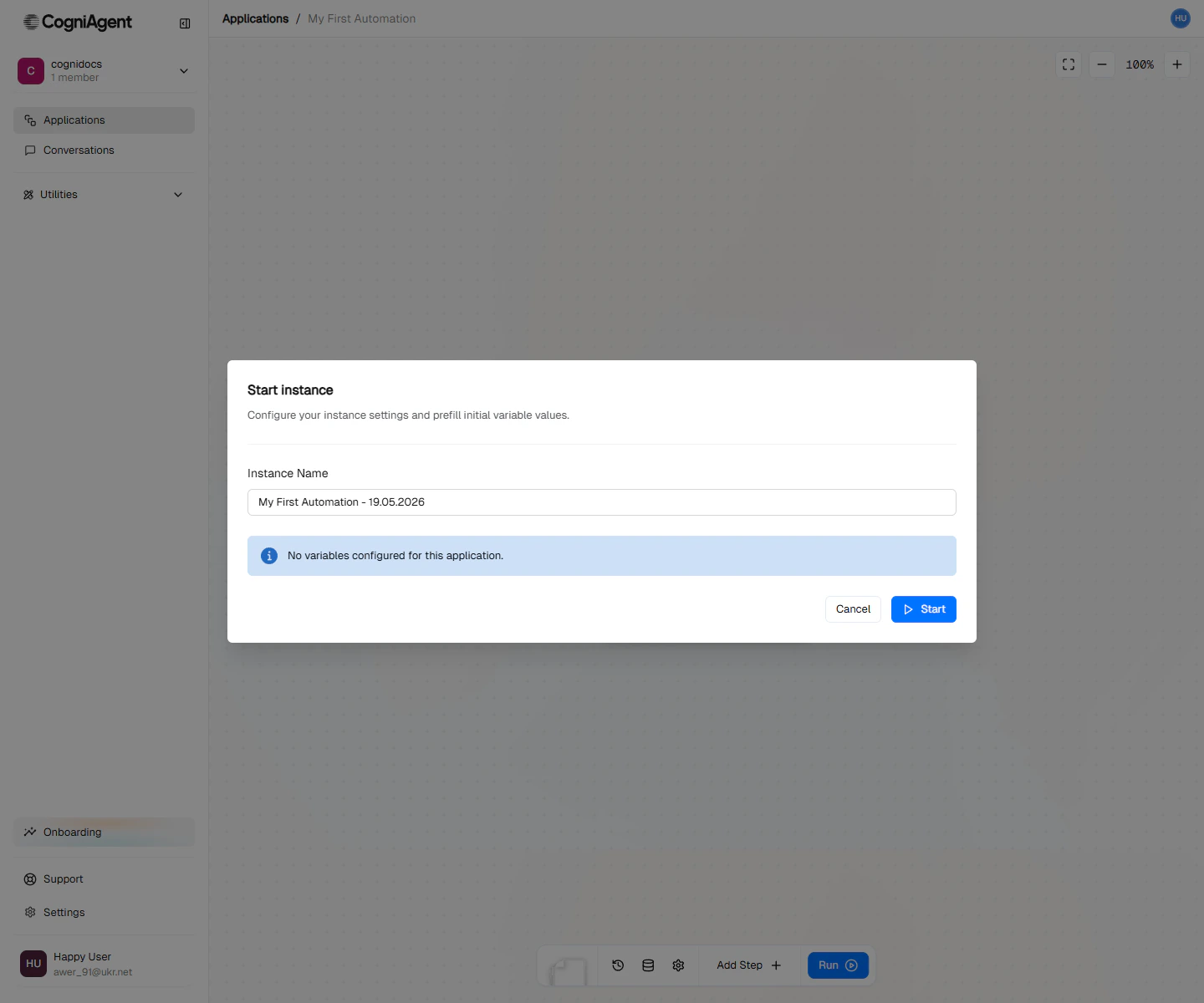
Click the Run button to run your workflow. The Run workflow dialog opens; click Run.
The Run dialog — for the manual Start trigger there's nothing to configure, just press Run.
3
View the results
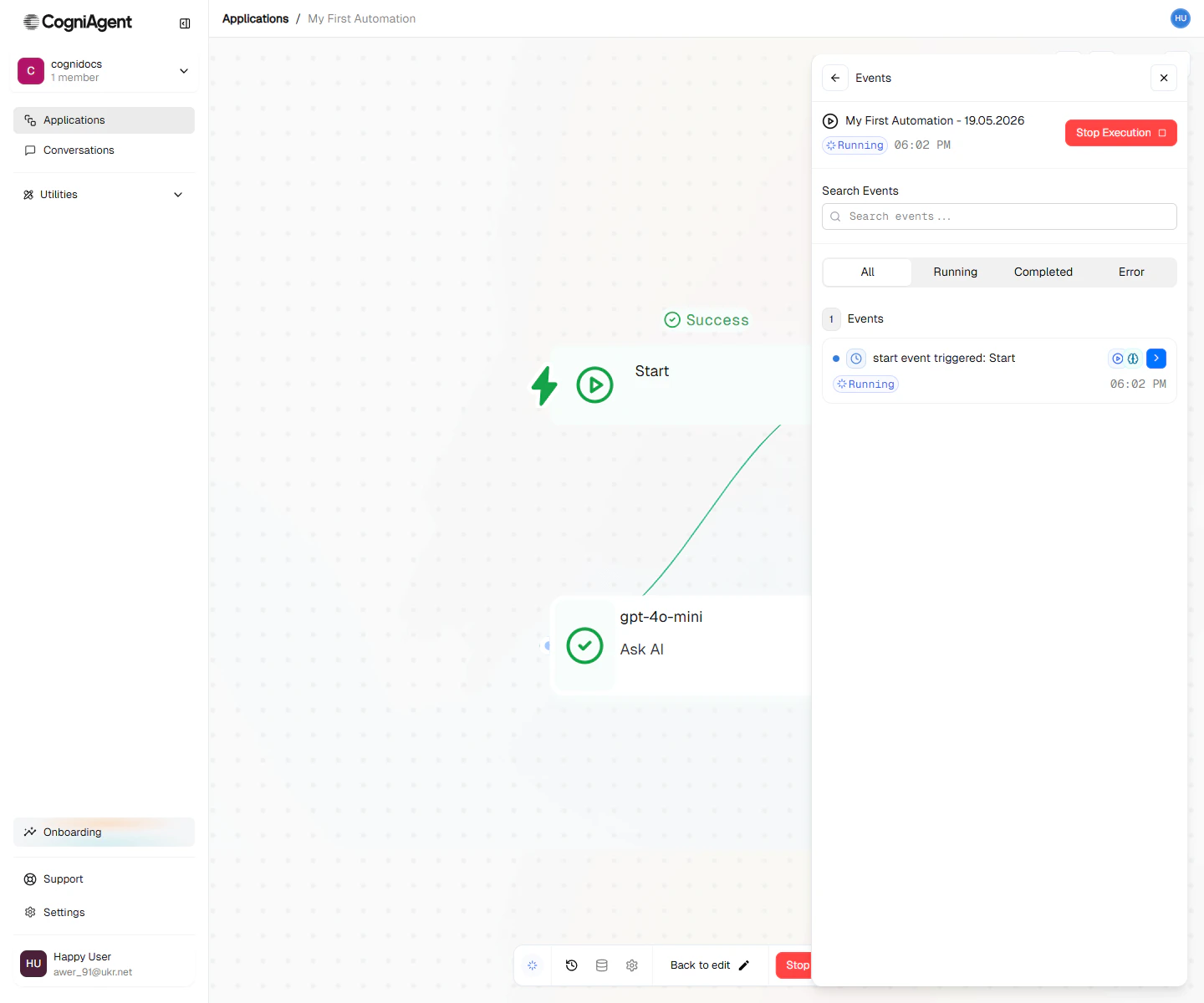
Open Runs to see what happened. You’ll see each step that ran and its output. If a step failed, its card shows a one-line summary first, with Technical details collapsed beneath.
The events panel shows each node that ran, its status, and the time it took.
You’ve built and run your first CogniAgent workflow.
{"docsConfig":{"theme":"almond","$schema":"https://mintlify.com/docs.json","name":"CogniAgent","colors":{"primary":"#3B82F6","light":"#60A5FA","dark":"#2563EB"},"logo":{"light":"https://mintcdn.com/glorium/83AIEkulJmAPEINE/cognilogo.png?fit=max\u0026auto=format\u0026n=83AIEkulJmAPEINE\u0026q=85\u0026s=2690dbbf93ec4db5af76ee7989c50869","dark":"https://mintcdn.com/glorium/83AIEkulJmAPEINE/cognilogo.png?fit=max\u0026auto=format\u0026n=83AIEkulJmAPEINE\u0026q=85\u0026s=2690dbbf93ec4db5af76ee7989c50869","href":"/"},"favicon":"https://mintcdn.com/glorium/vnEO0b28ni3gNN2L/favicon.svg?fit=max\u0026auto=format\u0026n=vnEO0b28ni3gNN2L\u0026q=85\u0026s=dfb759b88314aa4adbaad562a76947ec","navbar":{"links":[{"href":"https://cogniagent.ai","label":"Home"}],"primary":{"type":"button","label":"Get Started","href":"https://cogniagent.ai"}},"search":{"prompt":"Search documentation..."},"seo":{"metatags":{"og:site_name":"CogniAgent Documentation","og:type":"website","og:image":"/cognilogo.png","twitter:card":"summary_large_image","twitter:image":"/cognilogo.png","robots":"index, follow"},"indexing":"navigable"},"styling":{"latex":true},"navigation":{"pages":[]}},"deployment":{"deploymentMetadataValue":{"subdomain":"glorium","hasAudioNarration":false,"actualSubdomain":"glorium","customDomains":["docs.cogniagent.ai"],"gitSource":{"type":"github","owner":"vstepanovglorium","repo":"cognidocs","deployBranch":"main","contentDirectory":"","isPrivate":true,"mountPath":"","label":""},"chroma":{"liveDeploymentHistoryId":"6ad690650b82a51e43e05030","collectionId":"a5cb305b-0d7b-49ab-a38a-29a995f1bb24","schemaVersion":"v3","latestBuiltDeploymentHistoryId":"6ad690650b82a51e43e05030"},"entitlements":{},"buildId":"6ad690650b82a51e43e05030","clientVersion":"0.0.3964","searchFilterCounts":[{"language":"default","tag":"Cowork","count":58},{"language":"default","tag":"Workflow Nodes","count":33},{"language":"default","tag":"Chat \u0026 Voice Agents","count":26},{"language":"default","tag":"What a coworker can do","count":15},{"language":"default","tag":"Actions","count":15},{"language":"default","tag":"Workflows","count":14},{"language":"default","tag":"Advanced","count":14},{"language":"default","tag":"Basic","count":13},{"language":"default","tag":"Files","count":12},{"language":"default","tag":"Documentation","count":11}]},"assistantConfig":{"enableAskAiButton":false,"enableStarterQuestions":false,"enableAskAiSearchBar":true},"hasChatPermissions":false,"hasWebMcpPermissions":false,"toggles":[{"name":"kill-isr","enabled":true,"variant":{"name":"disabled","enabled":false,"feature_enabled":true},"impressionData":false},{"name":"agent-mintlify-slack","enabled":true,"variant":{"name":"disabled","enabled":false,"feature_enabled":true},"impressionData":false},{"name":"editor-v7-file-tree","enabled":true,"variant":{"name":"disabled","enabled":false,"feature_enabled":true},"impressionData":false},{"name":"agent-integrations-settings","enabled":true,"variant":{"name":"disabled","enabled":false,"feature_enabled":true},"impressionData":false},{"name":"automations-pr-grouping","enabled":true,"variant":{"name":"disabled","enabled":false,"feature_enabled":true},"impressionData":false},{"name":"custom-prefix","enabled":true,"variant":{"name":"disabled","enabled":false,"feature_enabled":true},"impressionData":false},{"name":"analytics-v7","enabled":true,"variant":{"name":"disabled","enabled":false,"feature_enabled":true},"impressionData":false},{"name":"user-flows-analytics","enabled":true,"variant":{"name":"disabled","enabled":false,"feature_enabled":true},"impressionData":false},{"name":"no-publish-flow","enabled":true,"variant":{"name":"disabled","enabled":false,"feature_enabled":true},"impressionData":false},{"name":"workos-onboarding","enabled":true,"variant":{"name":"disabled","enabled":false,"feature_enabled":true},"impressionData":false},{"name":"llms-txt-v2","enabled":true,"variant":{"name":"disabled","enabled":false,"feature_enabled":true},"impressionData":false},{"name":"pause-universal-search-reconcile","enabled":true,"variant":{"name":"disabled","enabled":false,"feature_enabled":true},"impressionData":false},{"name":"snapshot-serving-live","enabled":true,"variant":{"name":"disabled","enabled":false,"feature_enabled":true},"impressionData":false},{"name":"stripTemperatureMiddleware","enabled":true,"variant":{"name":"disabled","enabled":false,"feature_enabled":true},"impressionData":false},{"name":"per-site-search-delta","enabled":true,"variant":{"name":"disabled","enabled":false,"feature_enabled":true},"impressionData":false},{"name":"support-platform-pylon-zendesk","enabled":true,"variant":{"name":"disabled","enabled":false,"feature_enabled":true},"impressionData":false},{"name":"snapshot-serving","enabled":true,"variant":{"name":"disabled","enabled":false,"feature_enabled":true},"impressionData":false},{"name":"instant-rollback","enabled":true,"variant":{"name":"disabled","enabled":false,"feature_enabled":true},"impressionData":false},{"name":"granular-notifications-server","enabled":true,"variant":{"name":"disabled","enabled":false,"feature_enabled":true},"impressionData":false},{"name":"granular-notifications","enabled":true,"variant":{"name":"disabled","enabled":false,"feature_enabled":true},"impressionData":false},{"name":"editor-private-page-search","enabled":true,"variant":{"name":"disabled","enabled":false,"feature_enabled":true},"impressionData":false},{"name":"automations-fable","enabled":true,"variant":{"name":"disabled","enabled":false,"feature_enabled":true},"impressionData":false},{"name":"fixed-ai-action-pricing","enabled":true,"variant":{"name":"disabled","enabled":false,"feature_enabled":true},"impressionData":false},{"name":"automation-resolve-merge-conflict","enabled":true,"variant":{"name":"disabled","enabled":false,"feature_enabled":true},"impressionData":false},{"name":"scoped-publishing","enabled":true,"variant":{"name":"disabled","enabled":false,"feature_enabled":true},"impressionData":false},{"name":"mintql","enabled":true,"variant":{"name":"disabled","enabled":false,"feature_enabled":true},"impressionData":false},{"name":"page-level-analytics","enabled":true,"variant":{"name":"disabled","enabled":false,"feature_enabled":true},"impressionData":false},{"name":"editor-version-history-v2","enabled":true,"variant":{"name":"disabled","enabled":false,"feature_enabled":true},"impressionData":false},{"name":"editor-nav-generations","enabled":true,"variant":{"name":"disabled","enabled":false,"feature_enabled":true},"impressionData":false},{"name":"billing-page-v2","enabled":true,"variant":{"name":"disabled","enabled":false,"feature_enabled":true},"impressionData":false},{"name":"workspace-projects","enabled":true,"variant":{"name":"disabled","enabled":false,"feature_enabled":true},"impressionData":false},{"name":"assistant-v5","enabled":true,"variant":{"name":"disabled","enabled":false,"feature_enabled":true},"impressionData":false},{"name":"byok-sep-25","enabled":true,"variant":{"name":"disabled","enabled":false,"feature_enabled":true},"impressionData":false},{"name":"fork-pr-previews","enabled":true,"variant":{"name":"disabled","enabled":false,"feature_enabled":true},"impressionData":false},{"name":"revalidation-jwt","enabled":true,"variant":{"name":"disabled","enabled":false,"feature_enabled":true},"impressionData":false},{"name":"vite-origin","enabled":true,"variant":{"name":"disabled","enabled":false,"feature_enabled":true},"impressionData":false},{"name":"editor-agent-model-picker","enabled":true,"variant":{"name":"disabled","enabled":false,"feature_enabled":true},"impressionData":false},{"name":"billing-updated-9-15","enabled":true,"variant":{"name":"disabled","enabled":false,"feature_enabled":true},"impressionData":false},{"name":"hobby-abuse-scan","enabled":true,"variant":{"name":"disabled","enabled":false,"feature_enabled":true},"impressionData":false},{"name":"dashboard-inbox","enabled":true,"variant":{"name":"disabled","enabled":false,"feature_enabled":true},"impressionData":false}],"isAtlas":false,"googleFontsInlined":true},"customCss":[],"page":{"pagePath":"quick-start","slug":"/quick-start","pageMetadata":{"title":"Quick Start","description":"Build your first CogniAgent workflow step by step","href":"/quick-start"},"description":{"compiledSource":"\"use strict\";\nconst {jsx: _jsx} = arguments[0];\nconst {useMDXComponents: _provideComponents} = arguments[0];\nfunction _createMdxContent(props) {\n const _components = {\n p: \"p\",\n ..._provideComponents(),\n ...props.components\n };\n return _jsx(_components.p, {\n children: \"Build your first CogniAgent workflow step by step\"\n });\n}\nfunction MDXContent(props = {}) {\n const {wrapper: MDXLayout} = {\n ..._provideComponents(),\n ...props.components\n };\n return MDXLayout ? _jsx(MDXLayout, {\n ...props,\n children: _jsx(_createMdxContent, {\n ...props\n })\n }) : _createMdxContent(props);\n}\nreturn {\n default: MDXContent\n};\n","frontmatter":{},"scope":{}},"pageType":"default","mdx":{"mdxSource":{"compiledSource":"\"use strict\";const{Fragment:_Fragment,jsx:_jsx,jsxs:_jsxs}=arguments[0];const{useMDXComponents:_provideComponents}=arguments[0];function _createMdxContent(props){const _components={a:`a`,li:`li`,ol:`ol`,p:`p`,strong:`strong`,tbody:`tbody`,td:`td`,th:`th`,thead:`thead`,tr:`tr`,ul:`ul`,..._provideComponents(),...props.components},{Accordion,AccordionGroup,Card,CardGroup,Check,Frame,Heading,OptimizedImage,Step,Steps,Table,Tip}=_components;if(!Accordion)_missingMdxReference(`Accordion`,true);if(!AccordionGroup)_missingMdxReference(`AccordionGroup`,true);if(!Card)_missingMdxReference(`Card`,true);if(!CardGroup)_missingMdxReference(`CardGroup`,true);if(!Check)_missingMdxReference(`Check`,true);if(!Frame)_missingMdxReference(`Frame`,true);if(!Heading)_missingMdxReference(`Heading`,true);if(!OptimizedImage)_missingMdxReference(`OptimizedImage`,true);if(!Step)_missingMdxReference(`Step`,true);if(!Steps)_missingMdxReference(`Steps`,true);if(!Table)_missingMdxReference(`Table`,true);if(!Tip)_missingMdxReference(`Tip`,true);return _jsxs(_Fragment,{children:[_jsx(_components.p,{children:`Get your first automation running in CogniAgent. This guide walks you through creating a simple workflow from scratch.`}),`\n`,_jsx(Heading,{level:`2`,id:`what-you’ll-build`,children:`What you’ll build`}),`\n`,_jsxs(_components.p,{children:[`A simple workflow you run manually. It starts with a `,_jsx(_components.strong,{children:`Start`}),` trigger and uses an `,_jsx(_components.strong,{children:`LLM`}),` action to generate a motivational quote. This teaches you the core concepts: workflows, triggers, and actions.`]}),`\n`,_jsx(Heading,{level:`2`,id:`prerequisites`,children:`Prerequisites`}),`\n`,_jsxs(_components.ul,{children:[`\n`,_jsxs(_components.li,{children:[`A CogniAgent account (`,_jsx(_components.a,{href:`https://cogniagent.ai`,children:`sign up here`}),`)`]}),`\n`,_jsx(_components.li,{children:`Access to the CogniAgent dashboard`}),`\n`]}),`\n`,_jsx(Heading,{level:`2`,id:`step-1-create-a-workflow`,children:`Step 1: Create a workflow`}),`\n`,_jsxs(Steps,{children:[_jsxs(Step,{title:`Open Workflows`,children:[_jsxs(_components.p,{children:[`Log in to CogniAgent and click `,_jsx(_components.strong,{children:`Workflows`}),` in the left sidebar.`]}),_jsx(Frame,{caption:`The Workflows list — each row is one workflow.`,children:_jsx(OptimizedImage,{src:`https://mintcdn.com/glorium/eqWkhSfBUec9afZU/images/applications/quickstart-applications-dashboard.png?fit=max\u0026auto=format\u0026n=eqWkhSfBUec9afZU\u0026q=85\u0026s=5f6802c477bbb92099d23d16399d8306`,alt:`Applications dashboard`,\"data-og-width\":`1440`,width:`1440`,\"data-og-height\":`1200`,height:`1200`,\"data-path\":`images/applications/quickstart-applications-dashboard.png`,\"data-optimize\":`true`,\"data-opv\":`3`,srcset:`https://mintcdn.com/glorium/eqWkhSfBUec9afZU/images/applications/quickstart-applications-dashboard.png?w=280\u0026fit=max\u0026auto=format\u0026n=eqWkhSfBUec9afZU\u0026q=85\u0026s=ec669045e11a8536b764c3c1b669c37e 280w, https://mintcdn.com/glorium/eqWkhSfBUec9afZU/images/applications/quickstart-applications-dashboard.png?w=560\u0026fit=max\u0026auto=format\u0026n=eqWkhSfBUec9afZU\u0026q=85\u0026s=06e88fa5e02573d529221a20e709816e 560w, https://mintcdn.com/glorium/eqWkhSfBUec9afZU/images/applications/quickstart-applications-dashboard.png?w=840\u0026fit=max\u0026auto=format\u0026n=eqWkhSfBUec9afZU\u0026q=85\u0026s=379520c5922dfd7dfdcbbd2bd35c3575 840w, https://mintcdn.com/glorium/eqWkhSfBUec9afZU/images/applications/quickstart-applications-dashboard.png?w=1100\u0026fit=max\u0026auto=format\u0026n=eqWkhSfBUec9afZU\u0026q=85\u0026s=107933c482bcc73a01a6cda8c7fc3b73 1100w, https://mintcdn.com/glorium/eqWkhSfBUec9afZU/images/applications/quickstart-applications-dashboard.png?w=1650\u0026fit=max\u0026auto=format\u0026n=eqWkhSfBUec9afZU\u0026q=85\u0026s=2b238737301a8f9151b22019deec85a6 1650w, https://mintcdn.com/glorium/eqWkhSfBUec9afZU/images/applications/quickstart-applications-dashboard.png?w=2500\u0026fit=max\u0026auto=format\u0026n=eqWkhSfBUec9afZU\u0026q=85\u0026s=e1f1c26a74e4f86f132f995e0a7b0d03 2500w`})})]}),_jsx(Step,{title:`Click + Workflow`,children:_jsxs(_components.p,{children:[`Click the `,_jsx(_components.strong,{children:`+ Workflow`}),` button in the toolbar.`]})}),_jsxs(Step,{title:`Name your workflow`,children:[_jsxs(_components.p,{children:[`The workflow opens as `,_jsx(_components.strong,{children:`Untitled workflow`}),` with its name ready to type. Give it a descriptive name like “My First Automation” and press Enter. The empty canvas asks `,_jsx(_components.strong,{children:`What should this workflow do?`}),` and offers trigger chips, templates and `,_jsx(_components.strong,{children:`Start from scratch`}),`.`]}),_jsx(Frame,{caption:`A new workflow opens on an empty canvas. Use the Add step button in the left rail to add your first node.`,children:_jsx(OptimizedImage,{src:`https://mintcdn.com/glorium/eqWkhSfBUec9afZU/images/applications/app-workflow-blank-canvas.png?fit=max\u0026auto=format\u0026n=eqWkhSfBUec9afZU\u0026q=85\u0026s=ca3330a48bee3df03e0ca3050205201f`,alt:`Empty workflow canvas`,\"data-og-width\":`1440`,width:`1440`,\"data-og-height\":`1200`,height:`1200`,\"data-path\":`images/applications/app-workflow-blank-canvas.png`,\"data-optimize\":`true`,\"data-opv\":`3`,srcset:`https://mintcdn.com/glorium/eqWkhSfBUec9afZU/images/applications/app-workflow-blank-canvas.png?w=280\u0026fit=max\u0026auto=format\u0026n=eqWkhSfBUec9afZU\u0026q=85\u0026s=fc0644ddf21587472c1775780f5490f8 280w, https://mintcdn.com/glorium/eqWkhSfBUec9afZU/images/applications/app-workflow-blank-canvas.png?w=560\u0026fit=max\u0026auto=format\u0026n=eqWkhSfBUec9afZU\u0026q=85\u0026s=5fc03544a7c1cbfebaaa1ac0e9278e95 560w, https://mintcdn.com/glorium/eqWkhSfBUec9afZU/images/applications/app-workflow-blank-canvas.png?w=840\u0026fit=max\u0026auto=format\u0026n=eqWkhSfBUec9afZU\u0026q=85\u0026s=f045e94819a8dca8f9a944219f9b3c0d 840w, https://mintcdn.com/glorium/eqWkhSfBUec9afZU/images/applications/app-workflow-blank-canvas.png?w=1100\u0026fit=max\u0026auto=format\u0026n=eqWkhSfBUec9afZU\u0026q=85\u0026s=2f17480b0fe987eec97ccb0175cb7c50 1100w, https://mintcdn.com/glorium/eqWkhSfBUec9afZU/images/applications/app-workflow-blank-canvas.png?w=1650\u0026fit=max\u0026auto=format\u0026n=eqWkhSfBUec9afZU\u0026q=85\u0026s=32997eefddae3826ef4f88063b63e14d 1650w, https://mintcdn.com/glorium/eqWkhSfBUec9afZU/images/applications/app-workflow-blank-canvas.png?w=2500\u0026fit=max\u0026auto=format\u0026n=eqWkhSfBUec9afZU\u0026q=85\u0026s=2c427d074037e78c12b3702db6389629 2500w`})})]})]}),`\n`,_jsx(Tip,{children:_jsx(_components.p,{children:`Use clear, descriptive names for your workflows. You’ll thank yourself later when you have multiple automations running.`})}),`\n`,_jsx(Heading,{level:`2`,id:`step-2-add-a-trigger`,children:`Step 2: Add a trigger`}),`\n`,_jsx(_components.p,{children:`Triggers are events that start your workflow. Every workflow needs at least one trigger.`}),`\n`,_jsxs(Steps,{children:[_jsx(Step,{title:`Open the workflow editor`,children:_jsx(_components.p,{children:`Click on your new workflow to open the workflow editor.`})}),_jsx(Step,{title:`Add a Start trigger`,children:_jsxs(_components.p,{children:[`From the nodes panel, drag a `,_jsx(_components.strong,{children:`Start`}),` trigger onto the canvas. This is the simplest trigger — it runs when you manually start the workflow.`]})})]}),`\n`,_jsx(Heading,{level:`3`,id:`other-trigger-types`,children:`Other trigger types`}),`\n`,_jsxs(Table,{children:[_jsx(_components.thead,{children:_jsxs(_components.tr,{children:[_jsx(_components.th,{children:`Trigger`}),_jsx(_components.th,{children:`When it fires`})]})}),_jsxs(_components.tbody,{children:[_jsxs(_components.tr,{children:[_jsx(_components.td,{children:_jsx(_components.strong,{children:`Start`})}),_jsx(_components.td,{children:`When you manually run the workflow`})]}),_jsxs(_components.tr,{children:[_jsx(_components.td,{children:_jsx(_components.strong,{children:`Scheduled Trigger`})}),_jsx(_components.td,{children:`On a schedule (hourly, daily, custom)`})]}),_jsxs(_components.tr,{children:[_jsx(_components.td,{children:_jsx(_components.strong,{children:`App Trigger`})}),_jsx(_components.td,{children:`When something happens in a connected app`})]}),_jsxs(_components.tr,{children:[_jsx(_components.td,{children:_jsx(_components.strong,{children:`Webhook`})}),_jsx(_components.td,{children:`When an external system sends a request`})]}),_jsxs(_components.tr,{children:[_jsx(_components.td,{children:_jsx(_components.strong,{children:`AI Trigger`})}),_jsx(_components.td,{children:`When AI detects a specific condition`})]})]})]}),`\n`,_jsx(Heading,{level:`2`,id:`step-3-add-an-action`,children:`Step 3: Add an action`}),`\n`,_jsx(_components.p,{children:`Actions are the tasks your workflow performs. Let’s add a simple one.`}),`\n`,_jsxs(Steps,{children:[_jsx(Step,{title:`Add an LLM node`,children:_jsxs(_components.p,{children:[`Drag an `,_jsx(_components.strong,{children:`LLM`}),` action onto the canvas and connect it to your Start trigger.`]})}),_jsx(Step,{title:`Configure the prompt`,children:_jsx(_components.p,{children:`In the node settings, enter a prompt like: “Generate a motivational quote for the day.”`})})]}),`\n`,_jsx(_components.p,{children:`The LLM node sends your prompt to an AI model and returns the response. You can use this response in subsequent nodes.`}),`\n`,_jsx(Frame,{caption:`A minimal workflow: Start trigger wired to a single LLM node.`,children:_jsx(OptimizedImage,{src:`https://mintcdn.com/glorium/eqWkhSfBUec9afZU/images/applications/quickstart-workflow-canvas.png?fit=max\u0026auto=format\u0026n=eqWkhSfBUec9afZU\u0026q=85\u0026s=0f939cb89ab9ad0d7476bf9f3781699d`,alt:`Quickstart workflow canvas`,\"data-og-width\":`1440`,width:`1440`,\"data-og-height\":`1200`,height:`1200`,\"data-path\":`images/applications/quickstart-workflow-canvas.png`,\"data-optimize\":`true`,\"data-opv\":`3`,srcset:`https://mintcdn.com/glorium/eqWkhSfBUec9afZU/images/applications/quickstart-workflow-canvas.png?w=280\u0026fit=max\u0026auto=format\u0026n=eqWkhSfBUec9afZU\u0026q=85\u0026s=b52aa5bd9919d65aa03bdc91f1d60869 280w, https://mintcdn.com/glorium/eqWkhSfBUec9afZU/images/applications/quickstart-workflow-canvas.png?w=560\u0026fit=max\u0026auto=format\u0026n=eqWkhSfBUec9afZU\u0026q=85\u0026s=27c27e5231b0bf5b247aa0246946408a 560w, https://mintcdn.com/glorium/eqWkhSfBUec9afZU/images/applications/quickstart-workflow-canvas.png?w=840\u0026fit=max\u0026auto=format\u0026n=eqWkhSfBUec9afZU\u0026q=85\u0026s=6ae63eff575020183de75ce05c88e681 840w, https://mintcdn.com/glorium/eqWkhSfBUec9afZU/images/applications/quickstart-workflow-canvas.png?w=1100\u0026fit=max\u0026auto=format\u0026n=eqWkhSfBUec9afZU\u0026q=85\u0026s=3c5a60a2005188b6b8539b22c246ca94 1100w, https://mintcdn.com/glorium/eqWkhSfBUec9afZU/images/applications/quickstart-workflow-canvas.png?w=1650\u0026fit=max\u0026auto=format\u0026n=eqWkhSfBUec9afZU\u0026q=85\u0026s=65bed32ec673a7d469af105a3b8c50ae 1650w, https://mintcdn.com/glorium/eqWkhSfBUec9afZU/images/applications/quickstart-workflow-canvas.png?w=2500\u0026fit=max\u0026auto=format\u0026n=eqWkhSfBUec9afZU\u0026q=85\u0026s=1ead6ec82c096972f422e1858f14f17d 2500w`})}),`\n`,_jsx(Heading,{level:`2`,id:`step-4-run-your-workflow`,children:`Step 4: Run your workflow`}),`\n`,_jsxs(Steps,{children:[_jsx(Step,{title:`Save your workflow`,children:_jsx(_components.p,{children:`Click the Save button to save your changes.`})}),_jsxs(Step,{title:`Run the workflow`,children:[_jsxs(_components.p,{children:[`Click the Run button to run your workflow. The `,_jsx(_components.strong,{children:`Run workflow`}),` dialog opens; click `,_jsx(_components.strong,{children:`Run`}),`.`]}),_jsx(Frame,{caption:`The Run dialog — for the manual Start trigger there's nothing to configure, just press Run.`,children:_jsx(OptimizedImage,{src:`https://mintcdn.com/glorium/eqWkhSfBUec9afZU/images/applications/quickstart-run-dialog.png?fit=max\u0026auto=format\u0026n=eqWkhSfBUec9afZU\u0026q=85\u0026s=007a12287628dcd8a0e81f1be43cc59f`,alt:`Run dialog`,\"data-og-width\":`1440`,width:`1440`,\"data-og-height\":`1200`,height:`1200`,\"data-path\":`images/applications/quickstart-run-dialog.png`,\"data-optimize\":`true`,\"data-opv\":`3`,srcset:`https://mintcdn.com/glorium/eqWkhSfBUec9afZU/images/applications/quickstart-run-dialog.png?w=280\u0026fit=max\u0026auto=format\u0026n=eqWkhSfBUec9afZU\u0026q=85\u0026s=73f57a5b77a53a46dc68271eb320617b 280w, https://mintcdn.com/glorium/eqWkhSfBUec9afZU/images/applications/quickstart-run-dialog.png?w=560\u0026fit=max\u0026auto=format\u0026n=eqWkhSfBUec9afZU\u0026q=85\u0026s=632e015ebc41eb3dcacf8c7ecc82d284 560w, https://mintcdn.com/glorium/eqWkhSfBUec9afZU/images/applications/quickstart-run-dialog.png?w=840\u0026fit=max\u0026auto=format\u0026n=eqWkhSfBUec9afZU\u0026q=85\u0026s=d1c2cc55dd5798303712a77dfcc0dcf0 840w, https://mintcdn.com/glorium/eqWkhSfBUec9afZU/images/applications/quickstart-run-dialog.png?w=1100\u0026fit=max\u0026auto=format\u0026n=eqWkhSfBUec9afZU\u0026q=85\u0026s=2a0e4b69825f143b70189bc095ad4ece 1100w, https://mintcdn.com/glorium/eqWkhSfBUec9afZU/images/applications/quickstart-run-dialog.png?w=1650\u0026fit=max\u0026auto=format\u0026n=eqWkhSfBUec9afZU\u0026q=85\u0026s=ca6de3c02b0c2dce47cddccbe541ee4d 1650w, https://mintcdn.com/glorium/eqWkhSfBUec9afZU/images/applications/quickstart-run-dialog.png?w=2500\u0026fit=max\u0026auto=format\u0026n=eqWkhSfBUec9afZU\u0026q=85\u0026s=a815edc17c69508c52d88082a6c75cea 2500w`})})]}),_jsxs(Step,{title:`View the results`,children:[_jsxs(_components.p,{children:[`Open `,_jsx(_components.strong,{children:`Runs`}),` to see what happened. You’ll see each step that ran and its output. If a step failed, its card shows a one-line summary first, with `,_jsx(_components.strong,{children:`Technical details`}),` collapsed beneath.`]}),_jsx(Frame,{caption:`The events panel shows each node that ran, its status, and the time it took.`,children:_jsx(OptimizedImage,{src:`https://mintcdn.com/glorium/eqWkhSfBUec9afZU/images/applications/quickstart-execution-history.png?fit=max\u0026auto=format\u0026n=eqWkhSfBUec9afZU\u0026q=85\u0026s=0ba44208306c977282f2ad2fbd3755bd`,alt:`Execution events panel`,\"data-og-width\":`1440`,width:`1440`,\"data-og-height\":`1200`,height:`1200`,\"data-path\":`images/applications/quickstart-execution-history.png`,\"data-optimize\":`true`,\"data-opv\":`3`,srcset:`https://mintcdn.com/glorium/eqWkhSfBUec9afZU/images/applications/quickstart-execution-history.png?w=280\u0026fit=max\u0026auto=format\u0026n=eqWkhSfBUec9afZU\u0026q=85\u0026s=911579327a3c7713e0193569760a1e01 280w, https://mintcdn.com/glorium/eqWkhSfBUec9afZU/images/applications/quickstart-execution-history.png?w=560\u0026fit=max\u0026auto=format\u0026n=eqWkhSfBUec9afZU\u0026q=85\u0026s=62a5c4e8a4efb0068d920505b6abe3f1 560w, https://mintcdn.com/glorium/eqWkhSfBUec9afZU/images/applications/quickstart-execution-history.png?w=840\u0026fit=max\u0026auto=format\u0026n=eqWkhSfBUec9afZU\u0026q=85\u0026s=1b895d92073cf30627cc8a7009f8ee0b 840w, https://mintcdn.com/glorium/eqWkhSfBUec9afZU/images/applications/quickstart-execution-history.png?w=1100\u0026fit=max\u0026auto=format\u0026n=eqWkhSfBUec9afZU\u0026q=85\u0026s=b241e9ac5a5949d7c2784b2d2b8a683a 1100w, https://mintcdn.com/glorium/eqWkhSfBUec9afZU/images/applications/quickstart-execution-history.png?w=1650\u0026fit=max\u0026auto=format\u0026n=eqWkhSfBUec9afZU\u0026q=85\u0026s=0ac3d9ffb60f25edc3d7af4f00cb0dc1 1650w, https://mintcdn.com/glorium/eqWkhSfBUec9afZU/images/applications/quickstart-execution-history.png?w=2500\u0026fit=max\u0026auto=format\u0026n=eqWkhSfBUec9afZU\u0026q=85\u0026s=70fe727e5f3b9d45a05445d0fa7ac3c9 2500w`})})]})]}),`\n`,_jsx(Check,{children:_jsx(_components.p,{children:`You’ve built and run your first CogniAgent workflow.`})}),`\n`,_jsx(Heading,{level:`2`,id:`bonus-schedule-it`,children:`Bonus: schedule it`}),`\n`,_jsx(_components.p,{children:`Once your workflow works end-to-end, you can run it automatically:`}),`\n`,_jsxs(_components.ol,{children:[`\n`,_jsxs(_components.li,{children:[`Add a `,_jsx(_components.a,{href:`/nodes/triggers/scheduled-trigger`,children:`Scheduled Trigger`}),` node.`]}),`\n`,_jsxs(_components.li,{children:[`Connect it to the same `,_jsx(_components.strong,{children:`LLM`}),` node.`]}),`\n`,_jsx(_components.li,{children:`Configure when it should run (daily, weekly, cron, etc.), then save.`}),`\n`]}),`\n`,_jsxs(_components.p,{children:[`If you want the result sent somewhere, add an `,_jsx(_components.a,{href:`/nodes/actions/integration-action`,children:`Integration Action`}),` node after `,_jsx(_components.strong,{children:`LLM`}),` (for example, post to Slack or send an email).`]}),`\n`,_jsx(Heading,{level:`2`,id:`what’s-next`,children:`What’s next?`}),`\n`,_jsx(_components.p,{children:`Now that you understand the basics, explore these topics:`}),`\n`,_jsxs(CardGroup,{cols:2,children:[_jsx(Card,{title:`Connect MCP`,icon:`plug`,href:`/mcp-server`,children:_jsx(_components.p,{children:`Skip the dashboard — let Claude or Cursor build and operate workflows for you by chatting.`})}),_jsx(Card,{title:`Understanding Workflows`,icon:`diagram-project`,href:`/applications/define-workflow`,children:_jsx(_components.p,{children:`Learn about triggers, actions, and logic in depth.`})}),_jsx(Card,{title:`Browse All Nodes`,icon:`cubes`,href:`/nodes/overview`,children:_jsx(_components.p,{children:`Discover all the nodes available in CogniAgent.`})}),_jsx(Card,{title:`Build a Real Workflow`,icon:`hammer`,href:`/applications/create-workflow-example`,children:_jsx(_components.p,{children:`Follow a complete example with real-world use case.`})}),_jsx(Card,{title:`Glossary`,icon:`book`,href:`/glossary`,children:_jsx(_components.p,{children:`Learn the terminology used throughout CogniAgent.`})})]}),`\n`,_jsx(Heading,{level:`2`,id:`common-questions`,children:`Common questions`}),`\n`,_jsxs(AccordionGroup,{children:[_jsx(Accordion,{title:`What if my workflow doesn't run?`,id:`what-if-my-workflow-doesnt-run`,children:_jsx(_components.p,{children:`Check that all nodes are properly connected. Every node needs an input connection (except triggers) and workflows need at least one trigger.`})}),_jsx(Accordion,{title:`Can I edit a workflow after running it?`,id:`can-i-edit-a-workflow-after-running-it`,children:_jsx(_components.p,{children:`Yes. Make your changes and save. The next run will use the updated workflow.`})}),_jsx(Accordion,{title:`How do I pass data between nodes?`,id:`how-do-i-pass-data-between-nodes`,children:_jsxs(_components.p,{children:[`Each node’s output is available to subsequent nodes. See `,_jsx(_components.a,{href:`/nodes/overview#passing-information-between-nodes`,children:`Passing Information Between Nodes`}),` for details.`]})})]})]})}function MDXContent(props={}){const{wrapper:MDXLayout}={..._provideComponents(),...props.components};return MDXLayout?_jsx(MDXLayout,{...props,children:_jsx(_createMdxContent,{...props})}):_createMdxContent(props)}return{default:MDXContent};function _missingMdxReference(id,component){throw new Error(`Expected `+(component?`component`:`object`)+\" `\"+id+\"` to be defined: you likely forgot to import, pass, or provide it.\")}","frontmatter":{},"scope":{"config":{},"pageMetadata":{"title":"Quick Start","description":"Build your first CogniAgent workflow step by step","href":"/quick-start"}}},"mdxSourceWithNoJs":null},"mdxExtracts":{"tableOfContents":[{"title":"What you’ll build","slug":"what-you’ll-build","depth":2,"children":[]},{"title":"Prerequisites","slug":"prerequisites","depth":2,"children":[]},{"title":"Step 1: Create a workflow","slug":"step-1-create-a-workflow","depth":2,"children":[]},{"title":"Step 2: Add a trigger","slug":"step-2-add-a-trigger","depth":2,"children":[{"title":"Other trigger types","slug":"other-trigger-types","depth":3,"children":[]}]},{"title":"Step 3: Add an action","slug":"step-3-add-an-action","depth":2,"children":[]},{"title":"Step 4: Run your workflow","slug":"step-4-run-your-workflow","depth":2,"children":[]},{"title":"Bonus: schedule it","slug":"bonus-schedule-it","depth":2,"children":[]},{"title":"What’s next?","slug":"what’s-next","depth":2,"children":[]},{"title":"Common questions","slug":"common-questions","depth":2,"children":[]}],"codeExamples":{}},"jsLinks":[],"subdomain":"glorium","siteName":"CogniAgent","title":"Quick Start - CogniAgent","navMaps":{"firstHrefInVersion":{},"firstHrefInLanguage":{}},"lastModified":"2026-10-12T11:29:16.378Z","originalFileLocation":"quick-start.mdx"},"headHtml":"\u003cscript data-mint-head>(function(){var d=document.documentElement,p=null;if(!p){try{p=localStorage.getItem(\"isDarkMode\")}catch(e){}if(p==='true')p='dark';else if(p==='false')p='light';if(p!=='light'\u0026\u0026p!=='dark'\u0026\u0026p!=='system')p=\"system\"}var r=p==='system'?(matchMedia(\"(prefers-color-scheme: dark)\").matches?'dark':'light'):p;d.classList.remove(r==='dark'?'light':'dark');d.classList.add(r);d.setAttribute(\"data-theme-preference\",p)})();\u003c/script>\u003cmeta data-mint-head name=\"description\" content=\"Build your first CogniAgent workflow step by step\">\u003cmeta data-mint-head name=\"application-name\" content=\"CogniAgent\">\u003cmeta data-mint-head name=\"generator\" content=\"Mintlify\">\u003cmeta data-mint-head name=\"robots\" content=\"index, follow\">\u003clink data-mint-head rel=\"icon\" type=\"image/png\" sizes=\"192x192\" href=\"/mintlify-assets/_mintlify/favicons/glorium/FOsGdhnnm_z1t3sG/_generated/favicon/android-chrome-192x192.png\" media=\"(prefers-color-scheme: light)\">\u003clink data-mint-head rel=\"apple-touch-icon\" type=\"image/png\" sizes=\"180x180\" href=\"/mintlify-assets/_mintlify/favicons/glorium/FOsGdhnnm_z1t3sG/_generated/favicon/apple-touch-icon.png\">\u003clink data-mint-head rel=\"icon\" type=\"image/png\" sizes=\"16x16\" href=\"/mintlify-assets/_mintlify/favicons/glorium/FOsGdhnnm_z1t3sG/_generated/favicon/favicon-16x16.png\" media=\"(prefers-color-scheme: light)\">\u003clink data-mint-head rel=\"icon\" type=\"image/png\" sizes=\"32x32\" href=\"/mintlify-assets/_mintlify/favicons/glorium/FOsGdhnnm_z1t3sG/_generated/favicon/favicon-32x32.png\" media=\"(prefers-color-scheme: light)\">\u003clink data-mint-head rel=\"shortcut icon\" type=\"image/x-icon\" href=\"/mintlify-assets/_mintlify/favicons/glorium/FOsGdhnnm_z1t3sG/_generated/favicon/favicon.ico\" media=\"(prefers-color-scheme: light)\">\u003clink data-mint-head rel=\"icon\" type=\"image/png\" sizes=\"192x192\" href=\"/mintlify-assets/_mintlify/favicons/glorium/FOsGdhnnm_z1t3sG/_generated/favicon-dark/android-chrome-192x192.png\" media=\"(prefers-color-scheme: dark)\">\u003clink data-mint-head rel=\"icon\" type=\"image/png\" sizes=\"16x16\" href=\"/mintlify-assets/_mintlify/favicons/glorium/FOsGdhnnm_z1t3sG/_generated/favicon-dark/favicon-16x16.png\" media=\"(prefers-color-scheme: dark)\">\u003clink data-mint-head rel=\"icon\" type=\"image/png\" sizes=\"32x32\" href=\"/mintlify-assets/_mintlify/favicons/glorium/FOsGdhnnm_z1t3sG/_generated/favicon-dark/favicon-32x32.png\" media=\"(prefers-color-scheme: dark)\">\u003clink data-mint-head rel=\"shortcut icon\" type=\"image/x-icon\" href=\"/mintlify-assets/_mintlify/favicons/glorium/FOsGdhnnm_z1t3sG/_generated/favicon-dark/favicon.ico\" media=\"(prefers-color-scheme: dark)\">\u003cmeta data-mint-head property=\"og:title\" content=\"Quick Start - CogniAgent\">\u003cmeta data-mint-head property=\"og:description\" content=\"Build your first CogniAgent workflow step by step\">\u003cmeta data-mint-head property=\"og:site_name\" content=\"CogniAgent Documentation\">\u003cmeta data-mint-head property=\"og:url\" content=\"https://docs.cogniagent.ai/quick-start\">\u003cmeta data-mint-head property=\"og:type\" content=\"website\">\u003cmeta data-mint-head property=\"og:image\" content=\"https://glorium.mintlify.app/cognilogo.png\">\u003cmeta data-mint-head property=\"og:image:width\" content=\"1200\">\u003cmeta data-mint-head property=\"og:image:height\" content=\"630\">\u003cmeta data-mint-head name=\"twitter:card\" content=\"summary_large_image\">\u003cmeta data-mint-head name=\"twitter:title\" content=\"Quick Start - CogniAgent\">\u003cmeta data-mint-head name=\"twitter:description\" content=\"Build your first CogniAgent workflow step by step\">\u003cmeta data-mint-head name=\"twitter:image\" content=\"https://glorium.mintlify.app/cognilogo.png\">\u003cmeta data-mint-head name=\"twitter:image:width\" content=\"1200\">\u003cmeta data-mint-head name=\"twitter:image:height\" content=\"630\">\u003cmeta data-mint-head name=\"msapplication-config\" content=\"/mintlify-assets/_mintlify/favicons/glorium/FOsGdhnnm_z1t3sG/_generated/favicon/browserconfig.xml\">\u003cmeta data-mint-head name=\"apple-mobile-web-app-title\" content=\"CogniAgent\">\u003cmeta data-mint-head name=\"msapplication-TileColor\" content=\"#3B82F6\">\u003clink data-mint-head rel=\"canonical\" href=\"https://docs.cogniagent.ai/quick-start\">\u003clink data-mint-head rel=\"alternate\" type=\"application/xml\" href=\"/sitemap.xml\">\u003clink data-mint-head rel=\"alternate\" type=\"text/markdown\" href=\"/quick-start.md\">\u003cscript data-mint-head type=\"application/ld+json\">{\"@context\":\"https://schema.org\",\"@graph\":[{\"@type\":\"Organization\",\"@id\":\"https://docs.cogniagent.ai/#organization\",\"name\":\"CogniAgent\",\"url\":\"https://docs.cogniagent.ai\",\"logo\":{\"@type\":\"ImageObject\",\"url\":\"https://mintcdn.com/glorium/83AIEkulJmAPEINE/cognilogo.png?fit=max\u0026auto=format\u0026n=83AIEkulJmAPEINE\u0026q=85\u0026s=2690dbbf93ec4db5af76ee7989c50869\"}},{\"@type\":\"WebSite\",\"@id\":\"https://docs.cogniagent.ai#website\",\"name\":\"CogniAgent\",\"url\":\"https://docs.cogniagent.ai\",\"publisher\":{\"@id\":\"https://docs.cogniagent.ai/#organization\"}},{\"@type\":\"WebPage\",\"@id\":\"https://docs.cogniagent.ai/quick-start#webpage\",\"url\":\"https://docs.cogniagent.ai/quick-start\",\"name\":\"Quick Start\",\"description\":\"Build your first CogniAgent workflow step by step\",\"dateModified\":\"2026-10-12T11:29:16.378Z\",\"isPartOf\":{\"@id\":\"https://docs.cogniagent.ai#website\"},\"breadcrumb\":{\"@id\":\"https://docs.cogniagent.ai/quick-start#breadcrumb\"}},{\"@type\":\"BreadcrumbList\",\"@id\":\"https://docs.cogniagent.ai/quick-start#breadcrumb\",\"itemListElement\":[{\"@type\":\"ListItem\",\"position\":1,\"name\":\"Getting Started\",\"item\":\"https://docs.cogniagent.ai/introduction\"},{\"@type\":\"ListItem\",\"position\":2,\"name\":\"Quick Start\",\"item\":\"https://docs.cogniagent.ai/quick-start\"}]},{\"@type\":[\"Article\",\"TechArticle\"],\"@id\":\"https://docs.cogniagent.ai/quick-start#article\",\"headline\":\"Quick Start\",\"name\":\"Quick Start\",\"description\":\"Build your first CogniAgent workflow step by step\",\"url\":\"https://docs.cogniagent.ai/quick-start\",\"mainEntityOfPage\":{\"@id\":\"https://docs.cogniagent.ai/quick-start#webpage\"},\"image\":\"https://docs.cogniagent.ai/cognilogo.png\",\"dateModified\":\"2026-10-12T11:29:16.378Z\",\"publisher\":{\"@id\":\"https://docs.cogniagent.ai/#organization\"},\"isPartOf\":{\"@id\":\"https://docs.cogniagent.ai#website\"}}]}\u003c/script>\u003cscript data-mint-head type=\"application/ld+json\">{\"@context\":\"https://schema.org\",\"@type\":\"WebSite\",\"name\":\"CogniAgent\",\"creator\":{\"@type\":\"Organization\",\"name\":\"Mintlify\",\"url\":\"https://mintlify.com\"}}\u003c/script>","siteName":"CogniAgent","nav":{"global":null,"tabs":[{"tab":"Documentation","groups":[{"group":"Getting Started","pages":[{"title":"Welcome to CogniAgent","description":"The cognitive AI platform for building AI-powered workflow automation and conversational agents","href":"/introduction"},{"title":"Quick Start","href":"/quick-start"},{"title":"Connect MCP","description":"Connect Claude, Cursor, or any MCP-compatible AI to your CogniAgent workspace and manage workflows (applications) and Chat \u0026 Voice Agents (conversation flows) by chatting.","href":"/mcp-server"}]},{"group":"Features","pages":[{"title":"Platform Overview","href":"/features/overview"},{"title":"Workflows","href":"/features/applications"},{"title":"Knowledge Base","href":"/features/knowledge-base"},{"title":"Conversational AI","href":"/features/conversational-ai"},{"title":"Communication Channels","href":"/features/channels"},{"title":"Integrations","href":"/features/integrations"}]},{"group":"Reference","pages":[{"title":"Glossary","href":"/glossary"}]},{"group":"API","pages":[{"title":"Widget Launch API","href":"/api/widget-launches"}]}]},{"tab":"Cowork","pages":[{"title":"Cowork","href":"/cowork/overview"}]},{"tab":"Chat \u0026 Voice Agents","pages":[{"title":"Chat \u0026 Voice Agents","href":"/conversation-flows/overview"}]},{"tab":"Workflows","pages":[{"title":"Workflows","href":"/applications/create-application"}]},{"tab":"Workflow Nodes","pages":[{"title":"Workflow Nodes","href":"/nodes/overview"}]},{"tab":"Guides","pages":[{"title":"Guides","href":"/guides/overview"}]}]},"title":"Quick Start - CogniAgent","buildId":"dpl_HcHmUS6i3UwswnTHJUEdcTtwfdTQ","deploymentId":"dpl_HcHmUS6i3UwswnTHJUEdcTtwfdTQ","dynamics":["07c022d89b","a74be98ba7"],"chunks":["Frame-D1UCVuPB.js","DynamicMarkdown-Crwq6WG_.js","zoom-image-lightbox-CFBqa0On.js","lightbox-handle-r17bVUz3.js"]}