
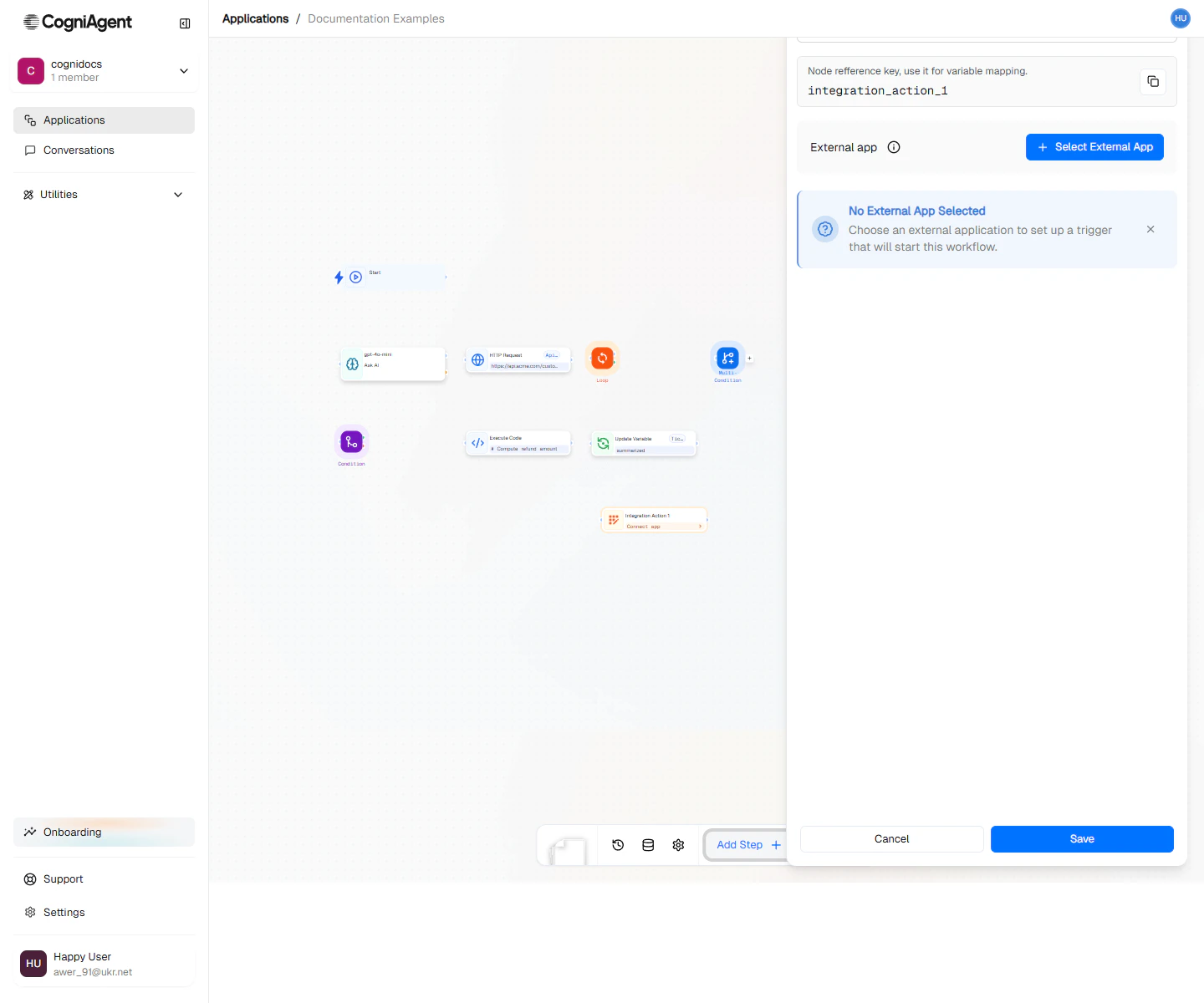
App Action configuration — pick the app, the connection, the specific action, then fill in its parameters.
When to Use
- Emails - Send, reply, organize, or move emails in Gmail/Outlook
- Team chat - Post messages to Slack, Teams, or Discord
- Spreadsheets - Add rows to Google Sheets, update Airtable
- CRM - Create contacts in HubSpot, update Salesforce
- Project tools - Create tasks in Asana, update Jira tickets
- Any integrated app - If it’s in the list, you can automate it
This is for apps already connected with CogniAgent. For websites or services not in the list, use the HTTP Request node instead.
Common Actions by App
Gmail
Slack
Google Sheets
HubSpot
Example: Support Email Workflow
Automatically respond to support emails and log them:1
Receive the email
Use Event from App (Gmail) to trigger on new emails to support@company.com.
2
Classify the email
Use an Ask AI node to categorize as: billing, technical, general.
3
Log to spreadsheet
Add an External API node:
- App: Google Sheets
- Action: Append Row
- Spreadsheet: Support Log
- Values:
4
Send auto-reply
Add another External API node:
- App: Gmail
- Action: Reply to Email
- Thread ID:
{{event_from_app_1.email.threadId}} - Body:
Thank you for contacting support. We've received your {{llm_1.response}} inquiry...
5
Notify the team
Add a final External API node:
- App: Slack
- Action: Send Message
- Channel: #support
- Message:
New {{llm_1.response}} ticket from {{event_from_app_1.email.from}}
Example: Lead Capture to CRM
When a form is submitted, add the lead to your CRM:Example: Automated Reporting
Generate and distribute a daily report:Connecting Your Apps
Before you can use this node, connect your apps:- Go to Settings > Integrations
- Find the app you want to connect
- Click Connect and log in to authorize it
- Give the connection a name (helpful if you have multiple accounts)
Using Data from Previous Steps
You can use information from earlier in your workflow:What If Something Goes Wrong?
Things can fail because:- Your login expired and needs reconnecting
- You’re sending too many requests too fast
- Some required information is missing
- The internet had a hiccup
Rate Limits
Different apps have different rate limits:CogniAgent handles rate limiting automatically when possible, queuing requests to stay within limits.
Tips
Settings
string
default:"External API"
What to call this node (shown on the canvas).
string
default:"external_api_1"
A short code to reference what this node returns.
string
required
Which app to use (Gmail, Slack, Google Sheets, etc.).
string
required
What you want to do in that app. The options change based on which app you choose.
string
required
Which account to use (if you’ve connected multiple accounts for the same app).
object
The details for your action. The form shows you what’s needed based on what you’re doing.
Outputs
Outputs vary by app and action. Common patterns:boolean
Whether the action completed successfully.
object
The full response from the API, structure depends on the action.
Email Actions
messageId- ID of the sent/modified messagethreadId- Conversation thread ID
Slack Actions
ts- Message timestamp (used for threading)channel- Channel IDpermalink- Link to the message
Google Sheets Actions
updatedRange- Cells that were modifiedvalues- Row data (for get/find actions)
Related Nodes
HTTP Request
For APIs not in the integration list.
App Trigger
Trigger workflows from app events.
Integrations
See all 2,700+ available integrations.
Channels
Communication channel details.