
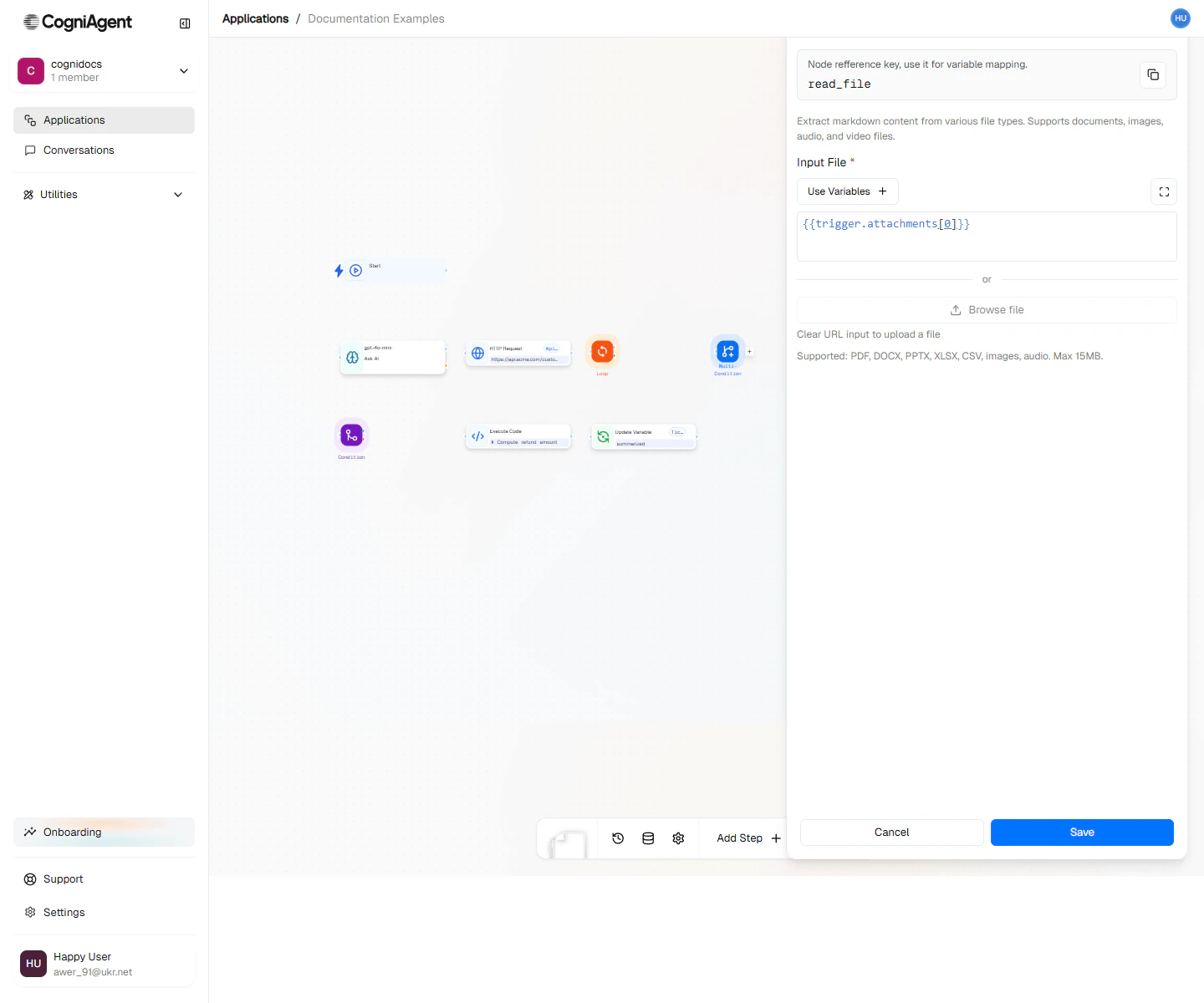
Read File configuration — point at a file URL or a variable from a previous node, then pick the output variable for the extracted text.
When to Use
- Reading documents - Get the text from PDFs, Word docs, PowerPoints
- Processing attachments - Read files that came with emails
- Reading text from images - Extract words from photos, scans, screenshots
- Importing data - Read CSV or Excel files
- Processing forms - Get the filled-in data from PDF forms
Read a file from Workspace files
Read File can read a file straight from Workspace files, the folder your team and coworkers share. Set Read to Workspace file, then Find it by:- Path: a path in the workspace folder, like
Inbox/Invoices/invoice-1043.pdf, matched ignoring case. It may use{{…}}, worked out when the workflow runs. The folder button beside the field lets you pick the file. - Id or earlier step: a file’s id, or a workspace file an earlier step passed on, like
{{file_added_to_folder_1.file}},{{workspace_files_1.file}}or{{loop_1.currentItem}}. An id still finds the file after it is renamed or moved.
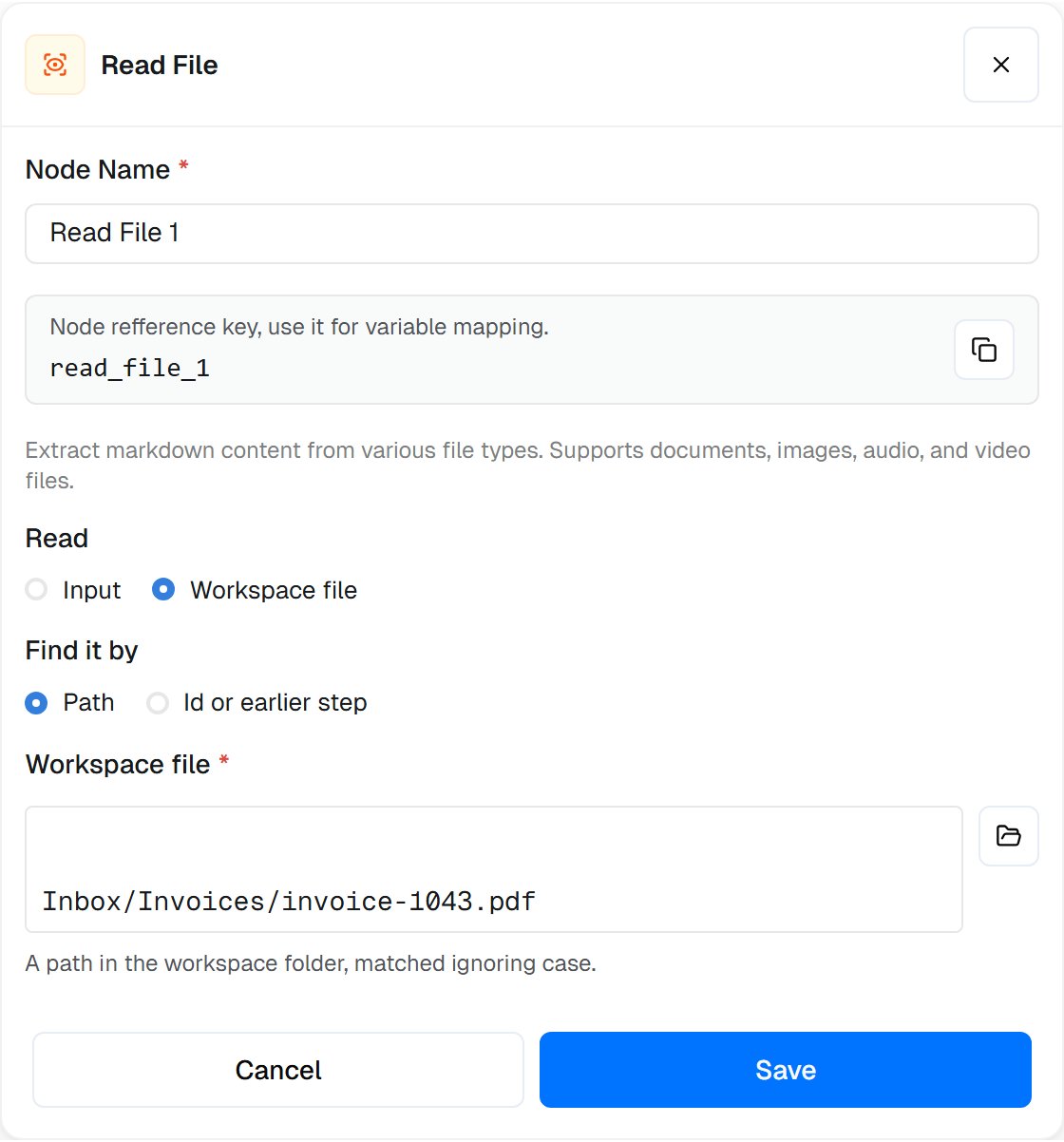
Read File reading an invoice from Workspace files by its path.
file: the workspace file it read, ready for a Workspace Files step or an AI attachment. The Read choice shows only where your workspace has Workspace files.
Supported File Types
Documents
Spreadsheets
Images
Example: Email Attachment Processor
Extract and analyze content from email attachments:1
Receive email with attachment
Use App Trigger (Gmail) to trigger on emails with attachments.
2
Parse each attachment
Add a Loop node to iterate over
{{event_from_app_1.email.attachments}}:3
Analyze content
Use LLM node to analyze or summarize:
4
Store results
Add to a spreadsheet or send via Slack.
Example: Invoice Data Extraction
Extract structured data from PDF invoices:Example: Resume Scanner
Process job applications:Working with Multi-Page Documents
Process All Pages Together
Process Pages Individually
Extract Specific Pages
Configuration:pages: "1,5-10"
Only extracts pages 1 and 5 through 10.
Handling Tables
For documents with tables, use structured extraction mode:Reading Text from Images and Scans
If your file is an image or a scanned document, use OCR mode to read the text: Set extraction mode to: ocrOCR takes longer (usually 2-5 seconds per page) and isn’t always perfect. Double-check important extractions.
- Use higher quality images
- Make sure the text is clear and readable
- Note that handwriting usually doesn’t work well
When Things Go Wrong
File reading can fail because:- The file is damaged
- The file type isn’t supported
- The file is password-protected
- The file is too big
File Size Limits
For larger files, consider splitting or pre-processing.
Tips
Settings
string
default:"Read File"
What to call this node (shown on the canvas).
string
default:"parse_file_1"
A short code to reference this node’s content.
string
required
Where the file is coming from:
- url - Download it from a web address
- base64 - The file content encoded as text
- previous_node - A file from an earlier step (like an email attachment)
string
The web address to download from (if using URL source).
string
The encoded file content (if using base64 source).
string
Reference to a file from an earlier node (if using previous_node source).
string
default:"input"
Read:
input (the file or web address above) or workspace (Workspace file).string
default:"path"
Find it by, for a workspace file:
path or id (Id or earlier step).string
The Workspace file’s path, like
contracts/{{start_1.client}}.pdf, when finding it by path.string
The Workspace file’s id, or a workspace file from an earlier step such as
{{workspace_files_1.file}}, when finding it by id.string
default:"text"
How to read the file:
- text - Just get the words
- structured - Try to keep tables and lists intact
- ocr - Read text from images or scanned documents
string
Which pages to read (for documents with multiple pages). Examples:
1-5, 1,3,5, or all.Outputs
string
The extracted text content.
array
Array of page contents (for multi-page documents).
object
File metadata:
pageCount- Number of pagesfileType- Detected file typefileSize- Size in bytestitle- Document title (if available)author- Document author (if available)createdAt- Creation date (if available)
array
Extracted tables (when using structured mode).
boolean
Whether extraction completed successfully.
object
Only when reading from Workspace files: the workspace file that was read, to pass to a Workspace Files step or an AI attachment.
Related Nodes
LLM
Analyze and extract insights from parsed content.
Loop
Process multiple files or pages.
Workspace Files
Write, list, move and copy files in Workspace files.
File Added to Folder
Start a workflow when a file arrives in a folder.