
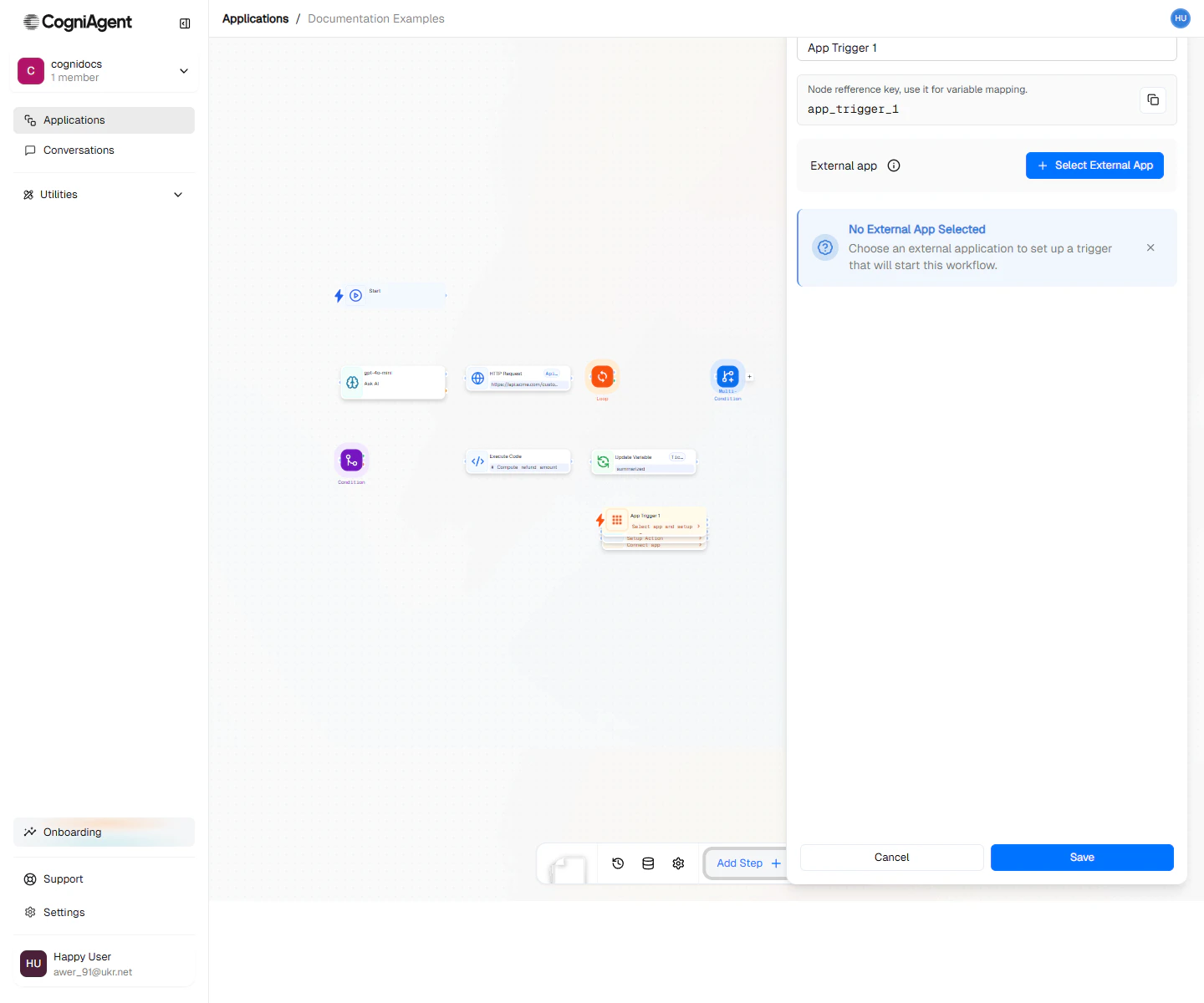
App Trigger configuration — pick the app, the connection, and which event should start the workflow.
When to Use
- Email automation - Process incoming emails from Gmail or Outlook
- Chat responses - Respond to Slack or Teams messages
- Data ingestion - React to new spreadsheet rows or database records
- CRM triggers - Start workflows when deals close or contacts are updated
- Form processing - Handle submissions from Typeform, JotForm, etc.
Example: Email Auto-Responder
Automatically acknowledge incoming support emails:1
Connect Gmail
Add an App Trigger node:
- App: Gmail
- Channel: support@yourcompany.com
- Event type: new_email
2
Check if auto-reply is needed
Add an If / else node to filter:
3
Generate personalized response
Use an LLM node:
4
Send the reply
Connect to an Integration Action (Gmail) node to send the reply, referencing the original thread.
Example: Slack Command Handler
Respond to specific commands in a Slack channel:- App: Slack
- Channel: #support
- Event type: message
- Filter:
text starts with "!"
Example: Spreadsheet Data Processor
Process new leads added to a Google Sheet:Popular Integrations
Communication
- Gmail - Incoming emails, replies, labels
- Slack - Messages, reactions, mentions, channel events
- Microsoft Teams - Messages, mentions
- Discord - Messages in servers
Productivity
- Google Sheets - New rows, updates, cell changes
- Notion - Page created, database item added
- Airtable - Record created, updated
CRM & Sales
- HubSpot - Contact created, deal closed
- Salesforce - Lead created, opportunity updated
- Pipedrive - Deal won, activity completed
Forms
- Typeform - New submission
- Google Forms - New response
- JotForm - New submission
Support
- Zendesk - Ticket created, updated
- Intercom - New conversation, message
- Freshdesk - Ticket events
CogniAgent supports 2,700+ apps through our integration platform. If you don’t see your app, check Settings > Integrations for the full list.
Filtering Events
Use filters to only trigger on specific events: Gmail - Only from specific senders:Connecting Apps
Before using App Trigger, connect the application:- Go to Settings > Integrations
- Find your app and click Connect
- Authorize CogniAgent to access your account
- Configure which channels/resources to access
Tips
Settings
string
default:"App Trigger"
Display name shown on the canvas.
string
default:"event_from_app_1"
Unique identifier for referencing outputs.
string
required
The connected application to monitor (Gmail, Slack, Google Sheets, etc.).
string
required
The specific channel within the app:
- Gmail: email address or label
- Slack: channel or direct message
- Google Sheets: specific spreadsheet
- Custom: depends on the integration
string
required
What type of event to listen for:
- Gmail:
new_email,email_replied,email_labeled - Slack:
message,reaction,mention - Google Sheets:
row_added,row_updated,cell_changed
object
Optional filters to narrow which events trigger the workflow.
Outputs
Outputs vary by app and event type. Common patterns:Gmail Events
object
The email object containing:
from- Sender email addressto- Recipient(s)subject- Email subject linebody- Email content (HTML and plain text)attachments- Array of attachment metadatathreadId- Conversation thread identifierreceivedAt- Timestamp
Slack Events
object
The message object containing:
text- Message contentuser- User who sent the messagechannel- Channel IDtimestamp- Message timestampthread_ts- Thread ID if in a thread
Google Sheets Events
object
The row data as key-value pairs (header names as keys).
number
The row number that was added or changed.
Related Nodes
Integration Action
Send actions back to the same apps that trigger events.
AI Trigger
Use AI to filter events based on content meaning.
Integrations
Browse all 2,700+ available integrations.
Channels
Communication channel documentation.