
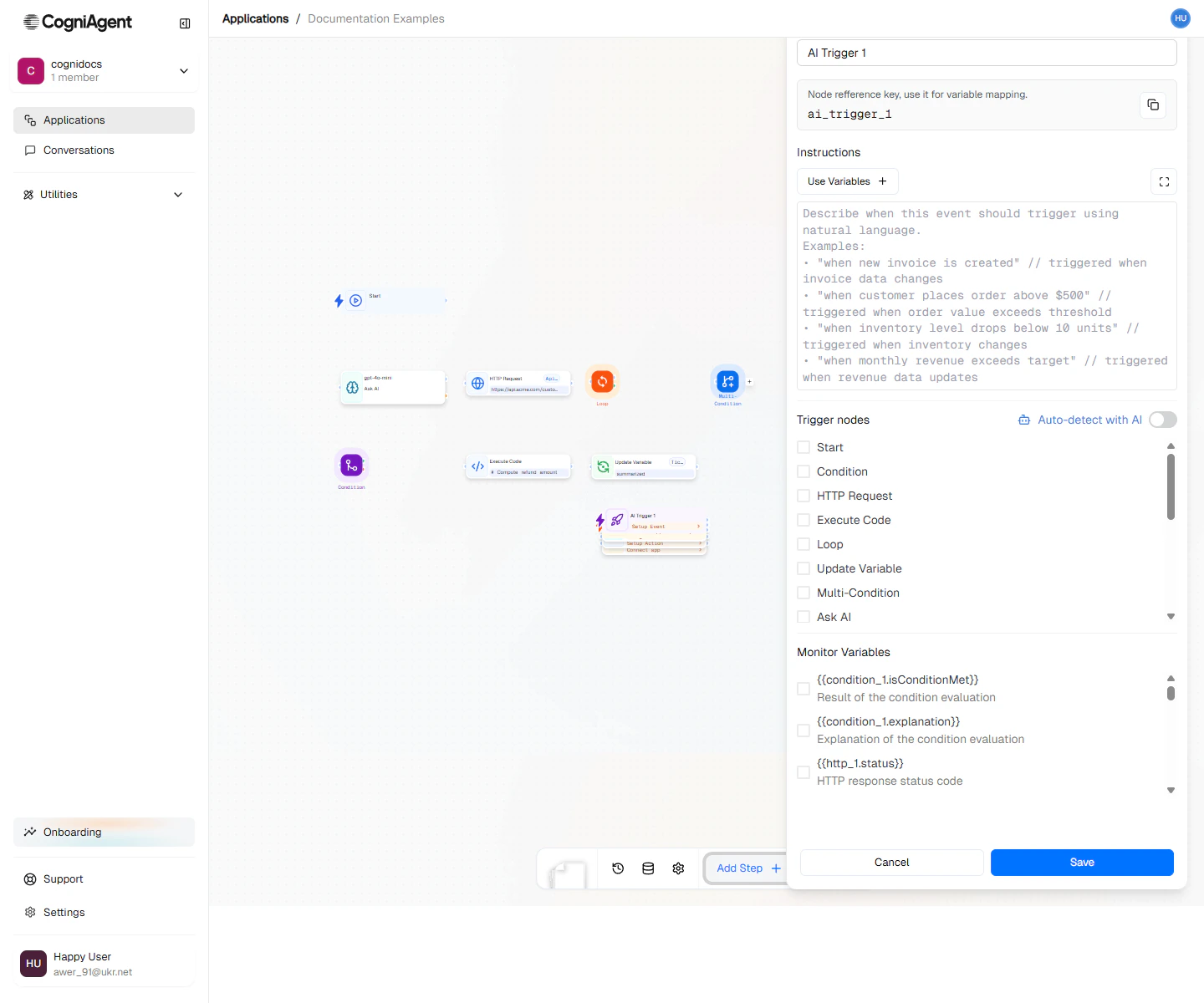
AI Trigger configuration — describe the watch condition in plain language; the AI evaluates each incoming event.
When to Use
- Complex conditions - Triggers that are hard to express as simple rules
- Content-based triggers - Start workflows based on the meaning or sentiment of incoming data
- Intent detection - Trigger when messages match certain intents
- Quality thresholds - Start processing when content meets certain criteria
Writing Effective Conditions
The AI evaluates your condition against incoming data. Write conditions that are: Specific and unambiguous:Example: Urgent Email Router
Automatically escalate emails that need immediate attention:1
Configure the AI condition
Add an AI Trigger node with:
- Data source: Gmail channel
- Condition:
2
Escalate the email
Connect to an Integration Action (Slack) node to post to your
#urgent-support channel:3
Assign to on-call
Add another Integration Action node to create a high-priority ticket in your support system.
Example: Lead Quality Filter
Only process high-quality leads from form submissions:Example: Content Moderation
Trigger review for potentially problematic content:How It Works
- Data arrives from the configured source (email, message, webhook, etc.)
- The AI model evaluates the data against your condition
- If the condition is met (confidence above threshold), the workflow triggers
- The original data is passed through as
eventData
AI evaluation typically takes 1-3 seconds. For high-volume triggers, consider using rule-based conditions (If / else step) for simple criteria.
Confidence Threshold
By default, the event triggers when the AI is reasonably confident the condition is met. You can access the confidence score to add additional filtering:Tips
Combining with Other Events
Use AI Triggers alongside other triggers:- AI Trigger for complex, nuanced conditions
- If / else step (after App Trigger) for simple rule-based filtering
- Scheduled Trigger for scheduled AI analysis of accumulated data
Settings
string
default:"AI Trigger"
Display name shown on the canvas.
string
default:"ai_custom_event_1"
Unique identifier for referencing outputs.
string
required
Natural language description of when the event should trigger. Be specific and clear about the criteria.
string
required
Where to look for data to evaluate:
- channel - Monitor a connected app channel (Gmail, Slack, etc.)
- variable - Monitor a workflow variable
- webhook - Evaluate incoming webhook data
object
Configuration specific to the data source (channel ID, variable name, etc.).
Outputs
object
The data that triggered the event, structured based on the source.
number
AI confidence score (0-1) that the condition was met.
string
Brief explanation of why the AI determined the condition was met.
Related Nodes
App Trigger
Get raw events from apps, then filter with If / else steps.
If / else
Add rule-based filtering after any trigger.