
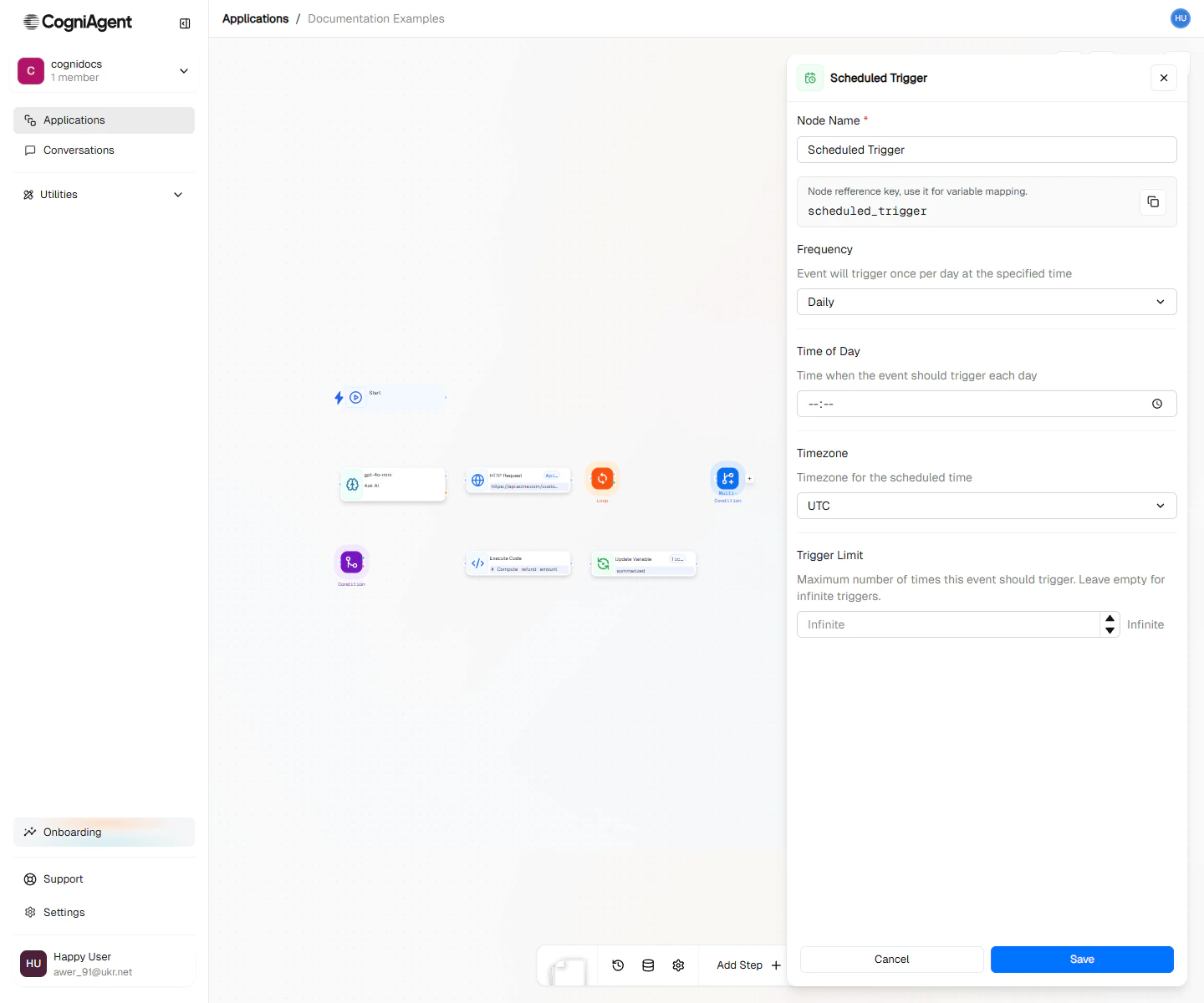
Scheduled Trigger configuration — pick frequency (minutes, hourly, daily, weekly) or write a cron expression.
When to Use
- Daily reports - Generate and send summaries every morning
- Data synchronization - Sync records between systems hourly
- Monitoring - Check service status at regular intervals
- Reminders - Send scheduled notifications to team members
- Cleanup tasks - Archive old data weekly or monthly
Example: Daily Sales Summary
Send a daily sales report to your team every morning:1
Configure the schedule
Add a Scheduled Trigger node:
- Schedule type: daily
- Time: 09:00
- Timezone: America/New_York
2
Fetch sales data
Connect to an Integration Action node that queries your CRM or database for yesterday’s sales.
3
Generate the report
Use an LLM node to summarize the data:
4
Send to Slack
Connect to an Integration Action node (Slack) to post the summary to your sales channel.
Example: Hourly Website Monitor
Check if your website is responding and alert if it’s down:Schedule Types Explained
Interval
Runs repeatedly with a fixed gap between executions.Daily
Runs once per day at the specified time.Weekly
Runs on specific days at the specified time.Monthly
Runs on specific dates each month.If a date doesn’t exist in a month (like the 31st in February), that execution is skipped.
Cron Expressions
For advanced scheduling, use standard cron syntax:0 9 * * 1-5- 9 AM on weekdays0 */2 * * *- Every 2 hours0 0 1 * *- Midnight on the 1st of each month30 8 * * 1- 8:30 AM every Monday
Timezone Handling
Common timezones:America/New_York(Eastern)America/Los_Angeles(Pacific)Europe/LondonEurope/ParisAsia/TokyoAustralia/Sydney
Missed Executions
If the workflow is stopped during a scheduled time, that execution is missed. CogniAgent does not “catch up” on missed executions when the workflow restarts.For critical scheduled tasks, consider adding monitoring to verify executions occurred.
Tips
Settings
string
default:"Scheduled Trigger"
Display name shown on the canvas.
string
default:"recurrent_event_1"
Unique identifier for referencing outputs.
string
required
The type of schedule:
- interval - Run every X minutes/hours
- daily - Run once per day at a specific time
- weekly - Run on specific days of the week
- monthly - Run on specific days of the month
- cron - Advanced scheduling with cron expressions
number
For interval type: number of minutes between runs. Minimum: 5 minutes.
string
For daily/weekly/monthly: time to run in HH:MM format (24-hour).
array
For weekly: which days to run. Array of day names or numbers (0=Sunday).
array
For monthly: which dates to run (1-31).
string
For cron type: standard cron expression (e.g.,
0 9 * * 1-5).string
default:"UTC"
Timezone for the schedule (e.g.,
America/New_York, Europe/London).Outputs
string
ISO timestamp of when this execution was scheduled.
number
How many times this recurrent event has triggered (since the workflow started).
string
ISO timestamp of the previous execution (null for first run).
Related Nodes
AI Trigger
Trigger based on intelligent conditions instead of fixed schedules.
Pause
Add delays within a workflow instead of scheduling.