
sqlite3. The Code node works on a copy of the file, and only a run that succeeds saves the database back, as a new version you can always roll back.
A short tour: upload a database, mount it in a Code step, update it from Python, and see what a failed run and a crossed change do.
What you’ll build
A nightly workflow, Nightly customer sync, that fetches the day’s orders and adds them toCustomers/customers.db in Workspace files. It also reads discount rates from a second database that it must never change.
The database has two tables:
How it works
You mount a file or folder from Workspace files on an Execute Code step (the Code node). Before your code runs, the step copies it into a folder namedfiles next to your code. Your code opens the copy like any local file. When the code ends, the step decides what to save.
Four things follow from this:
- It’s a copy, not a live connection. Your code changes a copy. Workspace files sees the result only after the run.
- Only a successful run saves. If the code raises an error, or writes anything to the error stream (a warning included), nothing is saved.
- It never overwrites someone else’s change. If the file was saved in Workspace files while your code ran, the run’s database is saved beside it as a copy instead.
- It never deletes. A file your code deletes stays in Workspace files.
Before you start
- Workspace files on your workspace. In the app, Cowork → Files shows the Workspace place. In the Execute Code step, a Workspace files section sits under the code. If there is no such section, Workspace files is not on for your workspace.
- A workflow you can edit, with an Execute Code step in it.
- A
.dbfile up to 100 MB, or no database yet: you can create one from code (Step 1). - Some Python.
sqlite3is part of the standard library, so there is nothing to install.
Build it
Put the database in Workspace files
Customers, and drag customers.db into it.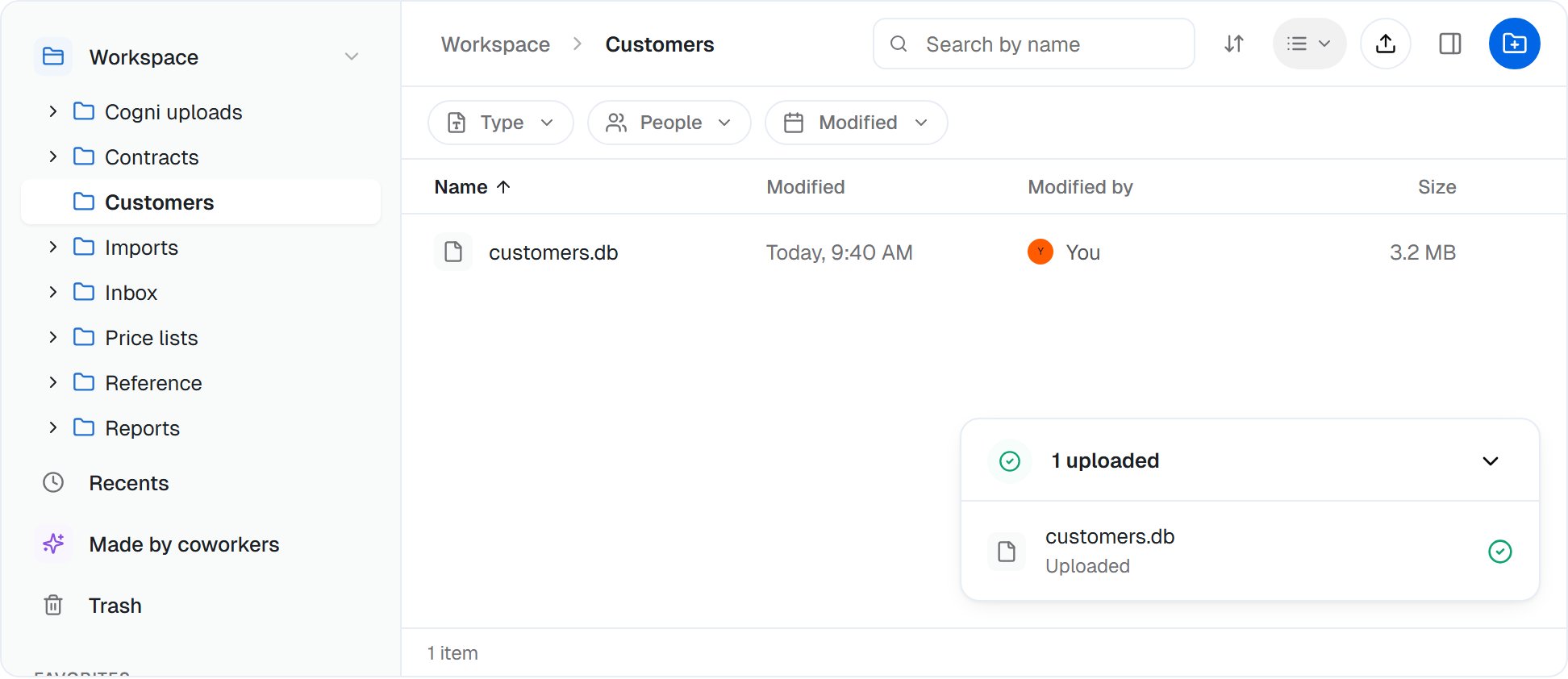
customers.db uploaded to the Customers folder. From now on it keeps versions like every workspace file.
Customers folder (next step) with Read and write, run this code, and the new file is saved to the folder:Customers/customers.db, as the next step shows.Mount it in the Execute Code step
customers.db (type part of its name), and pick it. Then set the menu beside it to Read and write.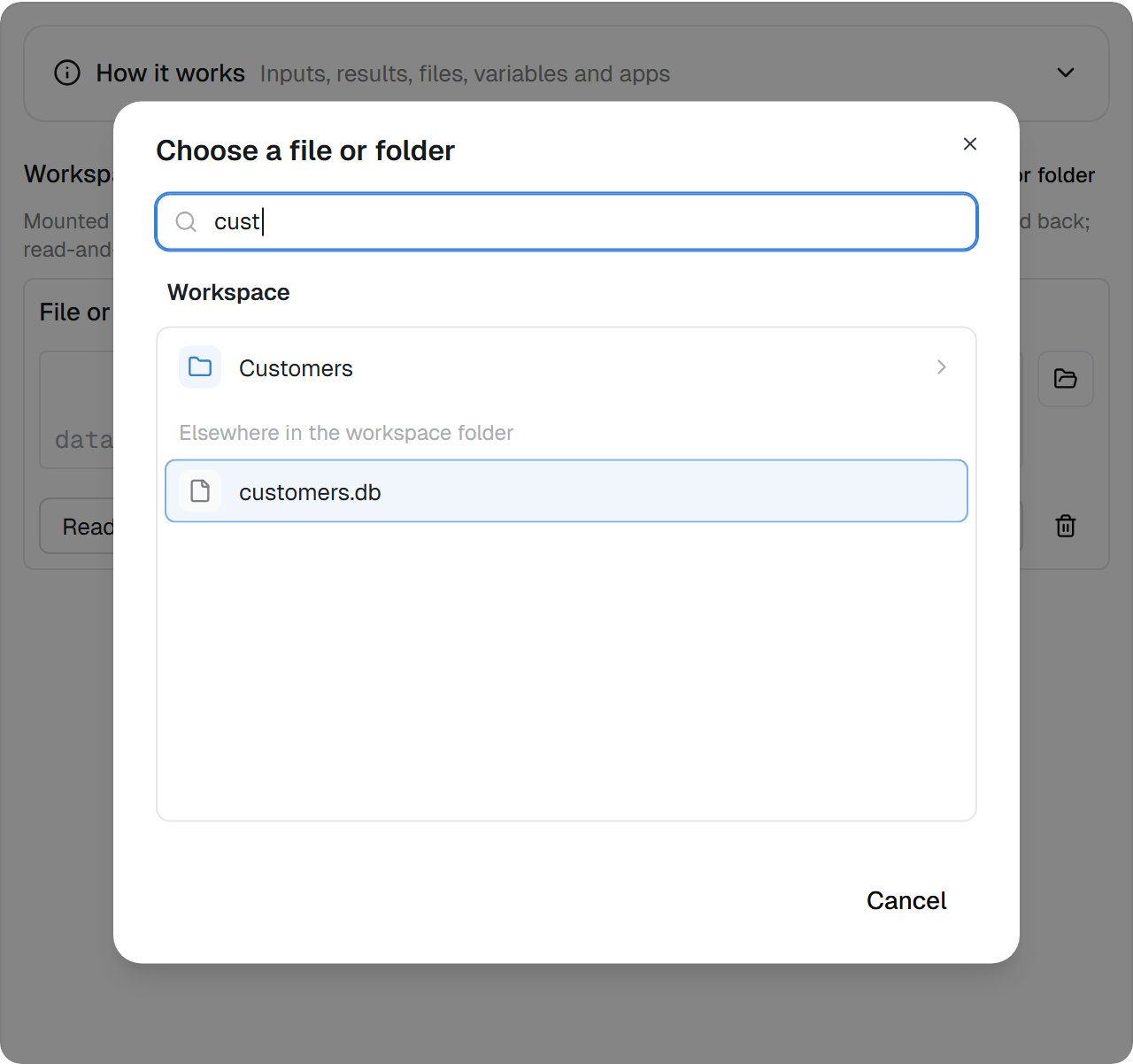
Type part of a name to find a file anywhere in the workspace folder.
Open it from Python
files/ plus the path, spelled exactly as Workspace files stores it: files/Customers/customers.db. Names in Workspace files match whatever the case, but the code’s folder does not, so files/customers/customers.db would not open. Pick the file with the folder button and copy the path it shows.Open it with ?mode=rw, so a wrong path fails at once instead of quietly creating an empty database:Read from it
Write, commit and close
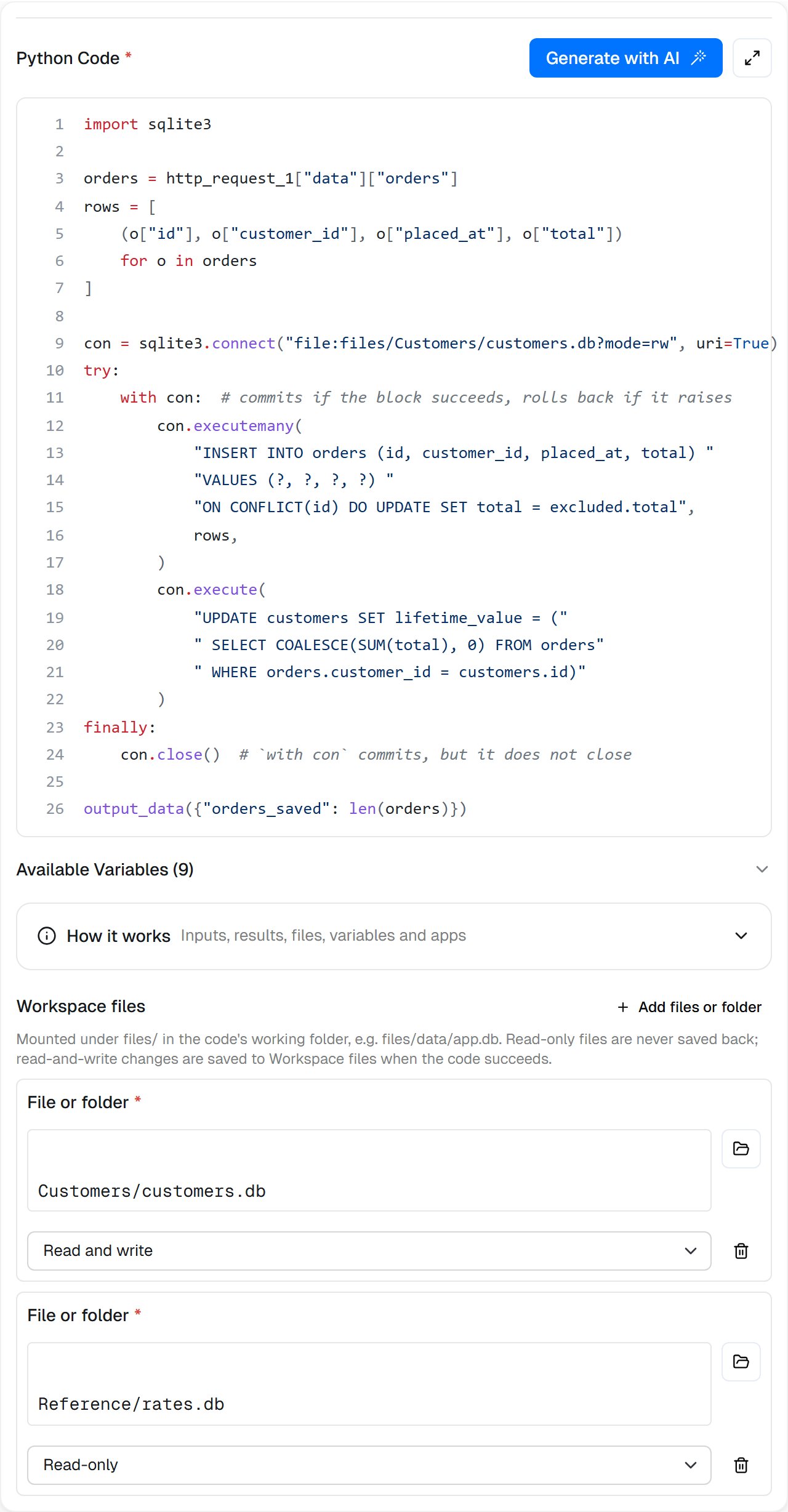
The step's code opens the mounted copy at files/Customers/customers.db. The reference rates are mounted Read-only.
Run it and check
workspaceFiles part. Under written, the database shows outcome: "versioned": a new version was saved.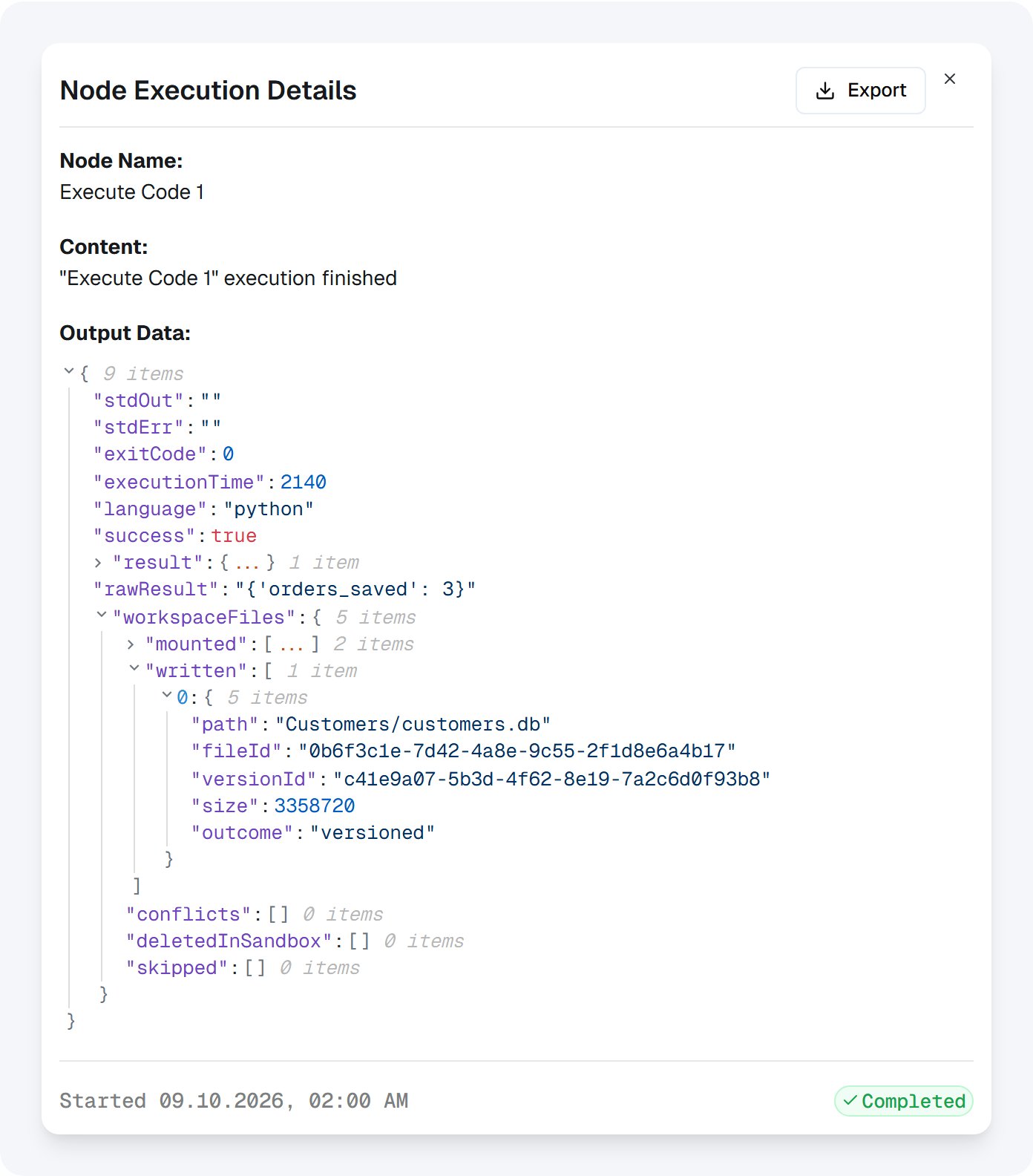
The run saved customers.db as a new version.
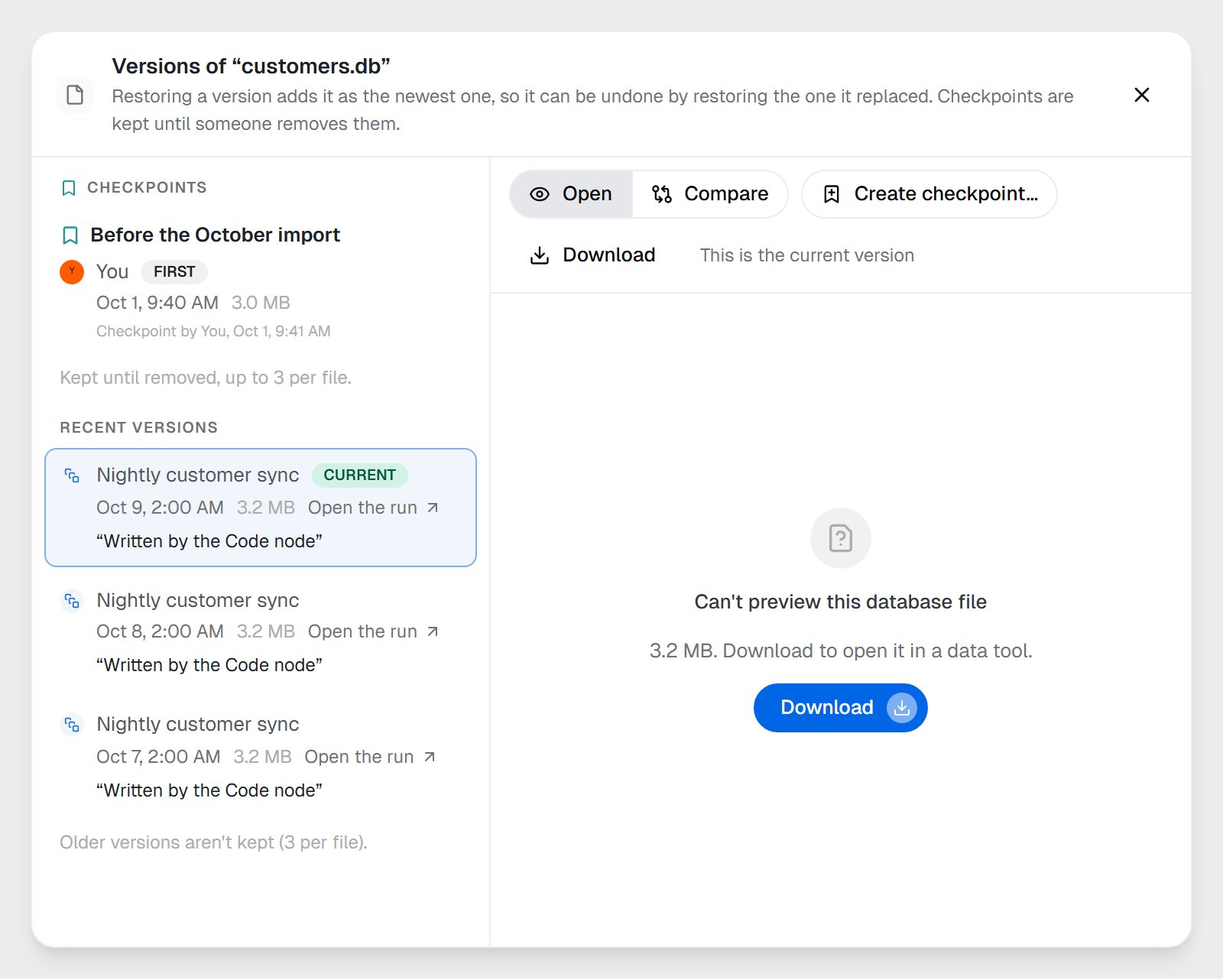
Each run that changes the database adds a version by the workflow, with a link to the run. Here your upload is kept as a checkpoint.
outcome can also read created (a new file under a mounted folder) or coalesced: two saves of the same file by one run within 10 minutes, for example by two Execute Code steps or by a Loop that runs the step again, join one version.What gets saved, and when
- Open connections. Before the step looks for changes, it shuts down your code’s Python process, which closes any connection you left open. Committed changes are saved whole, also in WAL mode. A transaction you never committed is not saved. The
-wal,-shmand-journalfiles SQLite keeps beside the database are never saved. - Files at the top level. A file your code writes under a plain name, like
report.csv, is not a workspace file. It becomes the step’sfilesoutput, as in Creating files. - How much one run saves. A file over 100 MB is never saved back, and that includes the database itself. New files are also capped at 2,000 files and 256 MB per run. A file past either limit is listed in
skipped, and the step still succeeds. - When the workspace is full. If saving a file back fails (the workspace’s storage is full, most often), the step fails with “The code succeeded, but saving ”…” back to Workspace files failed”. Files saved before it stay saved.
When the code fails
A run that raises an error saves nothing, so a half-finished run never replaces good data. The step’s output lists each read-and-write mount inskipped with the reason.
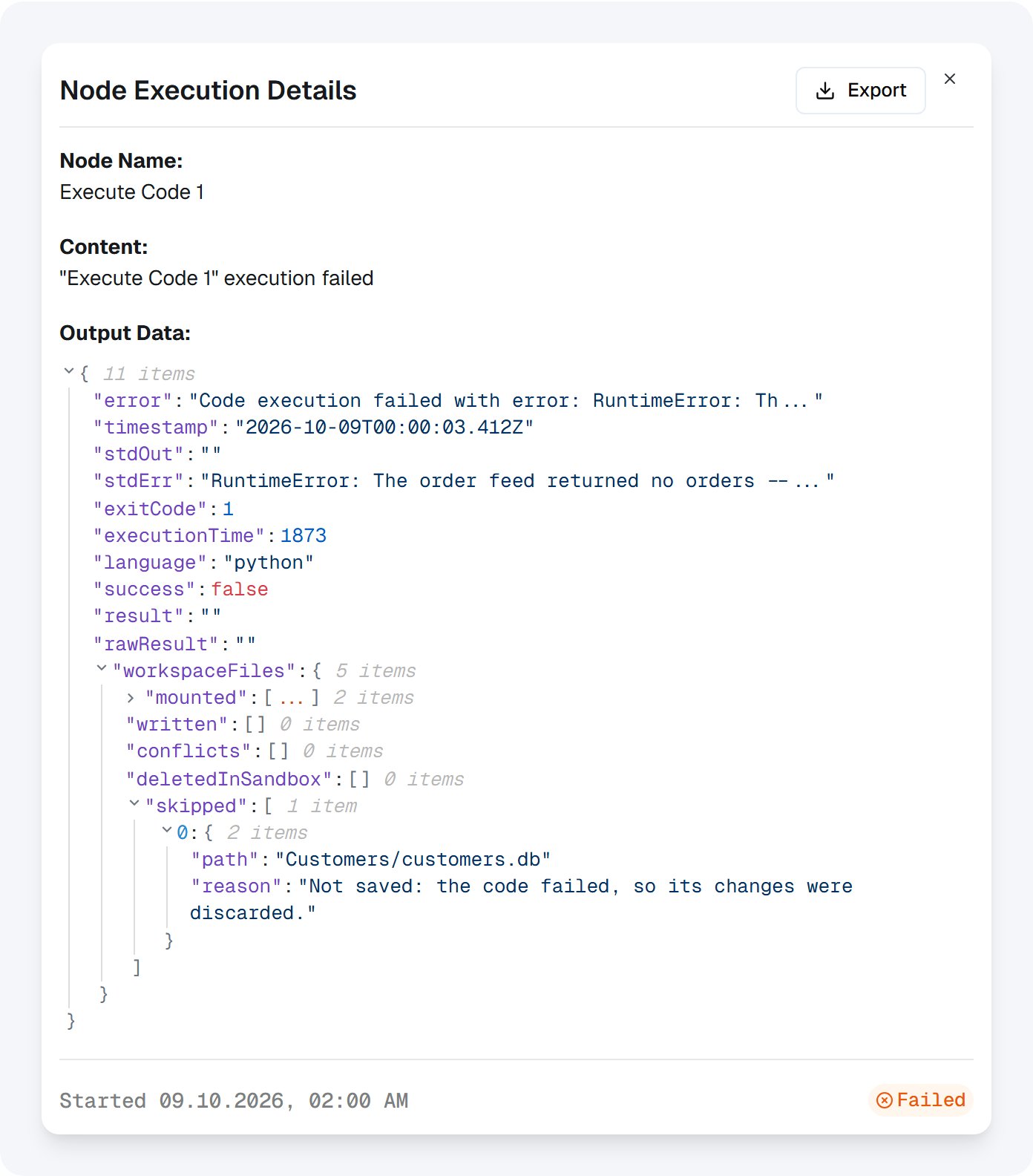
A run that raised an error. The database is listed as not saved, and its versions don't change.
Versions and checkpoints
Every run that changes the database adds a version, by the workflow. A file keeps its last three versions, and a workflow never pushes out a version a person made. Your upload is still removed from the history 30 days after a run replaces it. Make it a checkpoint to keep it for good. To keep a version for good, make a checkpoint before a risky change. On the Files page, open the database’s menu and choose Create checkpoint…, or open Versions… and name an older version. Checkpoints sit outside the three rolling versions, and no later save pushes them out. A coworker with access to the folder can make one too, if you ask. Workflows can’t.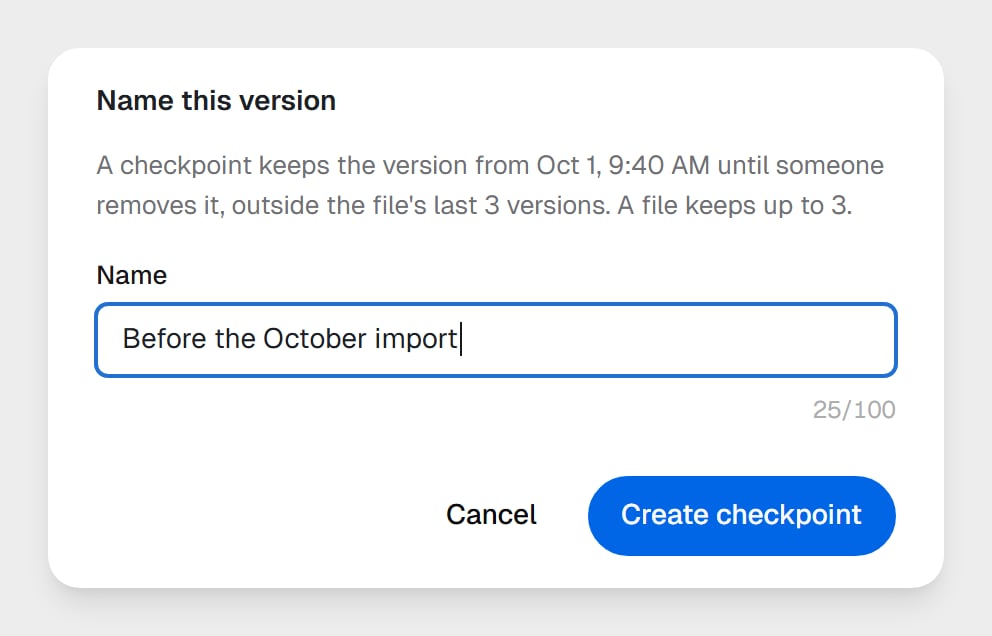
A checkpoint on the database before a large import. Nightly runs keep adding versions, and this one stays.
Customers/customers.db to the folder Backups, with If the name is taken set to Keep both. The first copy is customers.db, and later ones are named customers (copy).db, customers (copy 2).db and so on. Every copy counts toward your workspace’s storage. Run it on its own, less frequent schedule and clear out old copies.
Read-only reference data
Mount data your code must never change as Read-only. Read-only doesn’t lock the copy: your code can still change it, but nothing goes back.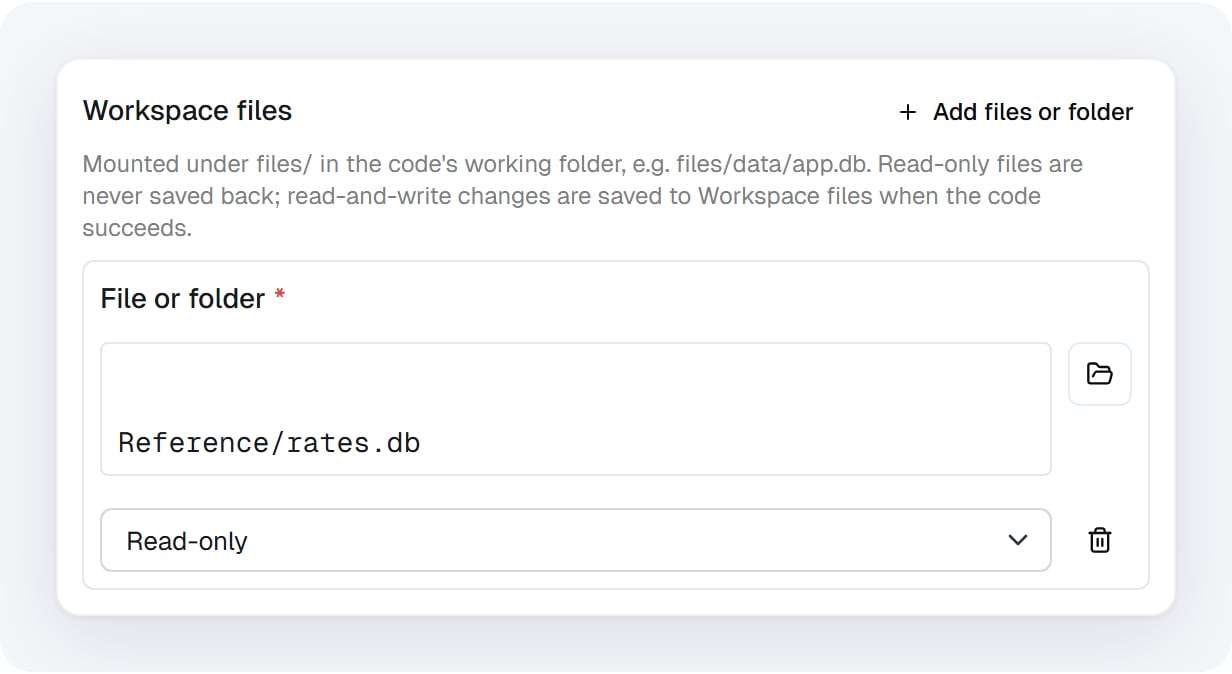
Reference data mounted Read-only: the code reads it, and nothing is ever saved back.
?mode=ro too, so SQLite itself refuses any write:
?mode=ro for Read-only mounts. On a database in WAL mode, even a read-only connection leaves -wal and -shm files beside it. In a Read-only mount they are discarded; inside a read-and-write folder they would be saved as new files.When two changes cross: conflicted copies
The step copies the database in at the start of the run. If someone saves a new version of it before the run ends (a person, a coworker, or another run), the run never overwrites it. The run’s database is saved beside it ascustomers (conflicted copy).db and listed in the output’s conflicts. A second one would be customers (conflicted copy 2).db.
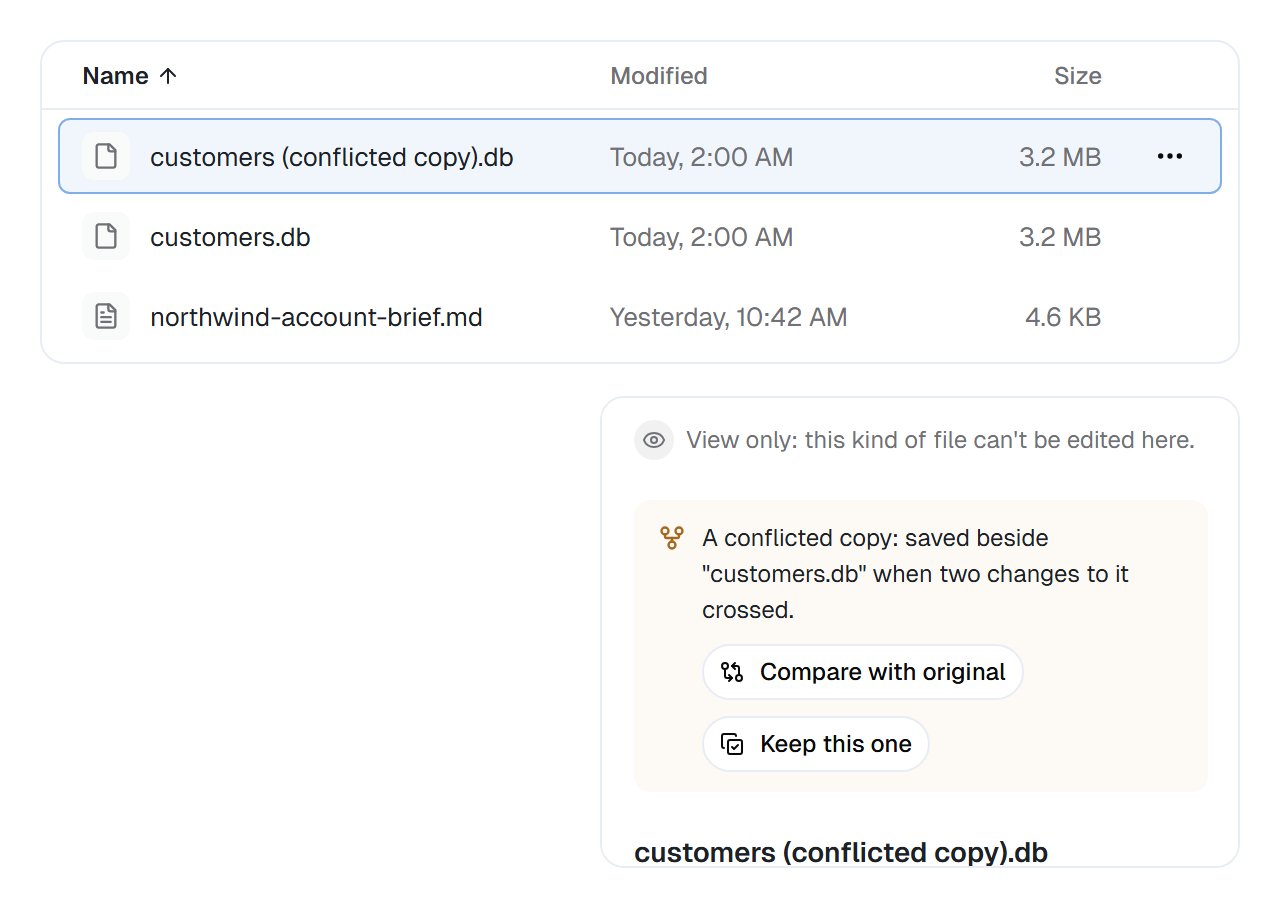
The run's database, saved as a conflicted copy beside the version someone saved while it ran. Its Details offer Compare with original and Keep this one.
- Keep the original: move the conflicted copy to the Trash.
- Keep the run’s version: open the conflicted copy and choose Keep this one. Its bytes become the original’s new version, and the copy goes to the Trash.
Journal and WAL files
Leave the journal mode alone. The default mode works, and so does WAL; once you set WAL, it stays set in the saved file. In both, the step saves the database and never the-wal, -shm or -journal files beside it.
Don’t use journal_mode=PERSIST or TRUNCATE on a database inside a mounted read-and-write folder. Both leave a -journal file behind after the connection closes, and a new file in a mounted folder is saved. With a single-file mount, as this guide uses, nothing beside the database is saved anyway.
Limits
Patterns
Import a CSV into the database
Import a CSV into the database
Imports, with Only names like *.csv and One run per file. In the Execute Code step, mount two things:{{file_added_to_folder_1.file.path}}, Read-only: the file that arrived (a mount path may use{{…}})Customers/customers.db, Read and write
WHERE true: without a WHERE, SQLite can’t tell where the SELECT ends and ON CONFLICT begins, and refuses the statement. Read the CSV with dtype=str, too: on a large file with mixed columns, pandas can warn about the types it guessed, and a warning fails the step.Keep a daily summary table
Keep a daily summary table
Turn a query into a report file
Turn a query into a report file
files output, which a later step can attach to an email, or save with a Workspace Files step (Write a file, Content: File from an earlier step, {{execute_code_1.files[0]}}).Reports/Exports, with Read and write, and write the file there. A new file in a mounted folder is created in Workspace files.Reports would copy every report each run, and stop the step once it passes 2,000 files or 256 MB.Work with several databases
Work with several databases
When to use a database server instead
When to use a database server instead
psycopg2, pymysql and sqlalchemy are installed, and the code can reach the public internet.Troubleshooting
Common questions
Is this a live connection to the file in Workspace files?
Is this a live connection to the file in Workspace files?
Can two runs write to the same database at once?
Can two runs write to the same database at once?
Can a coworker use the same database?
Can a coworker use the same database?
Can I open the database on the Files page?
Can I open the database on the Files page?
Does Read-only lock the file?
Does Read-only lock the file?
?mode=ro to make SQLite refuse writes too.What happens to rows I delete?
What happens to rows I delete?
How big can the database get?
How big can the database get?
VACUUM to shrink it.Can I use PostgreSQL instead?
Can I use PostgreSQL instead?
psycopg2 or pymysql, both installed in the Execute Code step.