
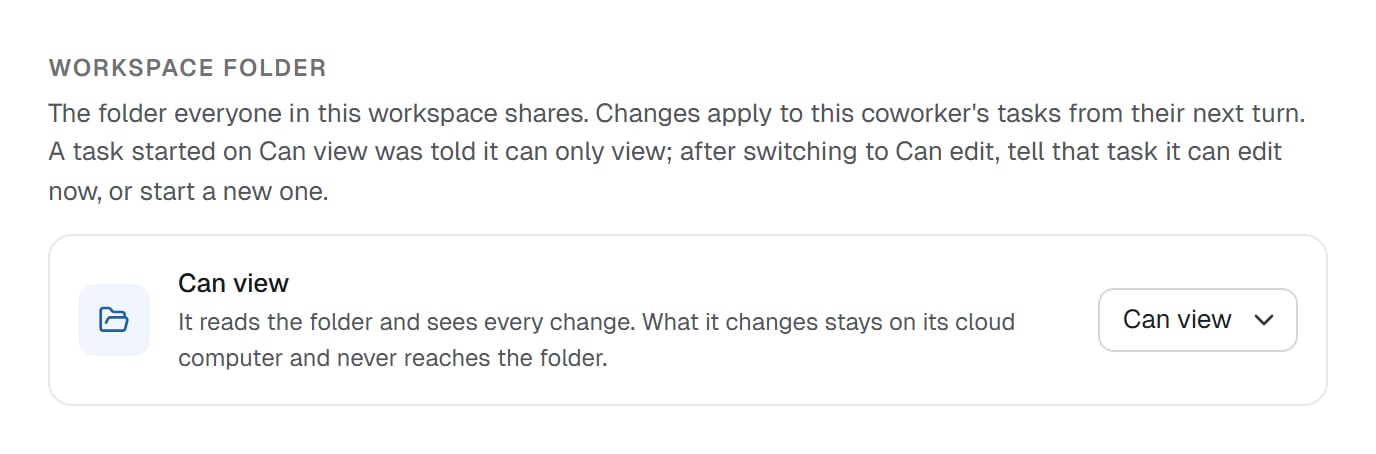
A coworker's setting for the shared folder. Here Ivy can read it and see every change, but can't change it.
Who sees what
Tasks are private: on the Files page, the Tasks group lists your own tasks and nobody else’s. A link to someone else’s task says so:
That task’s files aren’t available. Tasks are private to the person who started them.Only Workspace files keep a history. In a coworker’s or a task’s details, Activity reads “Coworker and task files keep no change history.”
A coworker works on its own cloud computer, one per task. Each task’s files live there, and Workspace files is the one folder that every task reaches. The shared workspace a coworker offers in a handover is something else: two coworkers working in the same task’s files.
Give a coworker the folder
A coworker reaches Workspace files once Code and files is on in its Capabilities. In each of its tasks the folder appears asfiles/, beside the coworker’s own files, and it reads and writes there like you do.
What it may do is set under Workspace folder, further down the same tab:
The folder everyone in this workspace shares. Changes apply to this coworker’s tasks from their next turn. A task started on Can view was told it can only view; after switching to Can edit, tell that task it can edit now, or start a new one.
Without Code and files the section reminds you: “Needs “Code and files” turned on above to reach the folder.”
Can view
A view-only coworker still reads everything, and sees your changes as you make them. It can work on copies for itself, but nothing it writes reaches the shared folder, and it can’t make checkpoints. In its task’s file panel, an eye beside Workspace files says so: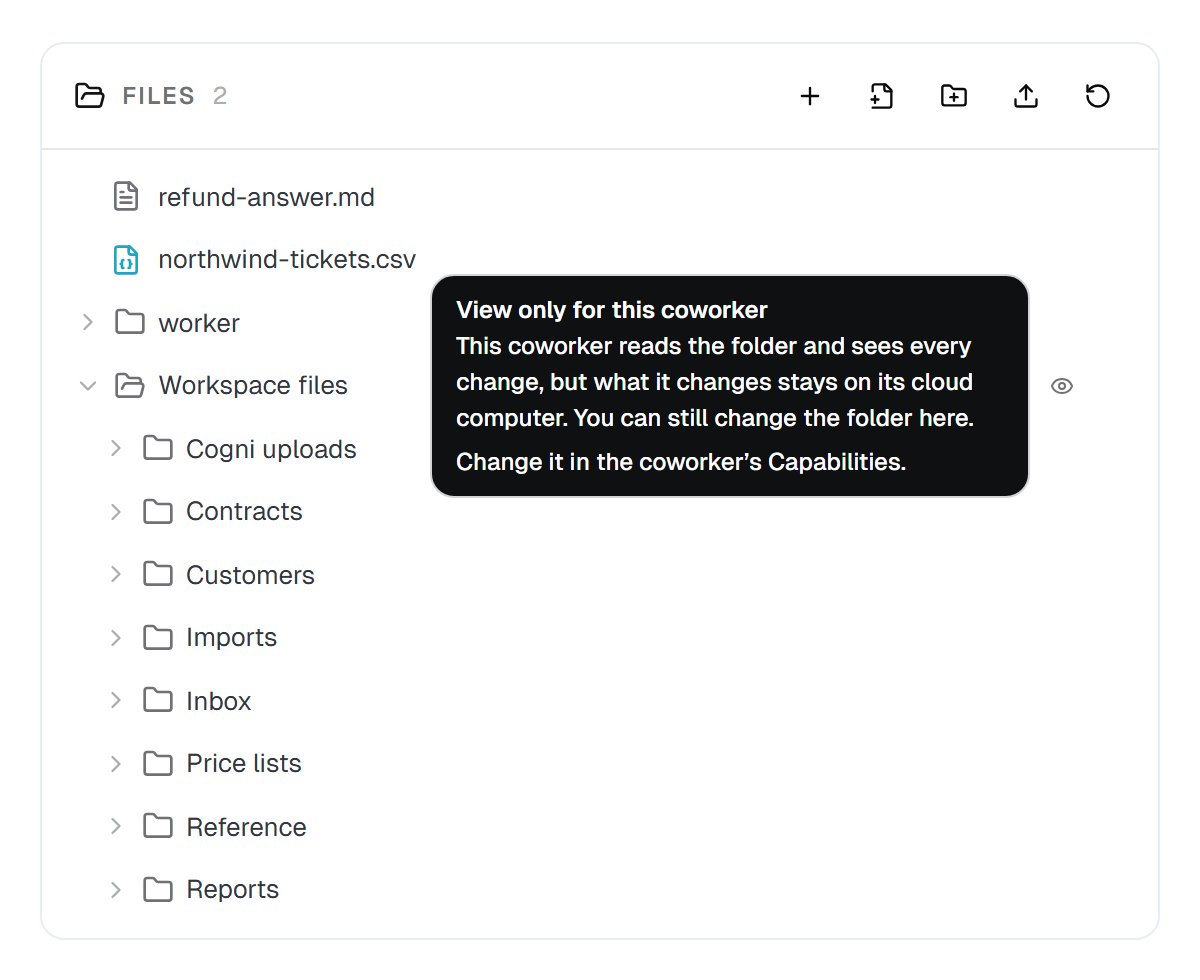
Ivy's task panel: the task's own files, the coworker's, and Workspace files with the view-only eye and what it means.
View only for this coworker This coworker reads the folder and sees every change, but what it changes stays on its cloud computer. You can still change the folder here. Change it in the coworker’s Capabilities.
Changing it
A change applies to the coworker’s tasks from their next turn, either way. A task that started on Can view was told it can only view, so after you switch to Can edit, tell that task it can edit now, or start a new one.Coworkers sharing files
Coworkers that reach Workspace files see each other’s files there with no handover at all. Nora saves a summary inReports, and Sam reads it in its next task. Each change shows up on the Files page with who made it.
Big folders
A coworker’s first step with a file attaches the folder to its cloud computer. With a large folder, the task shows “Warming up the cloud computer for you”, then “The cloud computer is ready”. A folder of more than 2,000 files or 256 MB isn’t copied whole: files are fetched as the coworker opens them.Members
Everyone in the workspace can browse, upload, edit, move, rename, trash and restore in Workspace files. Deleting for good is the one thing kept back:Only owners and admins can delete permanently. Items in the Trash are removed for good after 30 days.
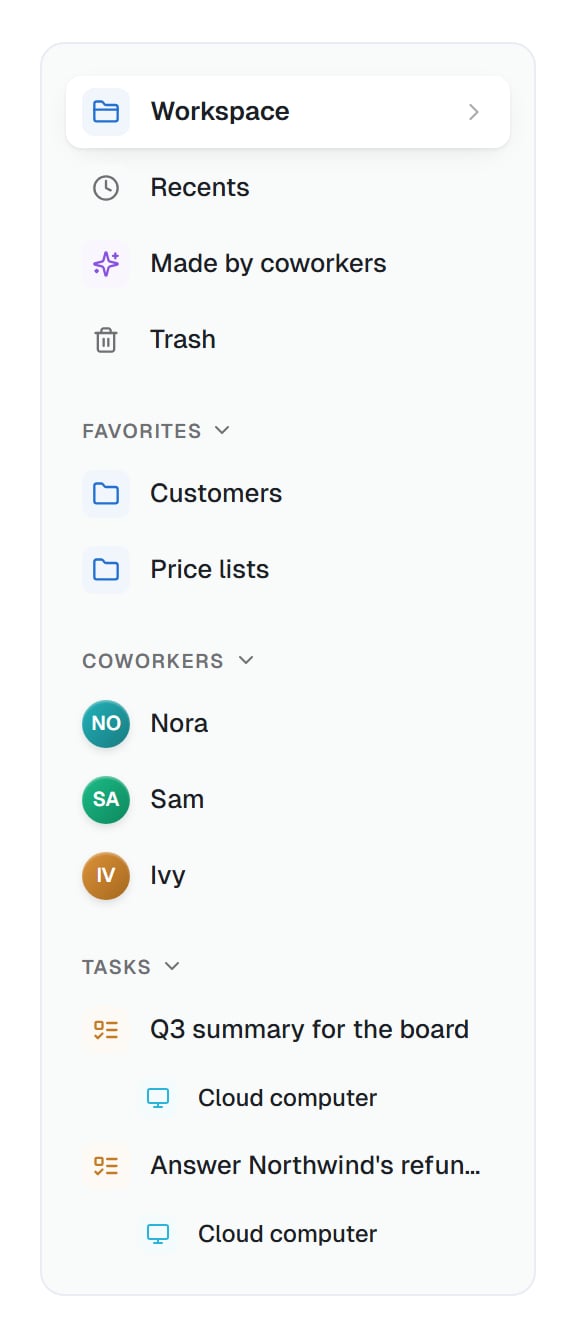
The Files sidebar: the shared folder and its views, your favorites, each coworker's files, and your own tasks with their cloud computers.
Good to know
You can always change the folder yourself, whatever a coworker’s setting. Can view limits the coworker, not you.
Common questions
Can I stop one coworker from changing files?
Can I stop one coworker from changing files?
Yes. Open its Capabilities and set Workspace folder to Can view. It still reads the folder and sees every change.
Can a coworker see my tasks?
Can a coworker see my tasks?
No. A task’s files belong to that task and to the person who started it. Put a file in Workspace files when every coworker should see it.
Why does my coworker say it can only view?
Why does my coworker say it can only view?
The task started while it was on Can view. After switching it to Can edit, tell that task it can edit now, or start a new task.
Can my teammates see the files my coworker wrote?
Can my teammates see the files my coworker wrote?
Everything a coworker writes into Workspace files is visible to the whole workspace, marked with the coworker’s name. What it writes in a task stays in that task.
Next steps
Workspace files
The shared folder at a glance.
Editing and file history
Versions, checkpoints and who changed what.
Working with code and files
The capability that gives a coworker files.
Working with coworkers
Hand work from one coworker to another.