
What it does
A coworker that can’t reach your systems can only advise. One that can reach them can finish the job: find the thread, update the record, log the result. Attaching an app takes a few seconds. The part worth your attention is the second half — deciding which actions inside that app your coworker is allowed to take. Reading your inbox and sending from it are very different levels of trust, and this is where you draw that line. You can connect thousands of apps — the same catalogue the rest of CogniAgent uses, so anything your workspace has connected is already available here.When you’d use it
- Give a research coworker read-only Gmail so it can find a thread but never send from your inbox
- Let an SDR coworker create contacts in the CRM, but not delete them
- Allow a spreadsheet append so results get logged, while nothing can be overwritten
- Attach Slack so a coworker can post its finished report to the team
- Let a support coworker look up an order without touching the payment side
- Give an assistant your calendar so it can find a free slot
Attaching an app
1
Open App connections
Open your coworker, choose Capabilities, and scroll to App connections.
2
Add a connection
Pick from the apps your workspace has already connected. If the one you want isn’t there, you can connect it here without leaving the page.
3
Check what it can do
A newly attached app reads All tools — every action that app supports is allowed. For an app you trust, that’s a fine place to start.
4
Narrow it down
Open configure on the app to choose individual actions. This is the step that matters.
The configure drawer
This is where the real control lives. Open it and you get the full list of what the app can do — Gmail alone offers twenty-one actions, from Find Emails and Create Draft to Add Label to Email, Archive Email and Download Attachment. Four things to know about it:- Select all and Select none for the broad strokes
- A search box, which you’ll want — some apps have long lists
- A switch per action, so “read but don’t send” is a real, enforceable setting
- A when to use note on each action
Use this to send the summary once the research is done.Without it, a coworker with a Slack action attached might post at the wrong moment. With it, it knows to wait.
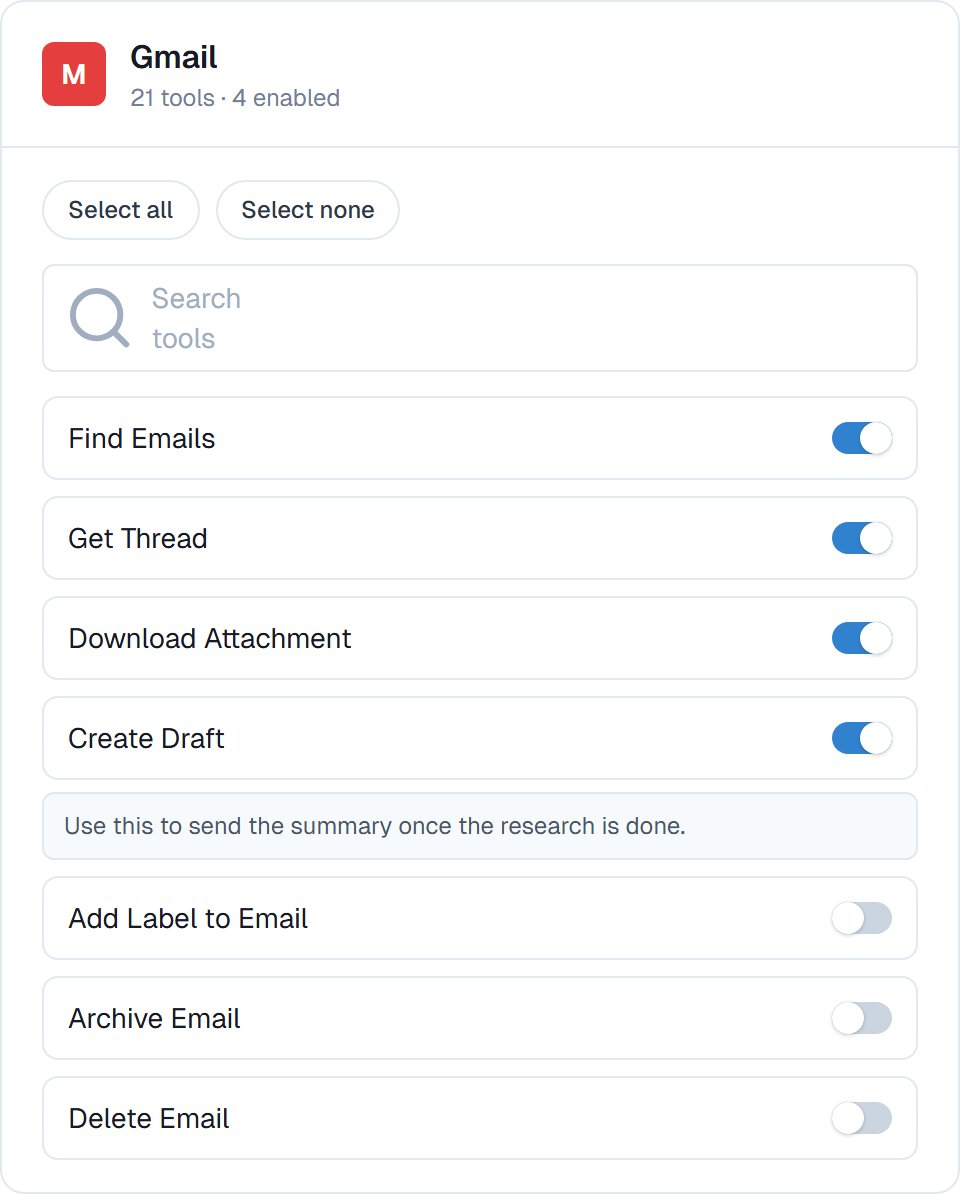
Gmail narrowed to four actions: it can find a thread, read it and draft a reply — but not send, label, archive or delete.
Good to know
Connections are attached per coworker. The same Gmail account can be read-only on your research coworker and send-capable on your assistant, with no conflict.
Common questions
Does attaching an app give it access to everything in that account?
Does attaching an app give it access to everything in that account?
It’s scoped by the actions you allow. A connection with only read actions enabled cannot send, delete or change anything, whatever it’s asked to do.
What if I do not see the app I need?
What if I do not see the app I need?
Connect it from the same panel — the catalogue covers thousands of apps, and the connection then becomes available to any coworker. See Integrations.
Can I require approval instead of blocking an action?
Can I require approval instead of blocking an action?
Yes, and it’s often the better answer. Keep the action enabled and add a permission rule that makes your coworker ask first.
Does my coworker get confused with a lot of apps attached?
Does my coworker get confused with a lot of apps attached?
It handles a long list without trouble, but a focused one produces better work. Attach what the job needs.
What happens if a connection stops working?
What happens if a connection stops working?
Your coworker tells you it couldn’t reach the app rather than quietly skipping the step. Reconnect the account and it picks up on the next task.
Next steps
Permission rules
Allow, ask, or never — per action.
Approvals
What reaches you before it happens.
Message channels
The same connections, listening.
Integrations
The full catalogue.