
Attaching
The paperclip in the message box, or drag a file onto the conversation. Attached files appear above the box before you send, so you can check you grabbed the right one and remove it if not.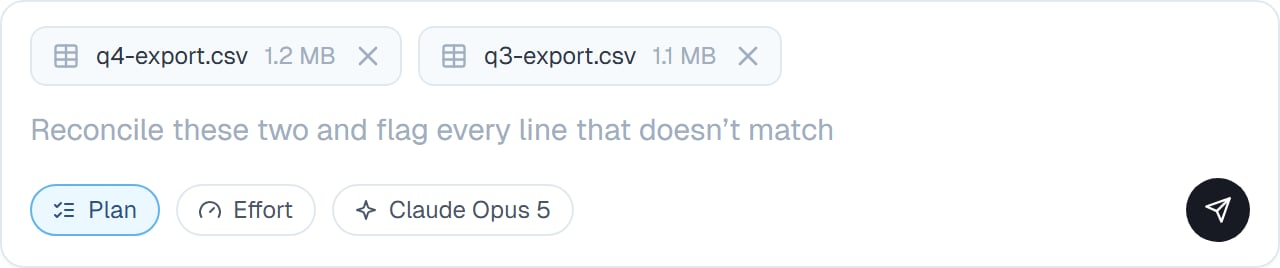
Attachments sit above the box until you send, each with its size and a way to remove it.
Mentioning
Type@ and a menu of the files already in the task appears. If Work with coworkers is on, your other coworkers come first, each with its role and a delegate hint. Keep typing to filter, pick one, and it’s referenced in your message.
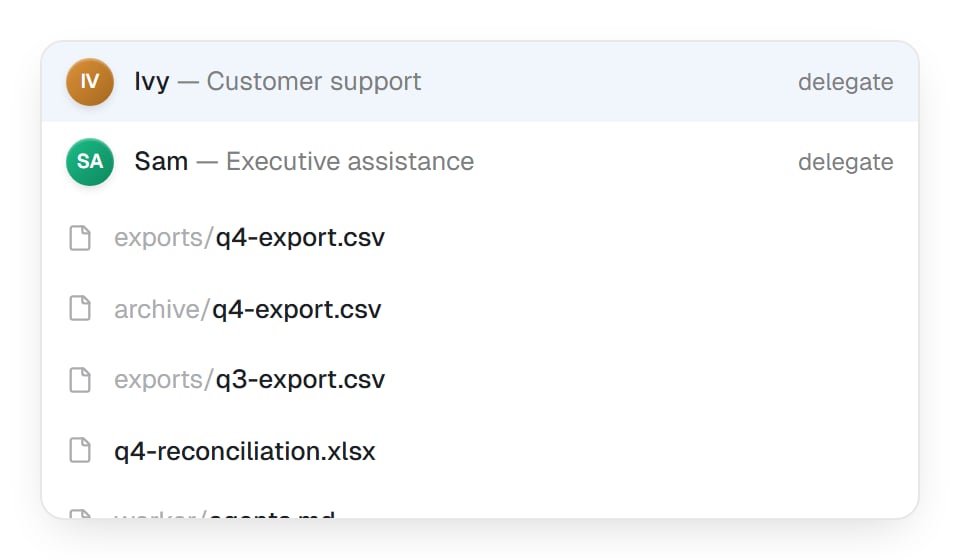
With Work with coworkers on, your other coworkers come first. Then the files already in the task, by folder and name, so you can tell two similar exports apart.
When mentioning is worth it
- More than one file in the task could plausibly be the one you mean
- Filenames are similar —
export.csvandexport-final.csv - You’re referring back to something from earlier in a long conversation
- The task has a lot of files and you want to be precise
Good to know
Attaching a file adds it to the task’s files, so it stays available for the rest of the conversation. You attach once, then mention it afterwards.
Common questions
Can I attach an image?
Can I attach an image?
Yes. Whether your coworker can look at it depends on the model — the picker marks the ones that accept images. See Effort and model.
Does mentioning a file make my coworker read all of it?
Does mentioning a file make my coworker read all of it?
It reads what it needs for the job. Saying what you want from the file — “just the totals row” — keeps it efficient on a large one.
Can I mention a coworker file, not a task file?
Can I mention a coworker file, not a task file?
Files saved to the coworker are available in every task automatically, so there’s usually nothing to point at. Naming it in words is enough.
What if I attach the wrong file?
What if I attach the wrong file?
Remove it from the strip above the box before sending. After sending, just say so — your coworker won’t quietly use the wrong one.
Next steps
The file manager
What’s already in the task.
The conversation
Everything else in the message box.
Previewing files
Check what you attached.
Files overview
Where files live.