
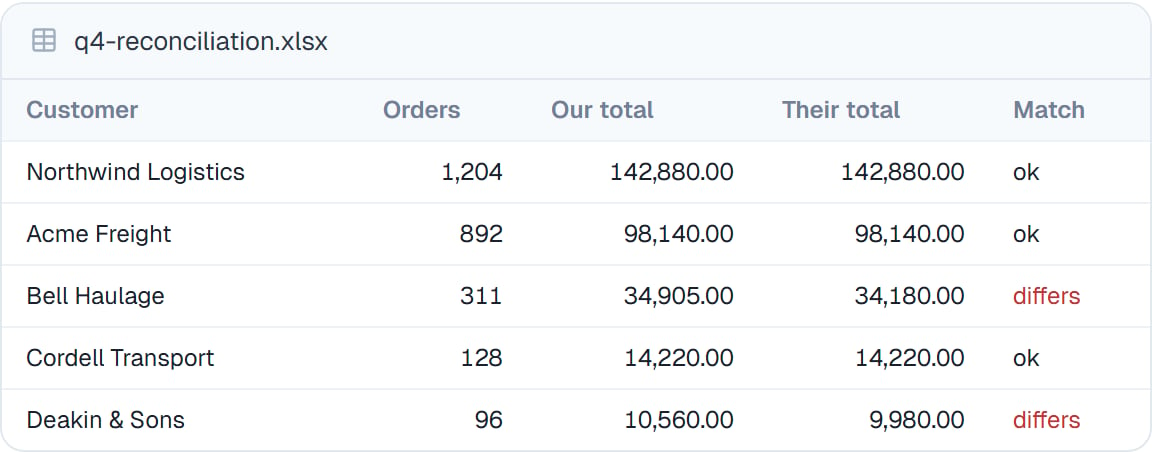
A finished reconciliation, open beside the conversation. No download, no second application.
Two places files live
This is the one thing worth understanding, because it explains most questions people have.Task files
Belong to one task. Anything you upload into a conversation and anything your coworker produces there. Private to that task — no other task can see them, unless your coworker shares them in a handover.
Coworker files
Belong to the coworker itself. Available in every task it runs. This is where its instructions, personality and skills live.
What’s on the coworker’s Files tab
Alongside anything you’ve saved there, you’ll find a few files that control how your coworker behaves. Each is labelled in plain language so you’re never editing something whose job you have to guess:
Your coworker’s skills, helpers and saved dynamic workflows live here too. A run’s own records don’t: each temporary helper’s transcript is saved in that task’s files. An edit to a saved dynamic workflow applies the next time it starts, even in a task that’s already open.
Working with files
- The file manager — browse, upload, rename, delete, download
- Previewing files — open anything without downloading it
- Attaching and mentioning — get a file into the conversation
- Seeing what changed — check what your coworker actually edited
Good to know
Task files are discarded with the task’s private workspace when it ends. Download anything you want to keep, or ask your coworker to save it to itself.
Common questions
Where did my file from yesterday go?
Where did my file from yesterday go?
It’s in yesterday’s task. Open that task, or save the file to the coworker so every task can reach it.
Is my data private?
Is my data private?
Each task’s files are isolated to that task and discarded when it ends. Nothing is shared between tasks or coworkers unless you put it there. The one exception is a handover where your coworker shares its task files with the coworker it asks.
What file types work?
What file types work?
Spreadsheets, documents, PDFs, images, and plain text and data files. See Previewing files for what opens in place.
Next steps
The file manager
Browse, upload, download.
Previewing files
Open anything in place.
Attaching and mentioning
Point at a file mid-conversation.
Working with code and files
The capability behind all of it.