
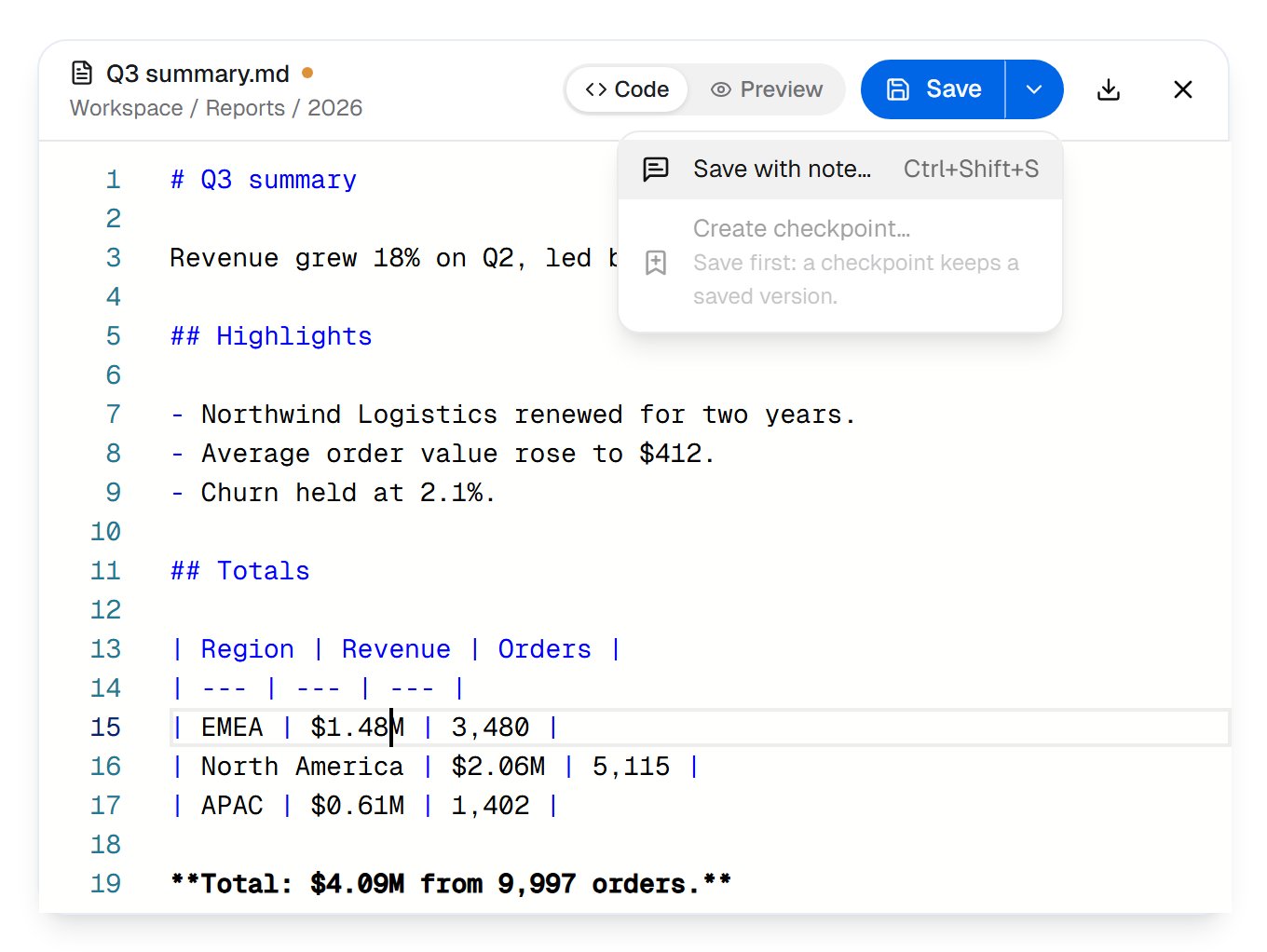
The editor on a report in Workspace files: one figure changed, the orange dot says it isn't saved yet, and More ways to save is open.
Edit a file
Open a text file in the editor from Edit in its menu, in Quick Look or in its details, or double-click it in the list. Plain text, Markdown, CSV, web pages, data files and code all open there. Markdown, CSV, web pages and data files also have a Preview beside Code. Text files up to 1 MB are editable; a bigger one opens to read:View only: files over 1 MB open read-only here.Save (Ctrl+S, Cmd+S on a Mac) saves your change as a new version. The orange dot beside the name means there’s something unsaved, and closing the editor with unsaved text asks first. Save with note… (Ctrl+Shift+S) does the same and adds a line to the version’s history, so the next person knows why it changed:
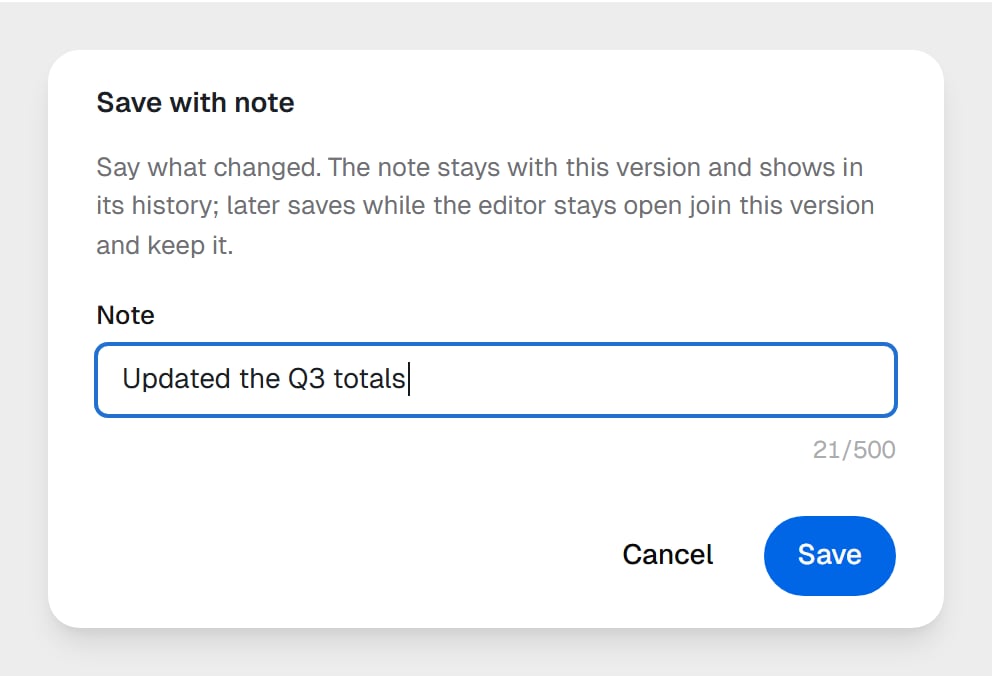
Save with note: a line that stays with this version.
Say what changed. The note stays with this version and shows in its history; later saves while the editor stays open join this version and keep it.
If someone saved while you were editing
A notice tells you as soon as it happens, and your unsaved text stays put:Changed by Maya Chen. Your unsaved edits are kept until you choose.When you save, you choose what to keep:
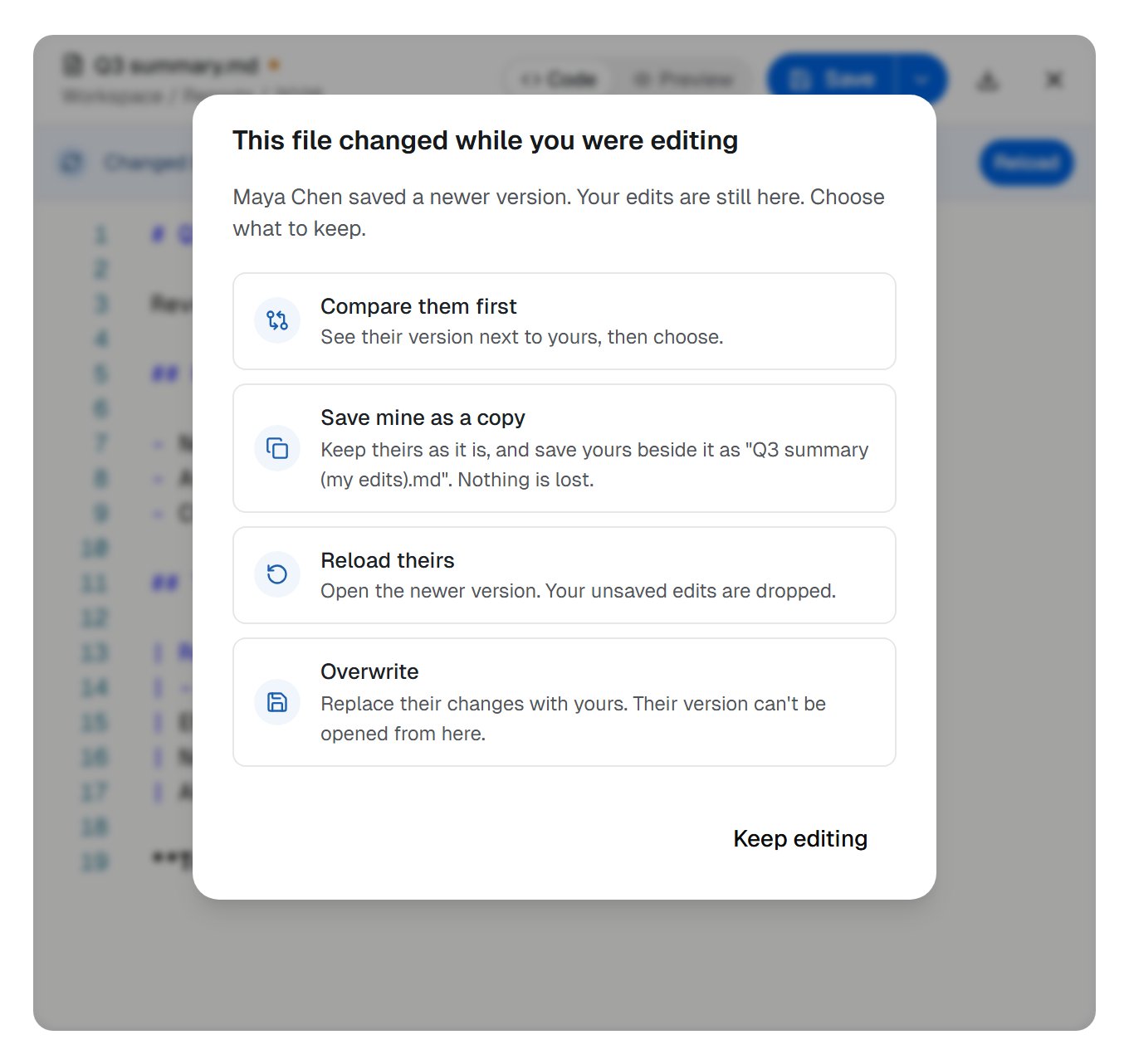
Maya saved first. Nothing is lost whichever you choose; Save mine as a copy keeps both.
Versions
Every save is a version. A file keeps its last three, the current one included, and the list says so:A file keeps its last 3 versions.What counts as one version:
- An editing session. Your saves while the editor stays open join one version, as long as each comes within 10 minutes of the last.
- A coworker’s task, or a workflow run. Its saves to the same file within 10 minutes join one version, so a coworker rewriting a report thirty times leaves one version, not thirty.
- Nothing new. Saving exactly what’s already there makes no version.
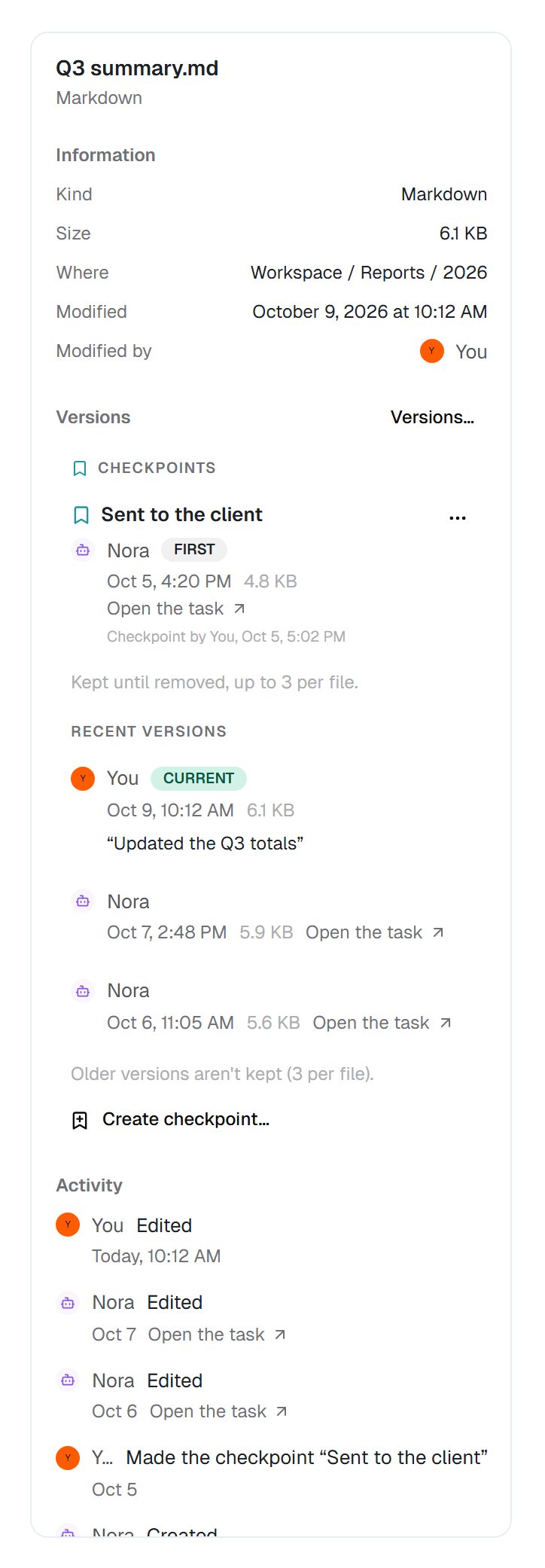
Details for a file: its information, its versions with a checkpoint on top, and who changed it.
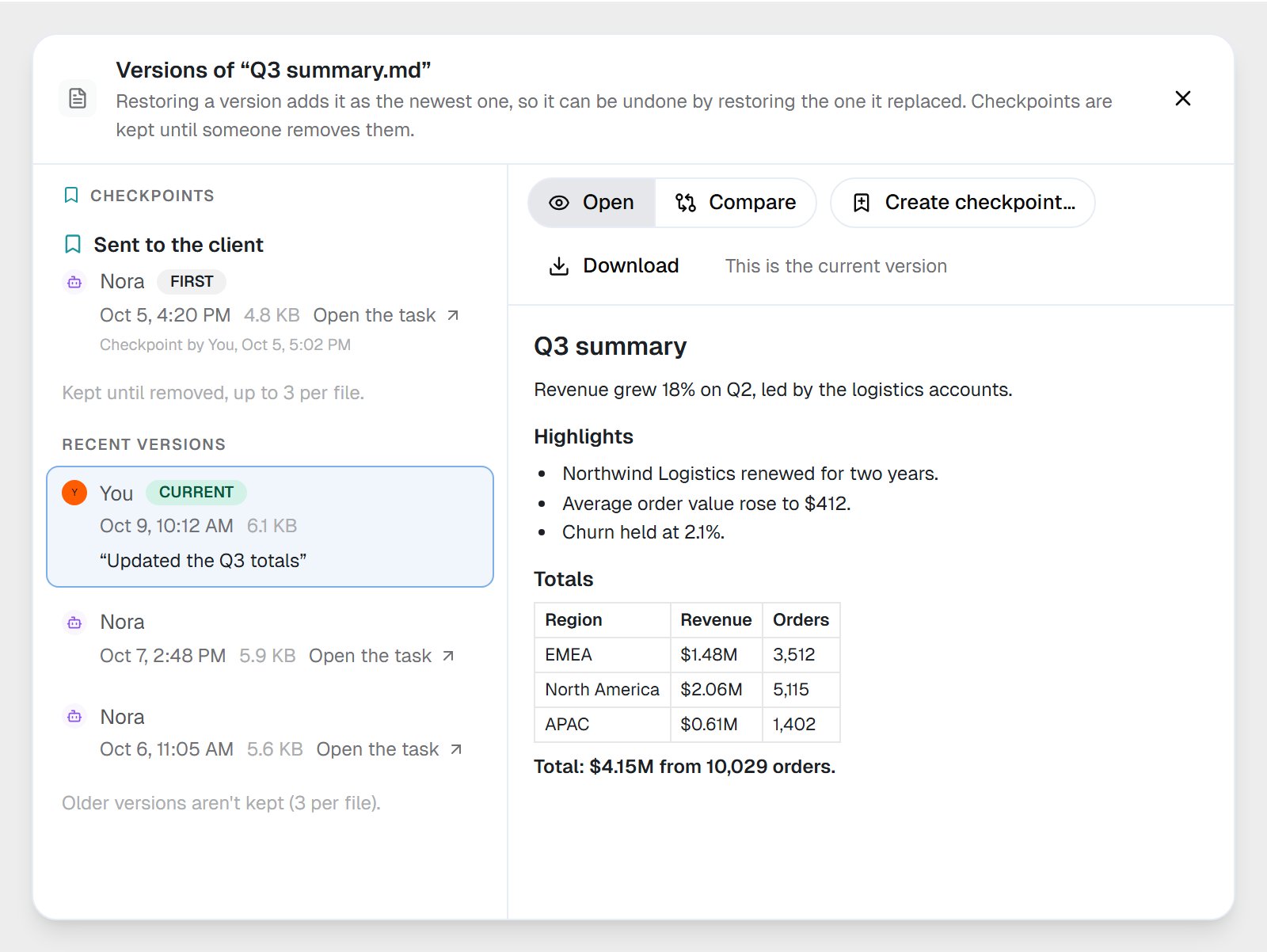
The Versions dialog: checkpoints first, then the recent versions, here at three.
Compare two versions
Choose Compare to put two versions side by side, any two you like. Changed lines are tinted and the changed characters stand out. Text files are compared line by line, up to 1 MB per side; images side by side. Anything else, a database for instance, you download to compare.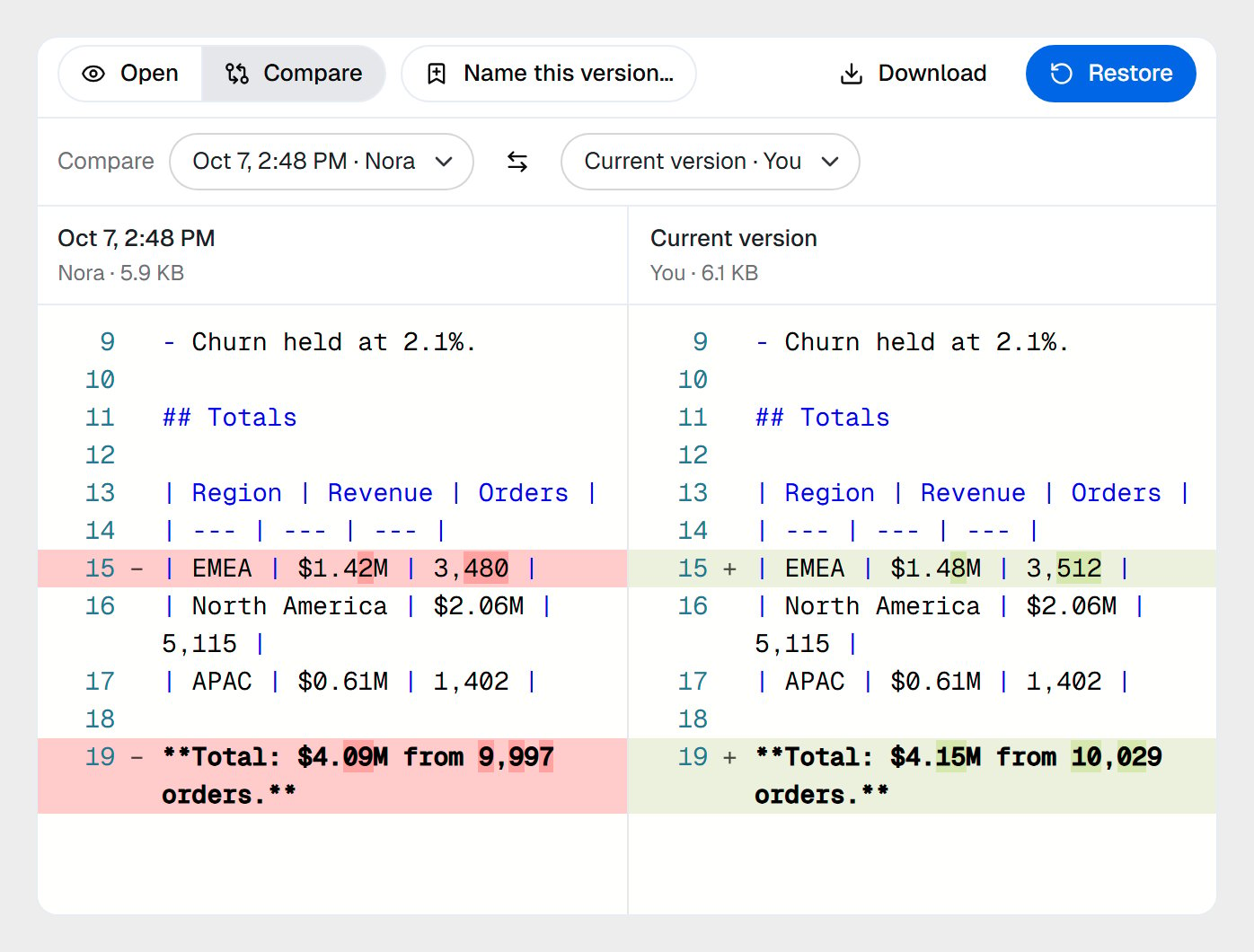
Nora's Wednesday version against the current one: two figures changed.
Restore an older version
Select a version and choose Restore. Its content becomes the newest version, so nothing is rewritten, and the message that confirms it offers Undo. When the file already has three versions, the dialog says which one will no longer be kept before you go ahead: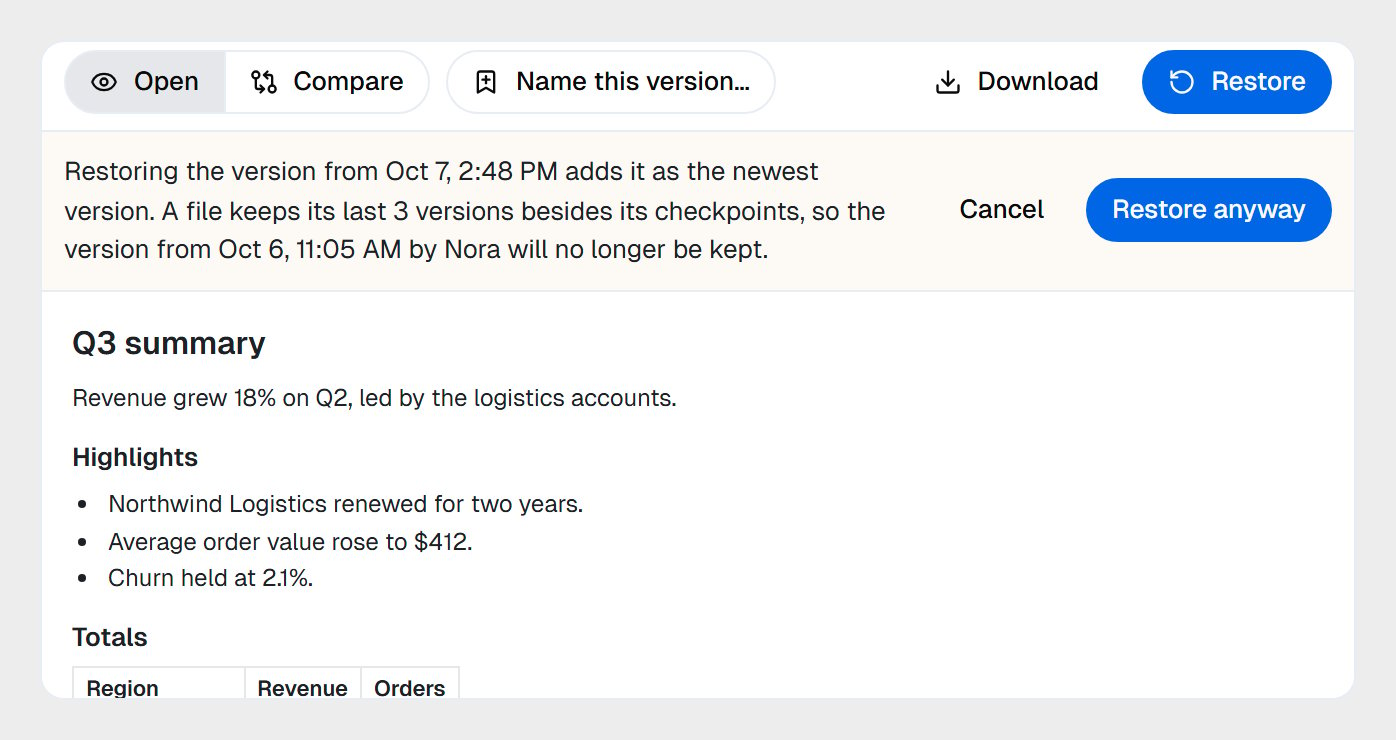
Restoring at three versions: the bar names the version that goes.
Keep a version for good: checkpoints
A checkpoint is a version with a name, kept until someone removes it. Checkpoints sit outside the three recent versions, so no amount of saving pushes them out.- Create checkpoint… names the file as it is now; Name this version… names an older one.
- A file keeps up to three checkpoints. At three, you’re asked which one to replace.
- Rename checkpoint… and Remove checkpoint… are on the checkpoint itself.
- An older version kept as a checkpoint counts toward your storage.
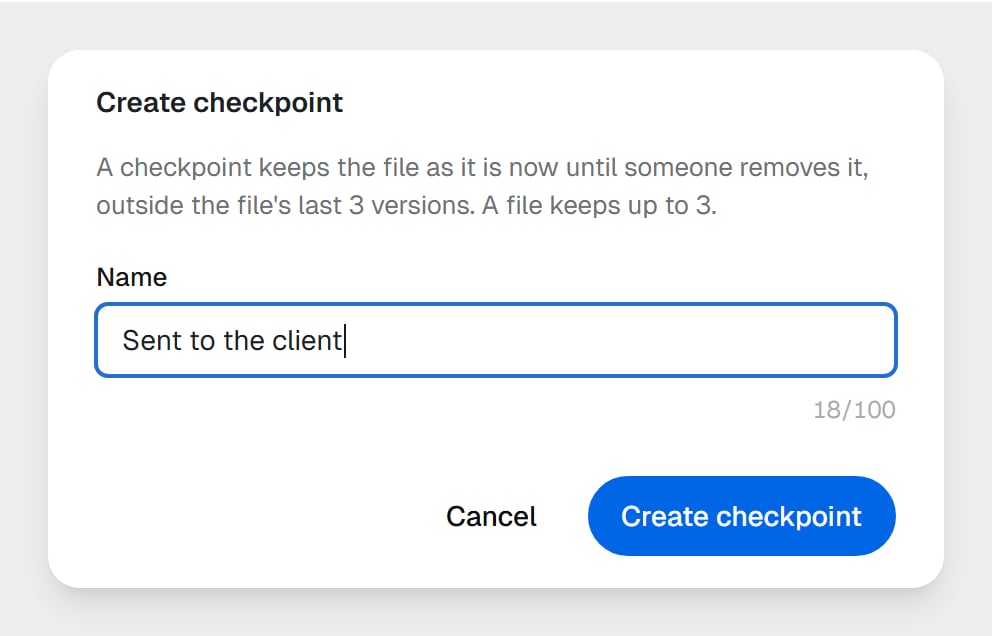
Create checkpoint: a name for the file as it is now.
Delete a version
People can delete a single version for good, any but the current one. Choose Delete this version… on it. For a checkpoint, the question names it first: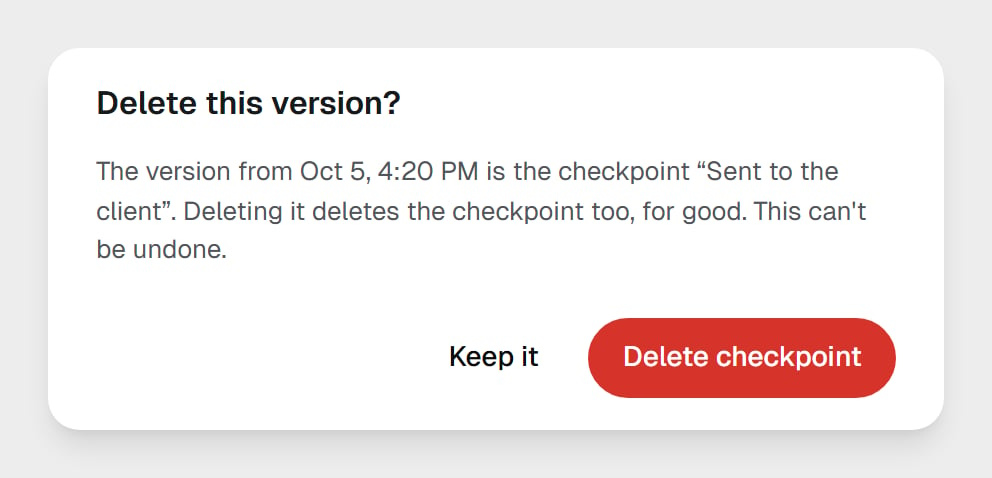
Deleting a checkpoint's version deletes the checkpoint too.
Who changed what
A file’s Activity, in its details, lists each change newest first: who made it (you, a teammate, a coworker, the Concierge or a workflow) and what they did, such as Created, Edited, Renamed, Moved to the Trash, Restored from the Trash or Made the checkpoint. A coworker’s change links to Open the task when it’s your task; a workflow’s links to Open the run; the Concierge’s says In your Concierge chat.Conflicted copies
When a coworker’s save, or a workflow’s Execute Code step, crosses someone else’s change to the same file, nothing is overwritten. The second change is saved beside the file as name (conflicted copy).ext, then (conflicted copy 2), and so on. Its details say so: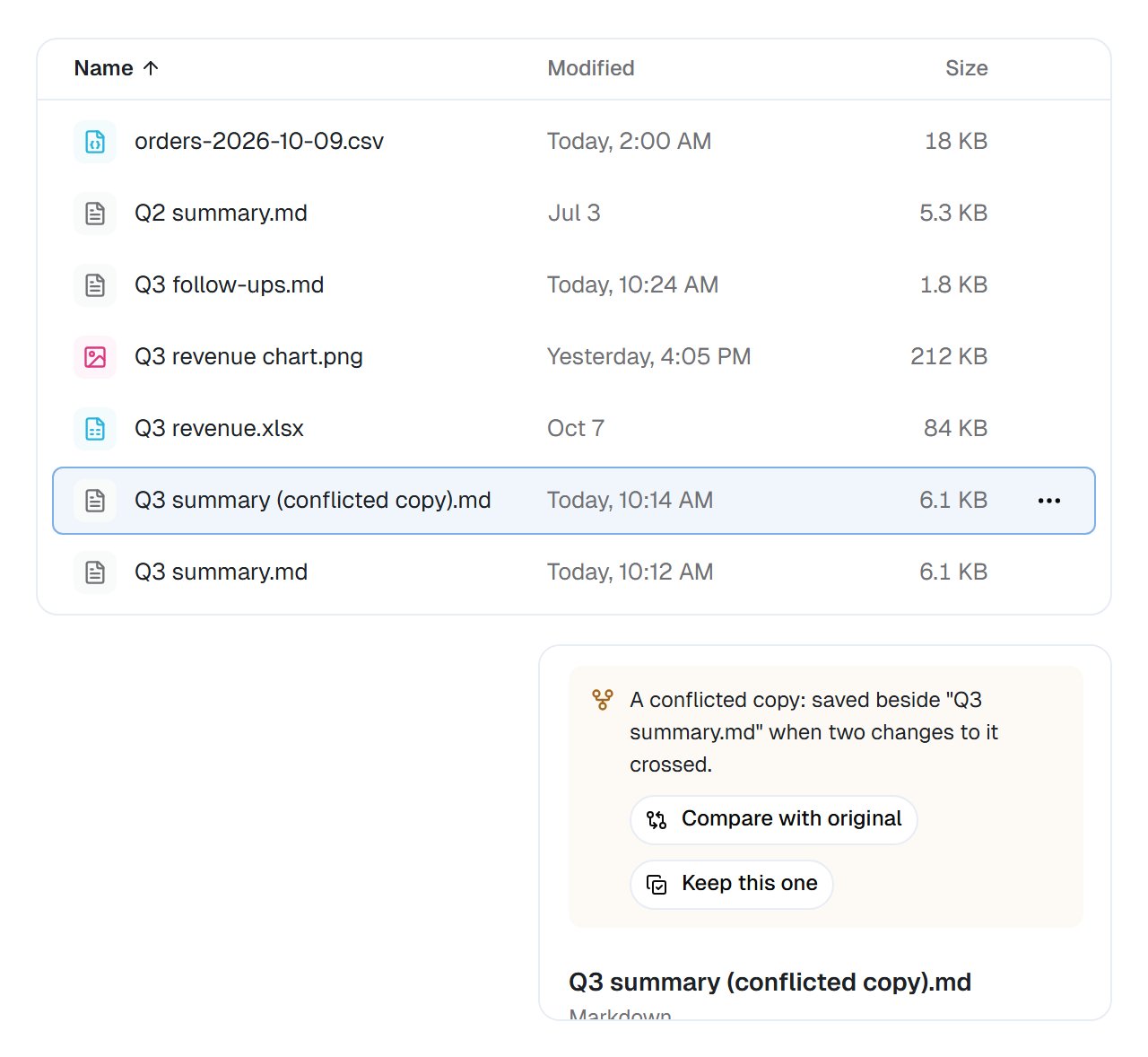
A conflicted copy beside its original, and what to do about it.
- Compare with original opens the two side by side.
- Keep this one makes the copy’s content the original’s new version and moves the copy to the Trash.
- To keep the original, move the copy to the Trash.
Good to know
Common questions
Why only three versions?
Why only three versions?
Does every Ctrl+S make a new version?
Does every Ctrl+S make a new version?
Can a coworker undo my edit?
Can a coworker undo my edit?
What is a conflicted copy?
What is a conflicted copy?