
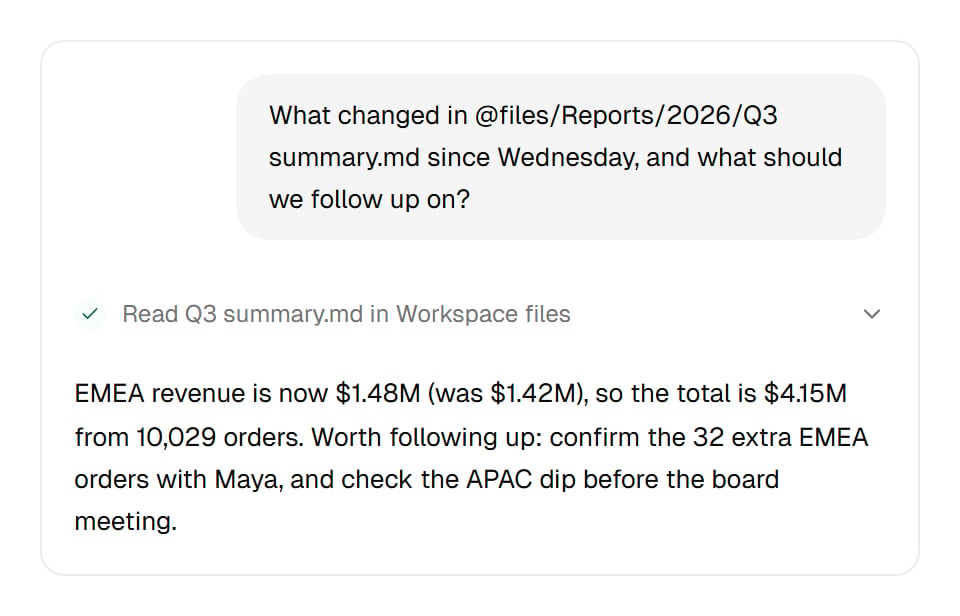
The Concierge reads the report you named and answers from it.
Ask about a file
On the Files page, choose Mention in chat… on a file, then Ask the Concierge. The Concierge opens with the file already named in your message, as@files/ and its path. Finish the question and send it; nothing is sent until you do.
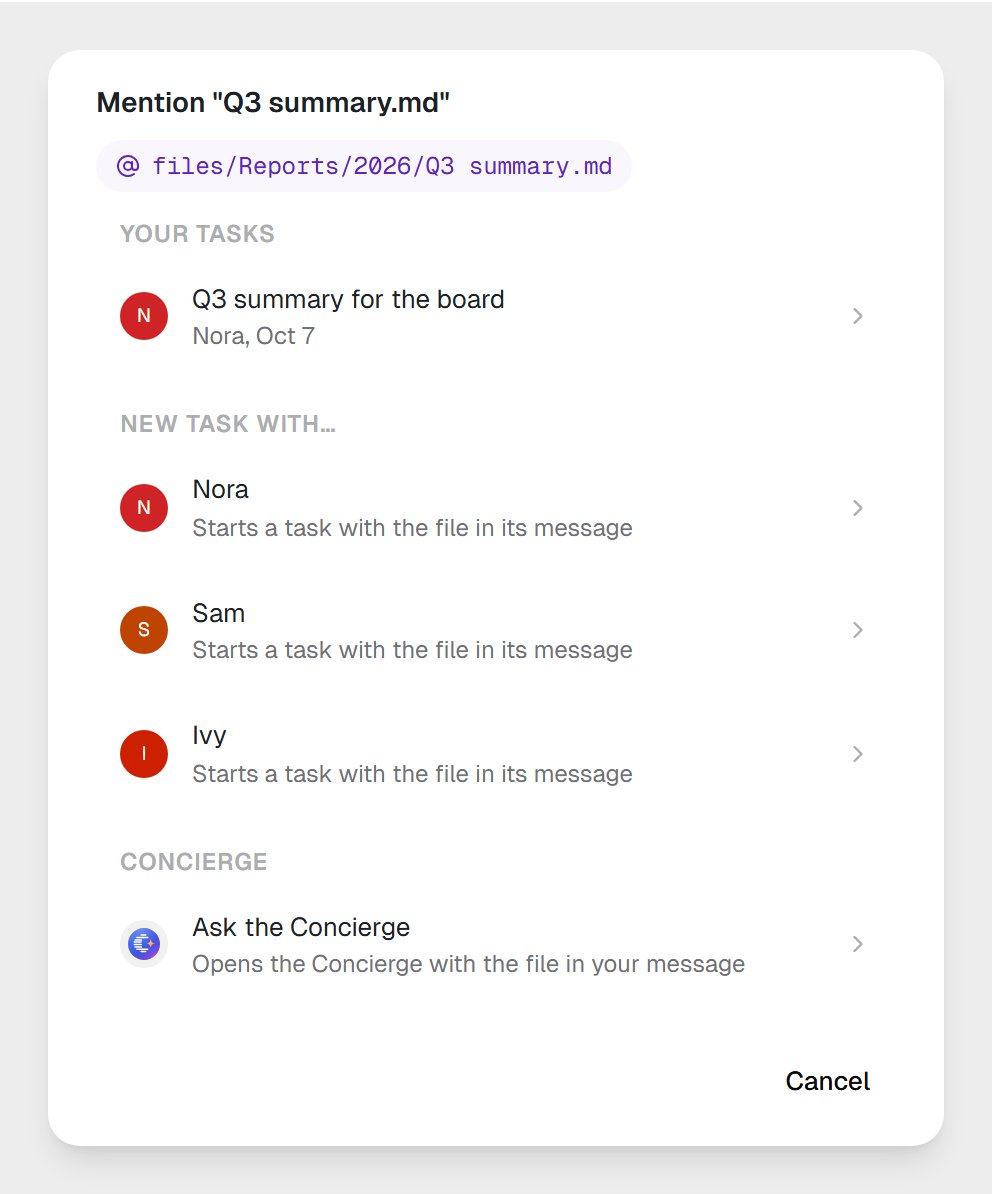
Mention in chat: one of your tasks, a new task with a coworker, or the Concierge.
@files/Reports/2026/Q3 summary.md.
What it can read
The Concierge lists folders, finds files by name and reads text files: Markdown, plain text, CSV, data files and the like, up to 5 MB each. A PDF, an image or an Office file it can find but not read; ask a coworker with Code and files to work on those.Let it save a file
When the Concierge writes something you might keep, such as a summary, a list or a draft, it can save it as a text file in Workspace files, up to 1 MB. It asks first, on a card that says exactly what it will do: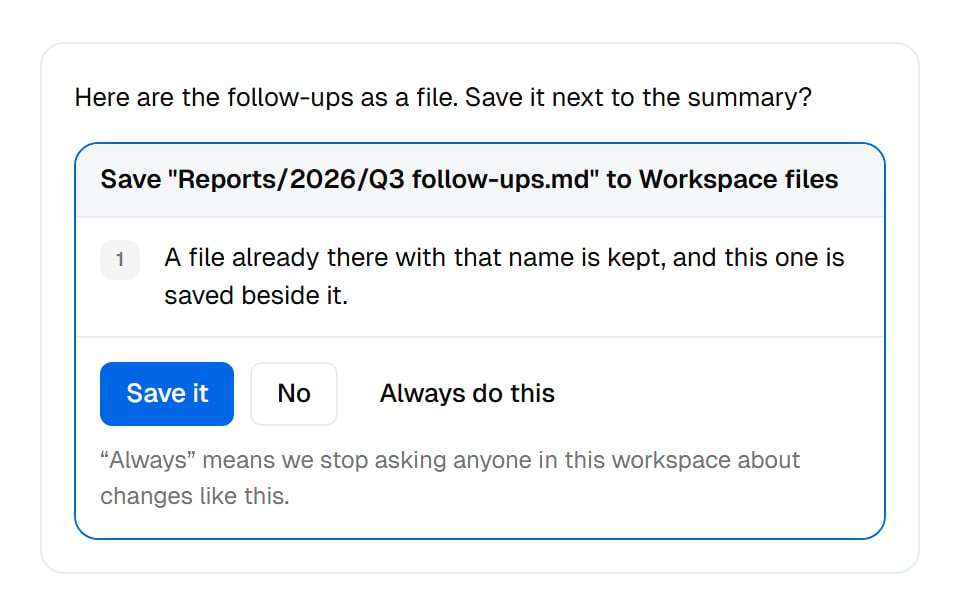
The Concierge asks before it saves. A file of that name already there is kept.
Save “Reports/2026/Q3 follow-ups.md” to Workspace files A file already there with that name is kept, and this one is saved beside it.
Replace “Reports/2026/Q3 follow-ups.md” in Workspace files It becomes the file’s new version. Earlier versions stay in its history.Save it saves the file. No saves nothing, and the conversation carries on. Always do this saves it and stops asking:
“Always” means we stop asking anyone in this workspace about changes like this.
Attach a file
Drop a file into a Concierge message, or use its paperclip. Images go along with the message as they are. Any other file is uploaded into Workspace files first, into a folder called Cogni uploads, and the message names it there, so the Concierge and everyone else can open it later.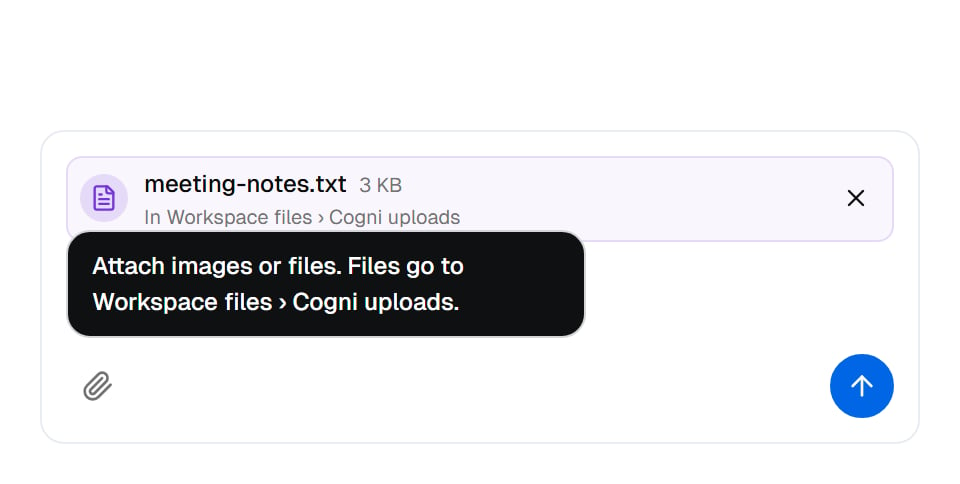
An attachment on its way: it lands in Workspace files › Cogni uploads before the message is sent.
Start a coworker task with a file
The same Mention in chat… dialog offers New task with… for every coworker with Code and files on. Pick one and a new task starts with the file in its message. Or pick one of Your tasks to put the file into a conversation you already have. See Attaching and mentioning.In the file’s history
A file the Concierge saves shows Concierge in Modified by on the Files page. Its Activity line reads In your Concierge chat, or names whose chat it was, so you know where it came from.Good to know
The Concierge reads text only. For a PDF, a spreadsheet or an image, start a task with a coworker that has Code and files on.
Common questions
Can the Concierge read my PDF?
Can the Concierge read my PDF?
It can find it, but it reads text files only. Start a task with a coworker that has Code and files on, from Mention in chat… → New task with…, and it can open the PDF.
Does it change files without asking?
Does it change files without asking?
It asks before every save, on a card naming the file, until someone chooses Always do this. That choice stops the asking for everyone in the workspace.
Where do my attachments go?
Where do my attachments go?
Images go along with your message. Other files are uploaded into Workspace files, in Cogni uploads, and stay there like any other file.
Does saving over a file lose the old one?
Does saving over a file lose the old one?
No. A replace becomes the file’s new version, and earlier versions stay in its history. See Editing and file history.
Next steps
Attaching and mentioning
Point a coworker at a file.
Workspace files
The shared folder at a glance.
Editing and file history
Versions and who changed what.
The Files page
Browse, upload and organise.