
What it does
A coworker nobody can reach is a coworker nobody uses. Message channels put yours into the tools your team already has open: a Slack channel, a shared inbox, a Telegram chat. Someone posts a question; your coworker picks it up, does the work, and replies on the same thread. To everyone else it looks like a colleague who answers quickly.This is the inbound half — people reaching your coworker. For your coworker reaching out first, see Talking to people.
When you’d use it
- A support coworker that answers in
#support-triagefor the three people on the rota - An assistant reading a shared inbox, filtered to just the
Requestslabel - A Telegram bot the field team messages from their phones
- A coworker that replies in a DM so the conversation stays private
- A channel where anyone on the team can ask for a report without learning a new tool
Setting it up
Channels live on the coworker’s own Channels tab — not on Capabilities, where the outbound half sits.1
Open the Channels tab
Open your coworker and choose Channels. Each channel you add gets a row with a name, an on/off switch, and the connection it runs on.
2
Pick the platform and connection
Slack, Gmail or Telegram, and which connected account it should listen on.
3
Say where to listen
This differs per platform and it’s the step people get wrong. See the table below.
4
Say who is allowed to talk to it
Add each person who may reach this coworker. This step is not optional — see the warning below.
5
Turn it on
The switch on the row starts the channel listening.
Where to listen
Who’s allowed to talk to it
Each person is one entry — a Slack member ID, an email address, or a Telegram user ID or@username — with an optional name so the list stays readable.
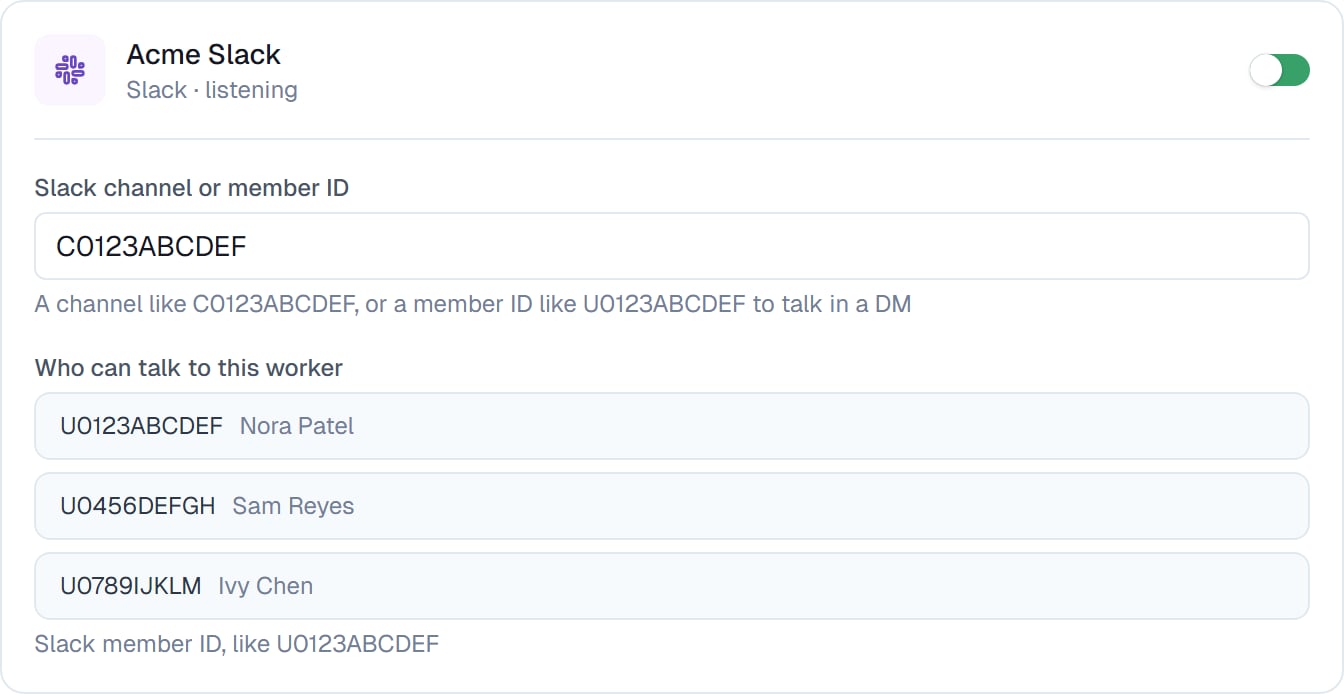
A Slack channel with three named people allowed. Anyone not on this list is never heard.
What it looks like
Replies come back on the same thread, so a channel conversation reads like any other. Nobody has to quote anything or repeat themselves. If several messages arrive in quick succession, your coworker handles them together rather than treating each as a fresh interruption — so someone typing three lines in a row gets one considered answer, not three half-answers.Good to know
A channel uses the same connected accounts as everything else. The Gmail connection that lets your coworker send is the one it can listen on. See Connecting your apps.
Common questions
Why is my coworker ignoring messages?
Why is my coworker ignoring messages?
Almost always the allowed-senders list. If it’s empty, nothing gets through. Check that the person messaging is on it, and that their ID is the right one for that platform.
Where do I find someone's Slack member ID?
Where do I find someone's Slack member ID?
Open their profile in Slack, then the overflow menu, then Copy member ID. It looks like
U0123ABCDEF. Channel IDs start with C and come from the channel’s details.Can it read our whole inbox?
Can it read our whole inbox?
Only if you leave the label filter empty, which is what that setting means. Set a label and it sees only messages carrying it.
Can one coworker listen in several places?
Can one coworker listen in several places?
Yes. Add a row per place — a Slack channel and a shared inbox, each with its own list of allowed people.
Does a channel message start a new task?
Does a channel message start a new task?
Yes, and you can follow it in CogniAgent like any other. The person messaging never sees that side of it.
How do I switch it off in a hurry?
How do I switch it off in a hurry?
The switch on the channel row. It stops listening immediately; nothing else about the coworker changes.
Next steps
Talking to people
The other direction.
Connecting your apps
Where the connections come from.
Permission rules
Tighten what it may do once asked.
Managing your tasks
Follow what a channel started.