Nothing. You don’t need to connect an app, write instructions, or set anything up. All five ready-made coworkers do useful work with what they arrive with.Have one real job in mind — something you were going to do this week anyway. A test question tells you very little; a real task tells you everything.
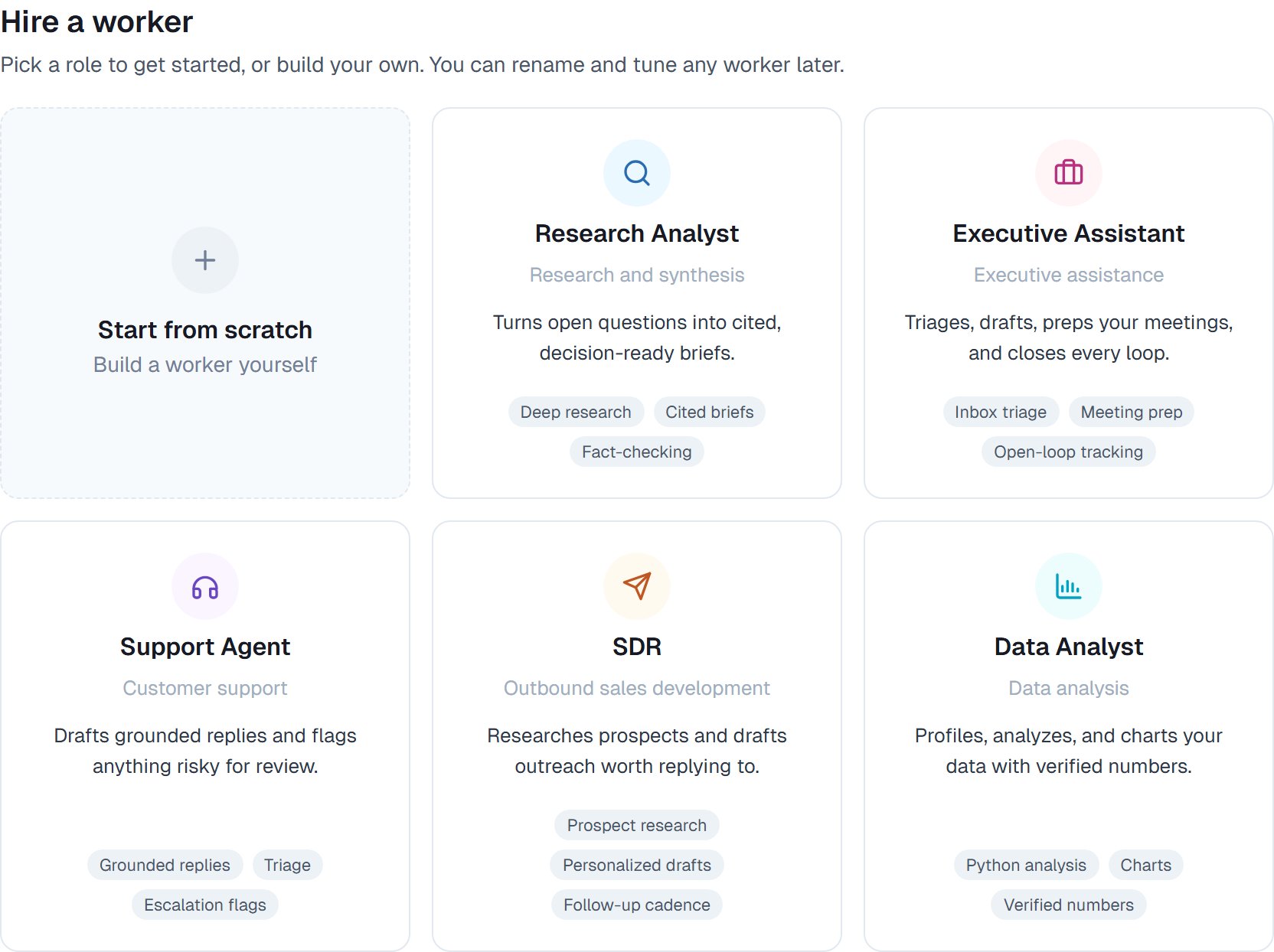
Six cards: five ready-made roles and Start from scratch. Take a ready-made one — even an imperfect fit beats an empty coworker on your first go.Not sure? The Research Analyst is the easiest to judge, because you can check its work.
Six cards. Take a ready-made one for your first coworker.
3
That's it
It appears on your roster with a name and an avatar, ready to work. There’s no setup step.
Stay for this one, even though you won’t need to later.You’ll see a row per step: what it searched for, what it opened, what it worked out. Expand any of them. On a longer job it keeps a visible checklist and ticks items off.You’re not supervising. You’re learning where this coworker is reliable and where it needs a tighter brief — which is what makes the next nine tasks quick.
If your task involves sending or changing something, your coworker will stop and show you exactly what it’s about to do. Approve it and it continues; decline and it carries on with everything else.You can decide these in advance once you know what you’re being asked about.
A few minutes for something straightforward, longer for real research. You can close the tab — it keeps working.
What if the result is not what I wanted?
Say so and it adjusts. You don’t start over, and it doesn’t need re-briefing from scratch.
Can it do damage on the first try?
Anything leaving your workspace waits for your approval, and a new coworker has no apps connected — so its first task can only read, research and produce files.
Should I hire more than one?
Not yet. Get one working well first. The signal for a second is catching yourself wishing the first were better at something specific. Once you have two, they can hand work to each other.
⌘I
{"docsConfig":{"theme":"almond","$schema":"https://mintlify.com/docs.json","name":"CogniAgent","colors":{"primary":"#3B82F6","light":"#60A5FA","dark":"#2563EB"},"logo":{"light":"https://mintcdn.com/glorium/83AIEkulJmAPEINE/cognilogo.png?fit=max\u0026auto=format\u0026n=83AIEkulJmAPEINE\u0026q=85\u0026s=2690dbbf93ec4db5af76ee7989c50869","dark":"https://mintcdn.com/glorium/83AIEkulJmAPEINE/cognilogo.png?fit=max\u0026auto=format\u0026n=83AIEkulJmAPEINE\u0026q=85\u0026s=2690dbbf93ec4db5af76ee7989c50869","href":"/"},"favicon":"https://mintcdn.com/glorium/vnEO0b28ni3gNN2L/favicon.svg?fit=max\u0026auto=format\u0026n=vnEO0b28ni3gNN2L\u0026q=85\u0026s=dfb759b88314aa4adbaad562a76947ec","navbar":{"links":[{"href":"https://cogniagent.ai","label":"Home"}],"primary":{"type":"button","label":"Get Started","href":"https://cogniagent.ai"}},"search":{"prompt":"Search documentation..."},"seo":{"metatags":{"og:site_name":"CogniAgent Documentation","og:type":"website","og:image":"/cognilogo.png","twitter:card":"summary_large_image","twitter:image":"/cognilogo.png","robots":"index, follow"},"indexing":"navigable"},"styling":{"latex":true},"navigation":{"pages":[]}},"deployment":{"deploymentMetadataValue":{"subdomain":"glorium","hasAudioNarration":false,"actualSubdomain":"glorium","customDomains":["docs.cogniagent.ai"],"gitSource":{"type":"github","owner":"vstepanovglorium","repo":"cognidocs","deployBranch":"main","contentDirectory":"","isPrivate":true,"mountPath":"","label":""},"chroma":{"liveDeploymentHistoryId":"6ad690650b82a51e43e05030","collectionId":"a5cb305b-0d7b-49ab-a38a-29a995f1bb24","schemaVersion":"v3","latestBuiltDeploymentHistoryId":"6ad690650b82a51e43e05030"},"entitlements":{},"buildId":"6ad690650b82a51e43e05030","clientVersion":"0.0.3965","searchFilterCounts":[{"language":"default","tag":"Cowork","count":58},{"language":"default","tag":"Workflow Nodes","count":33},{"language":"default","tag":"Chat \u0026 Voice Agents","count":26},{"language":"default","tag":"What a coworker can do","count":15},{"language":"default","tag":"Actions","count":15},{"language":"default","tag":"Workflows","count":14},{"language":"default","tag":"Advanced","count":14},{"language":"default","tag":"Basic","count":13},{"language":"default","tag":"Files","count":12},{"language":"default","tag":"Documentation","count":11}]},"assistantConfig":{"enableAskAiButton":false,"enableStarterQuestions":false,"enableAskAiSearchBar":true},"hasChatPermissions":false,"hasWebMcpPermissions":false,"toggles":[{"name":"kill-isr","enabled":true,"variant":{"name":"disabled","enabled":false,"feature_enabled":true},"impressionData":false},{"name":"agent-mintlify-slack","enabled":true,"variant":{"name":"disabled","enabled":false,"feature_enabled":true},"impressionData":false},{"name":"editor-v7-file-tree","enabled":true,"variant":{"name":"disabled","enabled":false,"feature_enabled":true},"impressionData":false},{"name":"agent-integrations-settings","enabled":true,"variant":{"name":"disabled","enabled":false,"feature_enabled":true},"impressionData":false},{"name":"automations-pr-grouping","enabled":true,"variant":{"name":"disabled","enabled":false,"feature_enabled":true},"impressionData":false},{"name":"custom-prefix","enabled":true,"variant":{"name":"disabled","enabled":false,"feature_enabled":true},"impressionData":false},{"name":"analytics-v7","enabled":true,"variant":{"name":"disabled","enabled":false,"feature_enabled":true},"impressionData":false},{"name":"user-flows-analytics","enabled":true,"variant":{"name":"disabled","enabled":false,"feature_enabled":true},"impressionData":false},{"name":"no-publish-flow","enabled":true,"variant":{"name":"disabled","enabled":false,"feature_enabled":true},"impressionData":false},{"name":"workos-onboarding","enabled":true,"variant":{"name":"disabled","enabled":false,"feature_enabled":true},"impressionData":false},{"name":"llms-txt-v2","enabled":true,"variant":{"name":"disabled","enabled":false,"feature_enabled":true},"impressionData":false},{"name":"pause-universal-search-reconcile","enabled":true,"variant":{"name":"disabled","enabled":false,"feature_enabled":true},"impressionData":false},{"name":"snapshot-serving-live","enabled":true,"variant":{"name":"disabled","enabled":false,"feature_enabled":true},"impressionData":false},{"name":"stripTemperatureMiddleware","enabled":true,"variant":{"name":"disabled","enabled":false,"feature_enabled":true},"impressionData":false},{"name":"per-site-search-delta","enabled":true,"variant":{"name":"disabled","enabled":false,"feature_enabled":true},"impressionData":false},{"name":"support-platform-pylon-zendesk","enabled":true,"variant":{"name":"disabled","enabled":false,"feature_enabled":true},"impressionData":false},{"name":"snapshot-serving","enabled":true,"variant":{"name":"disabled","enabled":false,"feature_enabled":true},"impressionData":false},{"name":"instant-rollback","enabled":true,"variant":{"name":"disabled","enabled":false,"feature_enabled":true},"impressionData":false},{"name":"granular-notifications-server","enabled":true,"variant":{"name":"disabled","enabled":false,"feature_enabled":true},"impressionData":false},{"name":"granular-notifications","enabled":true,"variant":{"name":"disabled","enabled":false,"feature_enabled":true},"impressionData":false},{"name":"editor-private-page-search","enabled":true,"variant":{"name":"disabled","enabled":false,"feature_enabled":true},"impressionData":false},{"name":"automations-fable","enabled":true,"variant":{"name":"disabled","enabled":false,"feature_enabled":true},"impressionData":false},{"name":"fixed-ai-action-pricing","enabled":true,"variant":{"name":"disabled","enabled":false,"feature_enabled":true},"impressionData":false},{"name":"automation-resolve-merge-conflict","enabled":true,"variant":{"name":"disabled","enabled":false,"feature_enabled":true},"impressionData":false},{"name":"scoped-publishing","enabled":true,"variant":{"name":"disabled","enabled":false,"feature_enabled":true},"impressionData":false},{"name":"mintql","enabled":true,"variant":{"name":"disabled","enabled":false,"feature_enabled":true},"impressionData":false},{"name":"page-level-analytics","enabled":true,"variant":{"name":"disabled","enabled":false,"feature_enabled":true},"impressionData":false},{"name":"editor-version-history-v2","enabled":true,"variant":{"name":"disabled","enabled":false,"feature_enabled":true},"impressionData":false},{"name":"editor-nav-generations","enabled":true,"variant":{"name":"disabled","enabled":false,"feature_enabled":true},"impressionData":false},{"name":"billing-page-v2","enabled":true,"variant":{"name":"disabled","enabled":false,"feature_enabled":true},"impressionData":false},{"name":"workspace-projects","enabled":true,"variant":{"name":"disabled","enabled":false,"feature_enabled":true},"impressionData":false},{"name":"assistant-v5","enabled":true,"variant":{"name":"disabled","enabled":false,"feature_enabled":true},"impressionData":false},{"name":"byok-sep-25","enabled":true,"variant":{"name":"disabled","enabled":false,"feature_enabled":true},"impressionData":false},{"name":"fork-pr-previews","enabled":true,"variant":{"name":"disabled","enabled":false,"feature_enabled":true},"impressionData":false},{"name":"revalidation-jwt","enabled":true,"variant":{"name":"disabled","enabled":false,"feature_enabled":true},"impressionData":false},{"name":"vite-origin","enabled":true,"variant":{"name":"disabled","enabled":false,"feature_enabled":true},"impressionData":false},{"name":"editor-agent-model-picker","enabled":true,"variant":{"name":"disabled","enabled":false,"feature_enabled":true},"impressionData":false},{"name":"billing-updated-9-15","enabled":true,"variant":{"name":"disabled","enabled":false,"feature_enabled":true},"impressionData":false},{"name":"hobby-abuse-scan","enabled":true,"variant":{"name":"disabled","enabled":false,"feature_enabled":true},"impressionData":false},{"name":"dashboard-inbox","enabled":true,"variant":{"name":"disabled","enabled":false,"feature_enabled":true},"impressionData":false}],"isAtlas":false,"googleFontsInlined":true},"customCss":[],"page":{"pagePath":"cowork/quickstart","slug":"/cowork/quickstart","pageMetadata":{"title":"Quickstart: your first coworker","description":"Hire an AI coworker and finish a real task in about ten minutes. No configuration, no setup — just pick a role and give it something to do.","keywords":["AI agent quickstart","hire AI coworker","get started AI agent","first AI task","AI assistant setup"],"href":"/cowork/quickstart"},"description":{"compiledSource":"\"use strict\";\nconst {jsx: _jsx} = arguments[0];\nconst {useMDXComponents: _provideComponents} = arguments[0];\nfunction _createMdxContent(props) {\n const _components = {\n p: \"p\",\n ..._provideComponents(),\n ...props.components\n };\n return _jsx(_components.p, {\n children: \"Hire an AI coworker and finish a real task in about ten minutes. No configuration, no setup — just pick a role and give it something to do.\"\n });\n}\nfunction MDXContent(props = {}) {\n const {wrapper: MDXLayout} = {\n ..._provideComponents(),\n ...props.components\n };\n return MDXLayout ? _jsx(MDXLayout, {\n ...props,\n children: _jsx(_createMdxContent, {\n ...props\n })\n }) : _createMdxContent(props);\n}\nreturn {\n default: MDXContent\n};\n","frontmatter":{},"scope":{}},"pageType":"default","mdx":{"mdxSource":{"compiledSource":"\"use strict\";const{Fragment:_Fragment,jsx:_jsx,jsxs:_jsxs}=arguments[0];const{useMDXComponents:_provideComponents}=arguments[0];function _createMdxContent(props){const _components={a:`a`,blockquote:`blockquote`,p:`p`,strong:`strong`,tbody:`tbody`,td:`td`,th:`th`,thead:`thead`,tr:`tr`,..._provideComponents(),...props.components},{Accordion,AccordionGroup,Card,CardGroup,Frame,Heading,OptimizedImage,Step,Steps,Table,Tip}=_components;if(!Accordion)_missingMdxReference(`Accordion`,true);if(!AccordionGroup)_missingMdxReference(`AccordionGroup`,true);if(!Card)_missingMdxReference(`Card`,true);if(!CardGroup)_missingMdxReference(`CardGroup`,true);if(!Frame)_missingMdxReference(`Frame`,true);if(!Heading)_missingMdxReference(`Heading`,true);if(!OptimizedImage)_missingMdxReference(`OptimizedImage`,true);if(!Step)_missingMdxReference(`Step`,true);if(!Steps)_missingMdxReference(`Steps`,true);if(!Table)_missingMdxReference(`Table`,true);if(!Tip)_missingMdxReference(`Tip`,true);return _jsxs(_Fragment,{children:[_jsx(_components.p,{children:`Ten minutes, one real task, nothing to configure first.`}),`\n`,_jsx(Frame,{caption:`What the ten minutes actually looks like: ask, watch, get the file.`,children:_jsx(`video`,{autoPlay:true,muted:true,loop:true,playsInline:true,src:`https://mintcdn.com/glorium/D2qvpAHhZ42w5CTR/videos/cowork/first-task.mp4?fit=max\u0026auto=format\u0026n=D2qvpAHhZ42w5CTR\u0026q=85\u0026s=28ca7d719c7722ae4eabd47819196f79`,poster:`/images/cowork/overview/poster.jpg`,\"data-path\":`videos/cowork/first-task.mp4`})}),`\n`,_jsx(Heading,{level:`2`,id:`before-you-start`,children:`Before you start`}),`\n`,_jsx(_components.p,{children:`Nothing. You don’t need to connect an app, write instructions, or set anything up. All five ready-made coworkers do useful work with what they arrive with.`}),`\n`,_jsx(_components.p,{children:`Have one real job in mind — something you were going to do this week anyway. A test question tells you very little; a real task tells you everything.`}),`\n`,_jsx(Heading,{level:`2`,id:`hire-a-coworker`,children:`Hire a coworker`}),`\n`,_jsxs(Steps,{children:[_jsx(Step,{title:`Open the roster`,children:_jsxs(_components.p,{children:[`Go to `,_jsx(_components.strong,{children:`Cowork → Roster`}),` and choose `,_jsx(_components.strong,{children:`Hire`}),`.`]})}),_jsxs(Step,{title:`Pick a role`,children:[_jsxs(_components.p,{children:[`Six cards: five ready-made roles and `,_jsx(_components.strong,{children:`Start from scratch`}),`. Take a ready-made one — even an imperfect fit beats an empty coworker on your first go.`]}),_jsxs(_components.p,{children:[`Not sure? The `,_jsx(_components.strong,{children:`Research Analyst`}),` is the easiest to judge, because you can check its work.`]}),_jsx(Frame,{caption:`Six cards. Take a ready-made one for your first coworker.`,children:_jsx(OptimizedImage,{src:`https://mintcdn.com/glorium/JBtd_griZWPnHu68/images/cowork/coworkers/hiring/02-hire-cards.webp?fit=max\u0026auto=format\u0026n=JBtd_griZWPnHu68\u0026q=85\u0026s=7f041b157dca235d7e55bcb97bcd00f2`,alt:`The hire gallery with five ready-made coworker cards and Start from scratch`,\"data-og-width\":`1664`,width:`1664`,\"data-og-height\":`1244`,height:`1244`,\"data-path\":`images/cowork/coworkers/hiring/02-hire-cards.webp`,\"data-optimize\":`true`,\"data-opv\":`3`,srcset:`https://mintcdn.com/glorium/JBtd_griZWPnHu68/images/cowork/coworkers/hiring/02-hire-cards.webp?w=280\u0026fit=max\u0026auto=format\u0026n=JBtd_griZWPnHu68\u0026q=85\u0026s=212d47adcb021cde724faba90b6e25f9 280w, https://mintcdn.com/glorium/JBtd_griZWPnHu68/images/cowork/coworkers/hiring/02-hire-cards.webp?w=560\u0026fit=max\u0026auto=format\u0026n=JBtd_griZWPnHu68\u0026q=85\u0026s=2476688b8de416ddc598bf974b2e75f6 560w, https://mintcdn.com/glorium/JBtd_griZWPnHu68/images/cowork/coworkers/hiring/02-hire-cards.webp?w=840\u0026fit=max\u0026auto=format\u0026n=JBtd_griZWPnHu68\u0026q=85\u0026s=04a3a2d0e1c0437d475ffd245f4ecc3c 840w, https://mintcdn.com/glorium/JBtd_griZWPnHu68/images/cowork/coworkers/hiring/02-hire-cards.webp?w=1100\u0026fit=max\u0026auto=format\u0026n=JBtd_griZWPnHu68\u0026q=85\u0026s=c6698c55b67dc63aeaf3957c75857d57 1100w, https://mintcdn.com/glorium/JBtd_griZWPnHu68/images/cowork/coworkers/hiring/02-hire-cards.webp?w=1650\u0026fit=max\u0026auto=format\u0026n=JBtd_griZWPnHu68\u0026q=85\u0026s=0cb574ffc06a282a0dec1f4614a5b823 1650w, https://mintcdn.com/glorium/JBtd_griZWPnHu68/images/cowork/coworkers/hiring/02-hire-cards.webp?w=2500\u0026fit=max\u0026auto=format\u0026n=JBtd_griZWPnHu68\u0026q=85\u0026s=9850a2dbed70a708fc1829fd2d3ce64b 2500w`})})]}),_jsx(Step,{title:`That's it`,children:_jsx(_components.p,{children:`It appears on your roster with a name and an avatar, ready to work. There’s no setup step.`})})]}),`\n`,_jsx(Heading,{level:`2`,id:`give-it-a-real-task`,children:`Give it a real task`}),`\n`,_jsx(_components.p,{children:`Open your new coworker and start a task. Write what you want the way you’d brief a colleague.`}),`\n`,_jsx(_components.p,{children:_jsx(_components.strong,{children:`A good first task for each role:`})}),`\n`,_jsxs(Table,{children:[_jsx(_components.thead,{children:_jsxs(_components.tr,{children:[_jsx(_components.th,{}),_jsx(_components.th,{children:`Try`})]})}),_jsxs(_components.tbody,{children:[_jsxs(_components.tr,{children:[_jsx(_components.td,{children:`Research Analyst`}),_jsx(_components.td,{children:`”Research the three biggest players in [your market] and tell me how they price.”`})]}),_jsxs(_components.tr,{children:[_jsx(_components.td,{children:`Executive Assistant`}),_jsx(_components.td,{children:`”Go through my inbox and tell me what actually needs me today.”`})]}),_jsxs(_components.tr,{children:[_jsx(_components.td,{children:`Support Agent`}),_jsx(_components.td,{children:`”Here are ten open tickets — group them and draft a reply to each.”`})]}),_jsxs(_components.tr,{children:[_jsx(_components.td,{children:`SDR`}),_jsx(_components.td,{children:`”Research these five companies and draft a first email to each.”`})]}),_jsxs(_components.tr,{children:[_jsx(_components.td,{children:`Data Analyst`}),_jsx(_components.td,{children:`”Here’s last quarter’s export — what should I be worried about?”`})]})]})]}),`\n`,_jsx(Tip,{children:_jsxs(_components.p,{children:[_jsx(_components.strong,{children:`Say what you want to end up with.`}),` “A one-page summary I could send to my boss” produces something better than “look into this”.`]})}),`\n`,_jsx(_components.p,{children:`Attach a file if the job needs one — the paperclip, or drag it onto the conversation.`}),`\n`,_jsx(Heading,{level:`2`,id:`watch-the-first-one`,children:`Watch the first one`}),`\n`,_jsx(_components.p,{children:`Stay for this one, even though you won’t need to later.`}),`\n`,_jsx(_components.p,{children:`You’ll see a row per step: what it searched for, what it opened, what it worked out. Expand any of them. On a longer job it keeps a visible checklist and ticks items off.`}),`\n`,_jsx(_components.p,{children:`You’re not supervising. You’re learning where this coworker is reliable and where it needs a tighter brief — which is what makes the next nine tasks quick.`}),`\n`,_jsx(Heading,{level:`2`,id:`correct-it`,children:`Correct it`}),`\n`,_jsx(_components.p,{children:`When something isn’t quite right, say so in plain words, right there in the chat:`}),`\n`,_jsxs(_components.blockquote,{children:[`\n`,_jsx(_components.p,{children:`“Too long — half that next time.”`}),`\n`,_jsx(_components.p,{children:`“Lead with the recommendation, then the reasoning.”`}),`\n`]}),`\n`,_jsxs(_components.p,{children:[`It `,_jsx(_components.a,{href:`/cowork/control/memory`,children:`remembers`}),`. This is the single highest-return thing you’ll do, and it takes a sentence.`]}),`\n`,_jsx(Heading,{level:`2`,id:`approve-what-it-asks-for`,children:`Approve what it asks for`}),`\n`,_jsx(_components.p,{children:`If your task involves sending or changing something, your coworker will stop and show you exactly what it’s about to do. Approve it and it continues; decline and it carries on with everything else.`}),`\n`,_jsxs(_components.p,{children:[`You can `,_jsx(_components.a,{href:`/cowork/control/permission-rules`,children:`decide these in advance`}),` once you know what you’re being asked about.`]}),`\n`,_jsx(Heading,{level:`2`,id:`then-what`,children:`Then what`}),`\n`,_jsxs(CardGroup,{cols:2,children:[_jsx(Card,{title:`Check its capabilities`,icon:`toolbox`,href:`/cowork/capabilities/overview`,children:_jsx(_components.p,{children:`Five minutes here explains most of what your coworker can and can’t do.`})}),_jsx(Card,{title:`Connect an app`,icon:`plug`,href:`/cowork/capabilities/connecting-your-apps`,children:_jsx(_components.p,{children:`Your inbox or CRM makes it considerably more useful.`})}),_jsx(Card,{title:`Write a skill`,icon:`graduation-cap`,href:`/cowork/skills/creating`,children:_jsx(_components.p,{children:`Once you’ve corrected the same thing three times.`})}),_jsx(Card,{title:`Set a schedule`,icon:`calendar`,href:`/cowork/autonomy/schedules`,children:_jsx(_components.p,{children:`When you trust it enough to run without you.`})})]}),`\n`,_jsx(Heading,{level:`2`,id:`common-questions`,children:`Common questions`}),`\n`,_jsxs(AccordionGroup,{children:[_jsx(Accordion,{title:`How long does the first task take?`,icon:`clock`,id:`how-long-does-the-first-task-take`,children:_jsx(_components.p,{children:`A few minutes for something straightforward, longer for real research. You can close the tab — it keeps working.`})}),_jsx(Accordion,{title:`What if the result is not what I wanted?`,icon:`arrows-rotate`,id:`what-if-the-result-is-not-what-i-wanted`,children:_jsx(_components.p,{children:`Say so and it adjusts. You don’t start over, and it doesn’t need re-briefing from scratch.`})}),_jsx(Accordion,{title:`Can it do damage on the first try?`,icon:`shield-halved`,id:`can-it-do-damage-on-the-first-try`,children:_jsx(_components.p,{children:`Anything leaving your workspace waits for your approval, and a new coworker has no apps connected — so its first task can only read, research and produce files.`})}),_jsx(Accordion,{title:`Should I hire more than one?`,icon:`users`,id:`should-i-hire-more-than-one`,children:_jsxs(_components.p,{children:[`Not yet. Get one working well first. The signal for a second is catching yourself wishing the first were better at something specific. Once you have two, they can `,_jsx(_components.a,{href:`/cowork/capabilities/working-with-coworkers`,children:`hand work to each other`}),`.`]})})]})]})}function MDXContent(props={}){const{wrapper:MDXLayout}={..._provideComponents(),...props.components};return MDXLayout?_jsx(MDXLayout,{...props,children:_jsx(_createMdxContent,{...props})}):_createMdxContent(props)}return{default:MDXContent};function _missingMdxReference(id,component){throw new Error(`Expected `+(component?`component`:`object`)+\" `\"+id+\"` to be defined: you likely forgot to import, pass, or provide it.\")}","frontmatter":{},"scope":{"config":{},"pageMetadata":{"title":"Quickstart: your first coworker","description":"Hire an AI coworker and finish a real task in about ten minutes. No configuration, no setup — just pick a role and give it something to do.","keywords":["AI agent quickstart","hire AI coworker","get started AI agent","first AI task","AI assistant setup"],"href":"/cowork/quickstart"}}},"mdxSourceWithNoJs":null},"mdxExtracts":{"tableOfContents":[{"title":"Before you start","slug":"before-you-start","depth":2,"children":[]},{"title":"Hire a coworker","slug":"hire-a-coworker","depth":2,"children":[]},{"title":"Give it a real task","slug":"give-it-a-real-task","depth":2,"children":[]},{"title":"Watch the first one","slug":"watch-the-first-one","depth":2,"children":[]},{"title":"Correct it","slug":"correct-it","depth":2,"children":[]},{"title":"Approve what it asks for","slug":"approve-what-it-asks-for","depth":2,"children":[]},{"title":"Then what","slug":"then-what","depth":2,"children":[]},{"title":"Common questions","slug":"common-questions","depth":2,"children":[]}],"codeExamples":{}},"jsLinks":[],"subdomain":"glorium","siteName":"CogniAgent","title":"Quickstart: your first coworker - CogniAgent","navMaps":{"firstHrefInVersion":{},"firstHrefInLanguage":{}},"lastModified":"2026-10-01T20:42:27.767Z","originalFileLocation":"cowork/quickstart.mdx"},"headHtml":"\u003cscript data-mint-head>(function(){var d=document.documentElement,p=null;if(!p){try{p=localStorage.getItem(\"isDarkMode\")}catch(e){}if(p==='true')p='dark';else if(p==='false')p='light';if(p!=='light'\u0026\u0026p!=='dark'\u0026\u0026p!=='system')p=\"system\"}var r=p==='system'?(matchMedia(\"(prefers-color-scheme: dark)\").matches?'dark':'light'):p;d.classList.remove(r==='dark'?'light':'dark');d.classList.add(r);d.setAttribute(\"data-theme-preference\",p)})();\u003c/script>\u003cmeta data-mint-head name=\"description\" content=\"Hire an AI coworker and finish a real task in about ten minutes. No configuration, no setup — just pick a role and give it something to do.\">\u003cmeta data-mint-head name=\"application-name\" content=\"CogniAgent\">\u003cmeta data-mint-head name=\"generator\" content=\"Mintlify\">\u003cmeta data-mint-head name=\"robots\" content=\"index, follow\">\u003clink data-mint-head rel=\"icon\" type=\"image/png\" sizes=\"192x192\" href=\"/mintlify-assets/_mintlify/favicons/glorium/FOsGdhnnm_z1t3sG/_generated/favicon/android-chrome-192x192.png\" media=\"(prefers-color-scheme: light)\">\u003clink data-mint-head rel=\"apple-touch-icon\" type=\"image/png\" sizes=\"180x180\" href=\"/mintlify-assets/_mintlify/favicons/glorium/FOsGdhnnm_z1t3sG/_generated/favicon/apple-touch-icon.png\">\u003clink data-mint-head rel=\"icon\" type=\"image/png\" sizes=\"16x16\" href=\"/mintlify-assets/_mintlify/favicons/glorium/FOsGdhnnm_z1t3sG/_generated/favicon/favicon-16x16.png\" media=\"(prefers-color-scheme: light)\">\u003clink data-mint-head rel=\"icon\" type=\"image/png\" sizes=\"32x32\" href=\"/mintlify-assets/_mintlify/favicons/glorium/FOsGdhnnm_z1t3sG/_generated/favicon/favicon-32x32.png\" media=\"(prefers-color-scheme: light)\">\u003clink data-mint-head rel=\"shortcut icon\" type=\"image/x-icon\" href=\"/mintlify-assets/_mintlify/favicons/glorium/FOsGdhnnm_z1t3sG/_generated/favicon/favicon.ico\" media=\"(prefers-color-scheme: light)\">\u003clink data-mint-head rel=\"icon\" type=\"image/png\" sizes=\"192x192\" href=\"/mintlify-assets/_mintlify/favicons/glorium/FOsGdhnnm_z1t3sG/_generated/favicon-dark/android-chrome-192x192.png\" media=\"(prefers-color-scheme: dark)\">\u003clink data-mint-head rel=\"icon\" type=\"image/png\" sizes=\"16x16\" href=\"/mintlify-assets/_mintlify/favicons/glorium/FOsGdhnnm_z1t3sG/_generated/favicon-dark/favicon-16x16.png\" media=\"(prefers-color-scheme: dark)\">\u003clink data-mint-head rel=\"icon\" type=\"image/png\" sizes=\"32x32\" href=\"/mintlify-assets/_mintlify/favicons/glorium/FOsGdhnnm_z1t3sG/_generated/favicon-dark/favicon-32x32.png\" media=\"(prefers-color-scheme: dark)\">\u003clink data-mint-head rel=\"shortcut icon\" type=\"image/x-icon\" href=\"/mintlify-assets/_mintlify/favicons/glorium/FOsGdhnnm_z1t3sG/_generated/favicon-dark/favicon.ico\" media=\"(prefers-color-scheme: dark)\">\u003cmeta data-mint-head property=\"og:title\" content=\"Quickstart: your first coworker - CogniAgent\">\u003cmeta data-mint-head property=\"og:description\" content=\"Hire an AI coworker and finish a real task in about ten minutes. No configuration, no setup — just pick a role and give it something to do.\">\u003cmeta data-mint-head property=\"og:site_name\" content=\"CogniAgent Documentation\">\u003cmeta data-mint-head property=\"og:url\" content=\"https://docs.cogniagent.ai/cowork/quickstart\">\u003cmeta data-mint-head property=\"og:type\" content=\"website\">\u003cmeta data-mint-head property=\"og:image\" content=\"https://glorium.mintlify.app/cognilogo.png\">\u003cmeta data-mint-head property=\"og:image:width\" content=\"1200\">\u003cmeta data-mint-head property=\"og:image:height\" content=\"630\">\u003cmeta data-mint-head name=\"twitter:card\" content=\"summary_large_image\">\u003cmeta data-mint-head name=\"twitter:title\" content=\"Quickstart: your first coworker - CogniAgent\">\u003cmeta data-mint-head name=\"twitter:description\" content=\"Hire an AI coworker and finish a real task in about ten minutes. No configuration, no setup — just pick a role and give it something to do.\">\u003cmeta data-mint-head name=\"twitter:image\" content=\"https://glorium.mintlify.app/cognilogo.png\">\u003cmeta data-mint-head name=\"twitter:image:width\" content=\"1200\">\u003cmeta data-mint-head name=\"twitter:image:height\" content=\"630\">\u003cmeta data-mint-head name=\"msapplication-config\" content=\"/mintlify-assets/_mintlify/favicons/glorium/FOsGdhnnm_z1t3sG/_generated/favicon/browserconfig.xml\">\u003cmeta data-mint-head name=\"apple-mobile-web-app-title\" content=\"CogniAgent\">\u003cmeta data-mint-head name=\"msapplication-TileColor\" content=\"#3B82F6\">\u003clink data-mint-head rel=\"canonical\" href=\"https://docs.cogniagent.ai/cowork/quickstart\">\u003clink data-mint-head rel=\"alternate\" type=\"application/xml\" href=\"/sitemap.xml\">\u003clink data-mint-head rel=\"alternate\" type=\"text/markdown\" href=\"/cowork/quickstart.md\">\u003cscript data-mint-head type=\"application/ld+json\">{\"@context\":\"https://schema.org\",\"@graph\":[{\"@type\":\"Organization\",\"@id\":\"https://docs.cogniagent.ai/#organization\",\"name\":\"CogniAgent\",\"url\":\"https://docs.cogniagent.ai\",\"logo\":{\"@type\":\"ImageObject\",\"url\":\"https://mintcdn.com/glorium/83AIEkulJmAPEINE/cognilogo.png?fit=max\u0026auto=format\u0026n=83AIEkulJmAPEINE\u0026q=85\u0026s=2690dbbf93ec4db5af76ee7989c50869\"}},{\"@type\":\"WebSite\",\"@id\":\"https://docs.cogniagent.ai#website\",\"name\":\"CogniAgent\",\"url\":\"https://docs.cogniagent.ai\",\"publisher\":{\"@id\":\"https://docs.cogniagent.ai/#organization\"}},{\"@type\":\"WebPage\",\"@id\":\"https://docs.cogniagent.ai/cowork/quickstart#webpage\",\"url\":\"https://docs.cogniagent.ai/cowork/quickstart\",\"name\":\"Quickstart: your first coworker\",\"description\":\"Hire an AI coworker and finish a real task in about ten minutes. No configuration, no setup — just pick a role and give it something to do.\",\"dateModified\":\"2026-10-01T20:42:27.767Z\",\"isPartOf\":{\"@id\":\"https://docs.cogniagent.ai#website\"},\"breadcrumb\":{\"@id\":\"https://docs.cogniagent.ai/cowork/quickstart#breadcrumb\"}},{\"@type\":\"BreadcrumbList\",\"@id\":\"https://docs.cogniagent.ai/cowork/quickstart#breadcrumb\",\"itemListElement\":[{\"@type\":\"ListItem\",\"position\":1,\"name\":\"Get started\",\"item\":\"https://docs.cogniagent.ai/cowork/overview\"},{\"@type\":\"ListItem\",\"position\":2,\"name\":\"Quickstart: your first coworker\",\"item\":\"https://docs.cogniagent.ai/cowork/quickstart\"}]},{\"@type\":[\"Article\",\"TechArticle\"],\"@id\":\"https://docs.cogniagent.ai/cowork/quickstart#article\",\"headline\":\"Quickstart: your first coworker\",\"name\":\"Quickstart: your first coworker\",\"description\":\"Hire an AI coworker and finish a real task in about ten minutes. No configuration, no setup — just pick a role and give it something to do.\",\"url\":\"https://docs.cogniagent.ai/cowork/quickstart\",\"mainEntityOfPage\":{\"@id\":\"https://docs.cogniagent.ai/cowork/quickstart#webpage\"},\"image\":\"https://docs.cogniagent.ai/cognilogo.png\",\"dateModified\":\"2026-10-01T20:42:27.767Z\",\"keywords\":\"AI agent quickstart, hire AI coworker, get started AI agent, first AI task, AI assistant setup\",\"publisher\":{\"@id\":\"https://docs.cogniagent.ai/#organization\"},\"isPartOf\":{\"@id\":\"https://docs.cogniagent.ai#website\"}}]}\u003c/script>\u003cscript data-mint-head type=\"application/ld+json\">{\"@context\":\"https://schema.org\",\"@type\":\"WebSite\",\"name\":\"CogniAgent\",\"creator\":{\"@type\":\"Organization\",\"name\":\"Mintlify\",\"url\":\"https://mintlify.com\"}}\u003c/script>","siteName":"CogniAgent","nav":{"global":null,"tabs":[{"tab":"Documentation","pages":[{"title":"Documentation","href":"/introduction"}]},{"tab":"Cowork","groups":[{"group":"Get started","pages":[{"title":"AI coworkers that do the work","description":"Hire an AI coworker instead of building a workflow. Give it a goal, not a script — it researches, runs the numbers, uses your apps and asks when it needs you.","href":"/cowork/overview"},{"title":"Quickstart: your first coworker","href":"/cowork/quickstart"},{"title":"How Cowork works","description":"The mental model behind AI coworkers — how a task runs, what your coworker can reach, and where it stops to ask you.","href":"/cowork/how-it-works"},{"title":"Cowork vs Workflows vs Chat \u0026 Voice Agents","href":"/cowork/vs-workflows"}]},{"group":"Your coworkers","pages":[{"title":"Hiring a coworker","href":"/cowork/coworkers/hiring"},{"title":"The five ready-made coworkers","href":"/cowork/coworkers/ready-made"},{"title":"Giving instructions and personality","href":"/cowork/coworkers/instructions"},{"title":"Your roster and team view","href":"/cowork/coworkers/roster"},{"title":"Retiring, re-hiring and templates","href":"/cowork/coworkers/templates"}]},{"group":"What a coworker can do","pages":[{"title":"What a coworker can do","href":"/cowork/capabilities/overview"},{"title":"Web search","href":"/cowork/capabilities/web-search"},{"title":"Reading web pages","href":"/cowork/capabilities/reading-web-pages"},{"title":"Working with code and files","href":"/cowork/capabilities/code-and-files"},{"title":"The live browser","href":"/cowork/capabilities/live-browser"},{"title":"Generating images","href":"/cowork/capabilities/generating-images"},{"title":"Self-scheduling","href":"/cowork/capabilities/self-scheduling"},{"title":"Running your workflows and chat \u0026 voice agents","href":"/cowork/capabilities/workflows-and-flows"},{"title":"Talking to people","href":"/cowork/capabilities/talking-to-people"},{"title":"Message channels","href":"/cowork/capabilities/message-channels"},{"title":"Connecting your apps","href":"/cowork/capabilities/connecting-your-apps"},{"title":"Working with coworkers","tag":"New","href":"/cowork/capabilities/working-with-coworkers"},{"title":"Coworker handovers in detail","href":"/cowork/capabilities/coworker-handovers"},{"title":"Dynamic workflows","tag":"New","href":"/cowork/capabilities/dynamic-workflows"},{"title":"Dynamic workflow scripts","href":"/cowork/capabilities/dynamic-workflow-scripts"}]},{"group":"Skills","pages":[{"title":"What skills are","href":"/cowork/skills/overview"},{"title":"Creating a skill","href":"/cowork/skills/creating"},{"title":"Running a skill","href":"/cowork/skills/running"},{"title":"The built-in skills","href":"/cowork/skills/built-in"},{"title":"Custom helpers","href":"/cowork/skills/helpers"},{"title":"Skills that improve themselves","href":"/cowork/skills/improving"}]},{"group":"Files","pages":[{"title":"Files","href":"/cowork/files/overview"},{"group":"Workspace files","pages":[{"title":"Workspace files","href":"/cowork/files/workspace-files"},{"title":"The Files page","href":"/cowork/files/files-page"},{"title":"Editing and file history","href":"/cowork/files/editing-and-history"},{"title":"Sharing and access","href":"/cowork/files/sharing-and-access"},{"title":"Workspace files in workflows","href":"/cowork/files/in-workflows"},{"title":"Workspace files and the Concierge","href":"/cowork/files/with-the-concierge"},{"title":"Workspace files from your AI tools","href":"/cowork/files/mcp-tools"}]},{"group":"In a task","pages":[{"title":"Files in a task","href":"/cowork/files/file-manager"},{"title":"Attaching and mentioning files","href":"/cowork/files/attaching-and-mentioning"},{"title":"Seeing what changed","href":"/cowork/files/changes"}]},{"title":"Previewing files","href":"/cowork/files/previews"}]},{"group":"Working together","pages":[{"title":"The conversation","href":"/cowork/chat/overview"},{"title":"Slash commands","href":"/cowork/chat/slash-commands"},{"title":"Plan mode and Build mode","href":"/cowork/chat/plan-and-build"},{"title":"Thorough review","href":"/cowork/chat/thorough-review"},{"title":"Effort and model","href":"/cowork/chat/effort-and-model"},{"title":"Watching progress","href":"/cowork/chat/watching-progress"},{"title":"Long conversations","href":"/cowork/chat/long-conversations"},{"title":"Managing your tasks","href":"/cowork/chat/tasks"}]},{"group":"Trust and control","pages":[{"title":"Approvals","href":"/cowork/control/approvals"},{"title":"Permission rules","href":"/cowork/control/permission-rules"},{"title":"Automatic checks","href":"/cowork/control/automatic-checks"},{"title":"What a coworker remembers","href":"/cowork/control/memory"}]},{"group":"Autonomy","pages":[{"title":"Working without you","href":"/cowork/autonomy/overview"},{"title":"Schedules","href":"/cowork/autonomy/schedules"},{"title":"Keep working","href":"/cowork/autonomy/keep-working"},{"title":"How a coworker gets better","href":"/cowork/autonomy/getting-better"}]}]},{"tab":"Chat \u0026 Voice Agents","pages":[{"title":"Chat \u0026 Voice Agents","href":"/conversation-flows/overview"}]},{"tab":"Workflows","pages":[{"title":"Workflows","href":"/applications/create-application"}]},{"tab":"Workflow Nodes","pages":[{"title":"Workflow Nodes","href":"/nodes/overview"}]},{"tab":"Guides","pages":[{"title":"Guides","href":"/guides/overview"}]}]},"title":"Quickstart: your first coworker - CogniAgent","buildId":"dpl_849ArpqvBiCczQiT1Y1stNGpbqHT","deploymentId":"dpl_849ArpqvBiCczQiT1Y1stNGpbqHT","dynamics":["07c022d89b","a74be98ba7"],"chunks":["Frame-Cz91mEGH.js","DynamicMarkdown-a8hUKrw6.js","zoom-image-lightbox-CaUwvYH3.js","lightbox-handle-r17bVUz3.js"]}